

 Back
Back Русский
 Английский
Nov 5, 2025
Twitch transcoding: multiple qualities from one stream
StreamVi now offers Twitch (beta) transcoding. Send one source stream, and StreamVi prepares multiple quality versions for Twitch through Enhanced Broadcasting. Viewers can choose a quality that suits their connection, while your computer does not have to encode every version separately.
Set it up
Add your Twitch channel to the project first. Check that your transcoding plan supports the source resolution and the number of flows you need.
- Open Transcoding and create a New flow.
- Give it a recognizable name and select Twitch (beta). This mode chooses resolutions and bitrates automatically.
- Open Choose channels and select the Twitch channel. Each flow in this mode serves one Twitch channel.
- Save the channel selection, then click Save in the flow form.
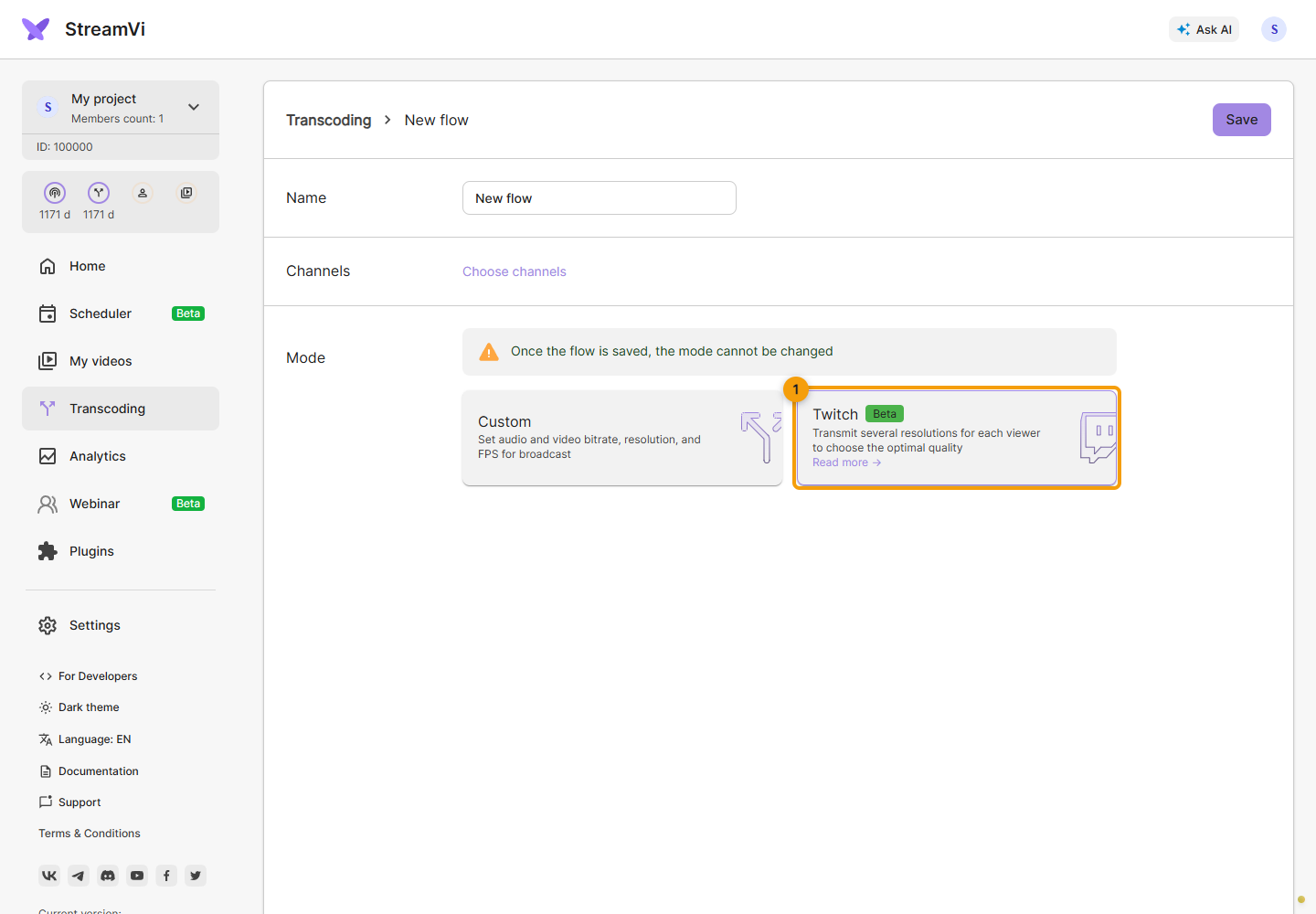
Make sure the destination channel is enabled, then start sending your source stream. Once the broadcast is live, open the Twitch player and check the available quality options.
What to expect
The available qualities depend on your source video and the platform's processing. Check the live result before promising viewers a particular list of resolutions. Transcoding cannot recover detail that is missing from the original picture.
A saved flow's mode cannot be changed. If you previously used Custom mode, create a separate Twitch flow and select it for the channel.
See the Twitch transcoding documentation for setup details.
