

 Back
Back Русский
 Английский
Mar 30, 2026
Webinars in StreamVi (beta)
StreamVi now supports webinars in beta. Host presentations, training sessions, and discussions directly in your browser, without installing additional broadcasting software.
Start your first webinar
- Open Webinar in your project. Activate a webinar plan under Settings → Tariff → Webinar.
- Create a room and share its link with your participants.
- Enable the destination channels on the project's main page and check their settings.
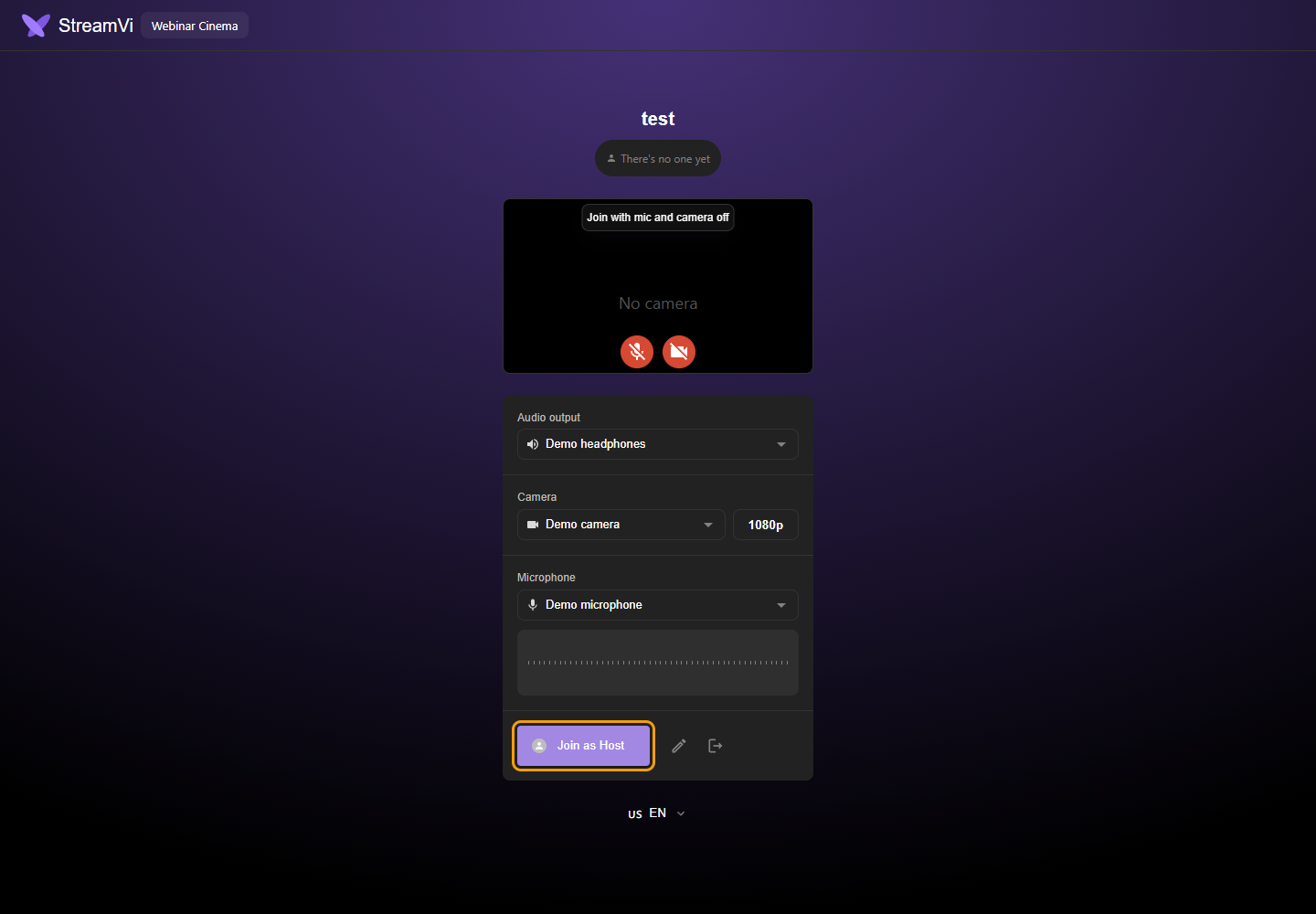
- Open the room link, choose your microphone and camera, and join the room. Turn on the devices you want to use and check your picture and sound.
- Inside the room, click Broadcast to open the broadcast controls, then select Status. When everyone is ready, click the round green play button to start broadcasting.
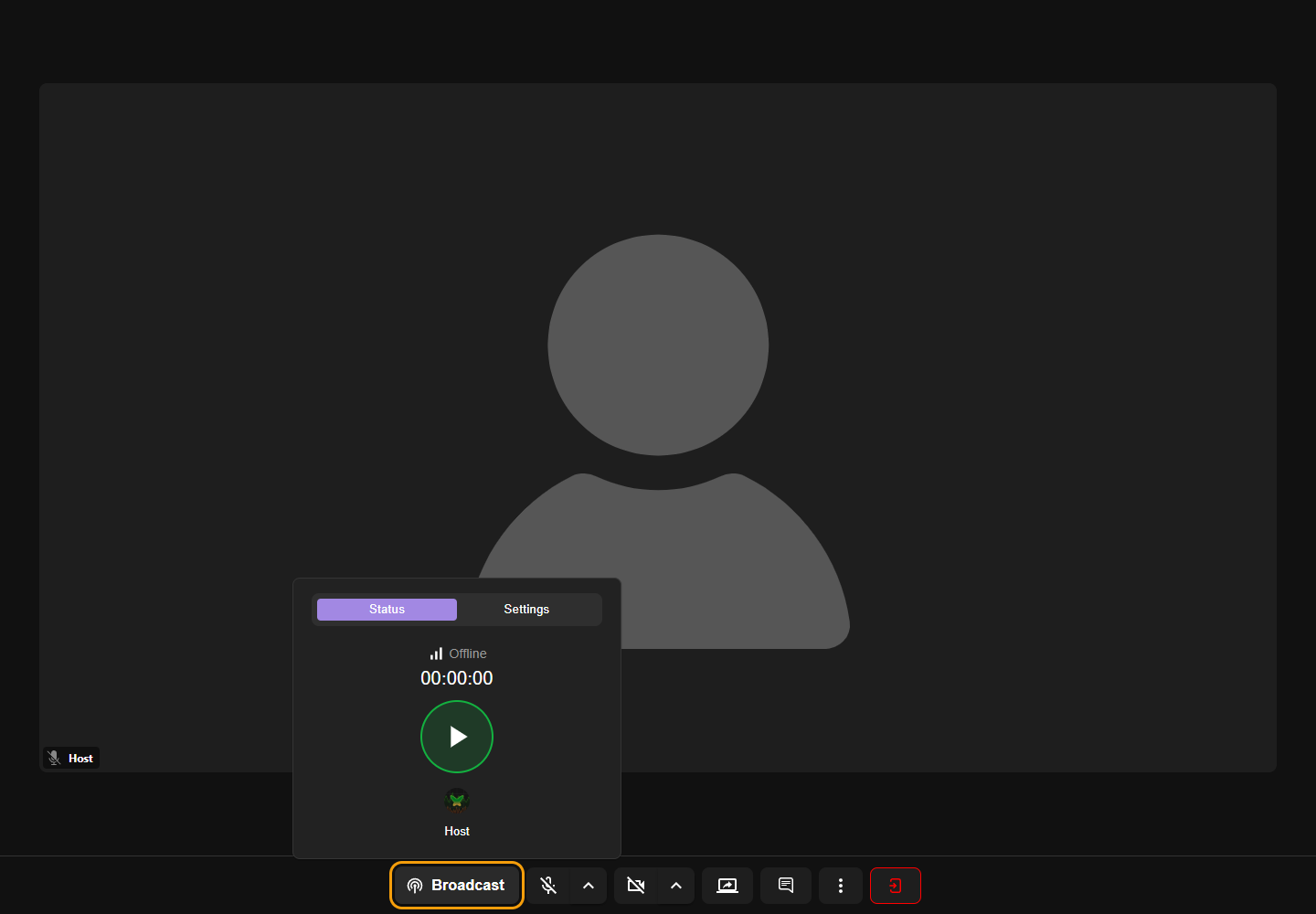
Creating a room or joining it does not start the live broadcast. After you start, check the video and audio on your destination platforms. A project can use one broadcast source at a time, so stop OBS or any other source for that project before starting a webinar.
Choose your camera quality
The July update added camera-resolution selection, replacing the previous 720p limit.
On the room entry screen, select your camera and click the resolution button beside it, such as 1080p. Choose an available quality and check the preview before joining. The options depend on the camera and the modes it supports.
Selecting a higher camera resolution does not raise the maximum broadcast resolution allowed by your webinar plan. Choose a quality that suits your camera, computer, and connection.
Plans and limits
The webinar plan is an add-on to restreaming, similar to transcoding. It determines:
- The maximum broadcast resolution.
- The total number of participants across all rooms.
You can upgrade the plan when you need more capacity and pay the difference.
You can create as many rooms as you need, but only one webinar can be live in a project at a time. Webinars are in beta, and we are improving them based on your feedback.
See the webinar documentation for more setup details. If you have tried the feature, tell us about your experience at help@streamvi.io or through support on VK.
