

 Back
Back Русский
 Английский
May 14, 2026
Stream from StreamVi to your own SRT server
StreamVi now supports sending a broadcast to an external SRT server. Use this when your receiving system accepts SRT and does not have a dedicated platform integration.
This sets up the StreamVi → your server connection. The address OBS uses to send video into StreamVi belongs to a separate connection.
Get the receiver settings
Check that your plan supports My RTMP/SRT server channels. Ask the receiving server's administrator for the complete SRT URL, a Stream ID if required, and the recommended latency. The receiver must be ready to accept the connection.
Add the destination
- On your project's main page, click Add channel.
- Select My SRT server.
- Enter a title that will identify the destination in your channel list.
- Paste the complete address into SRT URL.
- Check Stream ID and Latency. These fields are linked to the URL parameters, so review the other values after changing one.
- Click Add and wait for the channel to appear.
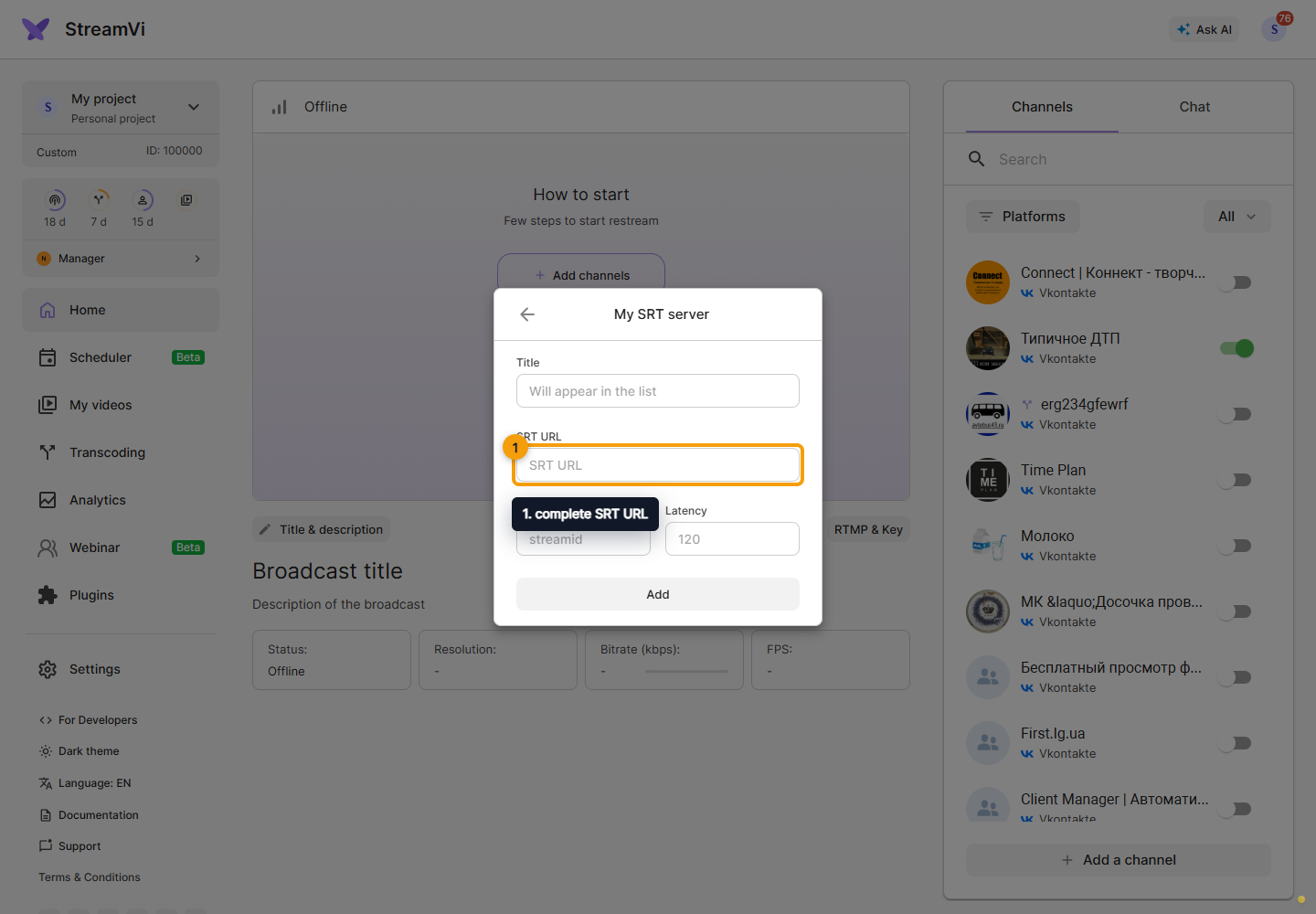
Choose latency according to the receiver's requirements and network conditions. A larger value leaves more time to recover lost packets but also increases delivery delay.
Verify reception
Enable the new channel and start your project's video source. Check the picture and audio at the receiving end. A destination appearing in the channel list does not by itself prove that the server is receiving video.
If it cannot connect, check the host and port, Stream ID, receiver mode, and UDP-port accessibility. Adding this destination does not mean replacing your OBS-to-StreamVi ingest address with the receiver's address.
See connecting a custom RTMP/SRT server for details.
