

 Back
Back Русский
 Английский
Jun 17, 2026
Check your route to the server with StreamVi Desktop
StreamVi Desktop's updated traceroute displays the route to a server in a table with latency, packet loss, and color indicators. It helps you gather evidence when streaming bitrate drops or OBS reports network-related dropped frames.
Run a route check
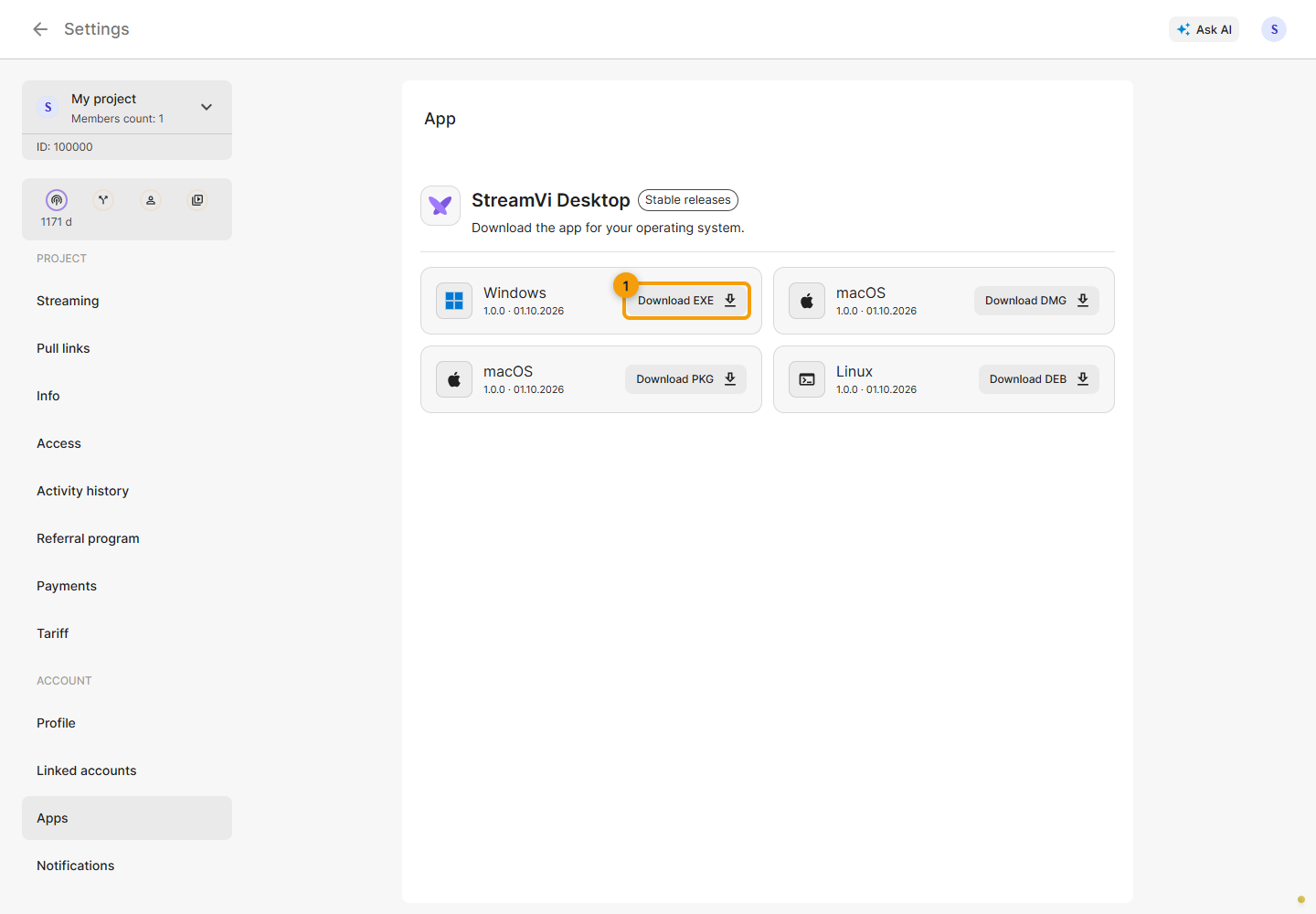
Update to the current application version. Download the installer under Settings → Apps in the Cabinet or from the StreamVi Desktop releases page.
Open traceroute in Desktop, select the server receiving your stream, choose a test duration, and start the test. Wait for several measurements. A single reading or latency spike does not describe the entire connection.
Compare a test taken during the problem with one taken when the stream is working normally. If you use Wi-Fi, a separate wired test can help you assess the local connection.
Read the whole route
Look at the route as a whole, especially the result at the destination server.
- High latency at the first hop is a reason to investigate your local network, but one spike does not prove that it is faulty.
- A missing reply from an intermediate hop does not by itself mean that video packets are being lost. A router may limit diagnostic replies while continuing to forward traffic.
- Loss or increased latency that continues through later hops and reaches the destination deserves closer investigation.
Colors highlight unusual results; they do not replace comparison over time. OBS rendering and encoding overload are separate problems, so check which dropped-frame or skipped-frame counter is increasing.
When contacting support, include the result, test time, selected server, and streaming bitrate. A stream key is not needed to investigate the route.
See the network troubleshooting guide for additional checks.
