

 Back
Back Русский
 Английский
Sep 25, 2026
Project activity history: see who changed a setting
StreamVi now includes Activity history for projects. When a setting changes, a channel is transferred, or a member's access is updated, the history helps you find the event and identify who performed the action.
Find an event
Select the relevant project and open Settings → Activity history. Available events are grouped by day. Each row shows the person or actor, a description, and the time.
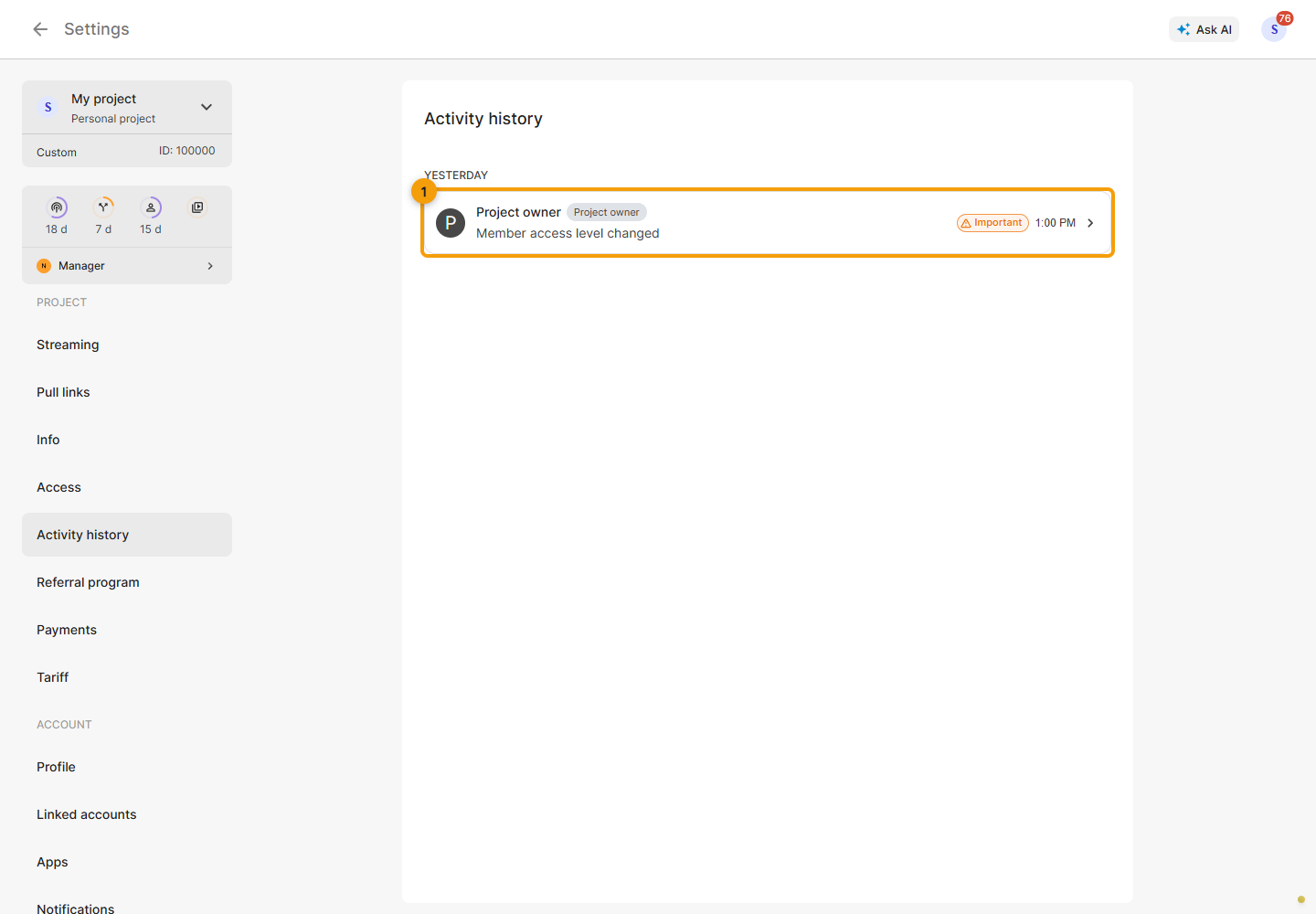
Actions performed through an integration may include a source badge. Hover over a relative time to see the exact date and time.
Scroll down to load older entries. An empty list means that no events are currently available; it does not prove that nothing has ever changed in the project.
Open the details
Click an event row to open the details panel. It shows the affected object, actor, source, and available event information.
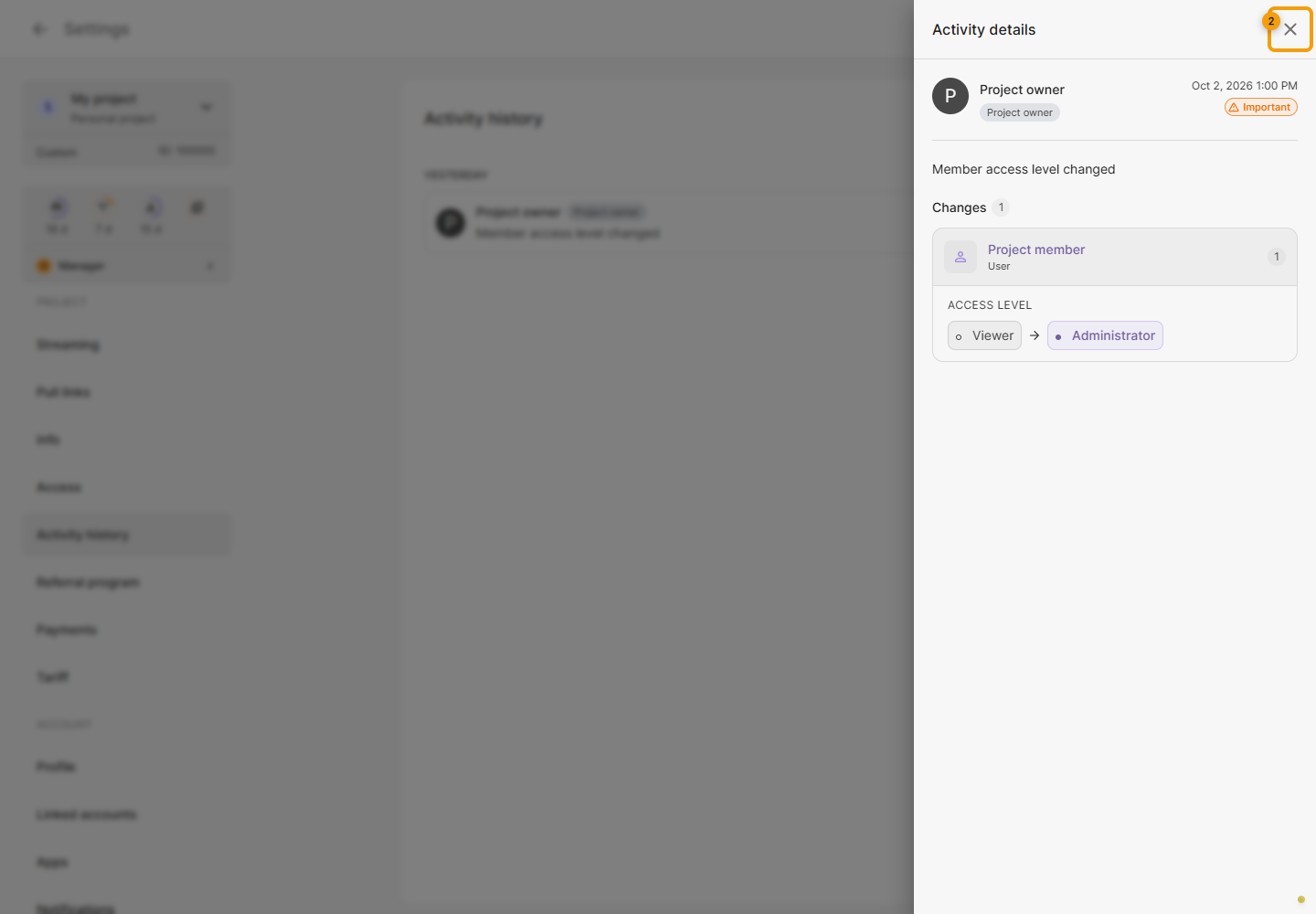
When an event includes changed values, you can compare the before-and-after state. For a member-access change, for example, this can show the previous and new permission levels. Some sensitive values may be hidden.
Use it with your team
The history is useful when several people manage a project. Compare the event time with your team's work, or share a specific event with support if a change had an unexpected result.
Viewing an event does not undo it. To correct a setting, open the relevant project section. For bitrate drops and errors during a broadcast, use Analytics.
See the project activity history documentation for more details.
