

 Back
Back Русский
 Английский
Oct 23, 2026
What is multistreaming? One live stream, multiple platforms
Your OBS scene is ready, the microphone works, and it is time to go live. But some viewers follow you on YouTube, others on VK, and others only watch Twitch. Running three separate shows is inconvenient. Multistreaming lets you deliver one broadcast to the platforms your viewers already use.
What is multistreaming?
Multistreaming means broadcasting the same live show to several platforms at the same time. You might present a product once while viewers watch on YouTube and VK. You will also hear it called simulcasting or simulstreaming.
In video delivery, restreaming usually describes receiving a stream and forwarding it. A restream can have one destination; multistreaming has several. Uploading yesterday's recording to another site is a separate publication rather than a simultaneous live broadcast.
YouTube describes two approaches: send streams from your device, or use a cloud service to distribute one incoming feed.
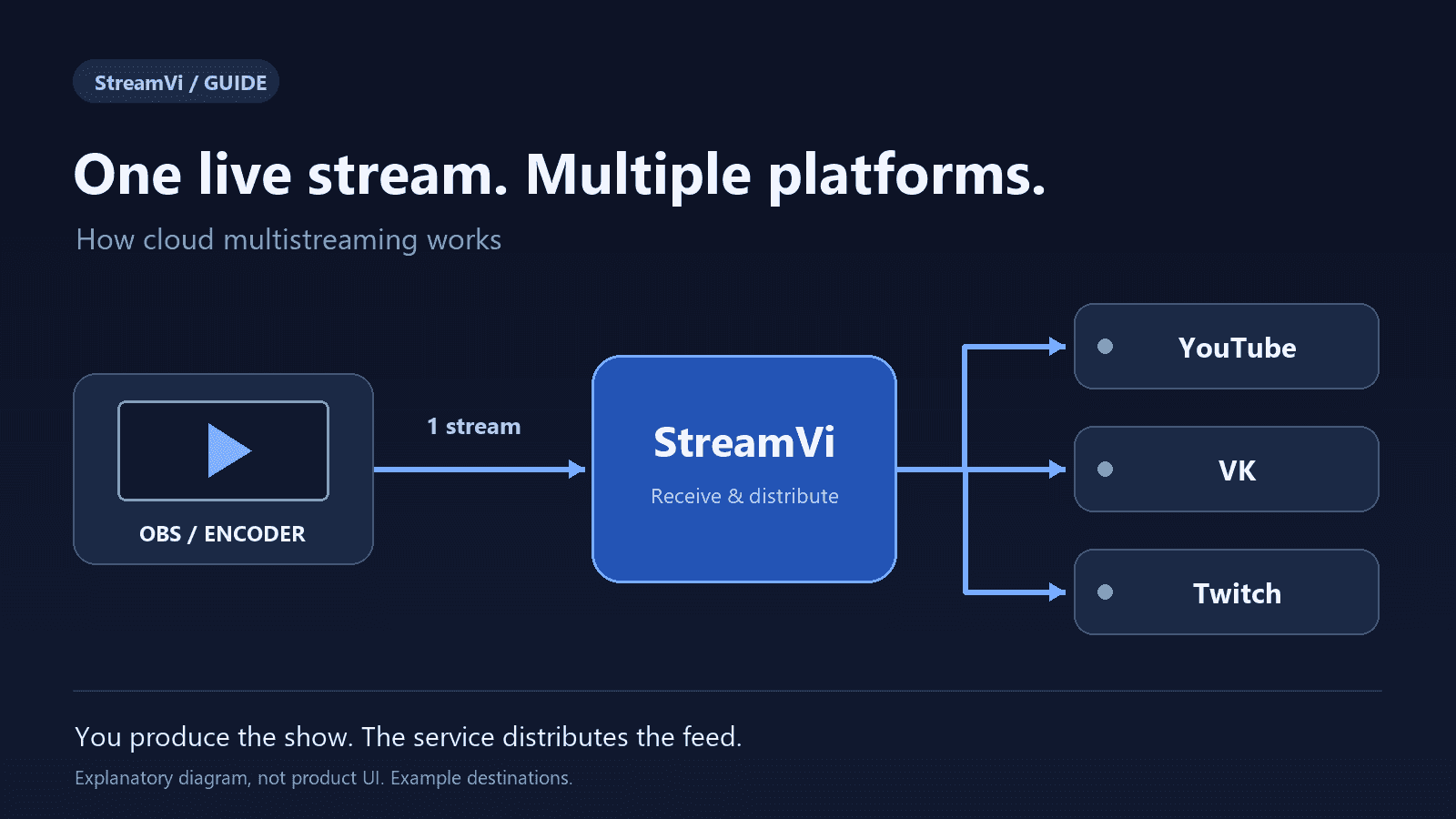
Cloud multistreaming explained. Destinations are examples; broadcasting depends on the connection, account eligibility and plan.
What changes for you and your viewers?
You prepare one show: the scenes, audio and presentation. Viewers choose where to watch and chat. You do not have to move everyone to the same service first.
| Use case | How multistreaming helps |
|---|---|
| Gaming or talk streams | Followers on different channels can watch the same show. Compare audience response over several broadcasts. |
| Business webinars and product launches | Deliver one presentation to several public company channels. |
| Online schools | Teach an open lesson once while prospective students watch on their preferred platforms. Check viewing permissions separately for paid or private classes. |
| Regional TV | Deliver a prepared programme to several online destinations. For your own receiver, see connecting an SRT server. |
Multistreaming makes your broadcast available in more places. It does not guarantee more views or sales. Promotion, content and audience interaction still matter. Platforms also have separate chats and different playback delays: viewers may not see the same moment at exactly the same second.
OBS plugins or a cloud service: what is the difference?
When software or a plugin sends a separate stream to each platform, all those streams use your upload connection. You maintain the output settings and connections on your device. Encoding load depends on whether the outputs reuse already encoded video or create separate versions.
With cloud multistreaming, you send one stream to a service, which delivers it to your selected platforms. Connecting OBS to StreamVi this way does not require a multiple-output plugin. Your computer still processes scenes, audio and the source video, and the cloud service becomes another link in the delivery chain.
For example, if video and audio together use 6 Mbps, three direct uploads require roughly 18 Mbps of outgoing traffic. One upload to the cloud uses roughly 6 Mbps. This is an arithmetic example excluding network overhead, not an internet-speed recommendation. Leave headroom and test under realistic conditions.
What if platforms need different quality settings?
Without conversion, the source stream must suit every selected destination's resolution, frame rate, codec and bitrate requirements. Do not assume that YouTube's input settings are suitable for every other platform.
To produce different versions, you need transcoding. StreamVi configures this separately; check its transcoding documentation and your project's plan for availability and cost. Creating new video versions is a different task from forwarding one stream to several destinations. There is also a separate guide to the Twitch mode.
How to multistream with StreamVi
For your first test, pick two platforms where you already have accounts with permission to go live. Check simultaneous-channel and bitrate limits in the restream plan. Connecting a channel does not grant streaming eligibility on the destination platform.
1. Connect your destinations
Sign in to StreamVi, select the correct project and choose Add a channel on its main page. Select a platform and follow its connection process. This may involve authorization or entering a server address and key supplied by the destination. Repeat for your second channel.
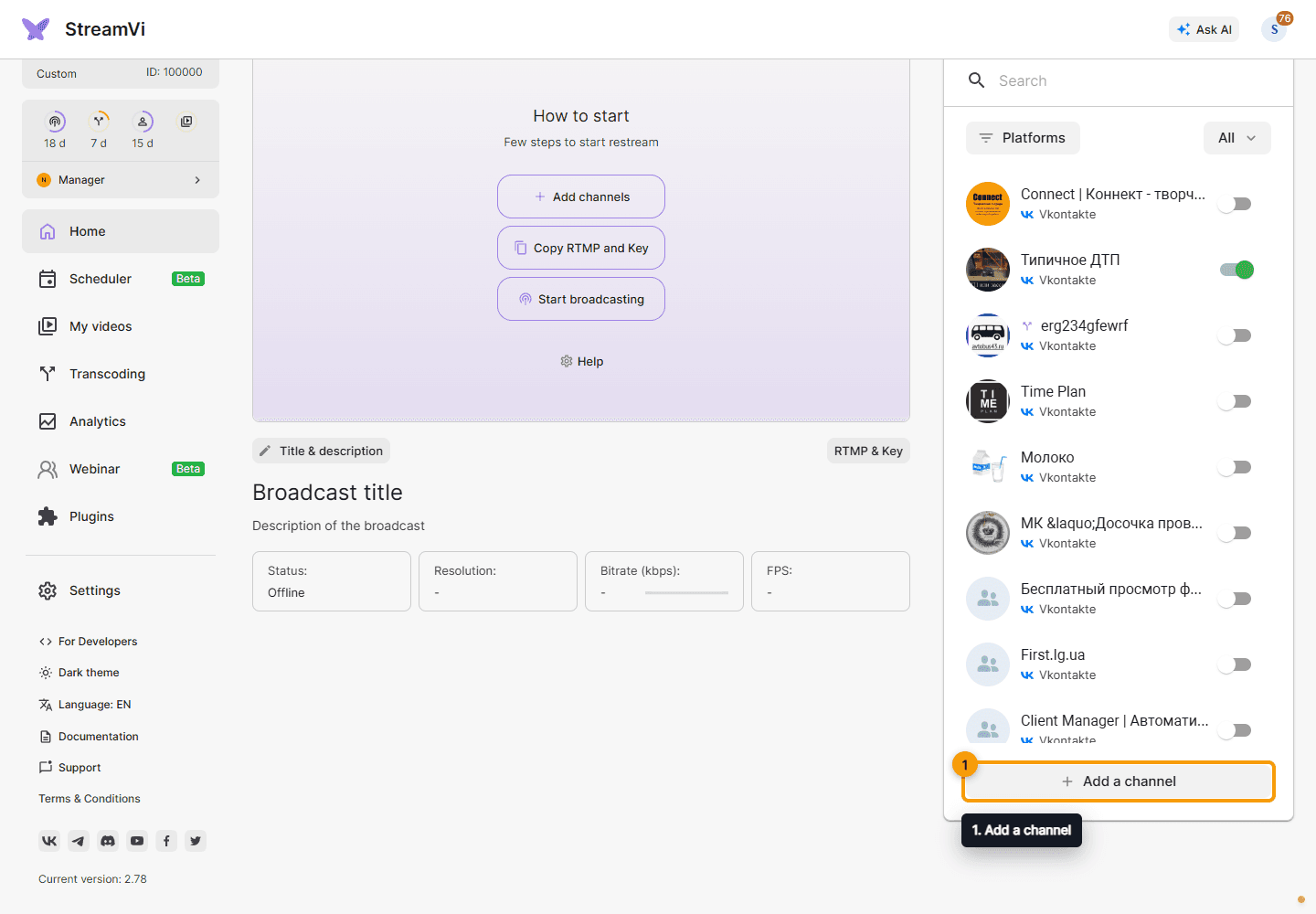
An actual screenshot from StreamVi's documentation using demo data. On a phone, open the Channels tab first.
If a platform has no ready-made connection, check whether it supports manual RTMP/SRT input and whether your plan includes that channel type. Use the destination connection guides to choose the appropriate method.
2. Connect OBS to StreamVi
Open RTMP & Key on your project's main page. Check the available servers and upload speed, choose an RTMP server, and copy its address and your project key.
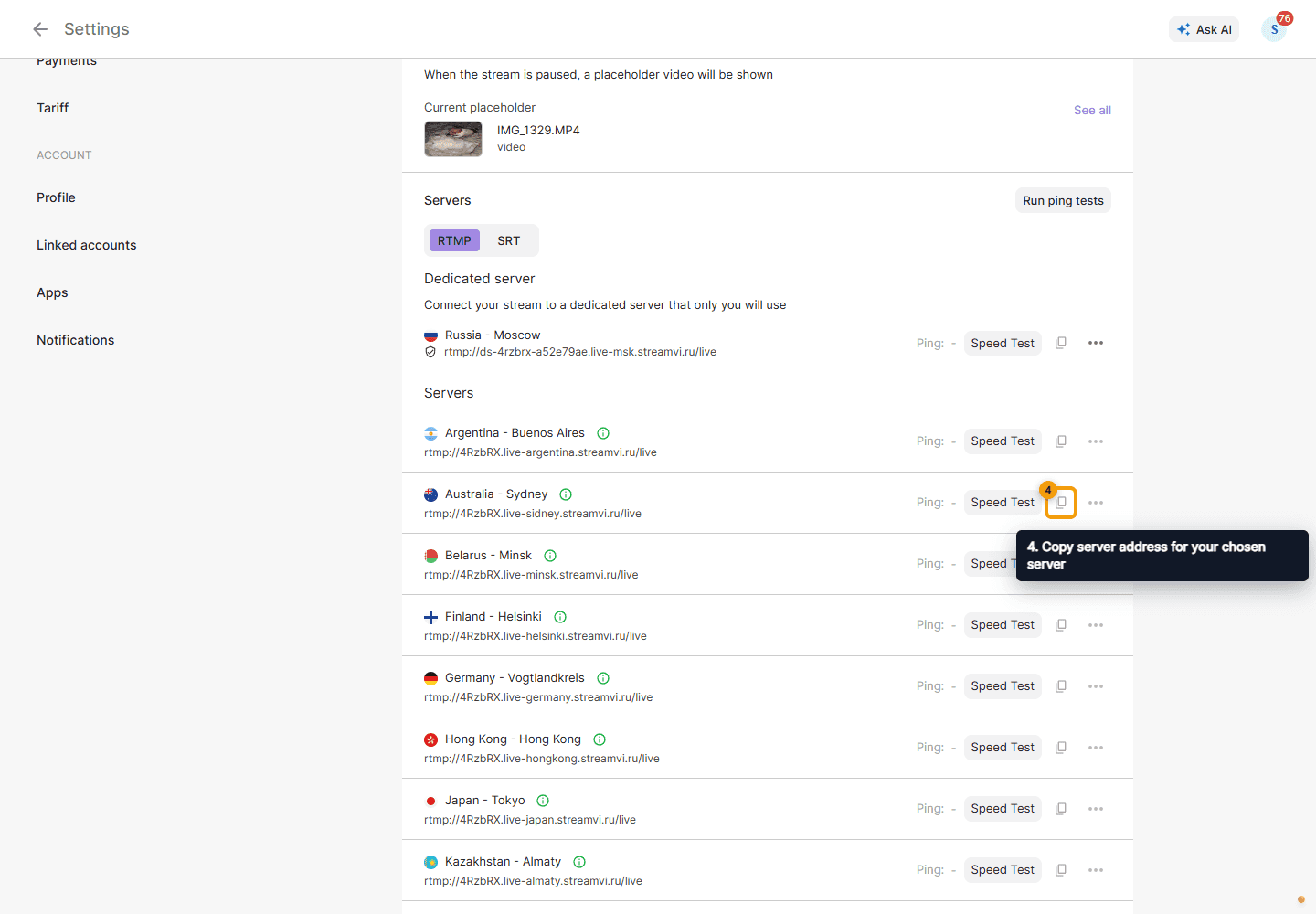
An actual documentation screenshot showing how to copy an address from the server list. Copy the key separately; use your own project's values.
In OBS, open Settings → Stream and choose Custom as the service. Paste the StreamVi address into Server and the project key into Stream Key. Save the settings. Labels may vary slightly between OBS versions.
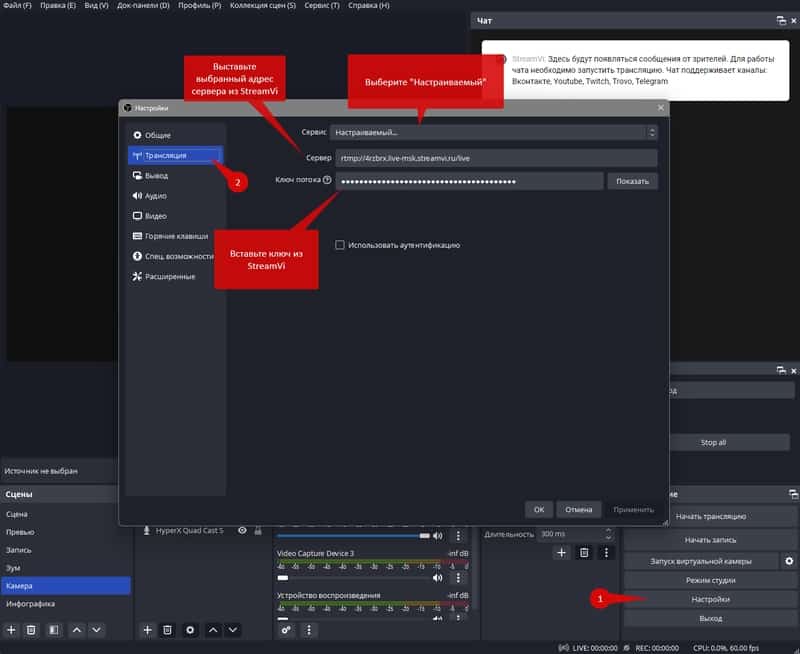
An actual OBS screenshot from StreamVi's documentation, shown in Russian. It illustrates field positions; do not copy the example credentials. An equivalent English-interface screenshot is not yet available for this draft.
Keep the two connections separate: OBS → StreamVi uses your StreamVi project key; StreamVi → platform uses that destination's connection. Keep keys private. See the OBS setup guide for details.
3. Run a test and check every platform
Enable the required channel switches in StreamVi, then start streaming in OBS. Wait for incoming video in the dashboard and open the broadcast on every destination to check picture and sound. If a platform requires a separate action to go live, complete it there.
Check the viewer-facing pages: incoming video in StreamVi does not confirm that every destination is live. If only one platform works, start with the other channel's settings and permissions. The broadcast guide covers starting and stopping.
For presentations or lessons, you can also use browser-based webinars without OBS. This feature is in beta and has its own plan and conditions.
How do you keep up with several chats?
StreamVi's multichat collects messages from supported connections in one window. Chat availability depends on the integration and permissions. A manual RTMP/SRT video connection does not automatically add chat. See the chat documentation.
For Twitch, review the Simulcasting Guidelines. They distinguish personal tools from combining activity in the broadcast. Start with a private working chat panel; check the current rules before displaying other platforms' messages on stream. Also review any platform agreement that applies to you.
Your first-broadcast checklist
- Select the correct project and enable only the intended destinations.
- Check streaming eligibility, channel permissions and your plan.
- Match video settings to the destinations and test upload speed with headroom.
- Test the microphone, required audio sources, motion and slide readability.
- Assign someone to monitor chats and stream health if you are presenting.
- Know how to end the broadcast, and check the destination pages afterward, especially when disconnect protection is enabled.
Start with two destinations and a short rehearsal. Open StreamVi, connect your channels and test one feed from your usual streaming software. Once the workflow feels familiar, add platforms where they serve your audience.
