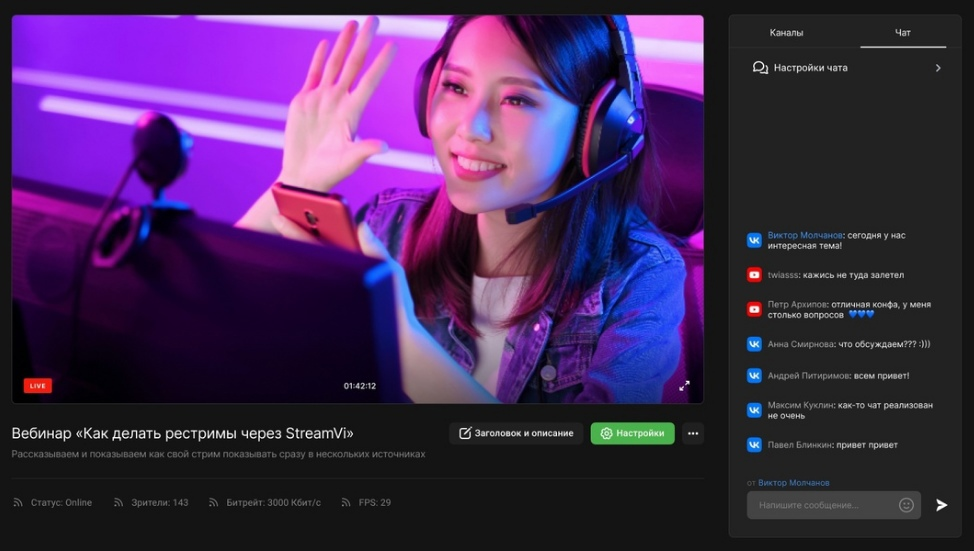
Chat
On the project's main page, open Chat. Multichat collects messages from supported connections in one window. A video channel in the list does not guarantee chat access: platform authorization must be valid, and a Telegram group is connected separately.
Check the available channels and sending mode in the chat panel before sending. Messages from the input are delivered to supported connected chats; they are messages to viewers, not local notes. Manual RTMP/SRT connections may have no chat.
Settings and embedding
Open Chat settings. There are two different links: broadcast embedding (widget) and moderation (dock panel). Use the widget to show messages on stream and the moderation link for a separate working panel. Copy the whole link and keep it private: it contains an access key.
After changing appearance, copy a new link and update OBS. Refresh chat link key requires confirmation and changes access; replace the links everywhere they were used afterwards.
If there are no messages, check the project, active platform broadcast, chat connection and filters. If only the OBS source is empty, also check its link and message-hiding settings.