ru

Members and invitations

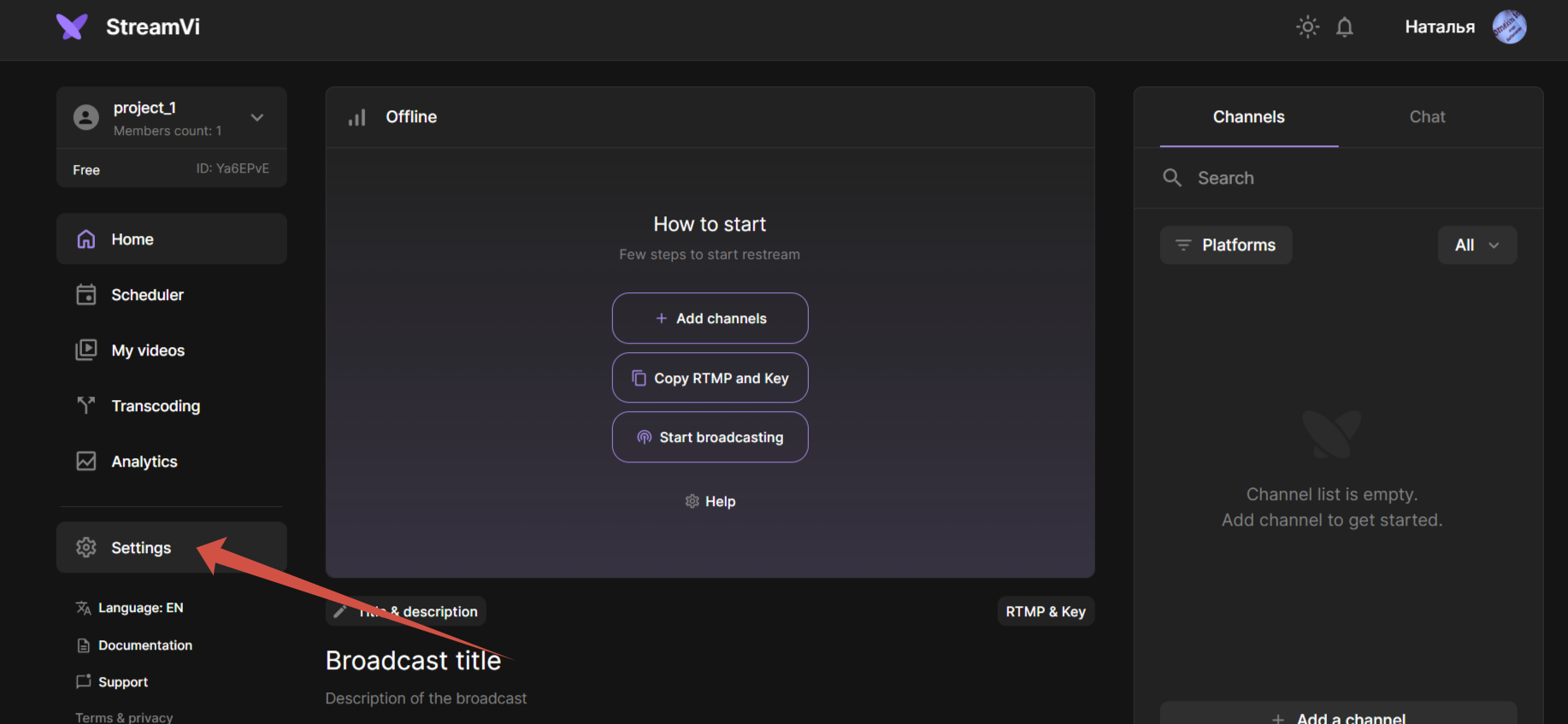
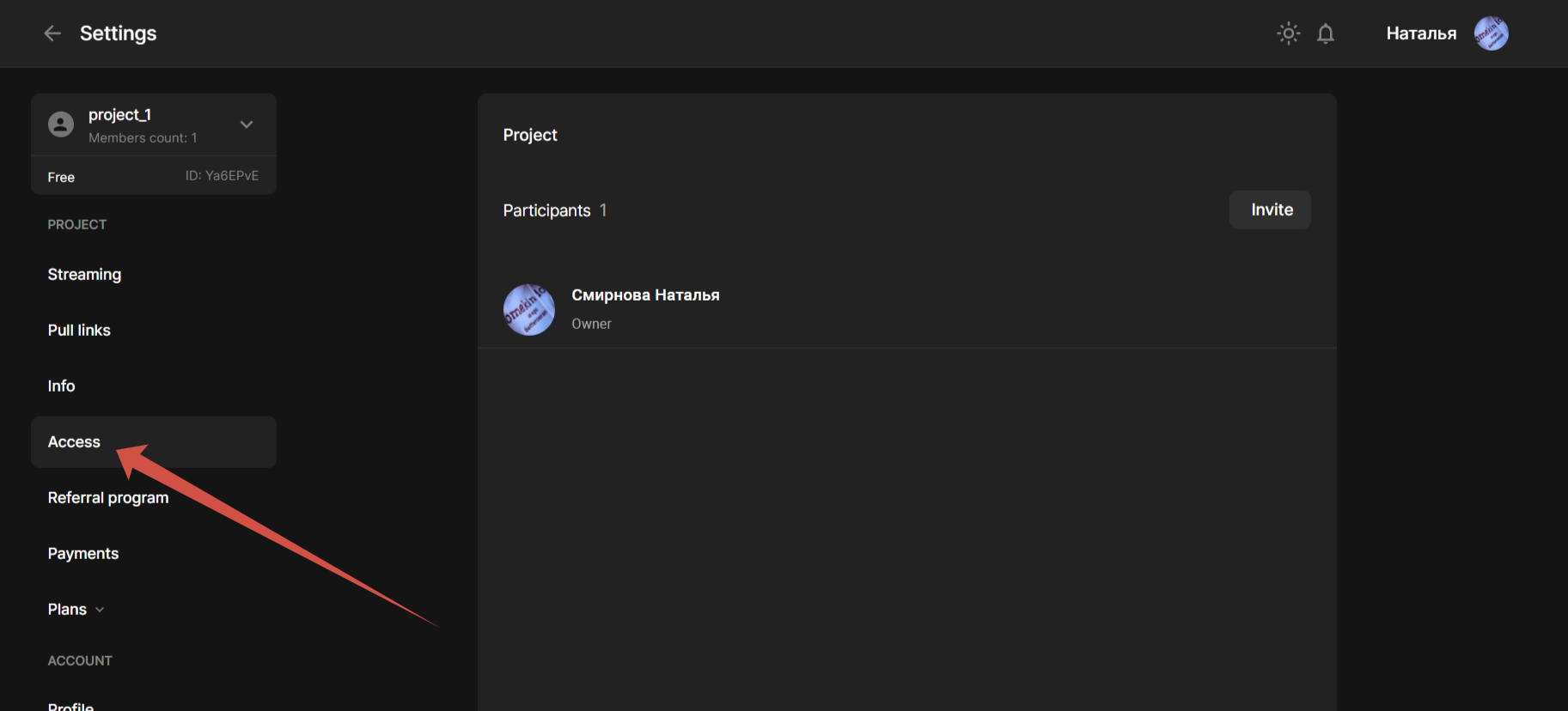
Select a team project and open Settings → Access. Member management is unavailable in a personal project: select another project or create one.

Invite a member

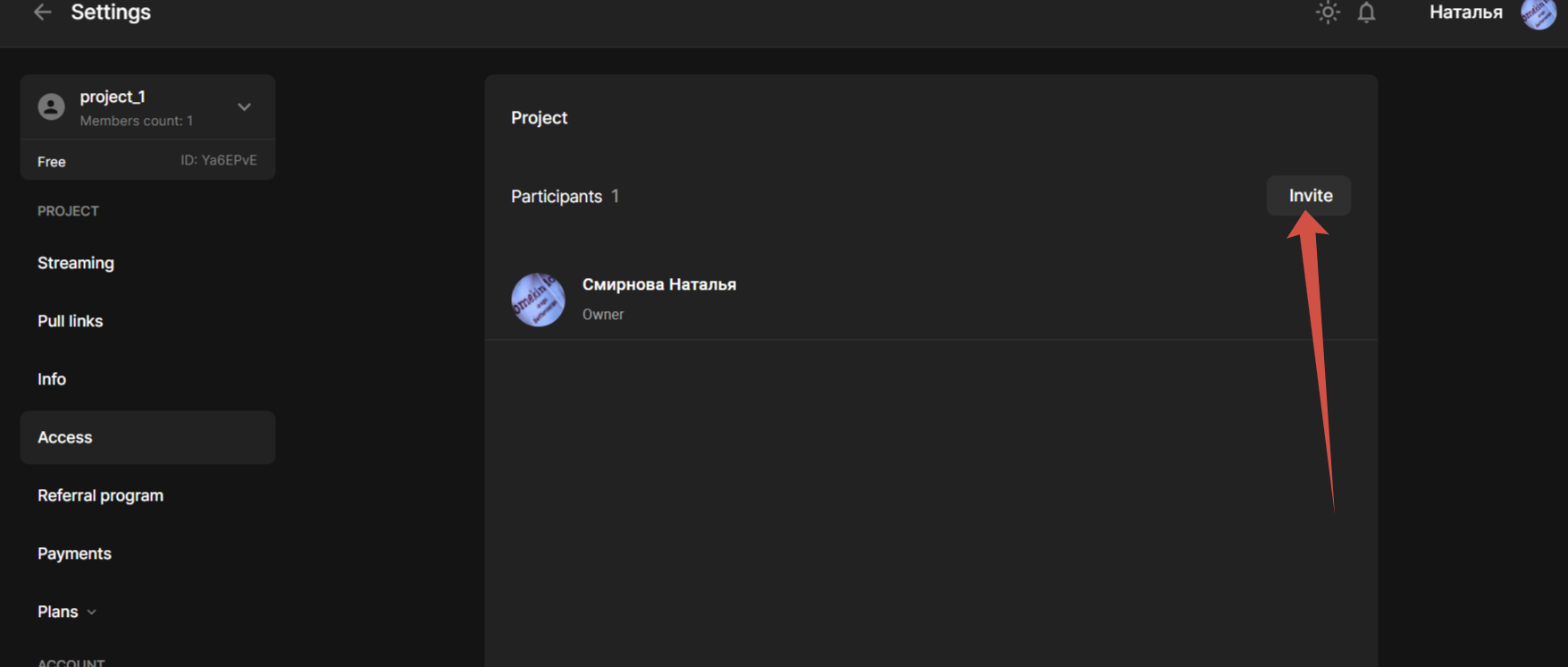
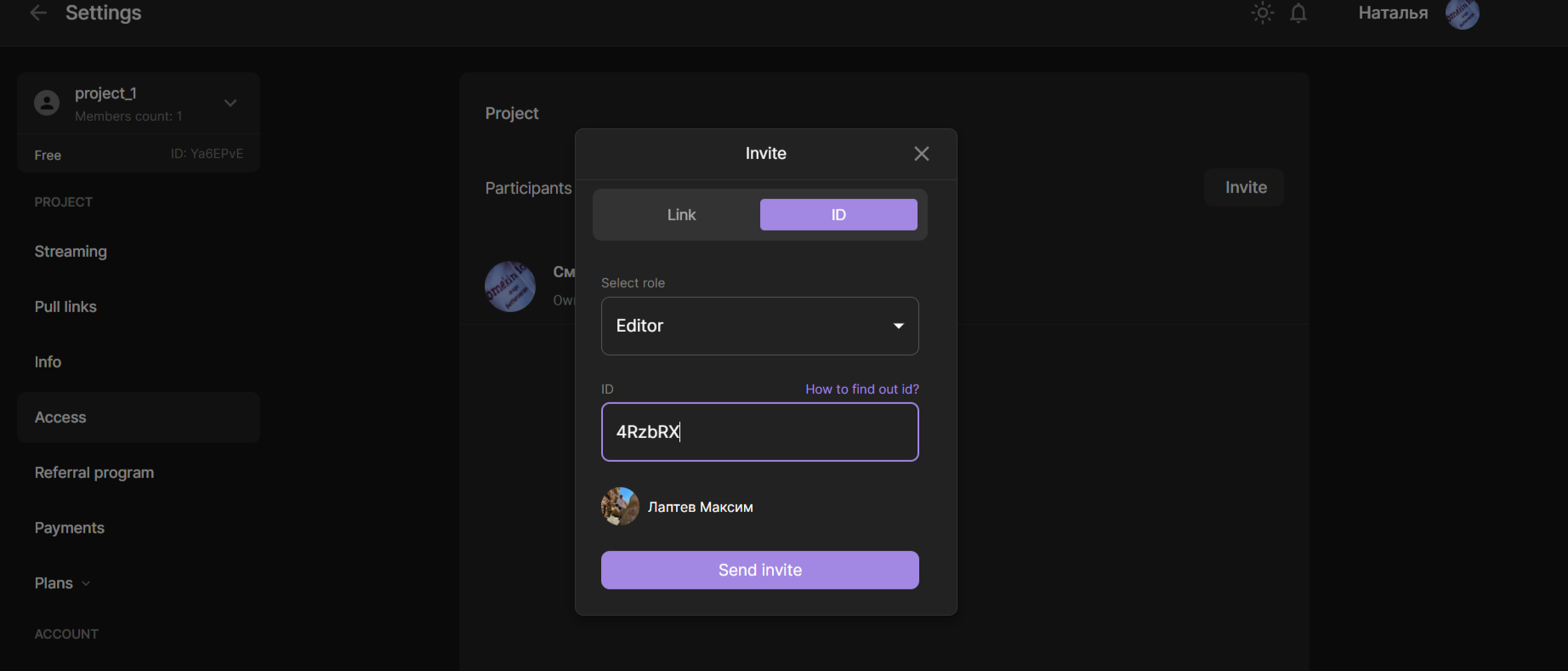
An owner or administrator clicks Invite. Choose Administrator, Editor or Observer. Administrators help manage the project and access, editors work with broadcasts and channels, and observers are intended for viewing. Specific actions also depend on channel permissions and the project's available features.

Use the Link tab and enter the recipient's email, or use Identifier and enter their StreamVi user ID. For an ID invitation, check the user preview. A social network ID is not a StreamVi ID.

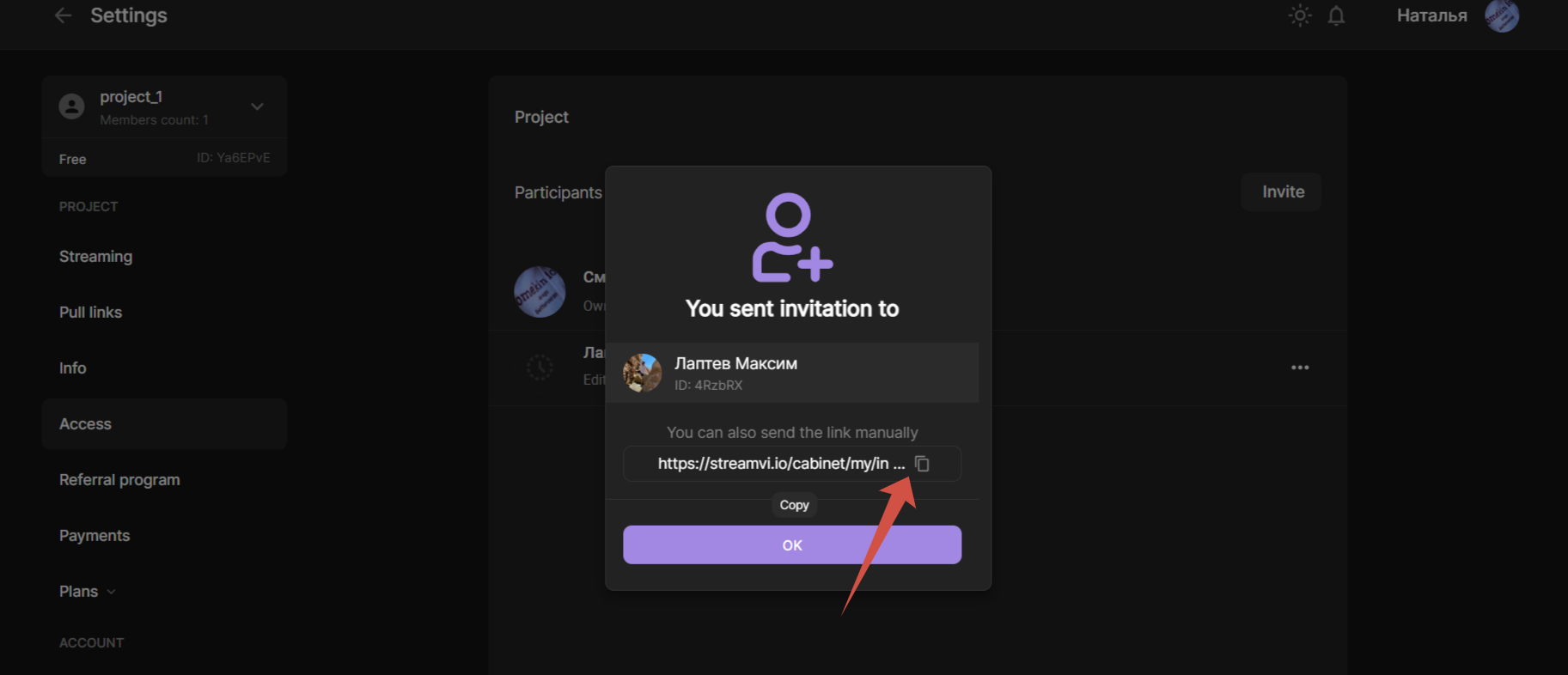
Click Send invitation. After success, copy the invitation link and send it to the recipient. The link can also be copied from the pending invitation in the member list.

Accept an invitation

The recipient opens the link and signs into their StreamVi account. Check the project and offered role, then accept. Declining does not add the recipient to the project. Switch to the intended account before confirming if another account is open.

The list shows pending, declined and expired invitations. The interface calculates a seven-day invitation lifetime; check the status of the specific link. Ask the sender for a new invitation if it has expired.

Change access

A member's menu provides actions allowed for your role: changing the role and Remove access. Choosing an ordinary role applies the change immediately. Removing access and transferring ownership open confirmations. Transferring ownership gives project control to another member; the dialog warns that the action cannot be undone.

Configure access to an individual channel in its settings. Available changes can be reviewed in Activity history.