

 Русский
 Английский
Creation
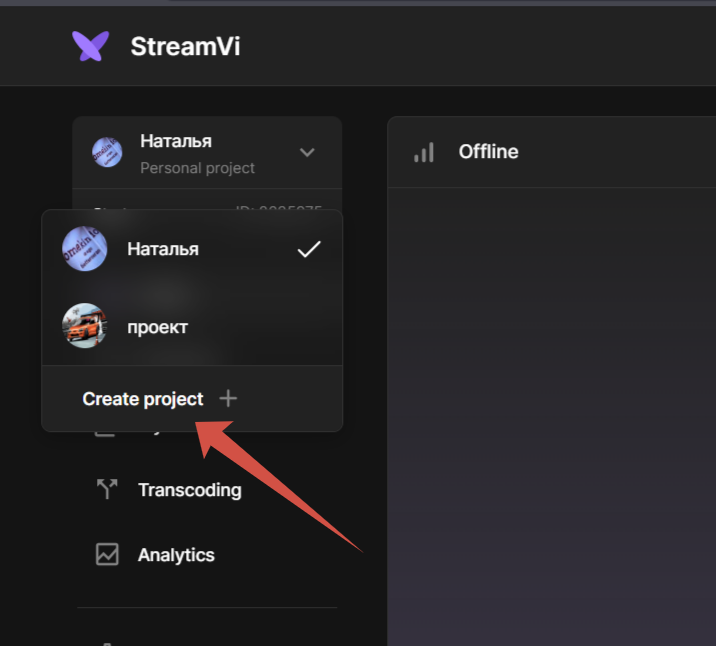
To create a project, hover over the profile and select "Create Project” from the menu that opens
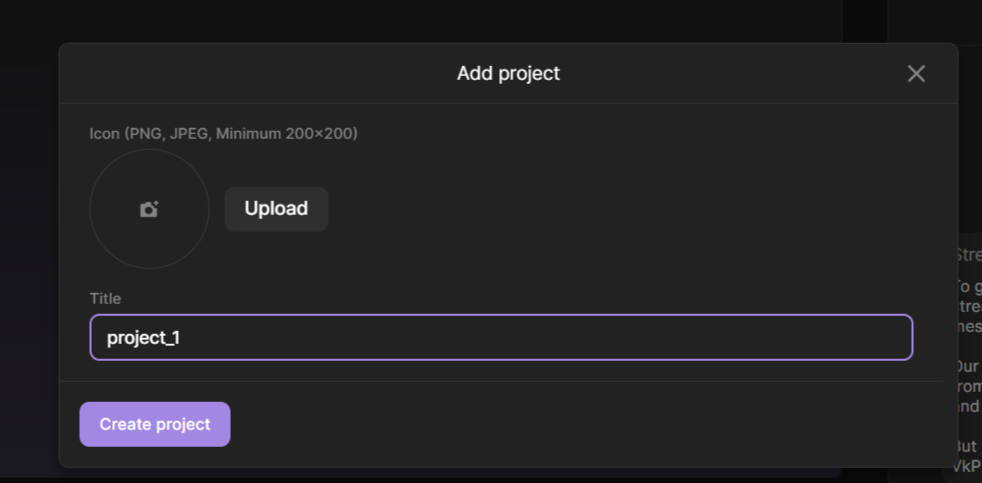
In the window that opens, upload the image and enter the name
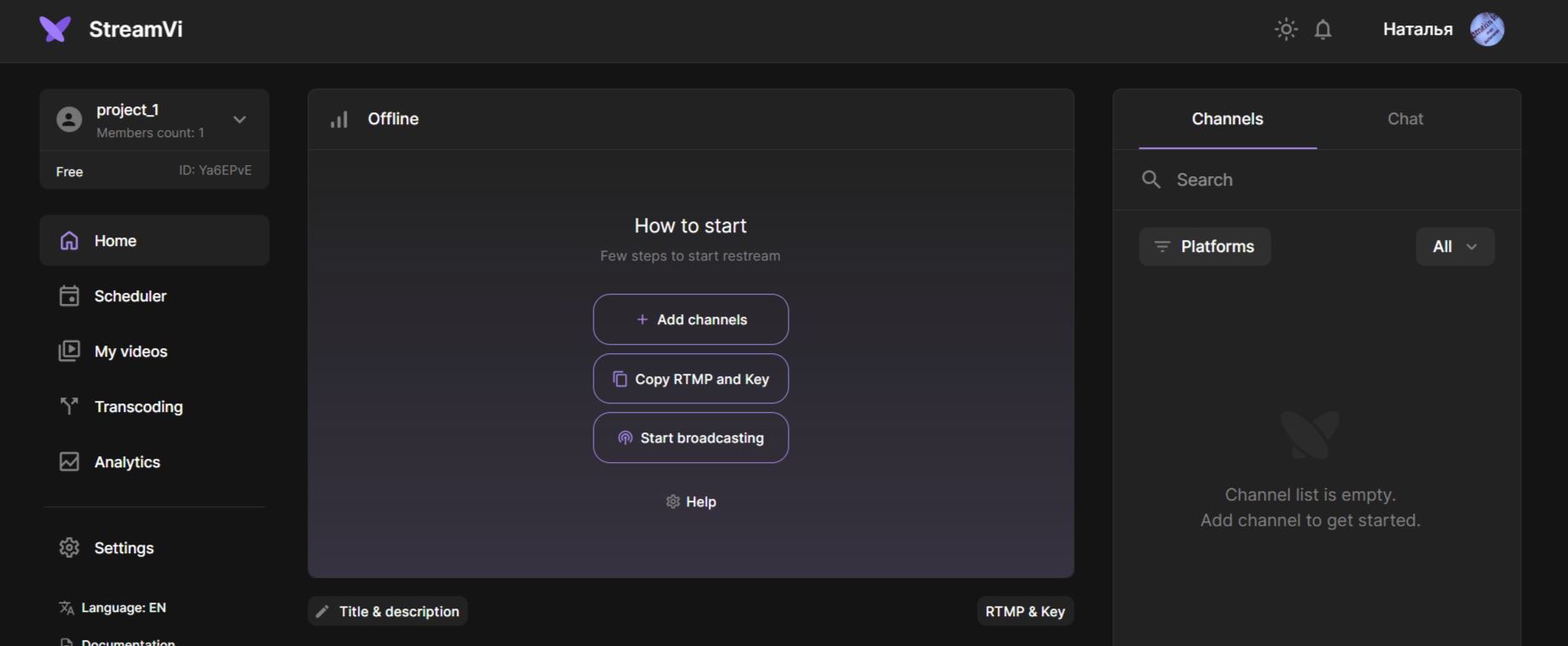
After creation, the project field will open immediately.
To create a project, hover over the profile and select "Create Project” from the menu that opens
In the window that opens, upload the image and enter the name
After creation, the project field will open immediately.
 Country: