

 Русский
 Английский
Starting a broadcast
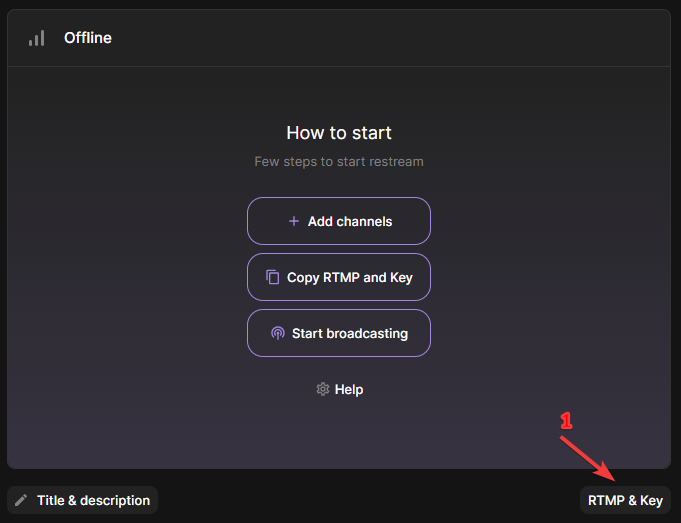
The data for the launch is located in the “RTMP and Key" section
To start the broadcast, go to the settings section. In this section, you need to select one of the servers by copying its address, as well as copy the key to enter this data into the program for broadcasting
When you click on the "test" button, the ping to all servers will be tested. The average value will appear next to each server. The lower the ping, the faster the connection to the server. In most cases, this is enough to determine the best choice of servers relative to your location.
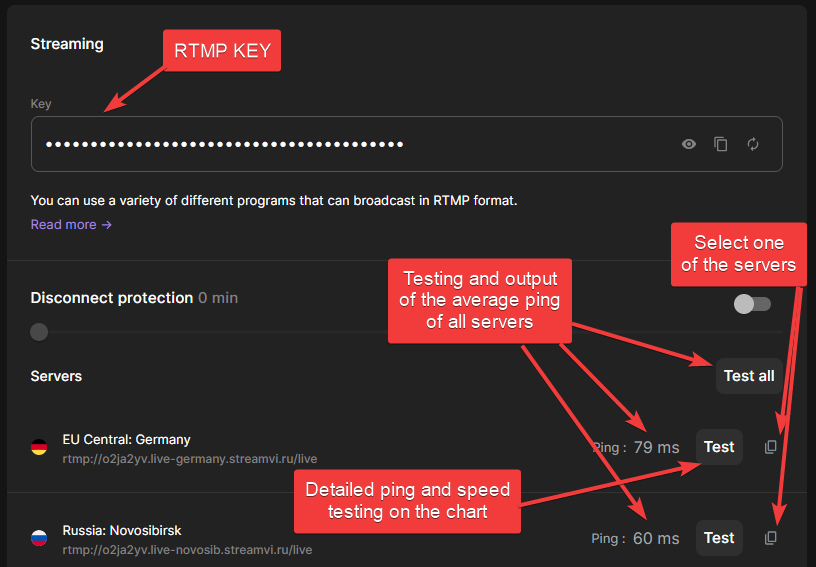
To determine the ping and speed in more detail
💡 Ping and speed may vary depending on a variety of factors, such as how busy your provider and trunk lines are at the moment.
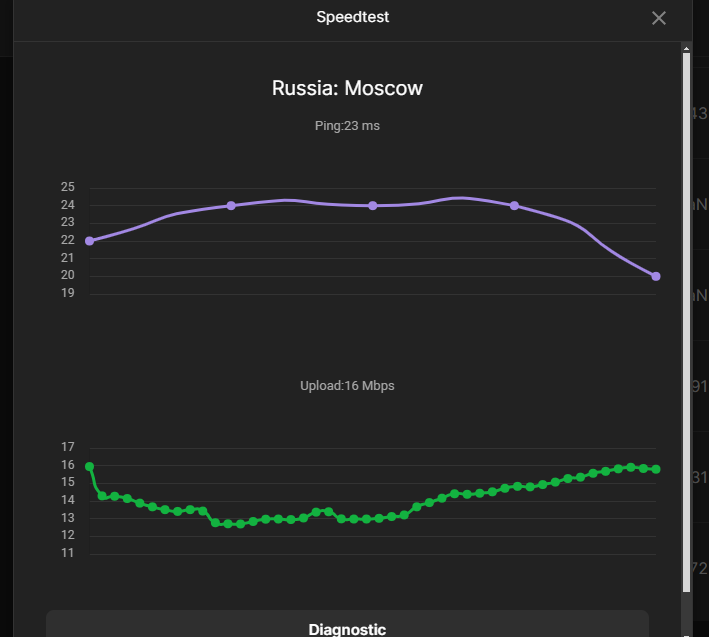
In the detailed test, it is useful to find out what your minimum channel speed is, so that you can set the bitrate no lower than this value. The graph shows that the speed sometimes drops to 16 mbit, which means that the bitrate should be set with a margin-no more than 13000-16000 kbit
If you are running a broadcast from another user or organization, then you need to change the server address and key in your program.
The next step is to select and configure the program for broadcasting
