ru

Configure transcoding

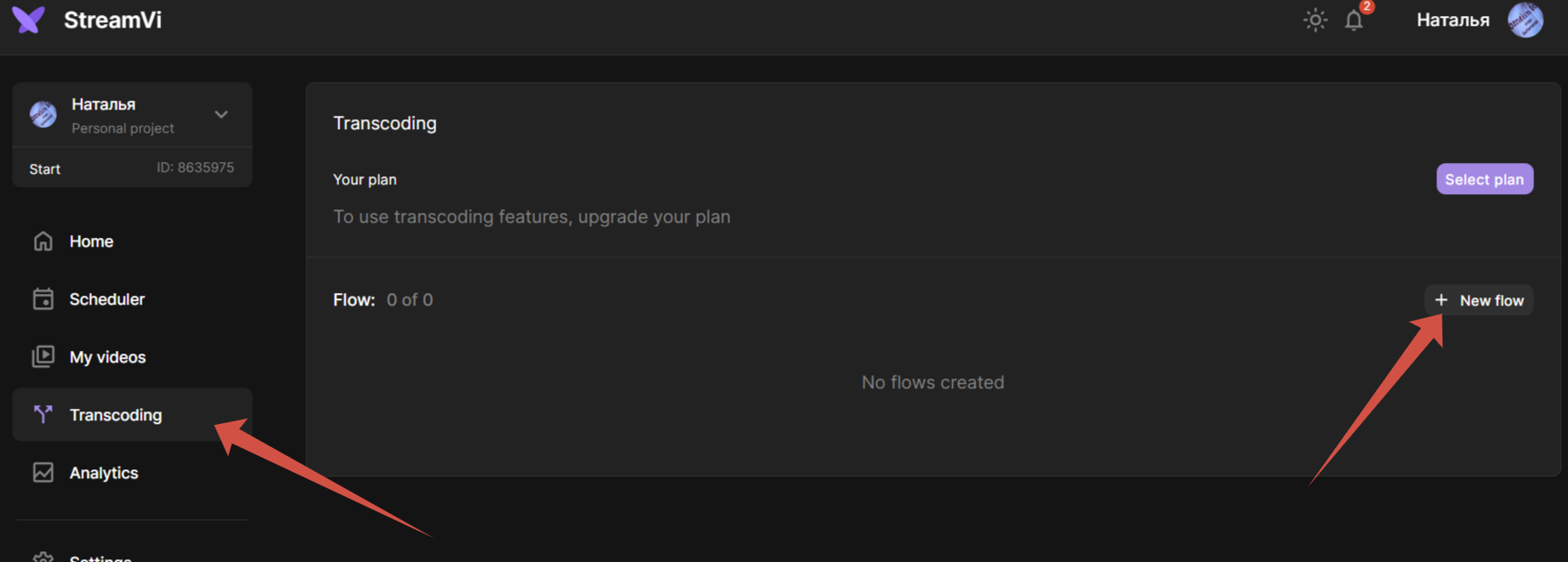
Open Transcoding in the left menu. The current plan, expiry and flow usage appear above the list. An active transcoding plan is required; the plan limits the number of available flows.

Create a flow

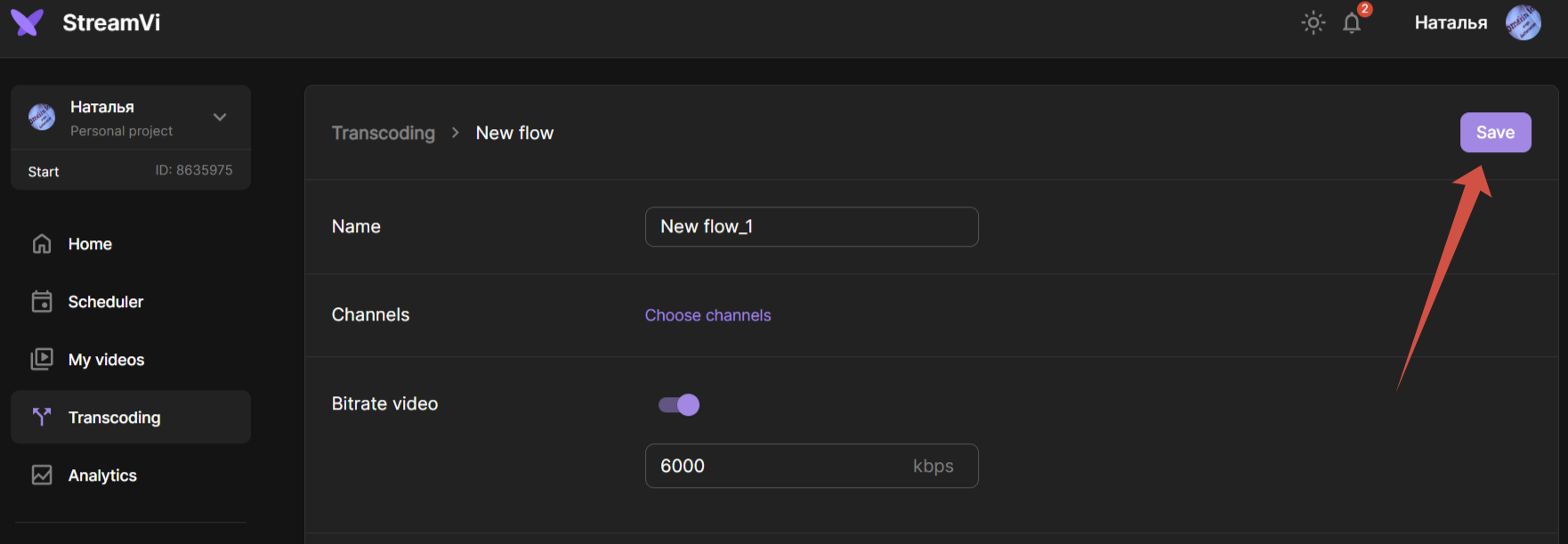
Click New flow, enter a name and choose channels. The name is required and allows up to 255 characters. A flow groups channels that need the same processing settings.

Configure transcoding. 1. enter a name

Choose Custom for manual settings or Twitch for multiple Twitch quality variants. The mode cannot be changed after saving: create a separate flow for another mode. Twitch mode limits selection to suitable channels; see Twitch mode.

In Custom, select H.264 or HEVC. Enable only the settings you want to specify and fill in the fields that appear. Numeric fields accept integers:

SettingRange accepted by the form
Video bitrate1,000–100,000 kbps
Audio bitrate60–1,000 kbps
FPS5–60
B-frames0–3
Width and heightwidth: 100–4,000 pixels; height: 100–4,000 pixels
Delay0–1,200 seconds

These are form limits; your plan and destination platform may impose further limits. Rotation can be off, left or right. Preset is shown only with the corresponding access permission.

To choose a preset, enable its switch and select a value from the list that appears.

Click Save. The flow appears in the list after successful creation. It processes the incoming broadcast for assigned channels; creating a transcoder does not start a broadcast.

Edit, stop or delete

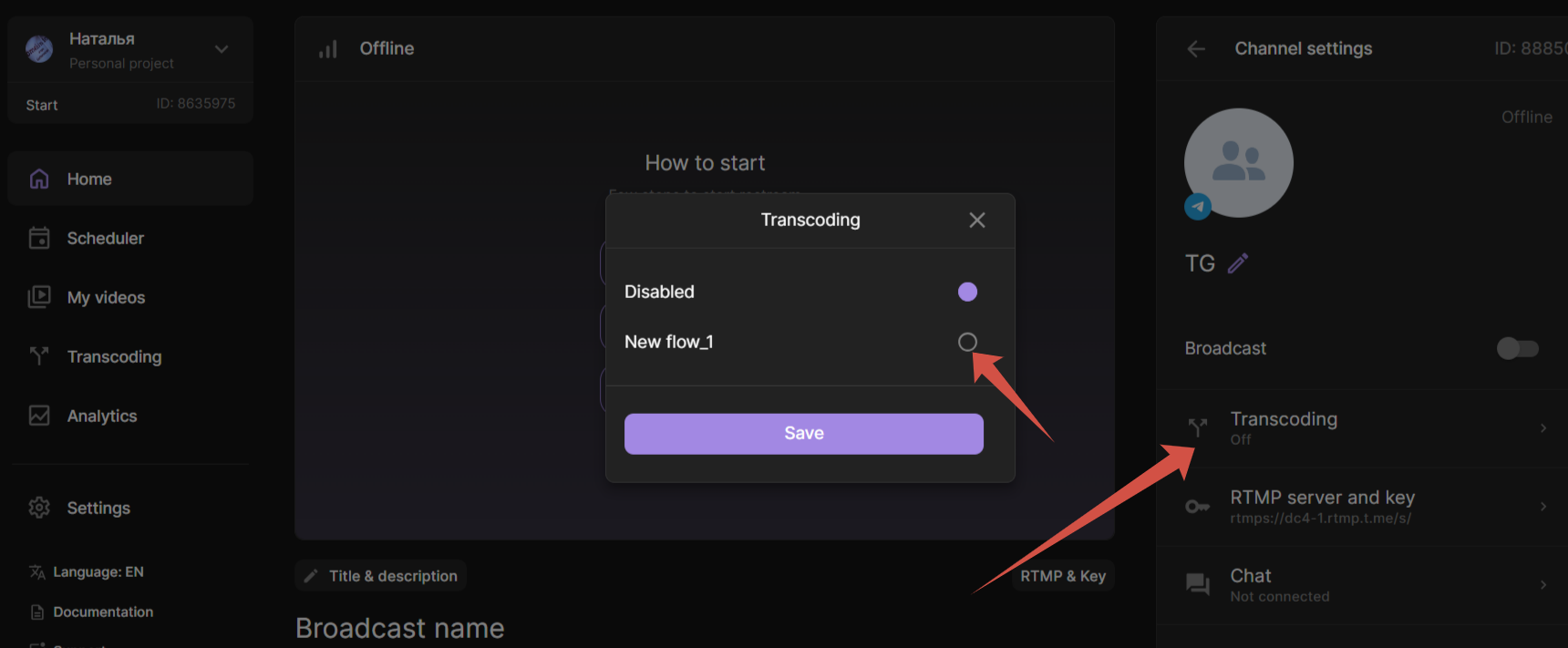
Click a flow or choose Edit in its menu. Change settings or channels and save. Remove a channel from the transcoder to send it the original stream; assignment is also available in channel settings.

Active flows offer Stop, and Reset delay appears when delay has accumulated. These commands run immediately. Remove opens a confirmation. If saving fails, check the fields and plan limits before retrying.