Русский
 Английский
Video
Start the video at the appointed time as a broadcast.
Using the "Videos" section, you can download a video file in mp4 format. The maximum video file size is 30 GB.
This section is available for all paid tariffs. Each tariff has its own storage capacity limit. If you exceed the storage limit (for example, by lowering the tariff), you will have 30 days to free up space from unnecessary videos, otherwise the place will be automatically cleared of randomly selected files so that the storage fits within the limit.

You can schedule a video for broadcast in the “Scheduler” section

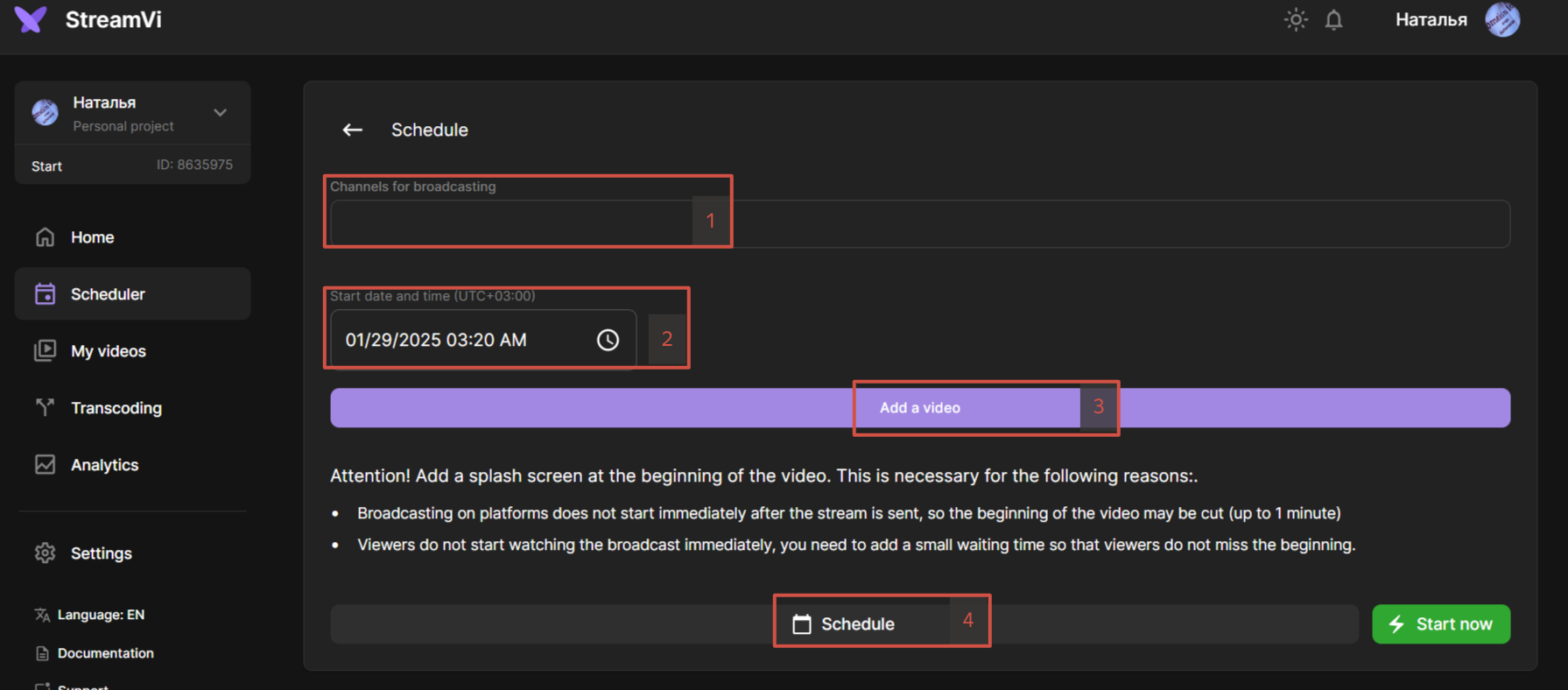
Select the channels to start the broadcast, select the start time of the stream, select the uploaded video and click “Schedule". A menu item will appear in the planner.

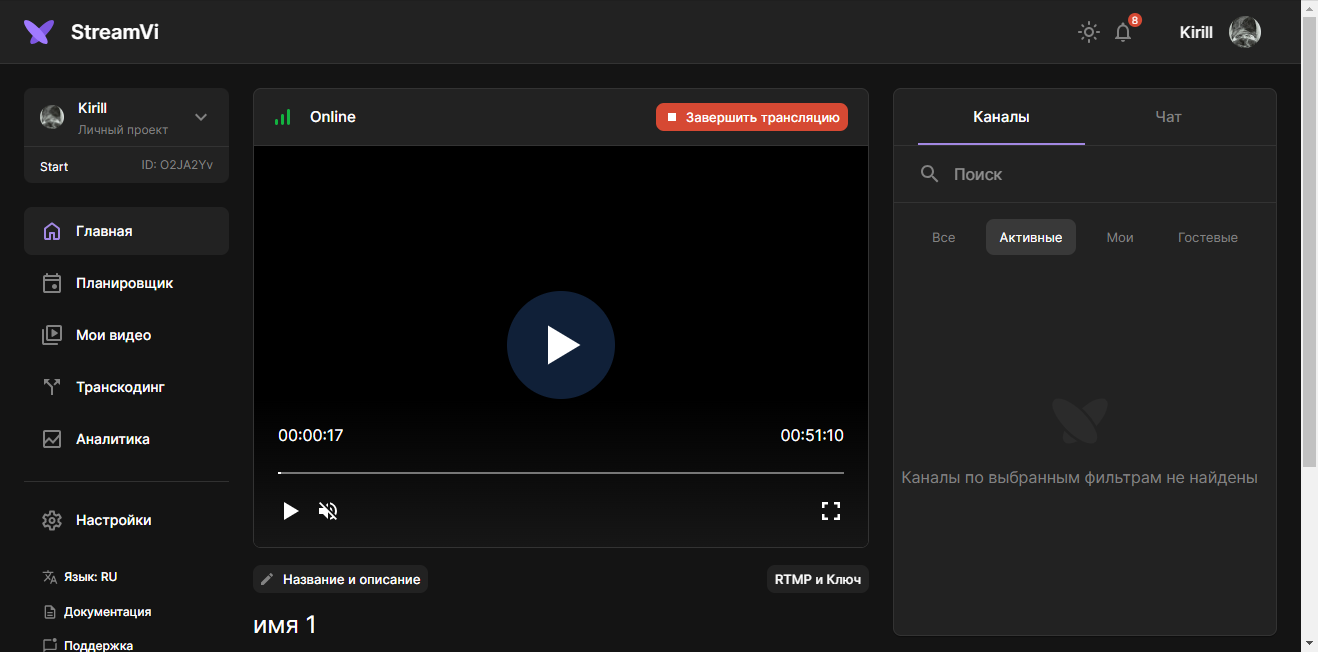
When the video starts streaming, you will be able to see the progress and the option to stop the broadcast on the main page.