

 Back
 Русский
 Английский
Nov 27, 2026
GTA 6 music on stream: what Twitch, YouTube, Kick and VK allow
Chat votes for a night drive through Vice City. You get in the car and a familiar song comes on the radio. You’re already live on Twitch, YouTube, Kick and VK Video Live through StreamVi, and you want to clip the drive later. Here’s how to keep the city and the chatter in the mix while deciding which music can go out with it.

How to mute licensed music in GTA 6
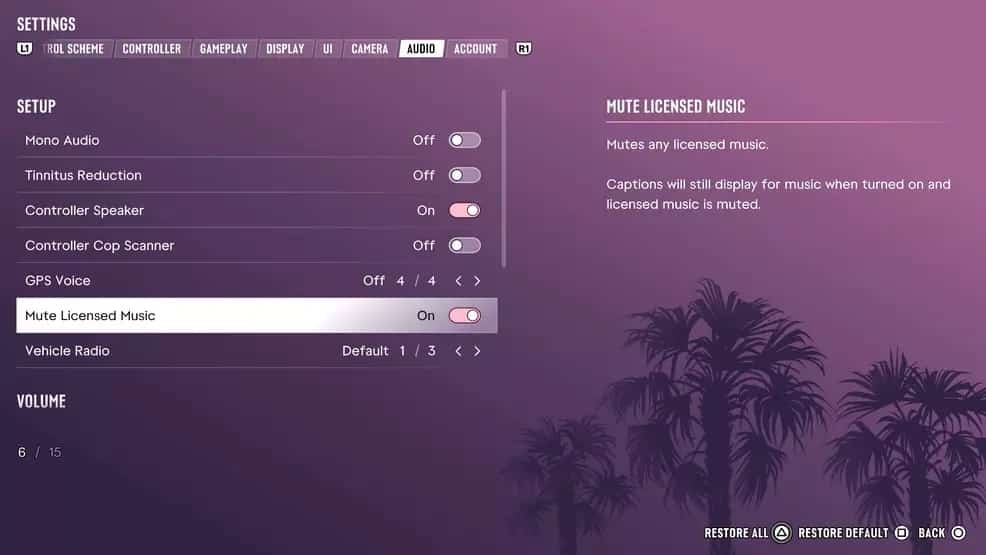
Pause the game and go to Settings → Audio → Mute Licensed Music → On. Players often call this GTA 6 streamer mode. It’s the setting Rockstar recommends for livestreams and gameplay recordings. The original score can still play, and song captions can still appear.
Buying the game or paying for a listening subscription gives you no automatic broadcast rights. If you plan to monetize the stream, check Rockstar’s gameplay footage policy, which mainly covers noncommercial fan use.
What Twitch, YouTube, Kick and VK allow
Your license sets out how and where you can use a track. Platforms enforce their own rules, and automated checks look for audio matches. A stream can finish without a warning and still get a complaint from a rights holder later.
| Platform | What to know before you go live |
|---|---|
| Twitch | The Twitch Music Guidelines require you to have the rights to the music you use. Twitch scans VODs and clips and can mute part of a replay or remove a clip. A strike following a rights holder notice is a separate process. |
| YouTube | YouTube checks your audio while you’re live and can stop the broadcast. If you’ve licensed a track, ask the rights holder to add your channel to their Content ID allowlist. After the stream, a Content ID claim can affect the replay’s monetization or availability. If YouTube removes the video in response to a separate takedown request from the rights holder, the channel gets a copyright strike. |
| Kick | Under Kick’s DMCA strike policy, a rights holder notice can lead to removal and a strike. Repeat violations can result in an account ban. |
| VK Video and VK Video Live | The VK Video terms, available in Russian, cover streams and saved replays on VK Video Live and require permission for third-party material. If you pick a track from VK’s catalog, check whether its terms cover your stream or upload. |
What viewers hear live, in the replay and in clips
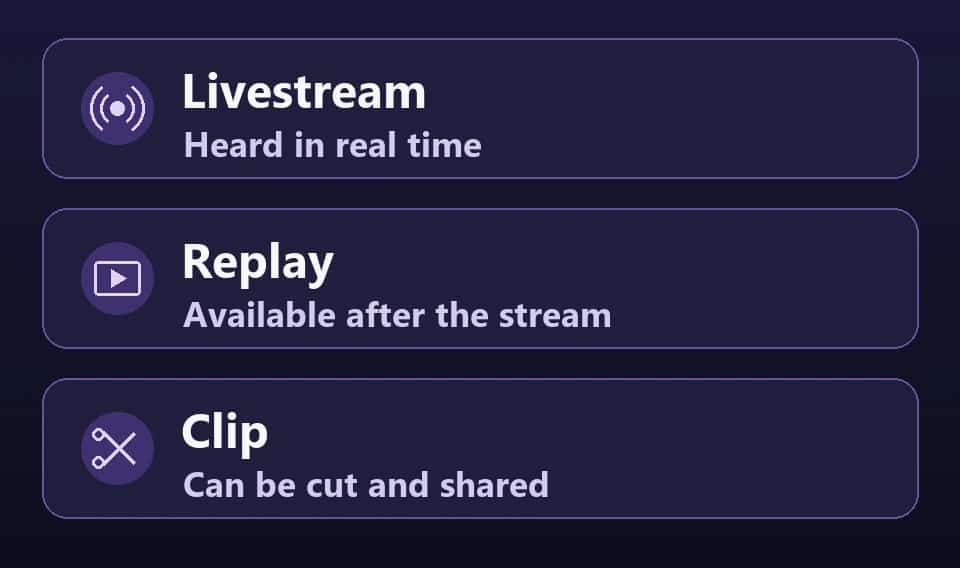
Say you’ve cleared a song for your Twitch livestream. If StreamVi sends the same mix to YouTube, Kick and VK, you need permission for those channels too. A separate Twitch VOD track changes the sound in your saved Twitch replay. Live viewers on every platform still hear the shared mix. A clip can be made while you’re live, so listen to the actual clip before posting it.
What to check in a multistream music license
- Where. Does it cover every platform and channel? Do you need to register them with the music provider?
- Which formats. Can you keep the song in a replay, cut it into a clip and post the clip on another platform?
- Under what terms. Are the composition and the exact recording covered? Check territories, monetization, attribution and how long the content can stay up.
If a track only covers some destinations, pick a different one for the shared stream or stick with your mic and game audio with licensed songs muted.
Set up audio in OBS and StreamVi Desktop
This setup uses StreamVi Desktop for the separate Twitch replay track. You can download the desktop app from the Apps section of your StreamVi dashboard.
Add your capture card, mic and external playlist as separate OBS sources. If the radio, dialogue and engine sounds all come through the console feed together, mute the licensed songs in GTA 6. Check that Desktop Audio isn’t picking up the external player twice.
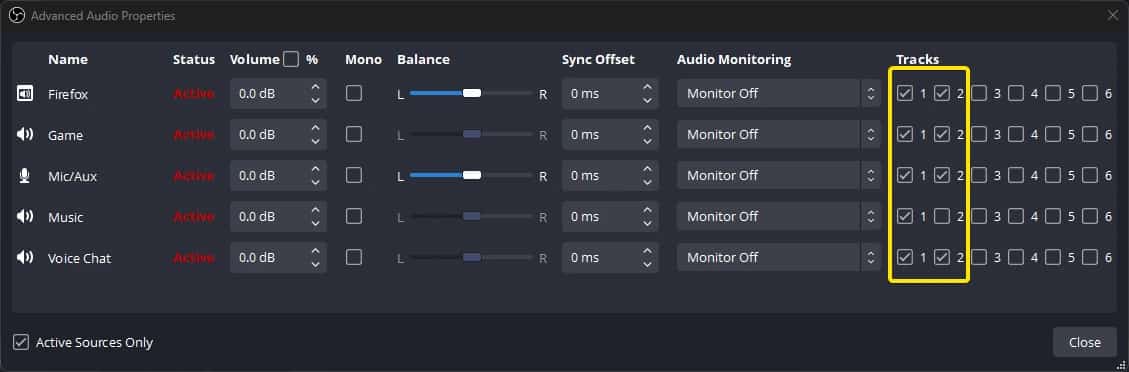
Put your mic and game audio on track 1 for the shared feed. If your StreamVi Desktop build has OBS Monitor, close OBS, choose OBS Monitor → VOD - Twitch from the StreamVi tray menu, then reopen OBS. In Settings → Output, enable Twitch VOD Track and pick a track, such as track 2. In Advanced Audio Properties, assign the mic and game to both tracks. If the option is hidden, StreamVi’s Twitch VOD guide shows where to find it. A separate playlist can go on track 1 only if it’s cleared for all your live channels and stays out of any replay or clip your license doesn’t cover.
Before you go live
- Take a short drive with Mute Licensed Music on. Make sure you can hear yourself and the game in your test recording.
- Check that the playlist is cleared for every connected channel.
- After a test stream, listen to the replays and a clip. If you record locally, check the OBS file too.
Still getting your console into OBS? Follow the StreamVi guide for PS5 or Xbox Series X|S.
