ru

StreamVi Desktop

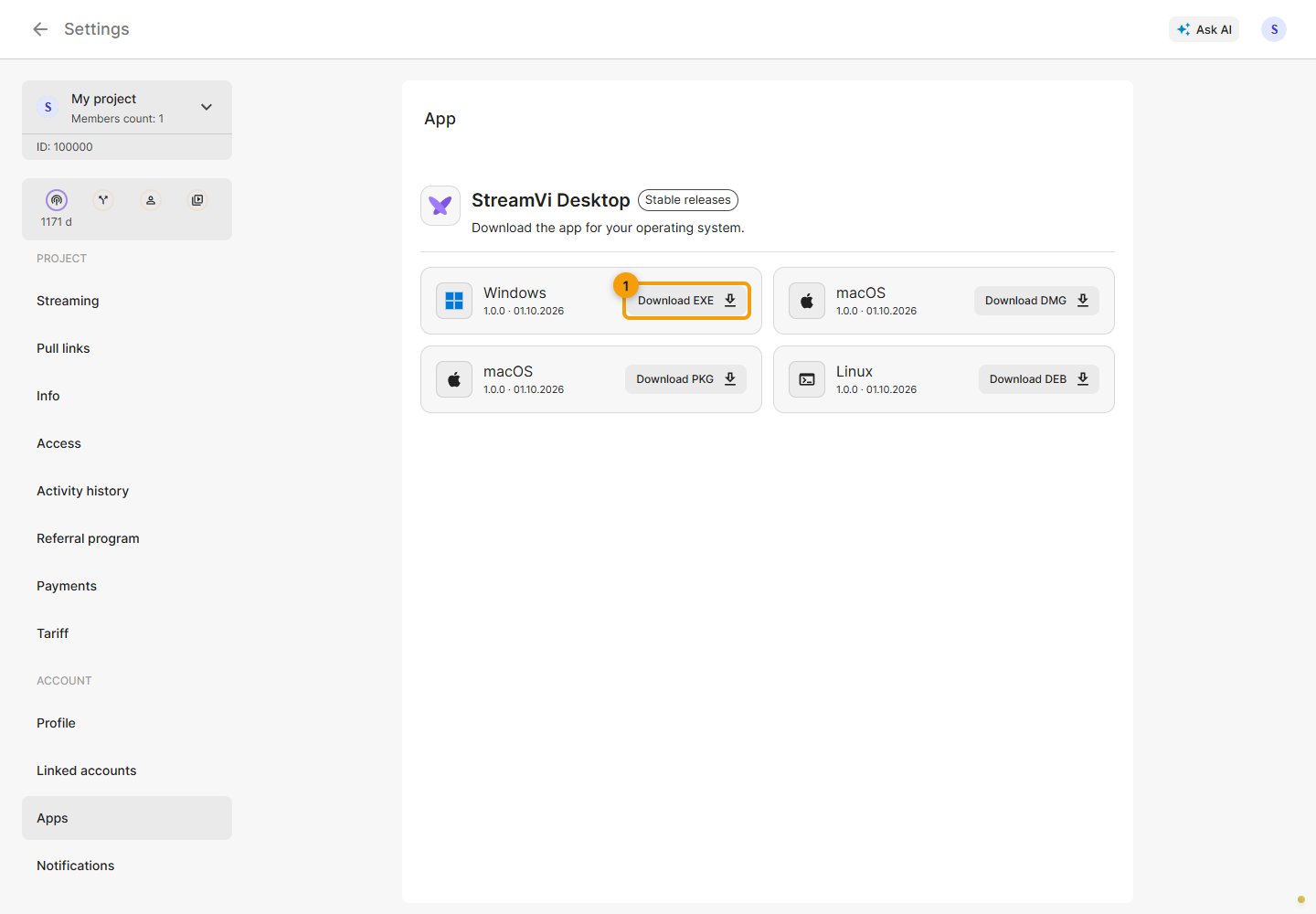
In the Cabinet, open Settings → Account → Applications and use the offered download link. Other available builds are on the releases page. Choose the installer for your system; do not take a version number from an old documentation screenshot.

When signing in from the application, confirm sign-in in the opened browser under the correct account, then return to the application. Check the selected project. Being signed in on the website alone does not mean Desktop sign-in has been confirmed.

Separate chat window

On the main page, open Chat → Chat settings. The application adds a Separate chat window field. Choose a mode:

  • Disable — hide the separate window;
  • Interact — keep its position and size while allowing interaction inside it;
  • Move — change its position and size;
  • Lock — keep its position and size and disable interaction.

The separate window lets you place chat above other windows. Change colors, transparency and text size through appearance settings.

A separate chat window beside StreamVi Desktop

Twitch VOD and OBS Monitor

If your installed build offers OBS Monitor, open it from StreamVi's system-tray menu and choose VOD — Twitch.

In OBS, open Settings → Output, enable Twitch VOD Track and select the required audio track. Check source-track assignments in OBS so the recording track contains the intended audio. This feature and its controls depend on the Desktop build; the ordinary browser Cabinet does not show these options.

For sign-in problems, check which account is open in the confirmation browser. For separate-chat problems, check the window mode and project, then return to chat settings.