
Bitrate
Bitrate is the amount of data sent per second. Video settings usually use Kbps: 6000 Kbps = 6 Mbps. Audio bitrate is configured separately.
Choose a value
Consider all of the following:
- Destination. Open its parameters page. A recommended bitrate is not necessarily the maximum accepted bitrate.
- Resolution, FPS and codec. YouTube, for example, publishes different values for H.264 and HEVC. Increasing resolution without sufficient bitrate does not always improve quality.
- Sustained upload speed. Leave room for video, audio and protocol overhead. Your internet provider's download speed is not the relevant measurement.
- StreamVi tariff. Check the project's restreaming limits.
When sending to multiple destinations, the source must meet each destination's requirements. Use transcoding to set different bitrates, resolutions, frame rates and supported codecs. Check keyframe intervals separately: the Custom form has no manual field for this setting.
Computer performance
Bitrate affects data volume, but it does not determine CPU load on its own. Encoder, preset, resolution and FPS also matter. x264 runs on the CPU; NVENC, Quick Sync and other hardware encoders use dedicated hardware. OBS explanation of hardware encoding.
Check these settings for encoder overload. For network dropped frames, check the connection and lower the bitrate if necessary. OBS connection troubleshooting.
Configure OBS
Open Settings → Output. In Advanced mode, choose Streaming and set the video Bitrate. Select constant bitrate for destinations that require CBR. Recording settings are separate from streaming settings.
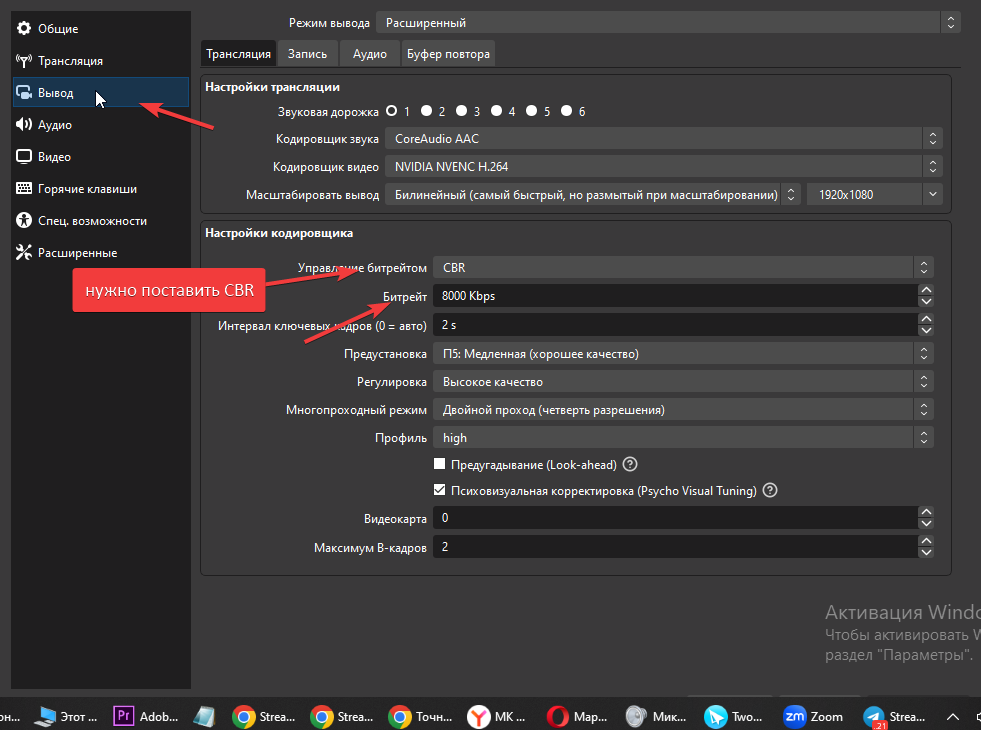
This screenshot shows an earlier OBS interface. Get the value for your stream from the destination's article, rather than copying the number in the screenshot.
Run a short test with motion and audio. Check OBS statistics, stream status in StreamVi and the destination preview.