
RTMP platforms
The platforms listed below have the same connection fields in the current StreamVi Cabinet: Title, RTMP server for broadcasting, and Key. These forms do not offer a separate platform sign-in. Obtain the server address and key from the destination platform for your own channel or event first.
Platforms covered by this guide
Choose the tile bearing your platform’s name, even when its fields match other forms.
| Platform in Add a channel | What to prepare |
|---|---|
| Server address and key for the Facebook event | |
| TikTok | Server address and key, if available to your TikTok account |
| Boosty | Server address and key for the Boosty broadcast |
| Server address and key for the LinkedIn event | |
| Платформа | Server address and key for the destination broadcast |
| Steam | Server address and key for the Steam broadcast |
| GoodGame | Server address and key for your GoodGame channel |
| Nimo TV | Server address and key provided by Nimo TV |
| Nonolive | Server address and key provided by Nonolive |
| Naver TV | Server address and key provided by Naver TV |
| DouYu | Server address and key provided by DouYu |
| FC2 Live | Server address and key provided by FC2 Live |
| Huya Live | Server address and key provided by Huya Live |
| Zhanqi TV | Server address and key provided by Zhanqi TV |
| Bizon 365 | Server address and key for the intended webinar |
| GetCourse | Server address and key for the intended broadcast |
| Kinescope | Server address and key for the intended broadcast |
| Tach | Server address and key for the destination broadcast |
A StreamVi tile does not grant permission to broadcast on the platform itself. If your account or event does not provide external-encoder credentials, check that feature’s availability with the platform first. This guide covers the StreamVi form; the destination service determines where credentials are available and who can use them.
Instagram and Telegram have separate guides. Kick and RuTube also require a channel page link. YouTube connects through an account.
Connecting in StreamVi
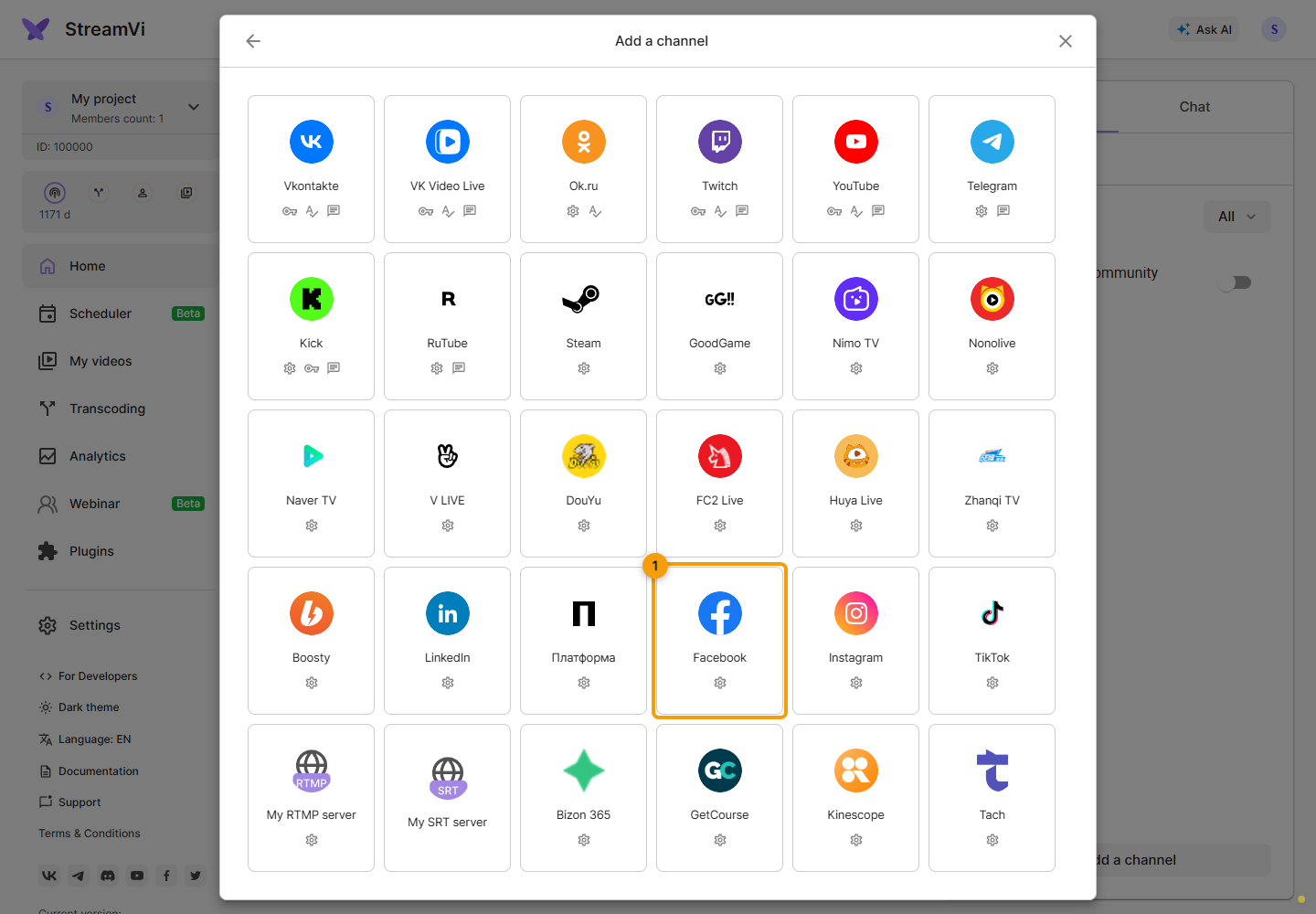
In the intended project, click Add a channel and select your platform’s tile - Facebook in this example.
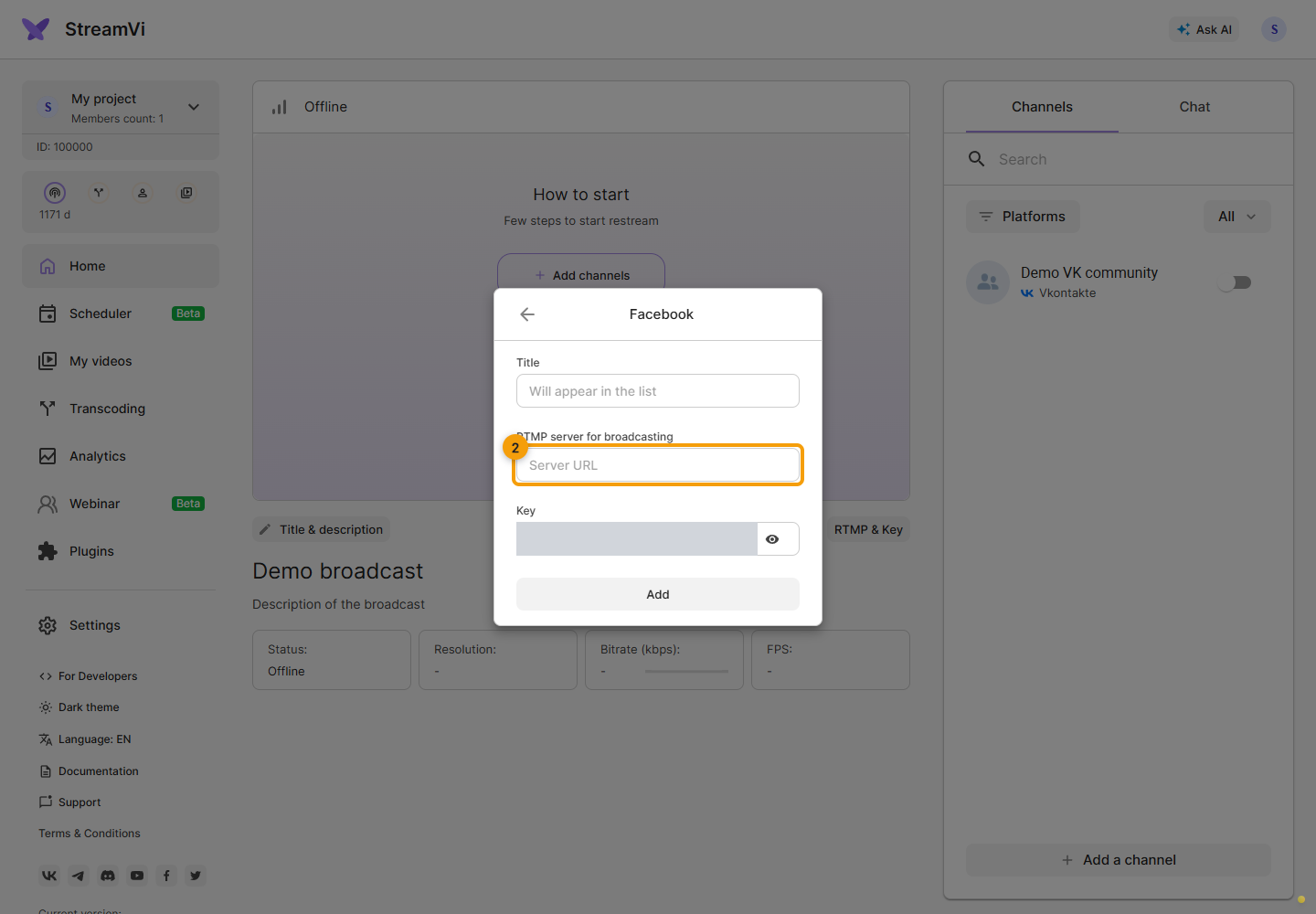
Enter a recognizable Title for the StreamVi channel list. Then paste the destination server address into RTMP server for broadcasting. Use the complete address from the platform’s settings, including rtmp:// or rtmps://.
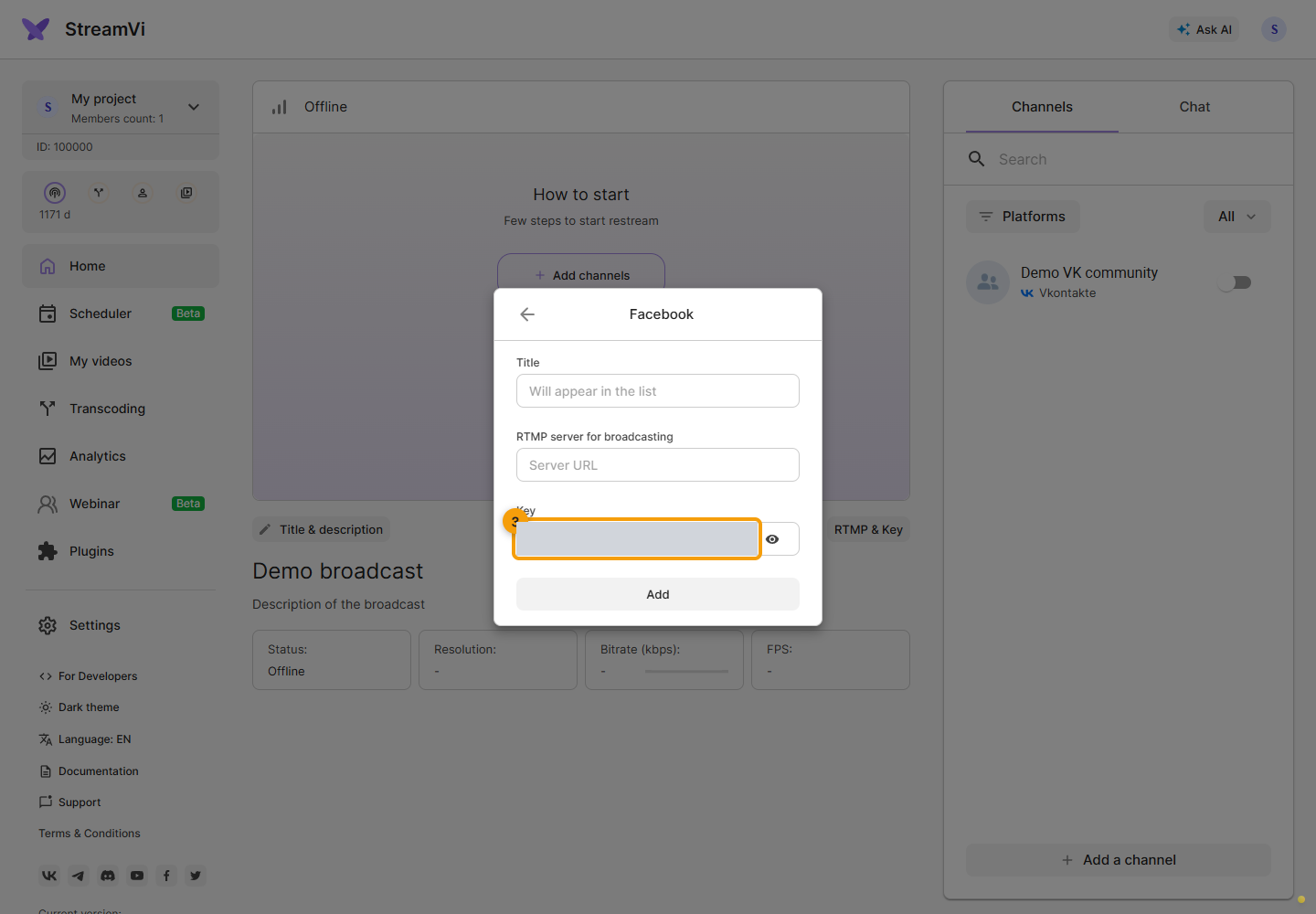
Paste the key supplied by the platform into Key, then click Add and wait for the result. The address and key must belong to the same event or channel. The example masks the key.
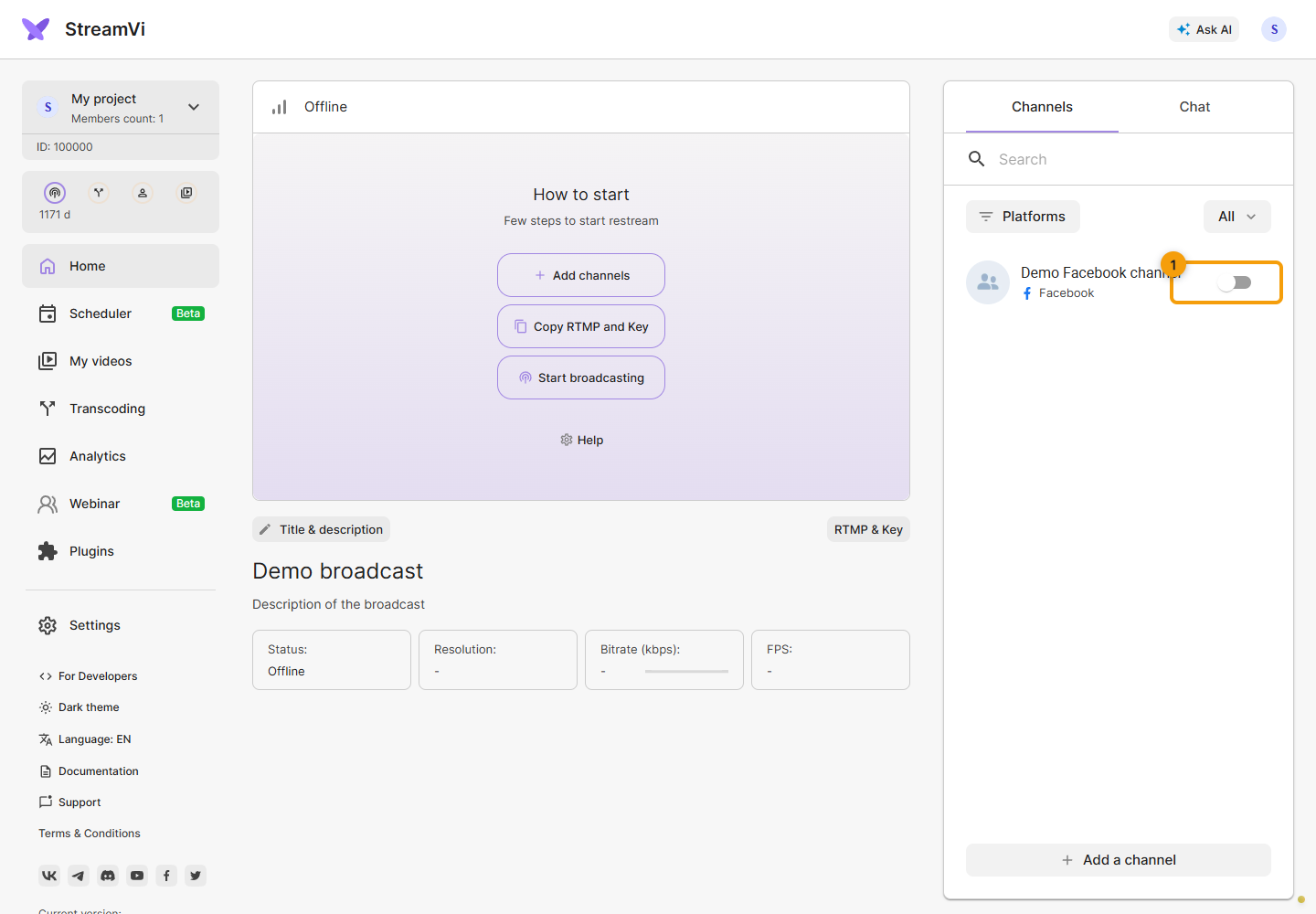
In the channel list, enable the new connection’s switch. The screenshot shows a demo Facebook channel. Send video to StreamVi and check reception on the platform. If it requires a separate confirmation to publish the live stream, complete that action in its dashboard.
Settings managed separately
The form’s Title helps distinguish connections in StreamVi. Set the publication title, description, audience, schedule and visibility on the destination platform. For these connections, StreamVi does not offer management of those settings or chat message reading and sending.
If the platform issues new credentials, open the corresponding StreamVi channel’s settings and update its RTMP address and key. Do not replace them with StreamVi’s incoming key: that key lets a video source send to StreamVi, rather than sending from StreamVi to a destination.
If the intended tile is missing, use My RTMP server or My SRT server when the destination service supports the corresponding protocol.