Widget templates
First install the plugin in the intended project. Templates are used by Widget plugins.
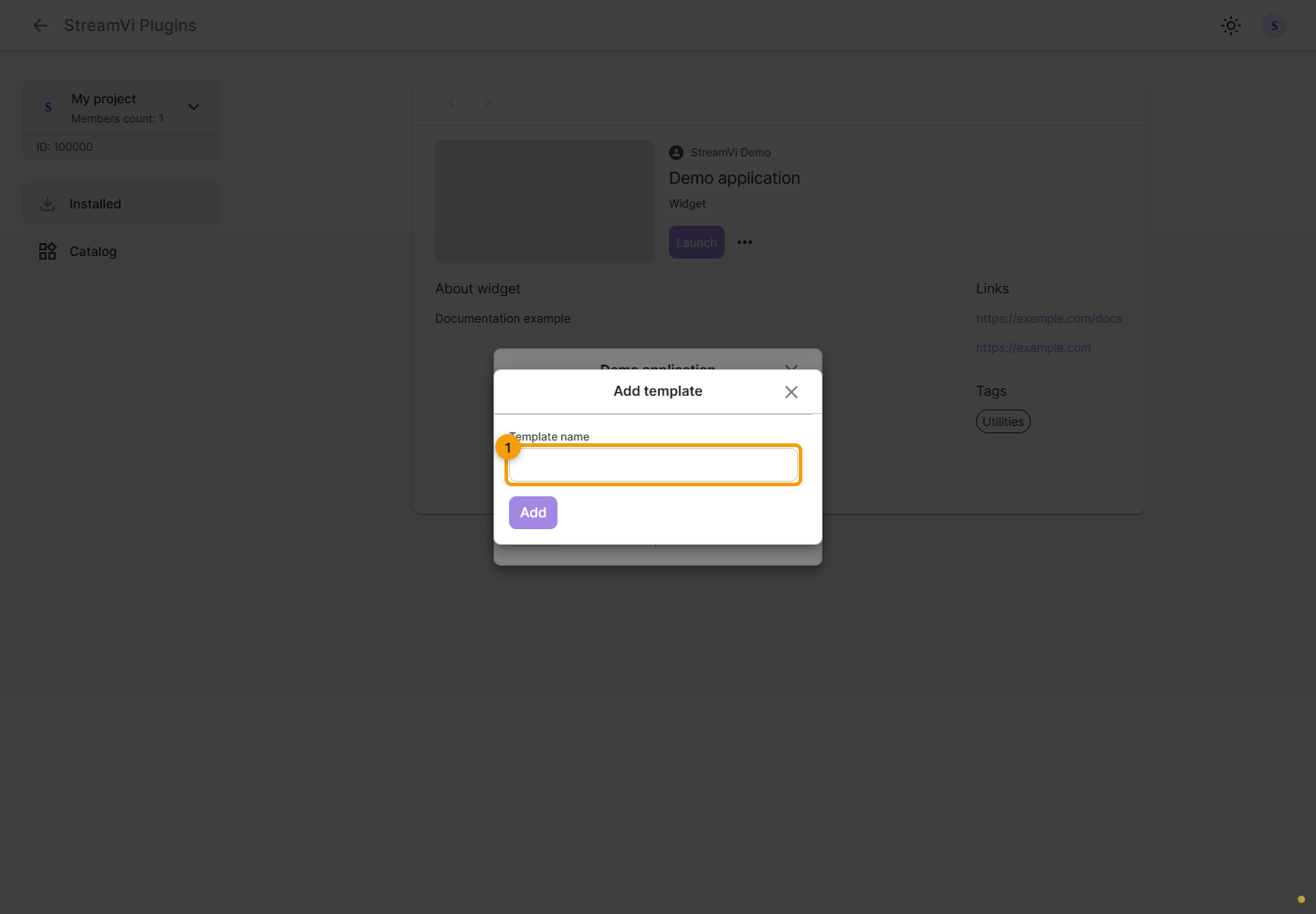
Click Launch on the widget card. Its template list opens: choose an existing one or click Add, enter a template name and confirm creation. Clicking a template row opens its settings. The widget's author documents its appearance and features.
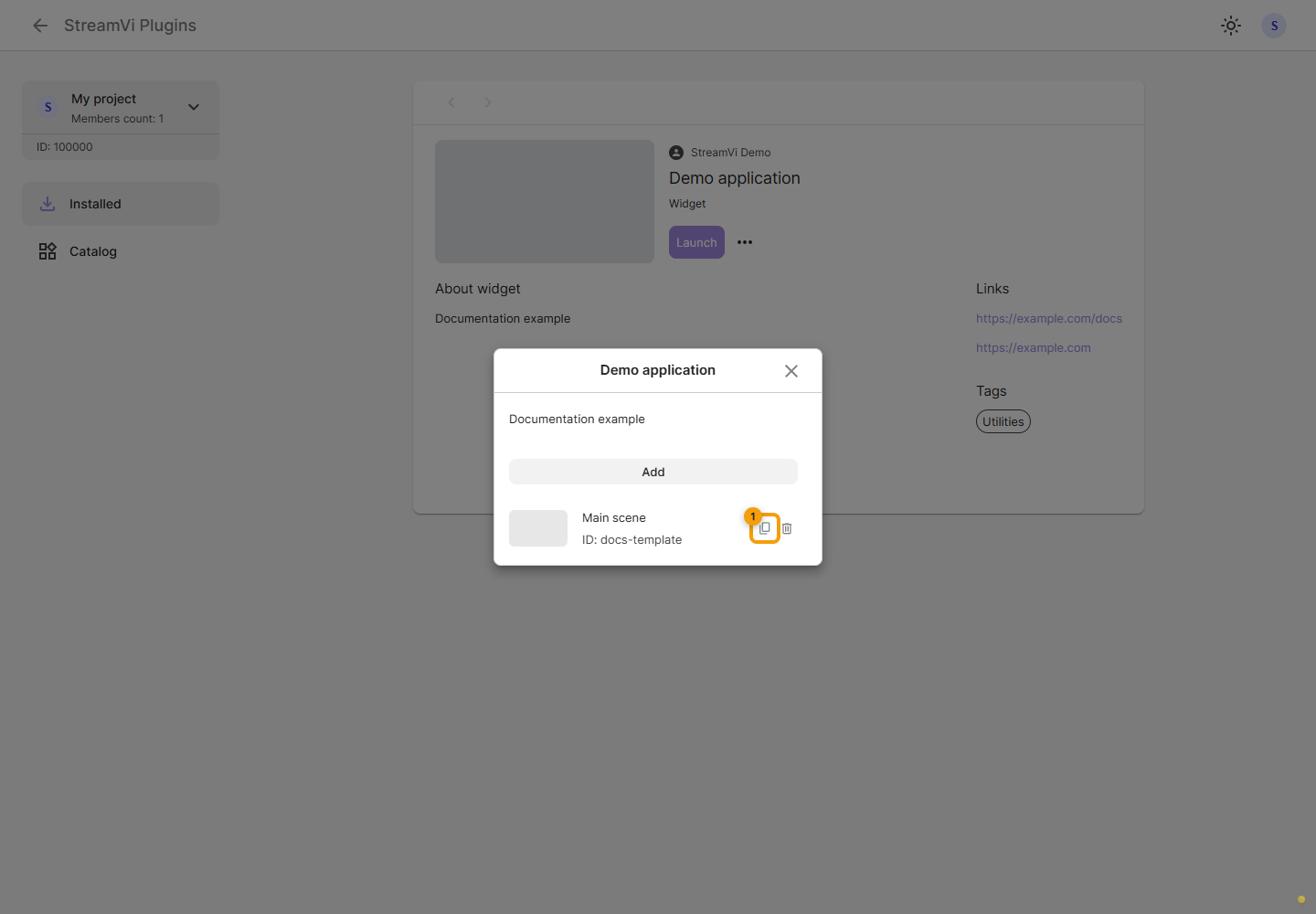
To duplicate a template, click the copy icon on the right of its row.
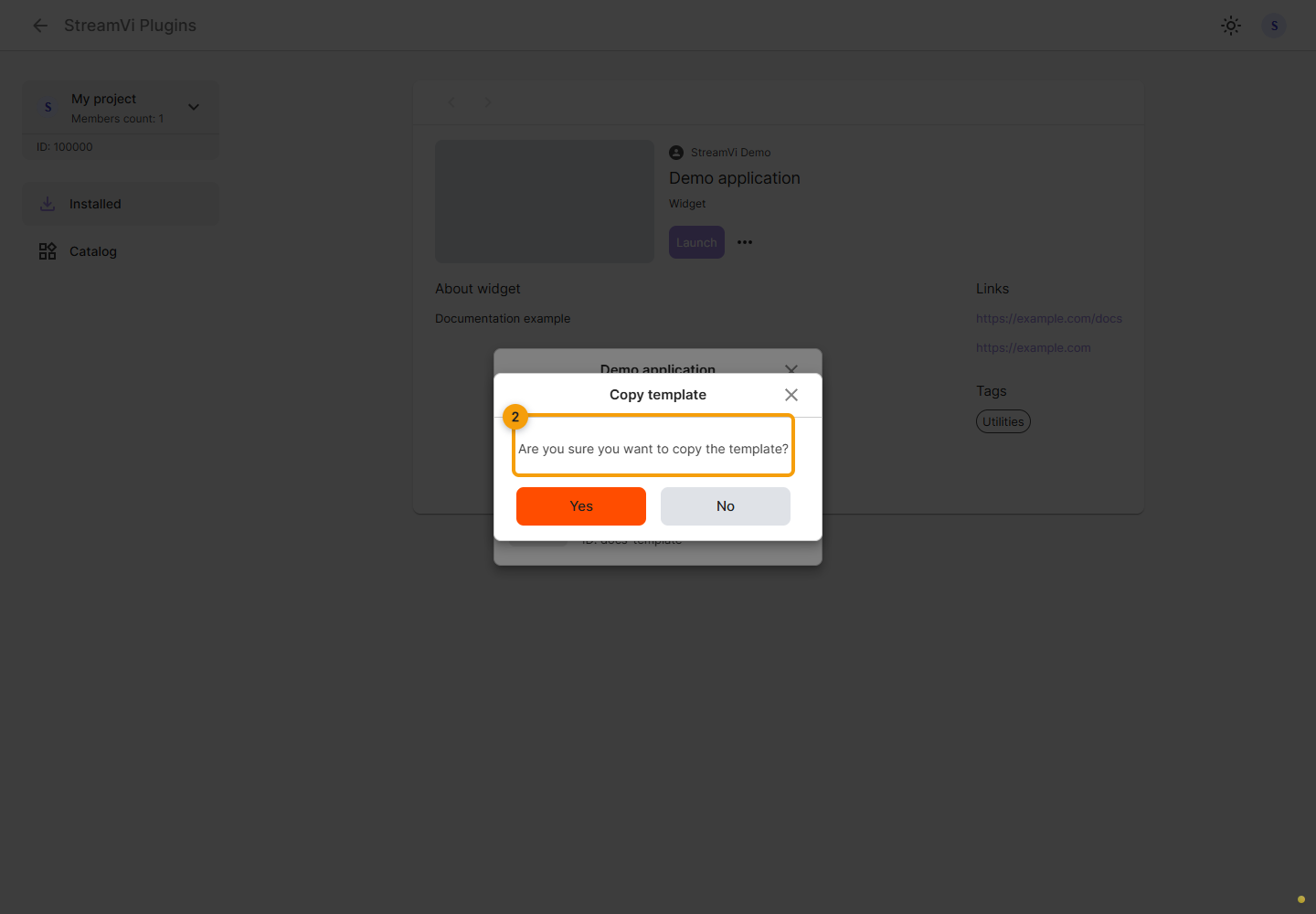
Confirm in Copy template. This button creates a copy in the list; it does not put a link on the clipboard.
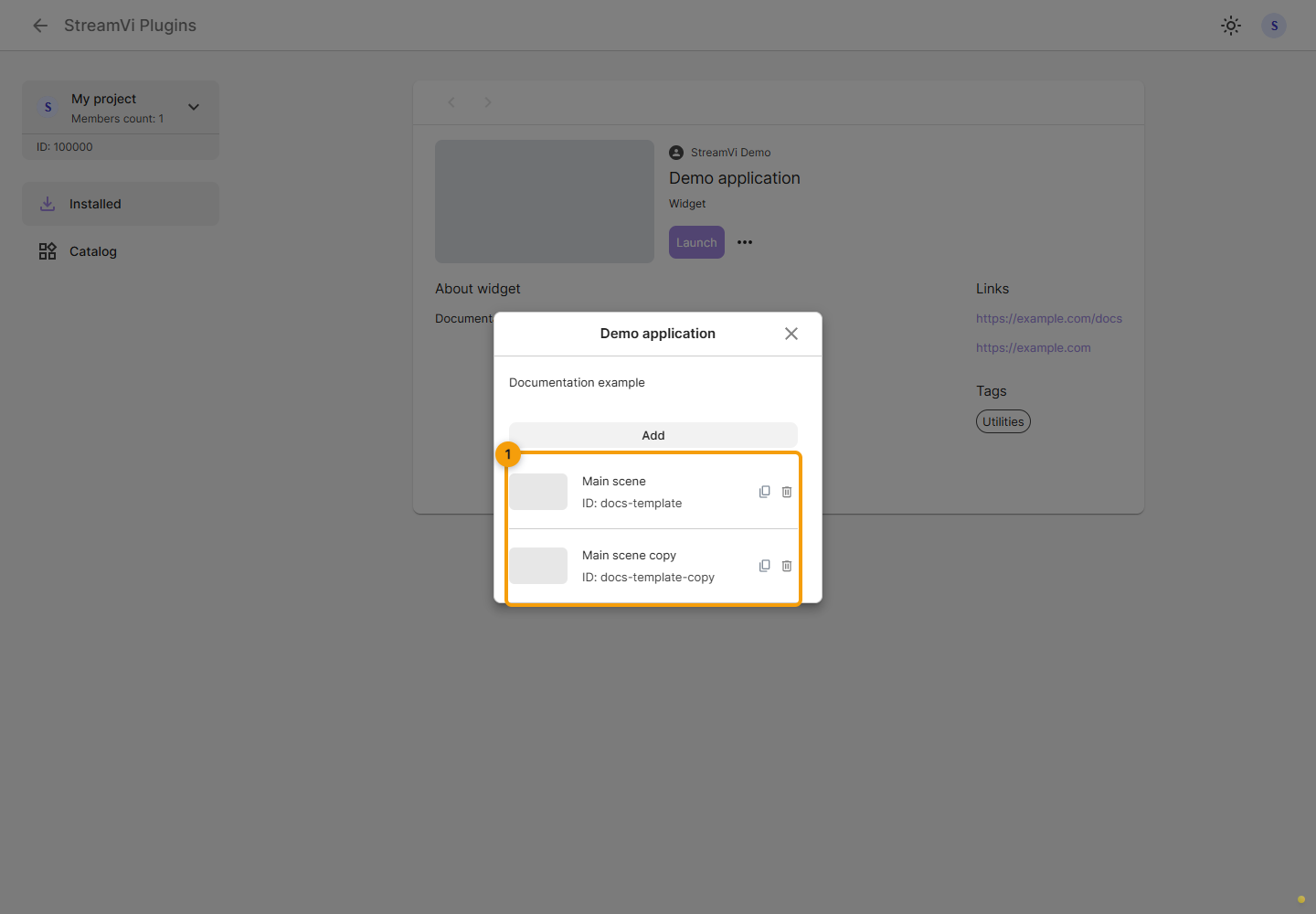
After Template copied appears, check the refreshed template list. The next screenshot shows a fictional example with two templates. The copy name in your application may differ.
If the widget supports embedding in OBS, obtain the address from the widget's own interface following its author's instructions, then paste it into a Browser source. The shared template list has no separate button for obtaining this address.
Delete a template
To delete an individual template, click the trash icon on the right of its row. First check whether OBS uses that template.
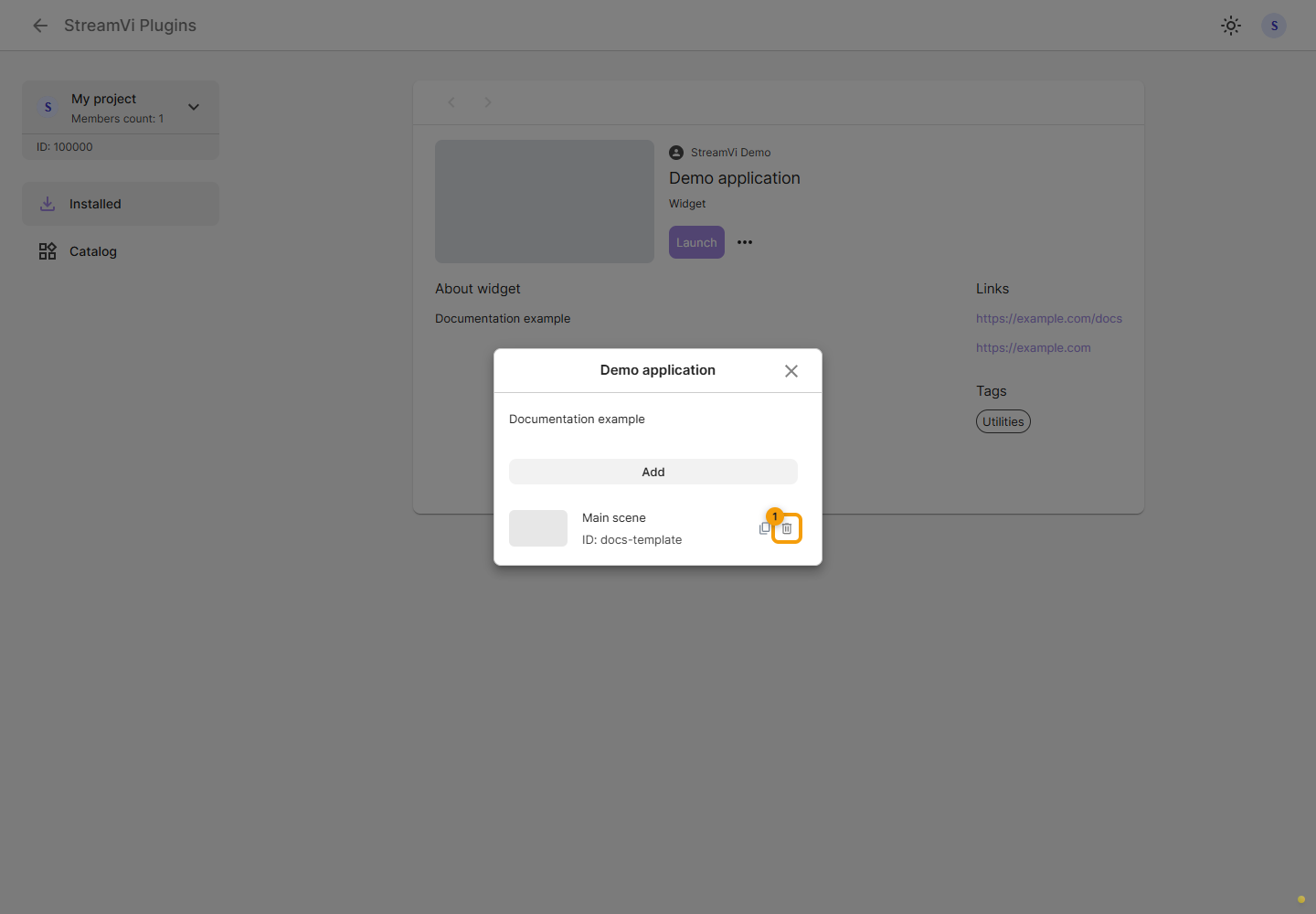
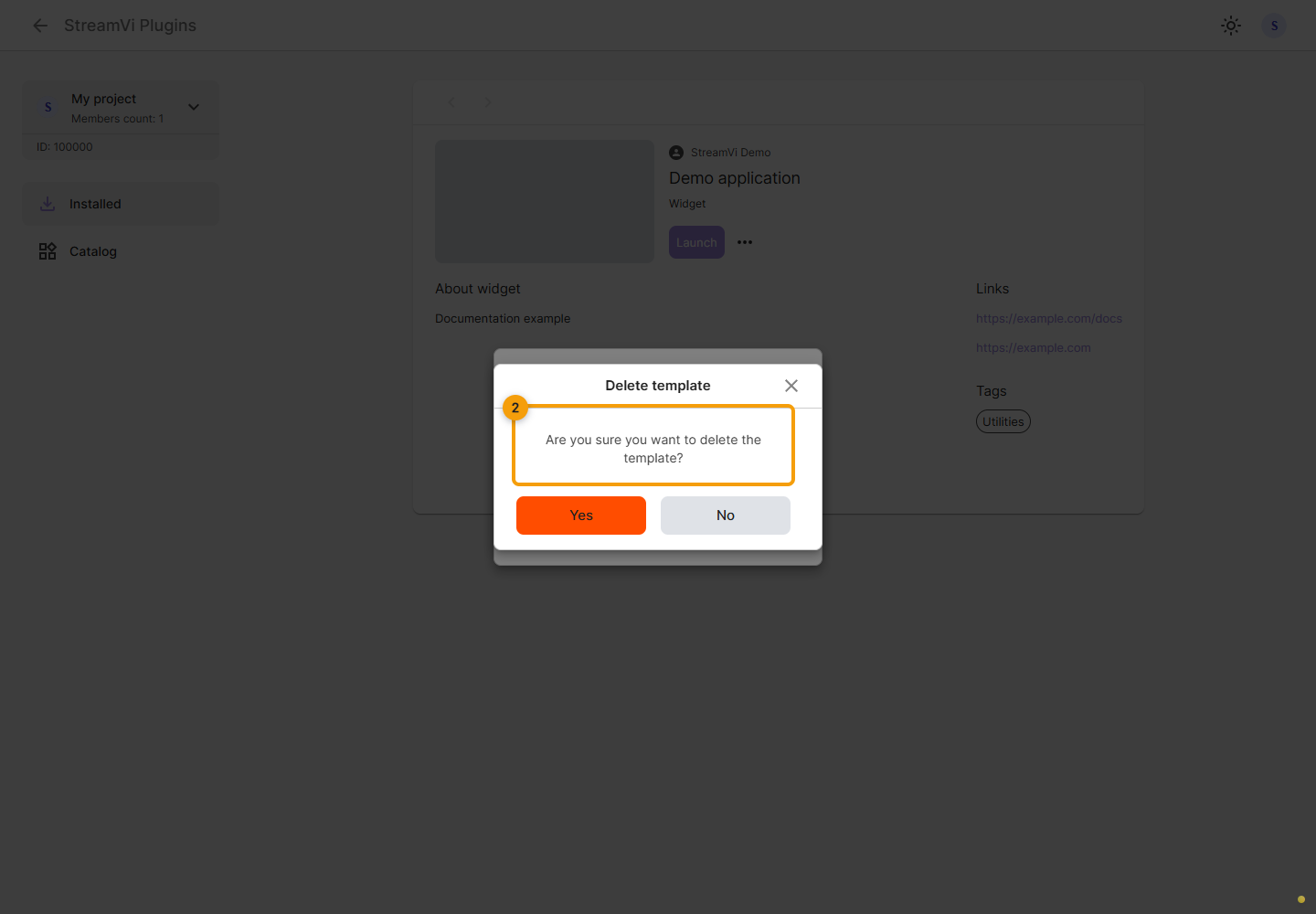
Check the template deletion confirmation. Confirmation applies to the selected template. Click No to keep it.