
Adding channels
A channel connects a destination for your broadcast: a page or community, a streaming service, or a server configured with manual credentials. For Telegram messages, connecting a group to chat is separate from sending video.
Connect a platform
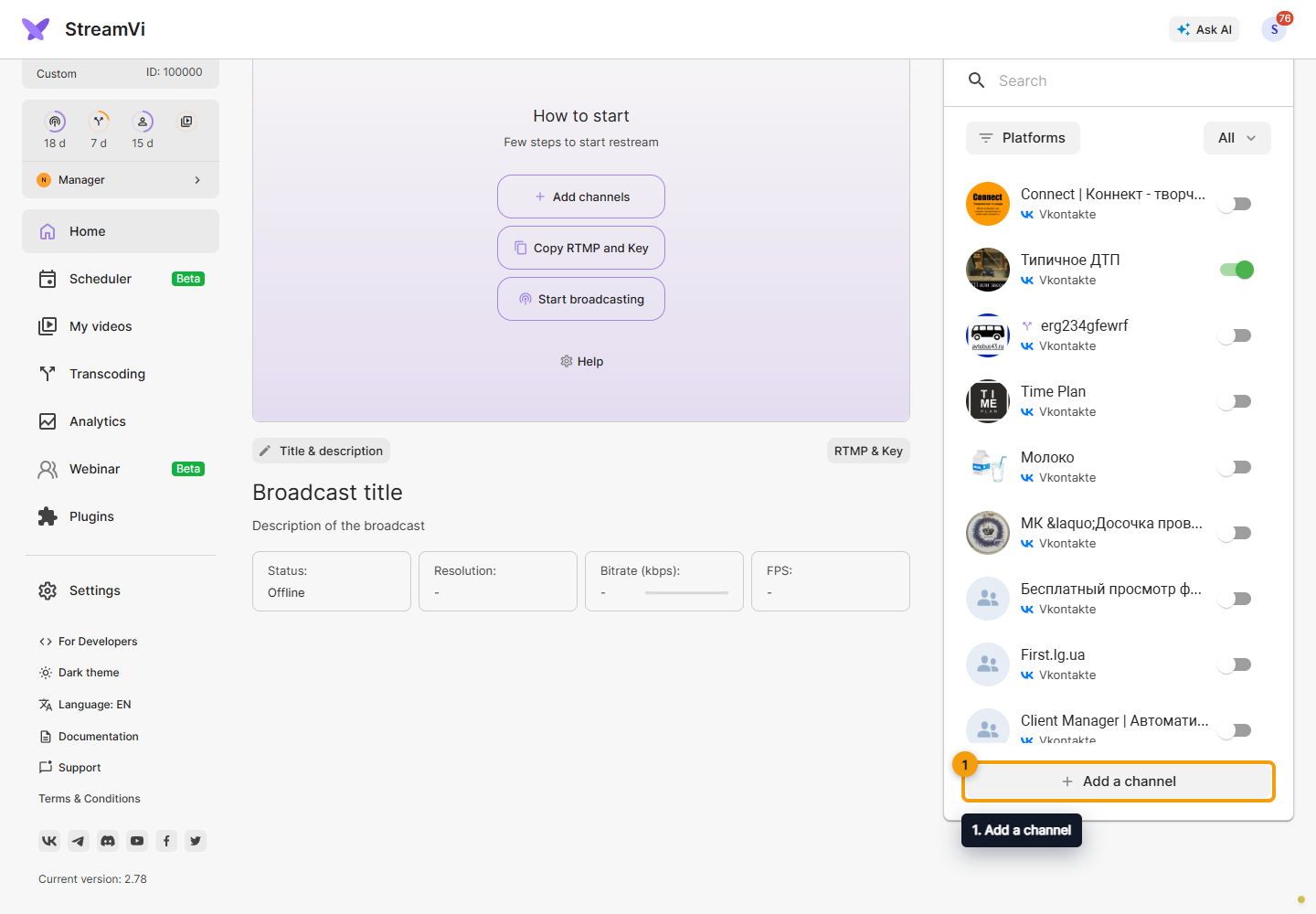
Open Home. On a phone, open the Channels tab first. Select Add a channel.
In the dialog, select the channel's platform.
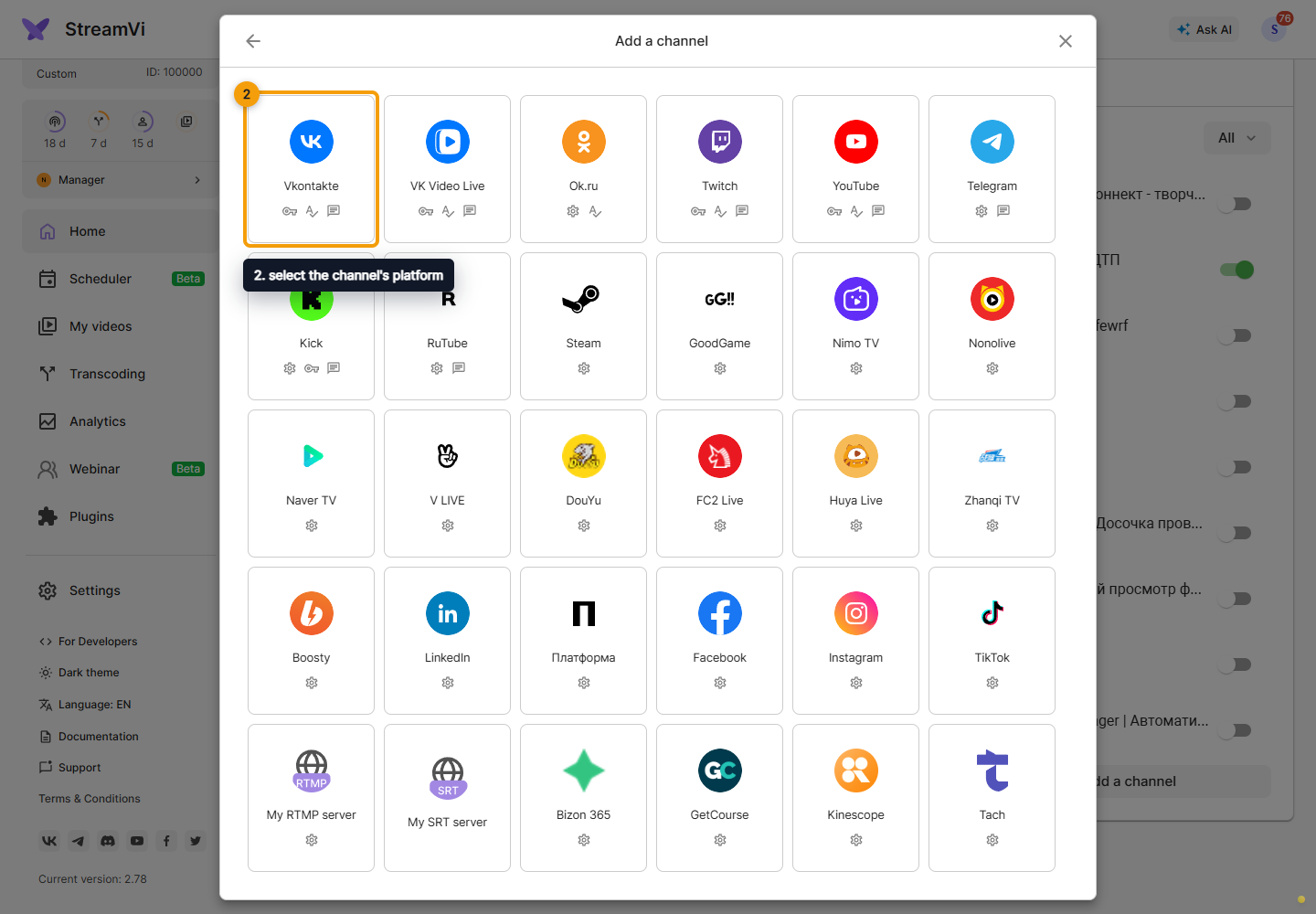
Follow the selected connection's instructions. For platform sign-in, use the correct account and grant the requested access. For a manual connection, enter the address and key supplied by the destination platform. Connection methods can differ even for the same platform.
If the form offers a channel URL field, enter the channel page address on the destination platform and follow the hint. This field does not replace a server address or stream key.
After a successful connection, check the channel in the selected project's channel list. Select its row to open settings. The switch beside the channel enables or disables sending to it; broadcasting also requires an incoming stream. See Starting a broadcast.
If the platform is not listed
Check whether the destination supports a manual RTMP or SRT connection. For RTMP, select My RTMP server, set a name, and enter the server address and stream key from the destination platform's dashboard.
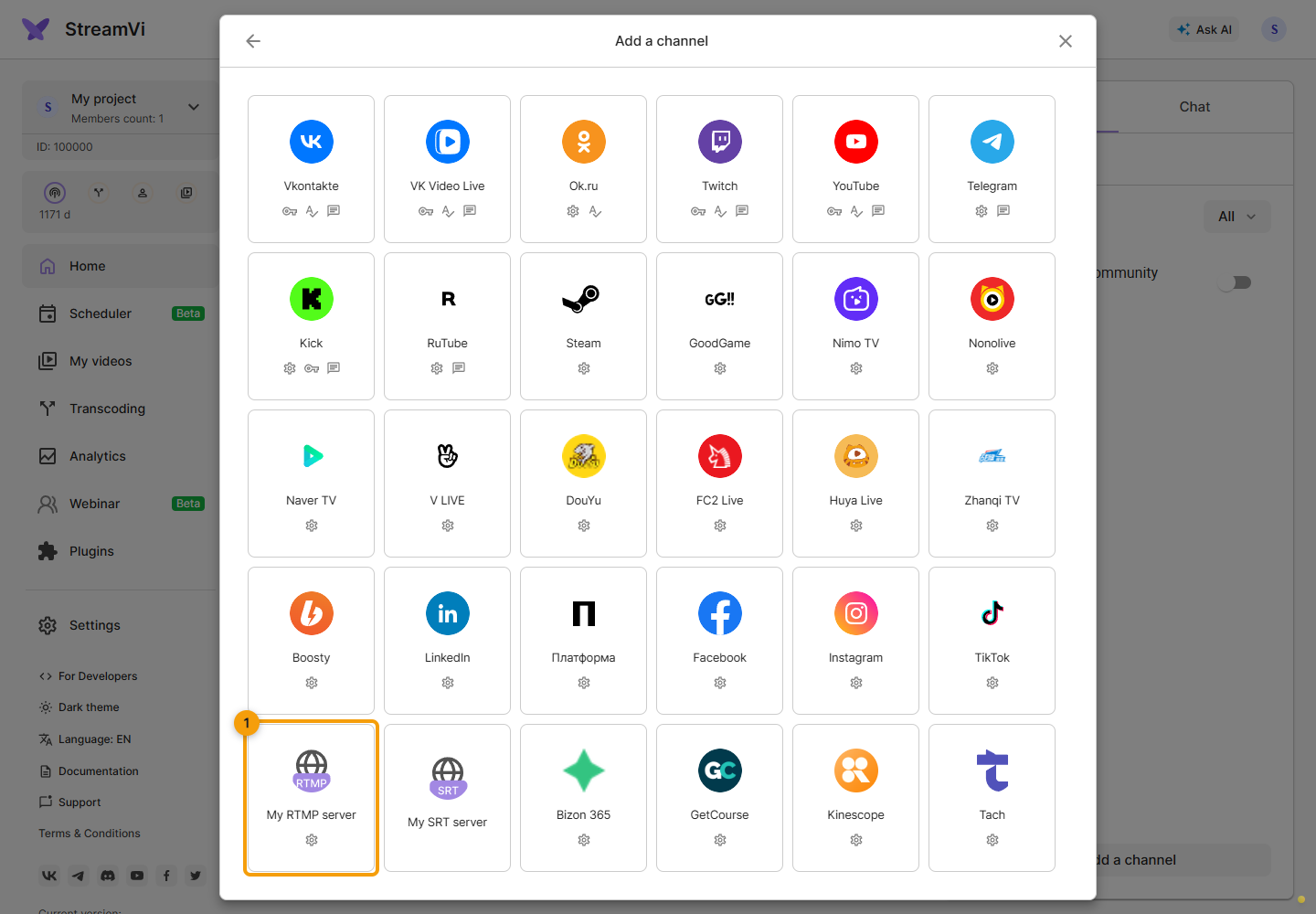
For SRT, select My SRT server and use the full SRT URL. See the separate RTMP and SRT field instructions. Your project's plan must include these two connection types; otherwise selecting one opens an upgrade offer. Do not enter StreamVi's incoming stream key here.
If connection fails
Check the account, access to the intended page or community, and destination credentials. For an authorization window, check whether your browser blocked it. If the error repeats, contact StreamVi support through the Cabinet menu with the platform name, time and error text. An access issue on the destination platform may require that platform's support.
For an existing channel, check its available reconnection action first. Do not delete it merely to sign in again.
Platform instructions
The table lists every option in the current Add a channel dialog. Choose the guide for your platform. Forms with identical fields share a guide illustrated with Facebook. Obtaining credentials and starting a stream also depends on the destination platform's rules and your account's access.
Outdated and unavailable options
V LIVE still appears in StreamVi, but the original service closed on December 31, 2022, as confirmed by Naver's official notice. Do not use this option for a new connection.
Naver TV closed on September 30, 2026. See the official Naver notice. This option is also unsuitable for a new connection.
VK Play Live, Nuum and Glimesh are currently unavailable for adding new channels. VK Play Live and the currently available VK Video Live are separate connection options; use the VK Video Live guide for a new channel.