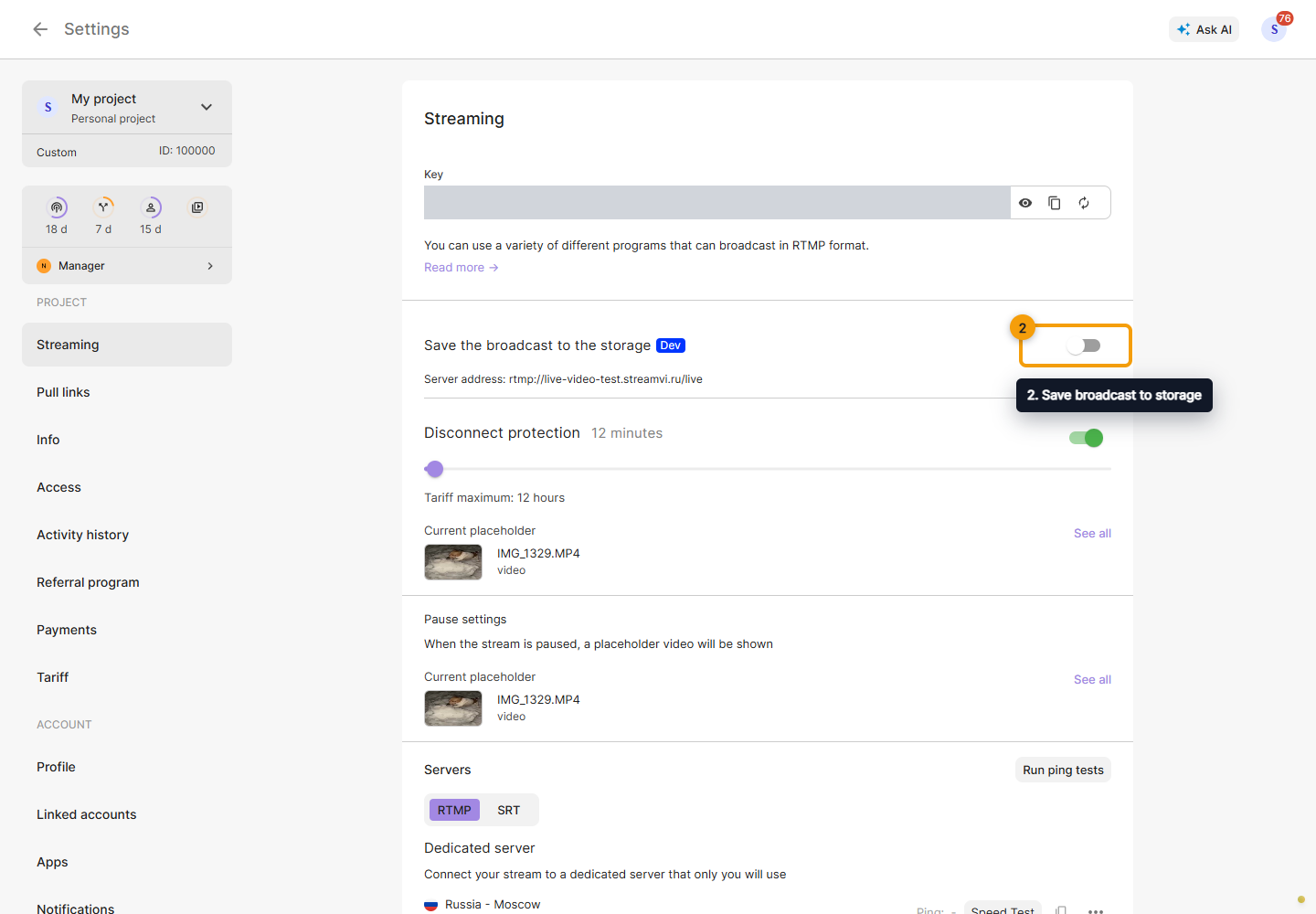
Streaming
Open Settings → Streaming for the intended project. Here you can change the stream key, configure disconnect protection and enable recording. See Starting a broadcast for instructions on connecting your broadcasting software.
Change the stream key
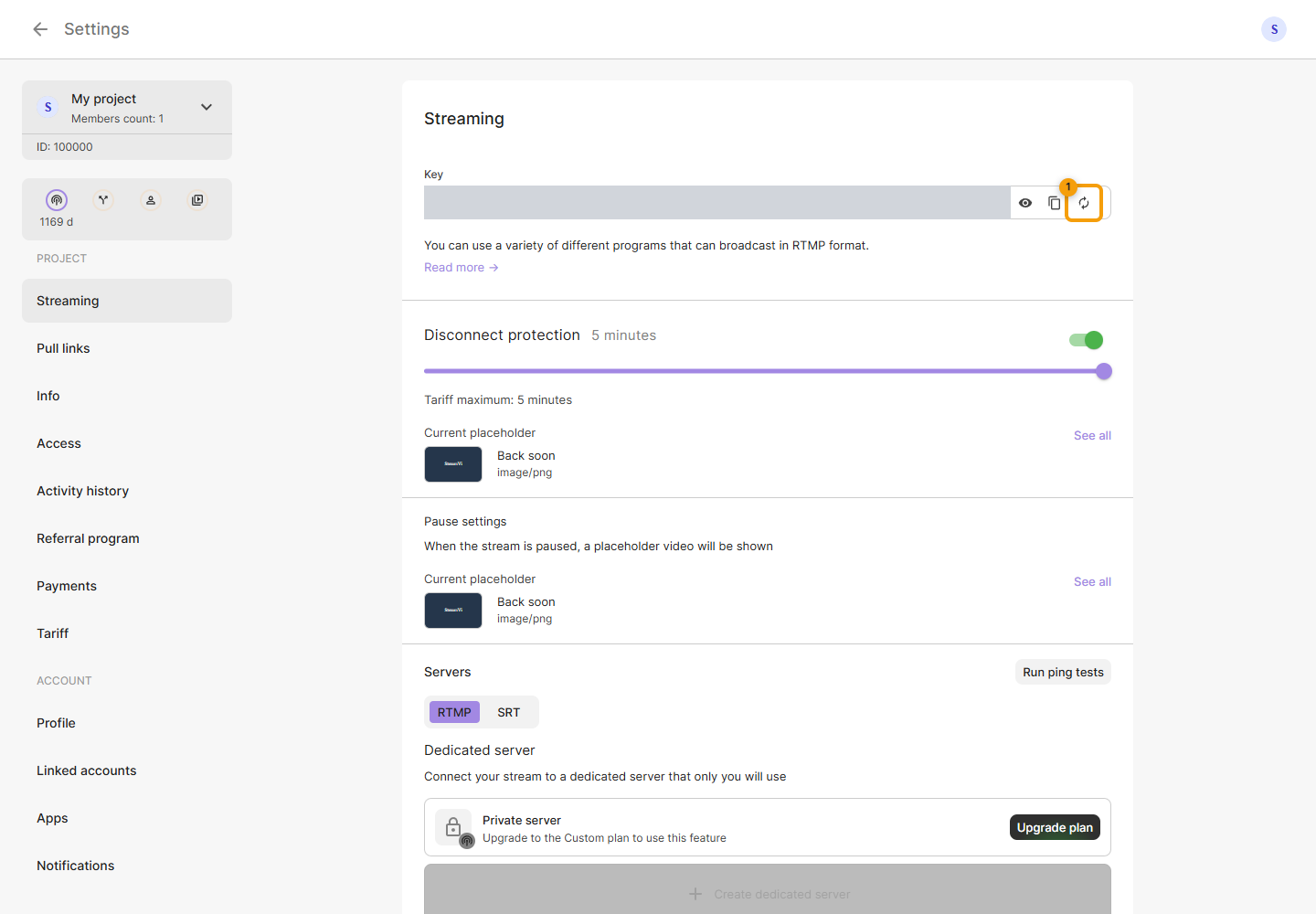
Click the circular-arrow button to the right of the key to open the key change dialog.
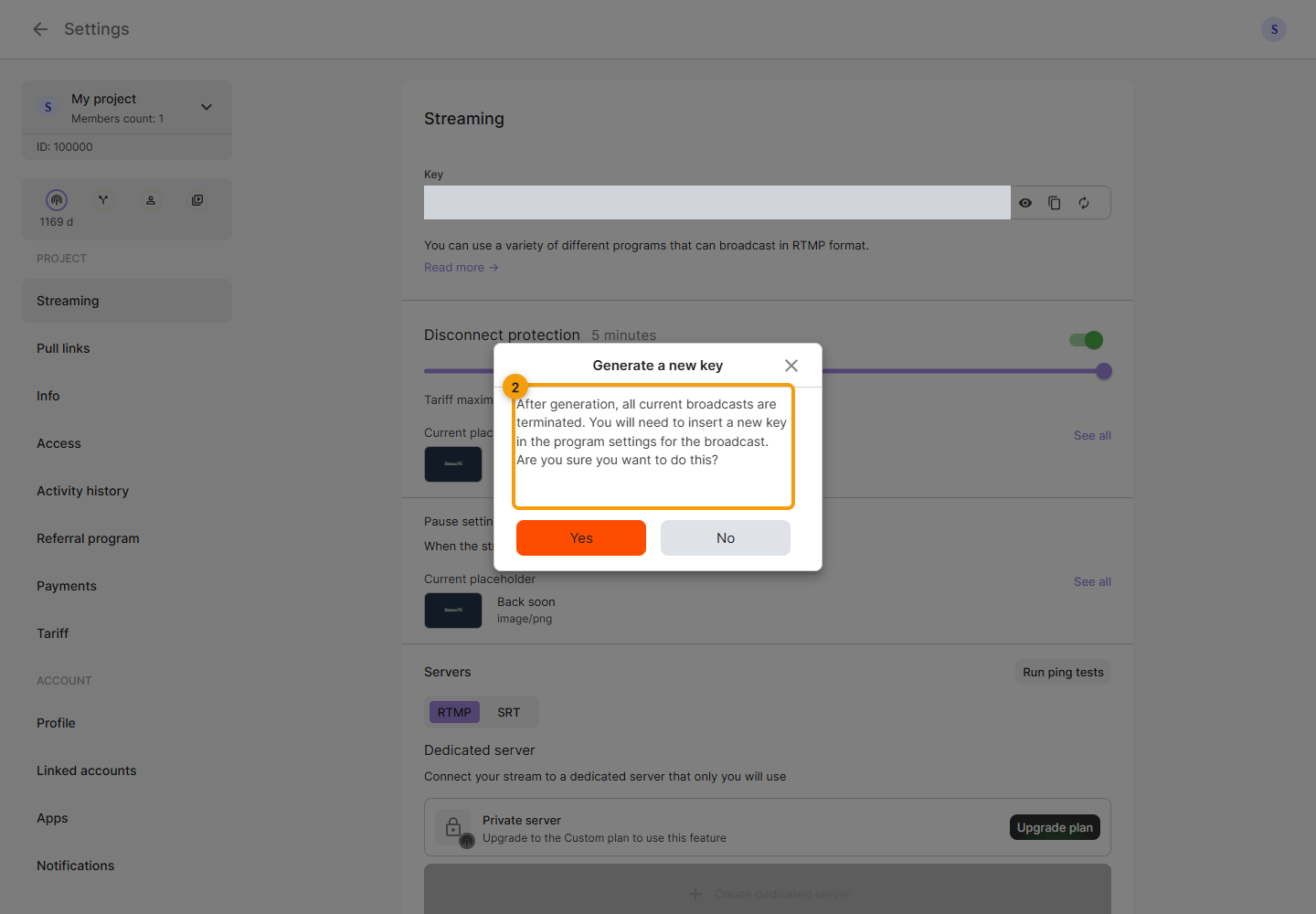
Read the warning before generating a new key. The Cabinet warns that current broadcasts will end. After confirming, replace the old key in every source that should continue broadcasting. Do not share the key with viewers or use another project’s key.
Disconnect protection
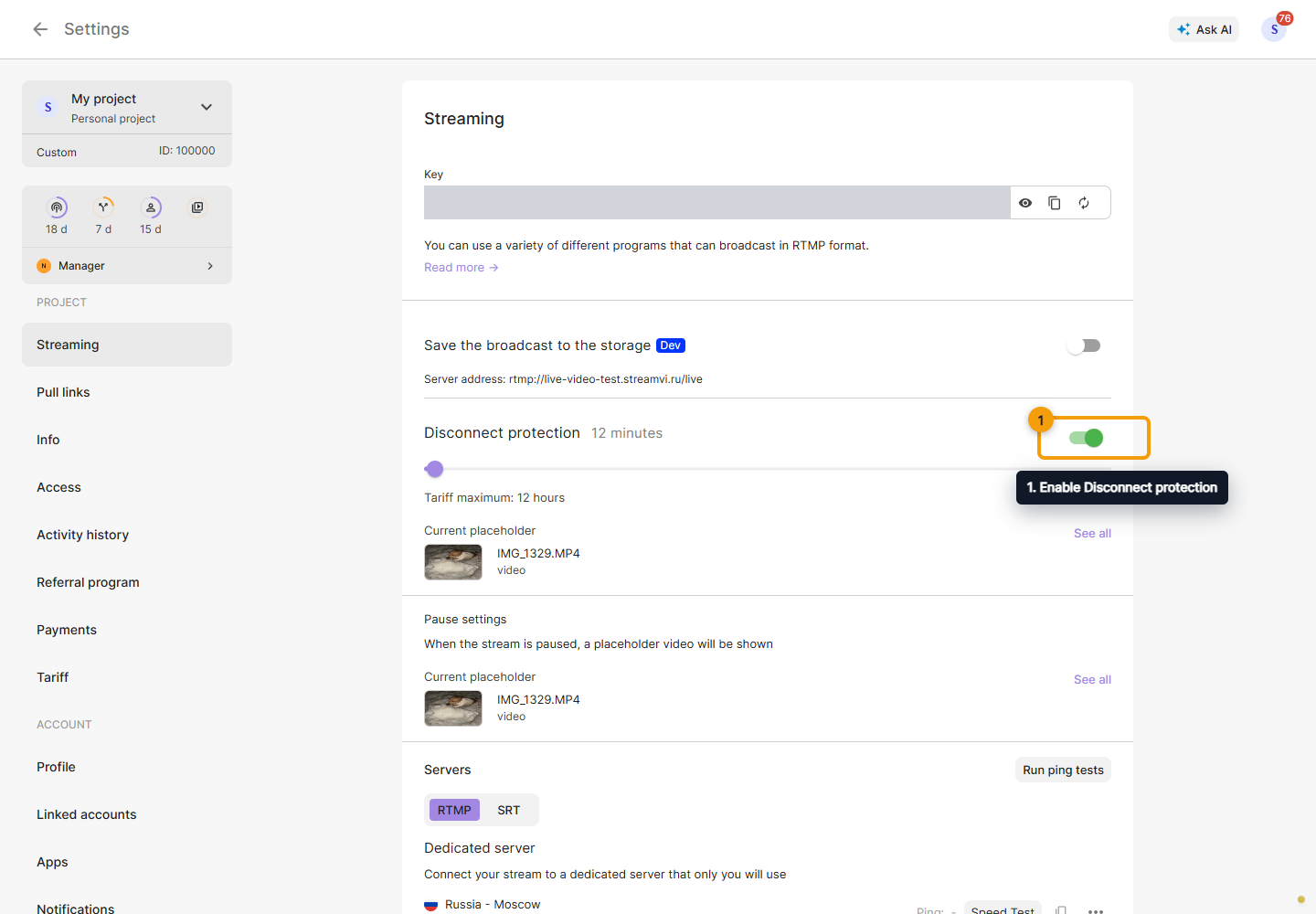
Enable Disconnect protection and use the slider to set how long to wait for the source to reconnect. The displayed maximum depends on the project's settings; it is not a fixed 60-minute limit for everyone. The switch saves immediately; the time saves when you release the slider. See Disconnect protection.
Record to storage
Save broadcast to storage appears when your account has the required access and saves immediately when toggled. If a dedicated server address is shown alongside it, follow that address in the interface. Check My videos for the recording once processing finishes.