
Widget
A widget uses named templates, for example for different OBS scenes. The author builds the settings interface and the widget itself. The Cabinet manages templates and can load and save their data through messages exchanged with the widget window.
For a complete project with settings, an OBS page and event subscriptions, see the viewer counter example. UI Kit is available for a new React interface; the counter example uses its previous version.
Configure the application
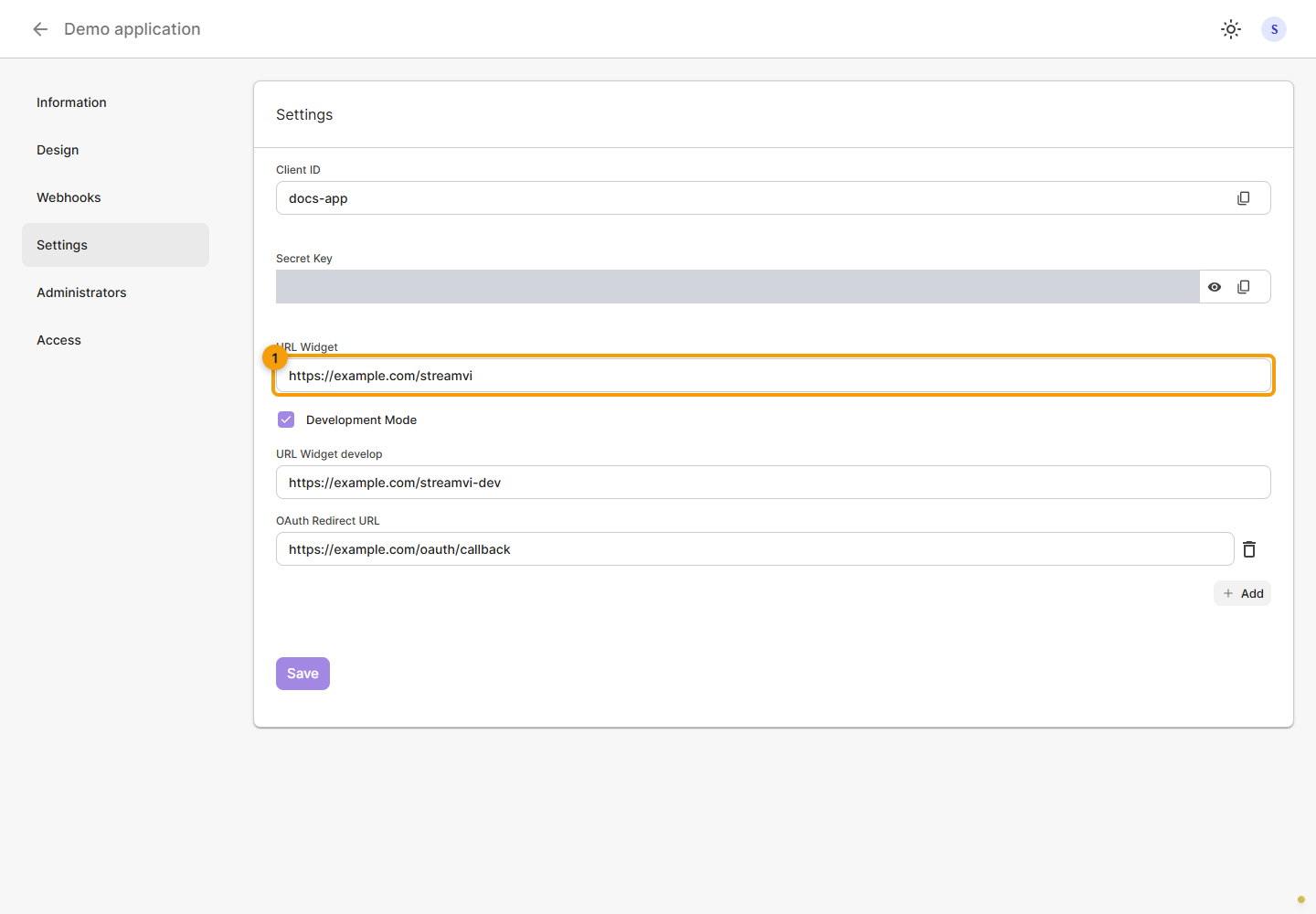
Create an application of type Widget and select the required permissions. Open Settings, set URL Widget and save. A development address and mode are available for a separate environment. Complete the application information and grant access to a demo project.
Create a template
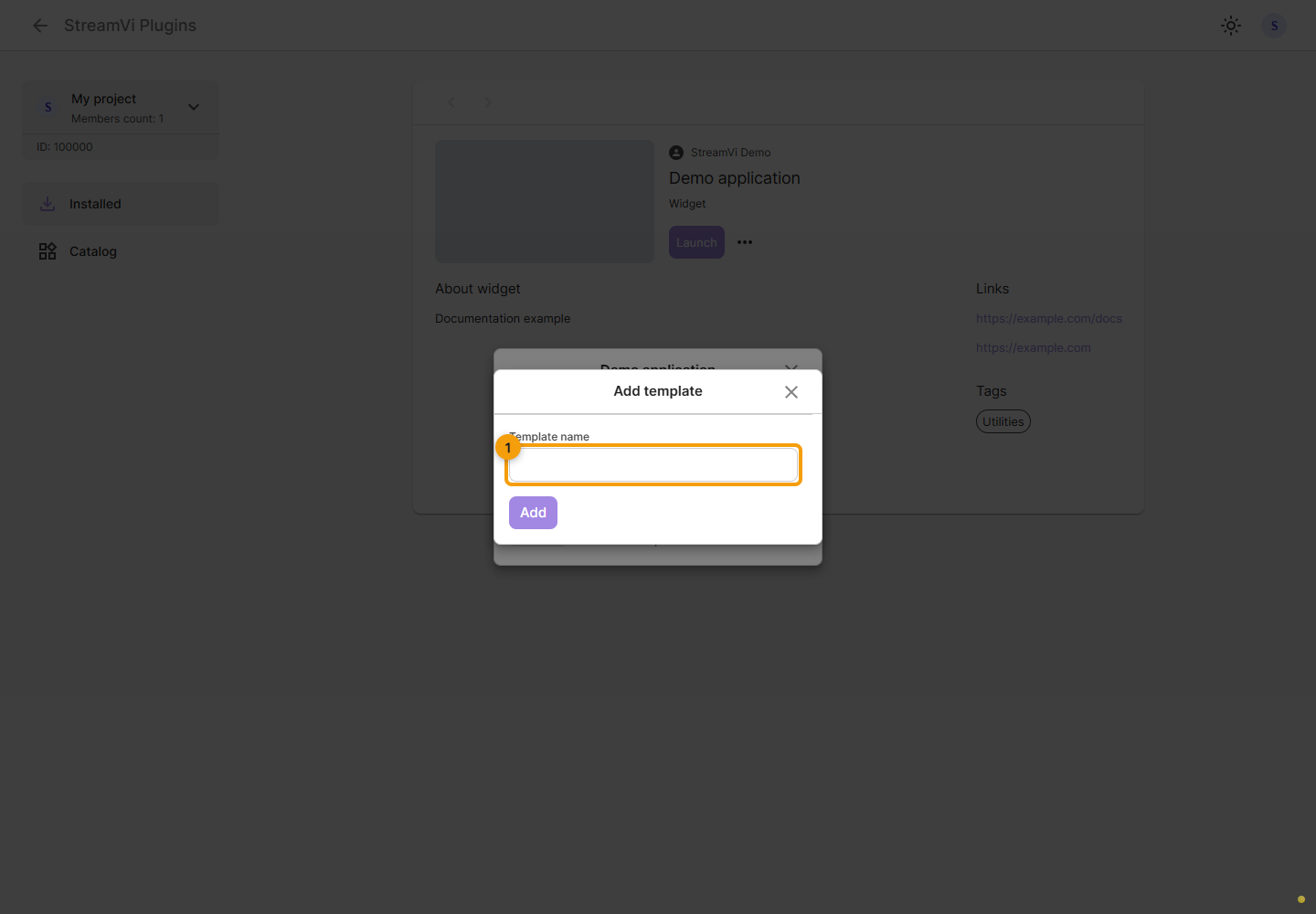
Install the application in the project and click Launch. The template list opens. Click Add, enter a name and confirm creation.
Open the new template row to load its settings in an embedded window. The copy icon on the right opens Copy template and creates a separate copy after confirmation. It does not copy an OBS address. Deleting a template also requires confirmation.
Launch parameters
When a template opens, StreamVi adds the parameters below to URL Widget. Configure a base page URL without your own query string or #: the Cabinet appends launch parameters.
| Parameter | Value |
|---|---|
project_id | Internal numeric project ID, represented as a string in the URL |
project_external_id | External ID of the same project |
template_id | ID of the opened template |
token | API token for this application's installation in the project |
sign | Signature of the launch parameters |
Verify the signature on your page's server before using the parameters. Keep the installation token in a server-side session if the page needs API requests. For /method/ requests, it can be sent in Authorization: Bearer ...; access is limited to the token's project and permissions.
The URL's token provides API access. The token field in the streamvi:cabinet:init and streamvi:widget:update messages below identifies only the iframe communication session. These values are not interchangeable.
Verify the signature
The current signature format is MD5 of the concatenated parameter values followed by the application secret key. The order for a widget is:
project_id + project_external_id + template_id + token + secret_keyThe order for an embedded page differs:
project_id + project_external_id + token + secret_keyIf an embedded page receives no token, omit it from the signature input. Use decoded string values from the URL without sorting, separators or another round of URL encoding. The MD5 result is represented by 32 hexadecimal characters.
Shared server-side Node.js example for both types:
import { createHash, timingSafeEqual } from 'node:crypto';

function verifyLaunchQuery(params, secretKey, type) {
  if (!secretKey || !['widget', 'embedded'].includes(type)) return false;
  const fields = type === 'widget'
    ? ['project_id', 'project_external_id', 'template_id', 'token']
    : ['project_id', 'project_external_id', ...(params.has('token') ? ['token'] : [])];
  if ([...fields, 'sign'].some((key) => params.getAll(key).length !== 1)) return false;
  if (fields.some((key) => !params.get(key))) return false;
  const sign = params.get('sign');
  if (!/^[a-f0-9]{32}$/i.test(sign)) return false;

  const values = fields.map((key) => params.get(key)).join('');
  const expected = createHash('md5').update(values + secretKey).digest();
  return timingSafeEqual(expected, Buffer.from(sign, 'hex'));
}
Pass new URL(requestUrl).searchParams as params, the secret from server configuration as secretKey, and your application's expected type as type. Reject the launch on false. Do not move this check and its secret to the browser. Your own extra parameters are not covered by this signature. A signature does not make the URL single-use: do not publish the full launch address containing a token.
Exchanging settings with the Cabinet
For the Widget type, the Cabinet loads the selected template's data and exchanges messages with its iframe using window.postMessage. This mechanism does not run for Embedded page applications.
| Message | Direction | Purpose |
|---|---|---|
streamvi:cabinet:init | Cabinet → widget | Sends template data and starts a messaging session |
streamvi:widget:ready | Widget → Cabinet | Confirms readiness, returning data and session identifiers |
streamvi:cabinet:sync | Cabinet → widget | Sends current data, language and theme after the exchange starts |
streamvi:widget:update | Widget → Cabinet | Sends changed template data for saving |
Every message contains type, token, template_id, project_id and payload. Return the received token, string template_id and numeric project_id unchanged. They identify the current window session; this token is not an API token or application secret.
payload is an object containing template data. Send the complete current object and retain fields you do not change. The Cabinet supplies incoming payload.language and payload.theme. The theme is light or dark; these two runtime fields are not persisted as template settings.
Register the message handler as soon as the page loads. The Cabinet retries init a limited number of times; handle duplicates safely and reply with ready. On sync, update the interface without sending an update back, which would create a change loop. Validate event.origin, event.source and the message shape, and use an exact targetOrigin. See MDN's postMessage guidance.
Minimal example
Place this fragment on your widget's settings page. In production, cabinetOrigin is https://streamvi.io; change it to http://localhost:3005 when testing the local Cabinet. The widget itself may have a different origin. The example sends title together with the other template data and applies the Cabinet's theme and language.
<label>Title <input id="title"></label>
<button id="send" disabled>Send changes</button>
<output id="status"></output>
<script>
  const cabinetOrigin = 'https://streamvi.io';
  const titleInput = document.getElementById('title');
  const sendButton = document.getElementById('send');
  const status = document.getElementById('status');
  let session;
  let settings = {};

  function send(type) {
    if (!session) return;
    window.parent.postMessage({
      type,
      token: session.token,
      template_id: session.template_id,
      project_id: session.project_id,
      payload: settings,
    }, cabinetOrigin);
  }

  window.addEventListener('message', event => {
    if (event.origin !== cabinetOrigin || event.source !== window.parent) return;
    const message = event.data;
    if (!message || !['streamvi:cabinet:init', 'streamvi:cabinet:sync'].includes(message.type)) return;
    if (typeof message.token !== 'string' || typeof message.template_id !== 'string' ||
        !Number.isFinite(message.project_id) || !message.payload ||
        typeof message.payload !== 'object' || Array.isArray(message.payload)) return;
    if (message.type === 'streamvi:cabinet:sync' && (!session ||
        message.token !== session.token || message.template_id !== session.template_id ||
        message.project_id !== session.project_id)) return;
    if (message.type === 'streamvi:cabinet:init' && session?.token === message.token) {
      send('streamvi:widget:ready');
      return;
    }
    session = {
      token: message.token,
      template_id: message.template_id,
      project_id: message.project_id,
    };
    const { language, theme, ...stored } = message.payload;
    settings = stored;
    document.documentElement.lang = language === 'ru' ? 'ru' : 'en';
    document.documentElement.style.colorScheme = theme === 'dark' ? 'dark' : 'light';
    titleInput.value = typeof settings.title === 'string' ? settings.title : '';
    sendButton.disabled = false;
    if (message.type === 'streamvi:cabinet:init') send('streamvi:widget:ready');
  });

  sendButton.addEventListener('click', () => {
    settings = { ...settings, title: titleInput.value };
    send('streamvi:widget:update');
    status.textContent = 'Changes sent to Cabinet';
  });
</script>
Verify persistence
Open a template, change its title and click Send changes in the example. Check that the Cabinet window shows no error, close the template and reopen it: the title should load from saved data. Repeat with another template and when changing the language or theme.
The Cabinet sends data to the server when payload changes. The protocol has no separate “saved successfully” message: postMessage only sends a message. The example therefore displays Changes sent to Cabinet rather than claiming persistence. While a previous request is pending, new save messages may be skipped; sending on every keystroke does not guarantee persistence. After an error, reopen the template to check its data.
Use in OBS
The application author implements the OBS address and rendering. Create a separate display page that obtains the intended template's stored settings through your server. Provide its link in the settings interface and explain where users can copy it. Add a Browser source in OBS and enter the address and required dimensions.
Saved template data is available through GET /method/integration-template/widget/get, version 1. This specific method requires integration:read; it is not a required permission for creating a plugin. To work with projects, channels, videos and other entities, choose the scopes required by the API methods you use. In the request below, use the internal project_id, template_id and API token from a verified launch:
curl --fail-with-body --get \
  'https://api-v2.streamvi.io/method/integration-template/widget/get' \
  --header "Authorization: Bearer $STREAMVI_ACCESS_TOKEN" \
  --data-urlencode 'v=1' \
  --data-urlencode "project_id=$STREAMVI_PROJECT_ID" \
  --data-urlencode "template_id=$STREAMVI_TEMPLATE_ID"
Example response after saving a title with the example above:
{
  "payload": {
    "title": "My broadcast"
  }
}
payload can be null when the template has no stored data yet. Render your widget's initial state. The language and theme fields added by the Cabinet during message exchange are not part of stored settings. Another project cannot read the template through this request.
The OBS page runs outside the Cabinet and receives no streamvi:cabinet:init or sync. The application author decides when the page reads settings again; this method returns the current object and does not create a change subscription.
Keep the installation API token on your server. For the OBS URL, use a separate key issued by your application that only permits displaying the intended template. Do not publish a working link; before deleting a template, check which scenes use it. For a separate OAuth connection, see OAuth.