
Channel settings
On the selected project's main page, click a channel row. This opens that channel's settings; the Broadcast switch enables or disables video delivery to the platform.
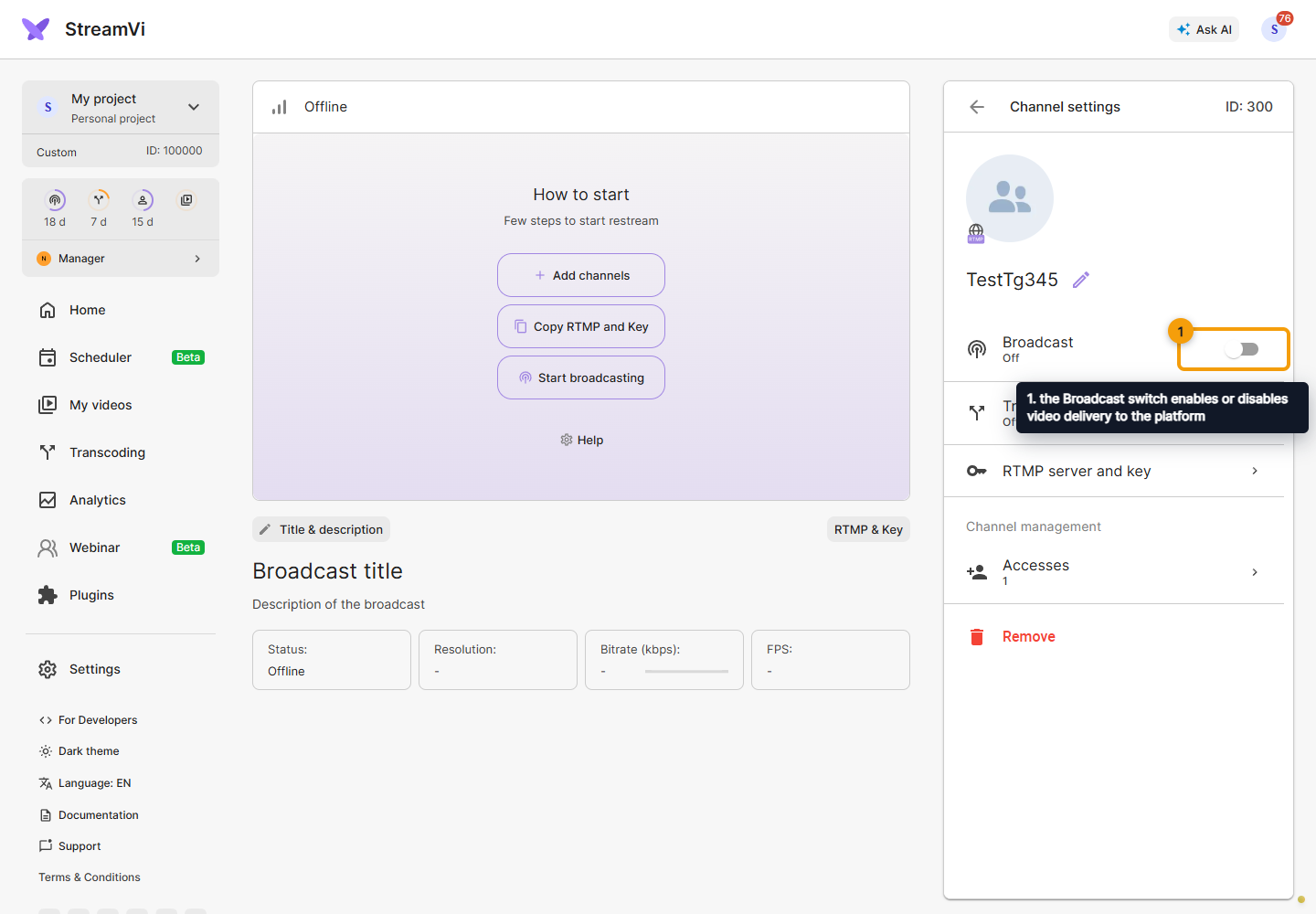
During a broadcast, the switch changes the channel's participation in the current stream; with no incoming stream, it prepares the channel for the next one. The change applies immediately, with no separate save. An enabled switch does not confirm that the destination has received video: check its status and broadcast page.
The page depends on the platform and connection method. An authorized connection can use the platform's API features; RTMP or SRT connections primarily configure an address and key or SRT parameters. A protocol connection alone does not add chat or publication management.
What to check
-
Channel name identifies the row in the Cabinet. If a pencil appears next to it, click the pencil, enter the new name and save. Change the broadcast title through Titles and descriptions or additional settings.
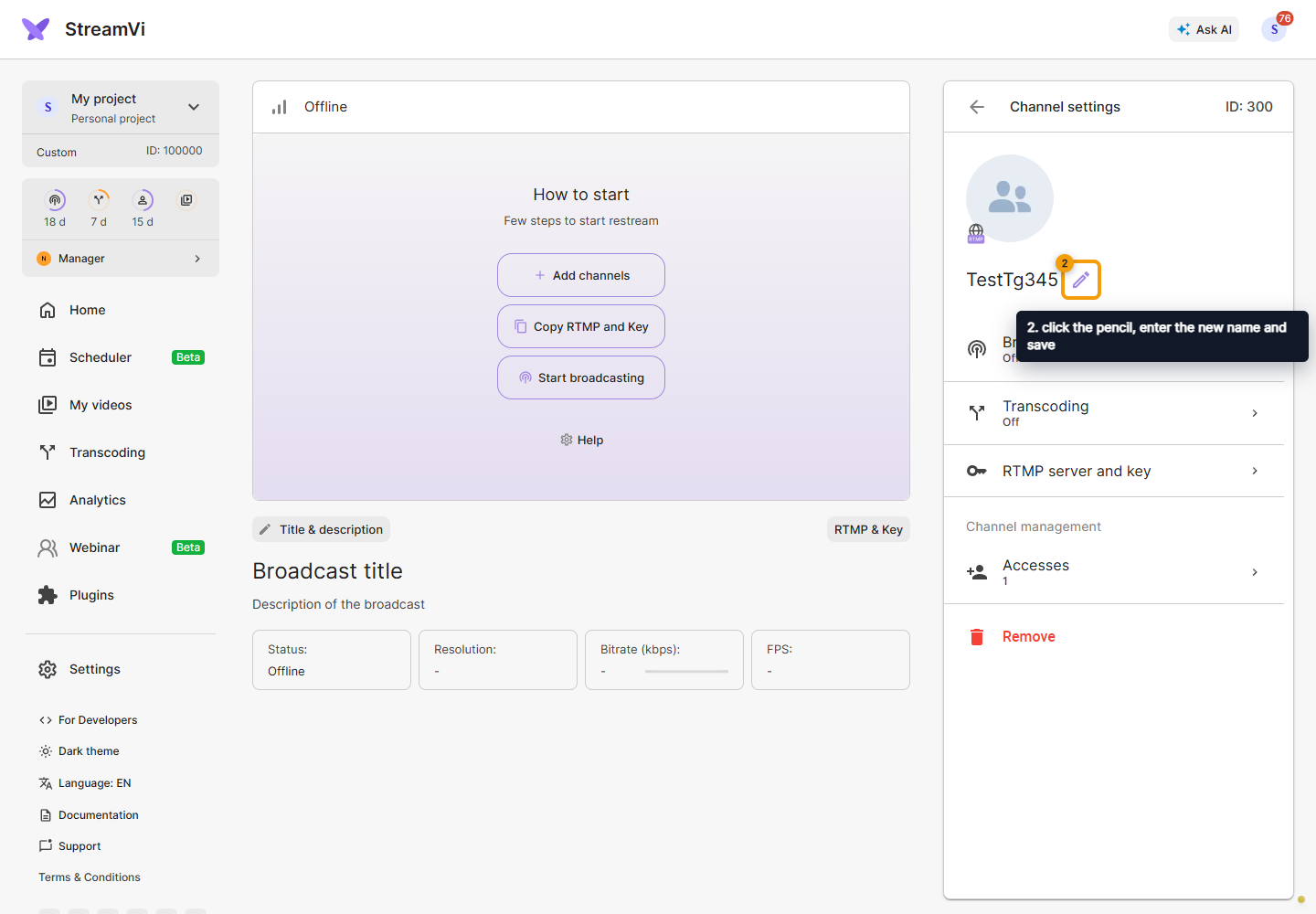
2. click the pencil, enter the new name and save -
RTMP/SRT contains the destination-platform connection details. This is a different connection from OBS sending to StreamVi. Save after changing these details.
-
Transcoding assigns a prepared conversion stream to the channel. See Transcoding for configuration and plans.
-
Scheduled broadcast selects an event on YouTube or VK, manually or automatically. Learn more.
-
Broadcast settings contains platform options: YouTube, Twitch, VK and others.
-
Chat on Telegram opens separate group connection and message filters. Learn more.
-
Access manages shared use of the channel. See roles and invitations.
Some settings require the owner or administrator. When a scheduled broadcast is selected, including automatic selection, additional settings may be unavailable: edit that event on the platform.
Deleting a channel and removing guest access are different actions. Before confirming, read what will be removed and check whether the channel is needed by a current or scheduled broadcast.
Renew platform access
If a Token badge replaces the switch in the list, open the channel and click Update obsolete token. The User token label indicates that account access to the platform needs renewal.
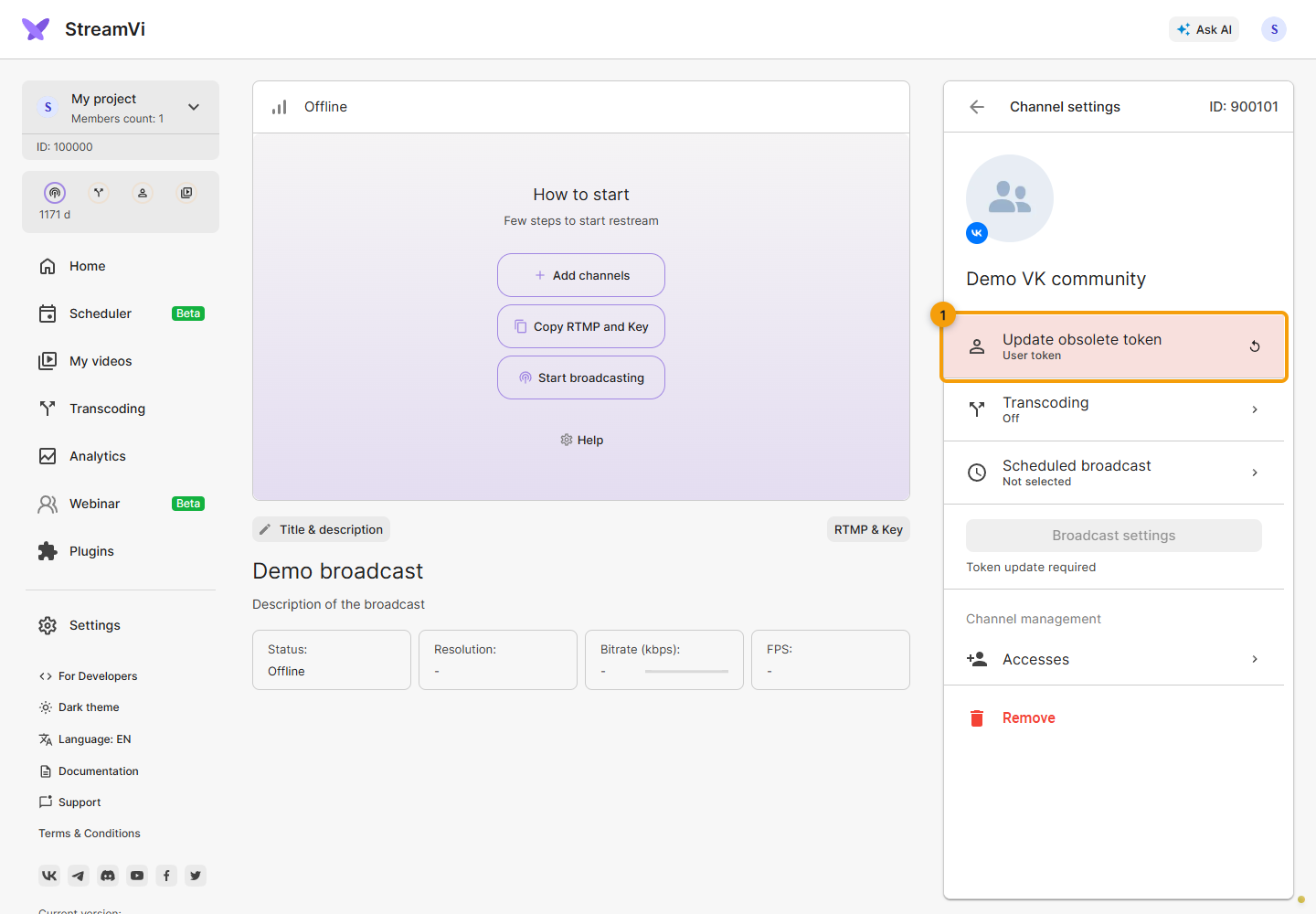
A VK community may also require a separate Community token update. The label below the same button identifies the invalid access. After updating one token, check whether the other now requires an update.
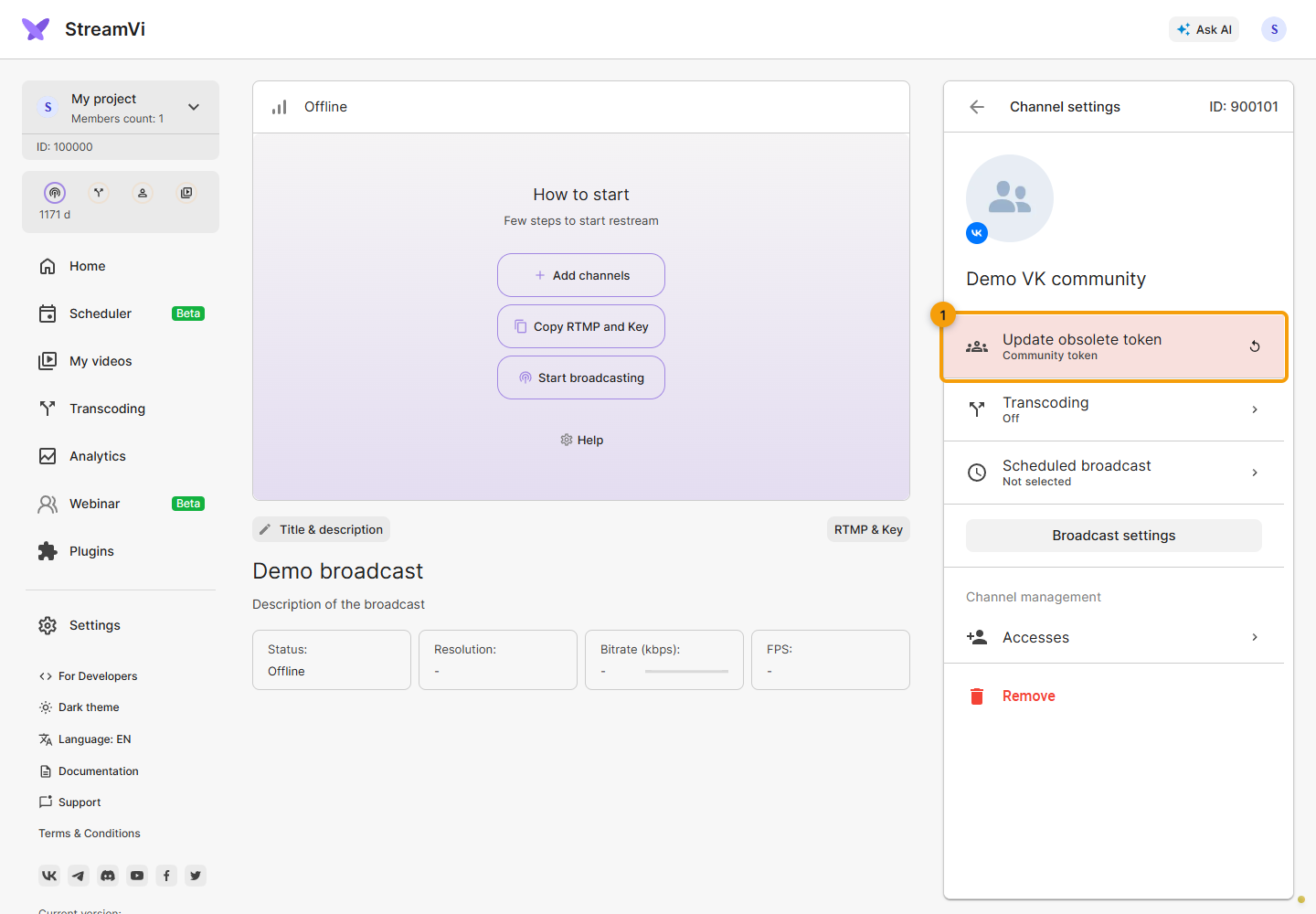
Clicking opens a separate platform authorization window. Sign in with an account that has access to the required channel and complete the requested confirmation. If no window appears, allow pop-ups for the Cabinet and try again. Return to channel settings and check whether the message has disappeared; refresh the page if needed.
An amber recommendation differs from invalid access: the broadcast switch remains available, but the Cabinet warns of possible issues with multichat, changing settings and other features. Click the token row below the warning to renew that access.
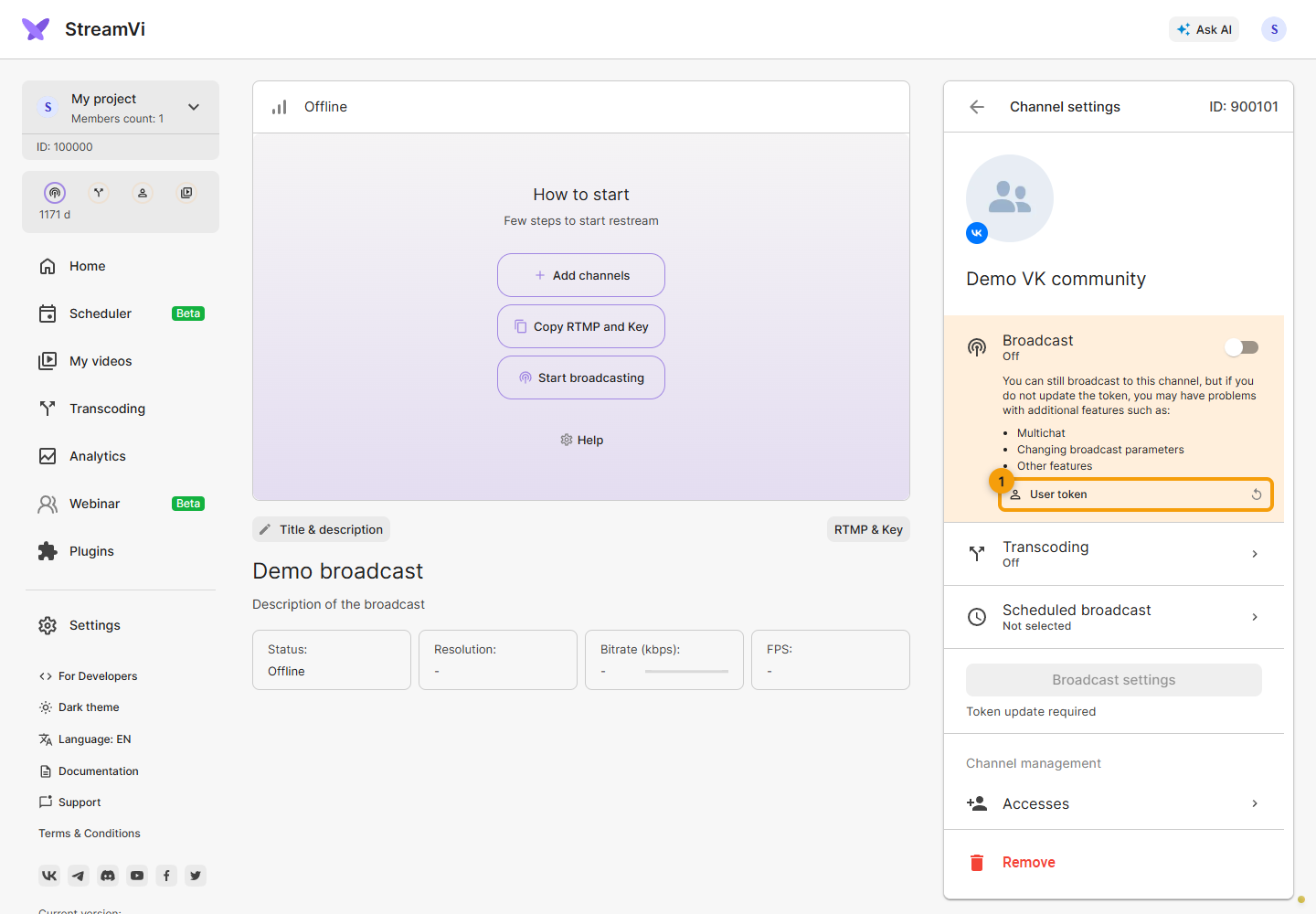
The screenshots show a demo community. This is StreamVi's access to the destination platform; changing the project's incoming OBS key does not renew it.
If one platform has no video
First check the incoming stream on the main page. If StreamVi receives video, open the affected channel and check its Broadcast switch using the screenshot at the start of this article. Read the message beside the channel: if it requires a token update, follow the renewal steps above.
For an RTMP/SRT connection, compare the address and key or SRT parameters with the platform's current settings. If a scheduled event is selected, check that it is the intended broadcast. Then open the broadcast page on the platform and the analytics log: the error message can help identify the cause. When contacting support, include the channel, time and error text without sending the stream key.
A channel is in use by another user
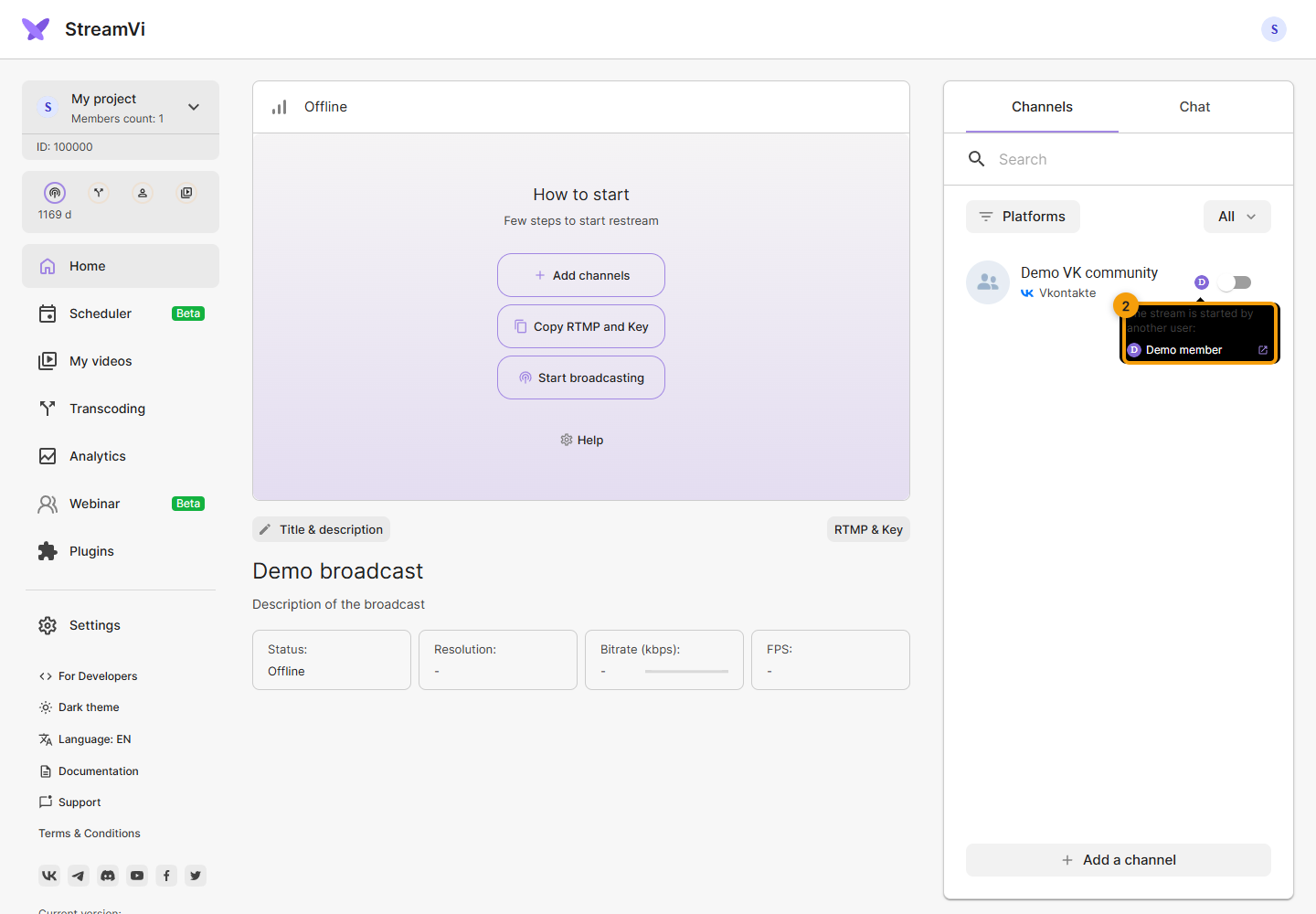
If other users’ avatars appear beside a channel, hover over them. The Stream started by another user tooltip shows their names; when a video link is available, a button opens the broadcast. Coordinate use of the shared channel with that member. Having the channel in your project does not mean it is currently free.
Channel search and filters
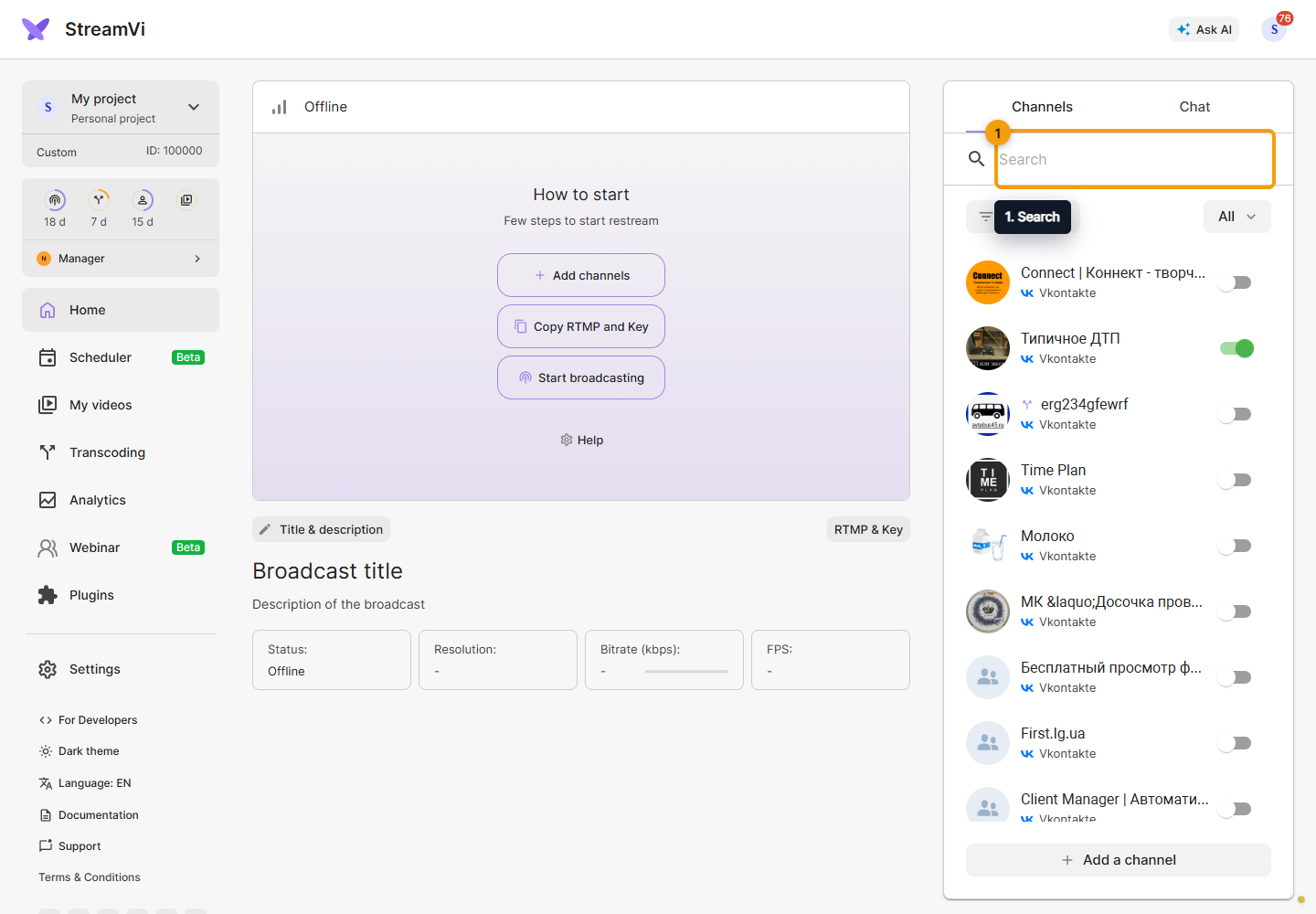
To find a channel in a long list, enter its name in the Search field above the list. Search also respects the selected channel group and platforms.
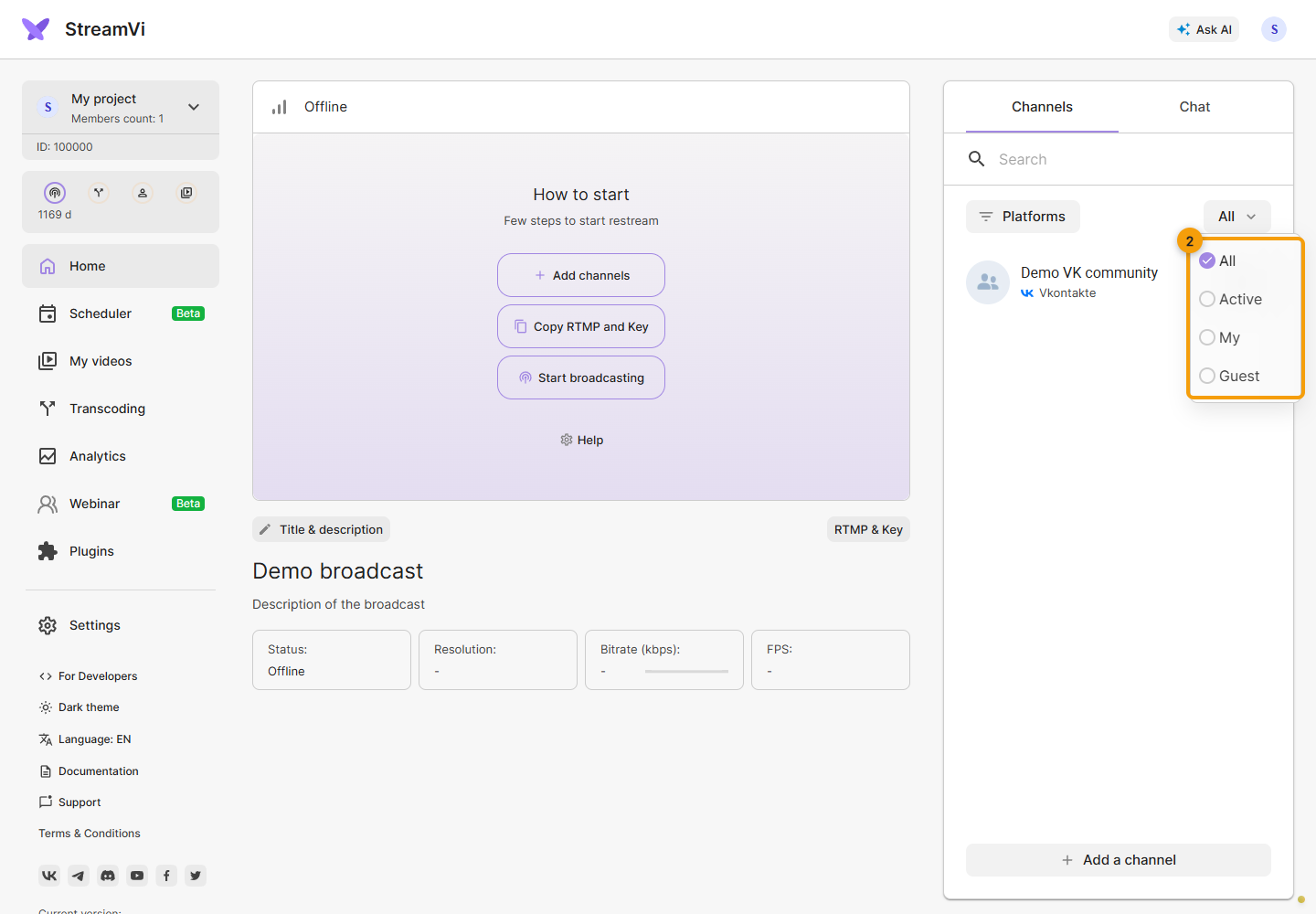
Open the group menu above the list and choose All, Active, My or Guest. This changes the displayed list; it does not start streaming to channels. Start with All when looking for a missing channel.
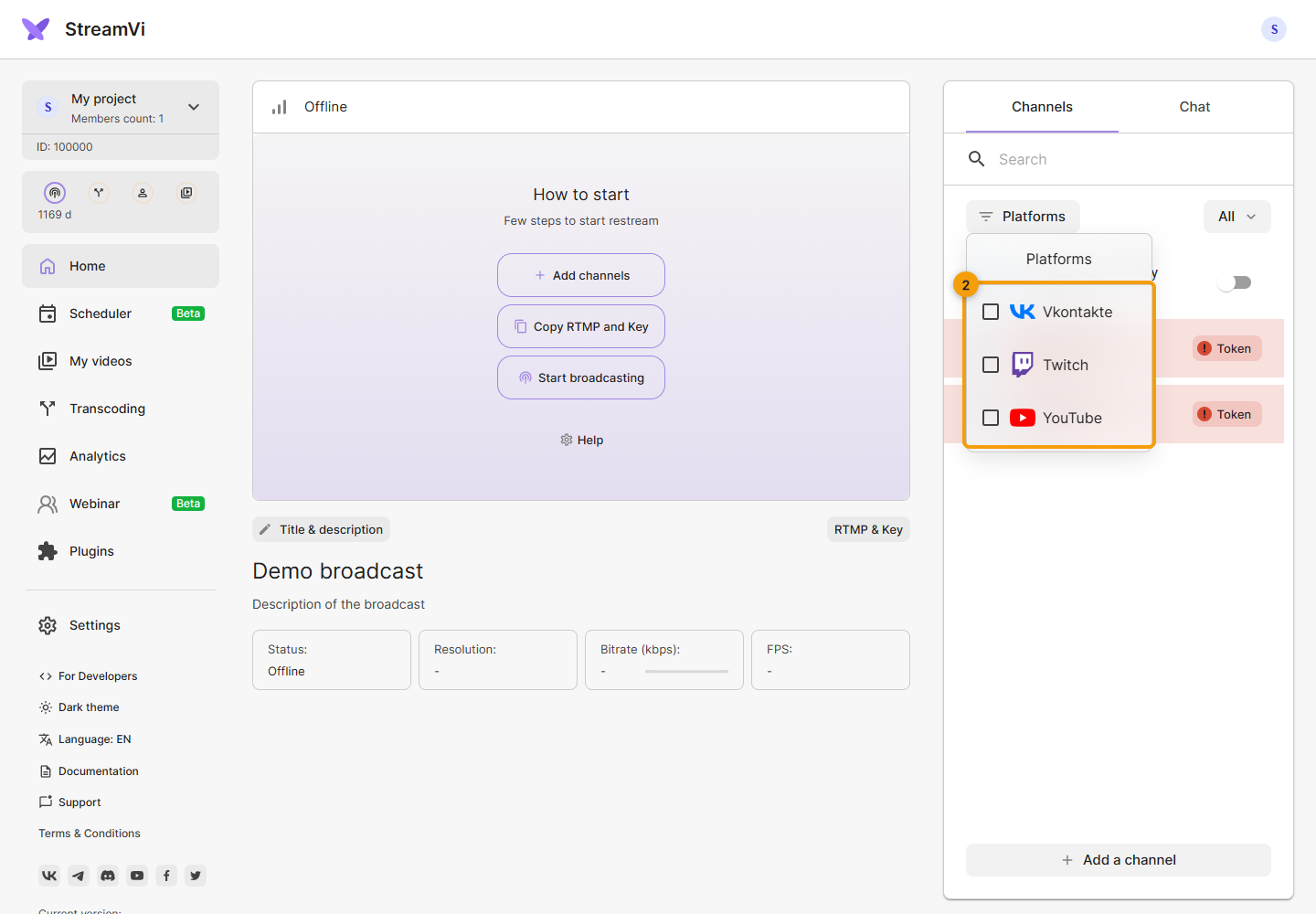
Click Platforms and select the platforms you need. The menu shows platforms from your connected channels.
Selected platforms appear as individual tags; the cross on a tag removes that platform. Clear filters clears the platform selection.
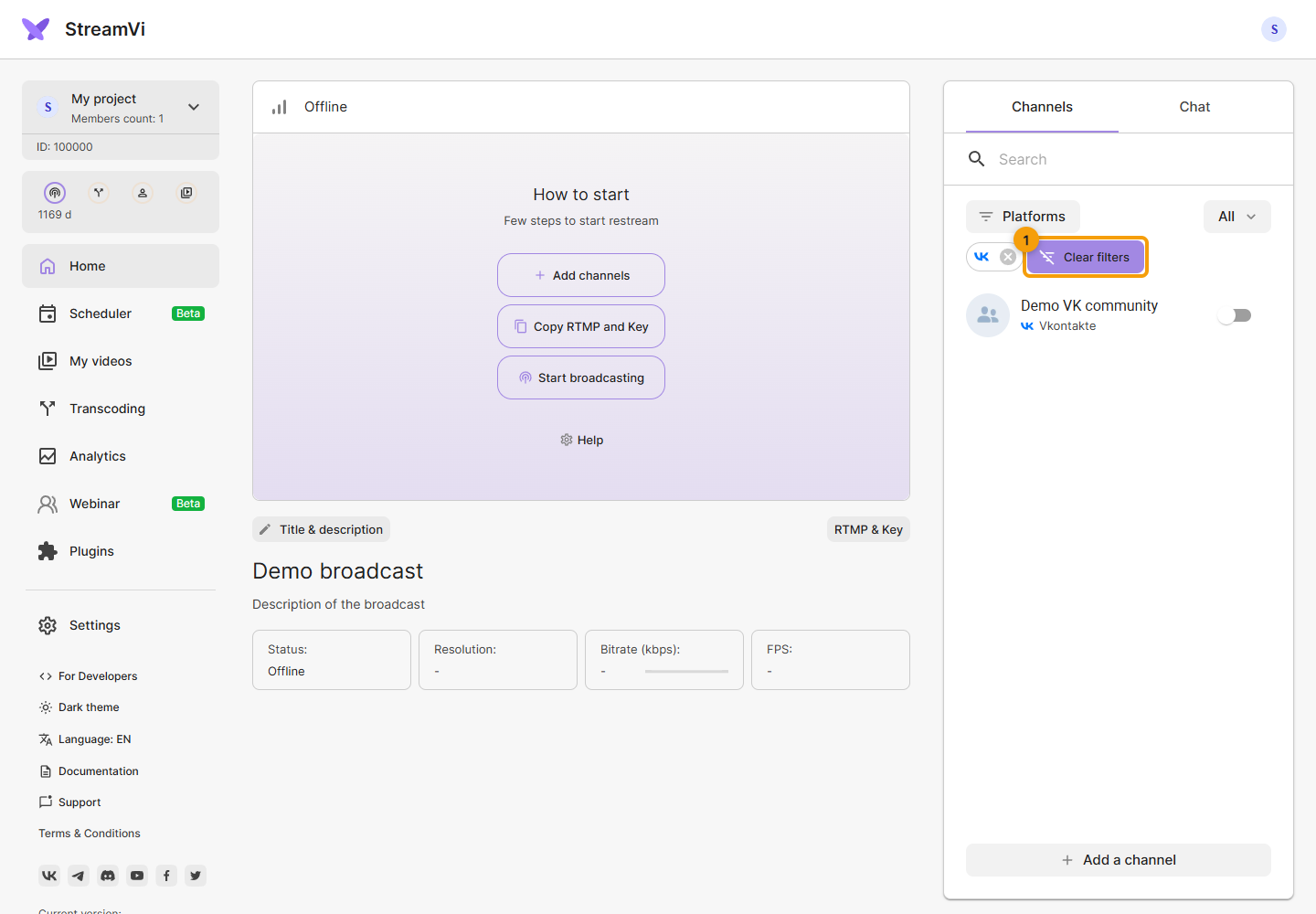
To restore the full list, clear the search field, select All and remove the platform filters. Clear filters alone is insufficient if a search query or another channel group remains selected. See Channel access for guest access.
The selected channel group and platforms are saved in the page address. Reloading the page, opening a bookmark or sharing its full link restores those filters. The channel-name search text is not included in the link; enter it again after opening a new page. A recipient needs their own access to the specified project.