
Embedded page
You can use UI Kit for a React interface and SDK Axios or SDK Fetch for server API requests. Adding libraries does not replace the launch parameter validation described below.
An embedded page opens your application in a window inside StreamVi. You build the page interface; the Cabinet provides installation and the launch window. The example below uses a demo application and fictional addresses.
Create the application
Open For developers → Create plugin, enter a name, select Embedded page, select the required permissions and save. See creating a plugin for this form.
Set the page address
Open the application → Settings. Enter your page address in Url iFrame. https://example.com/streamvi is only an example; replace it with your own address. Click Save and wait for confirmation.
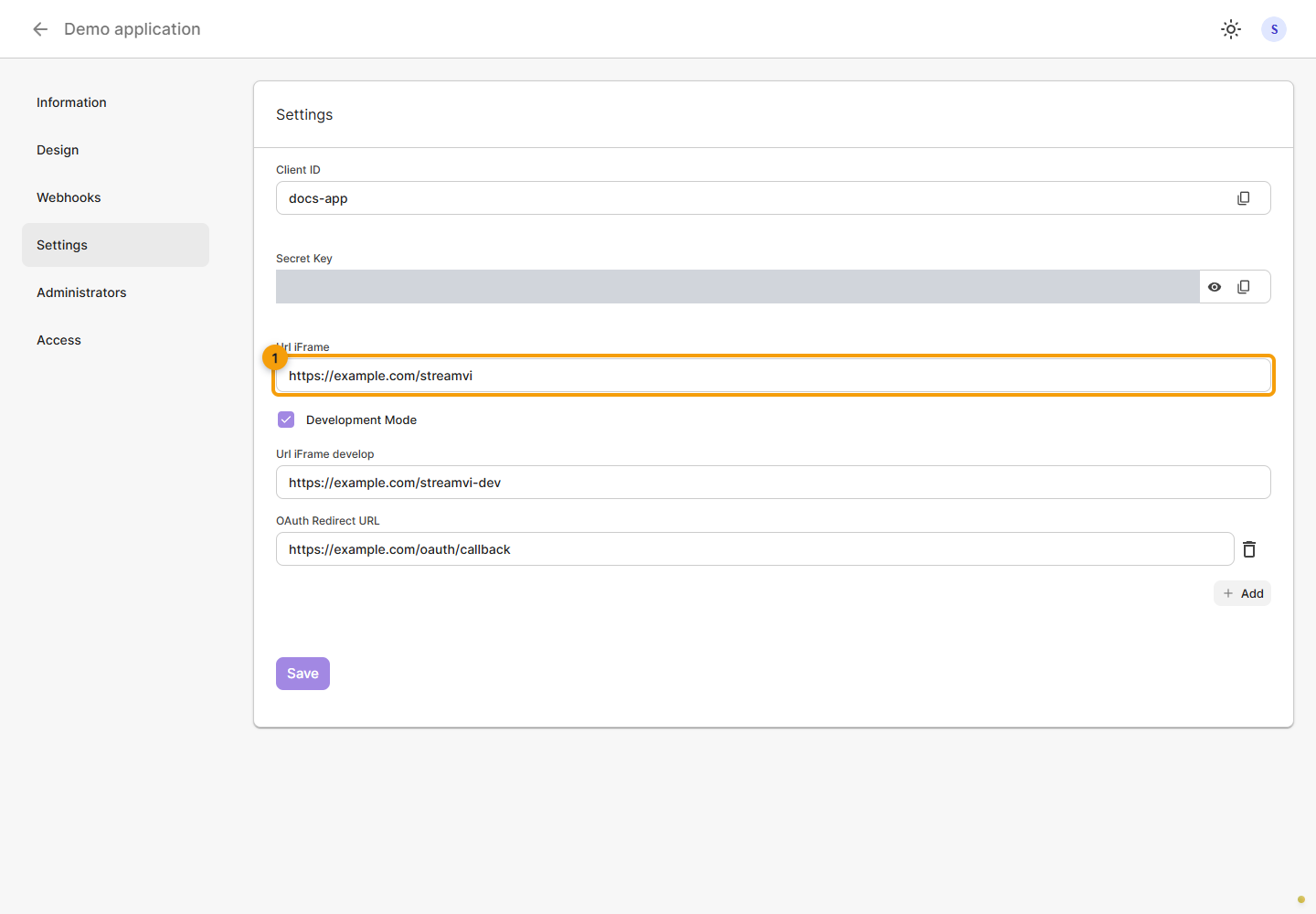
For a separate development address, enable Development mode, enter Url iFrame develop and save. Check the selected mode before launching. See application settings for addresses and keys.
Grant project access
Open Access, keep the Private status, click Invite and enter the demo project's ID. Check the matching project before confirming. This makes the application available to the project; installation is a separate step. See the private access form.
Complete Information and Design so that the card has a clear name, images and help links. Testing in your own project does not require submission to the public catalog.
Install and open
Switch to the allowed project, open Plugins → Catalog → Private and select the application card. Click Install, check the project and permissions, then grant access. See the installation dialog.
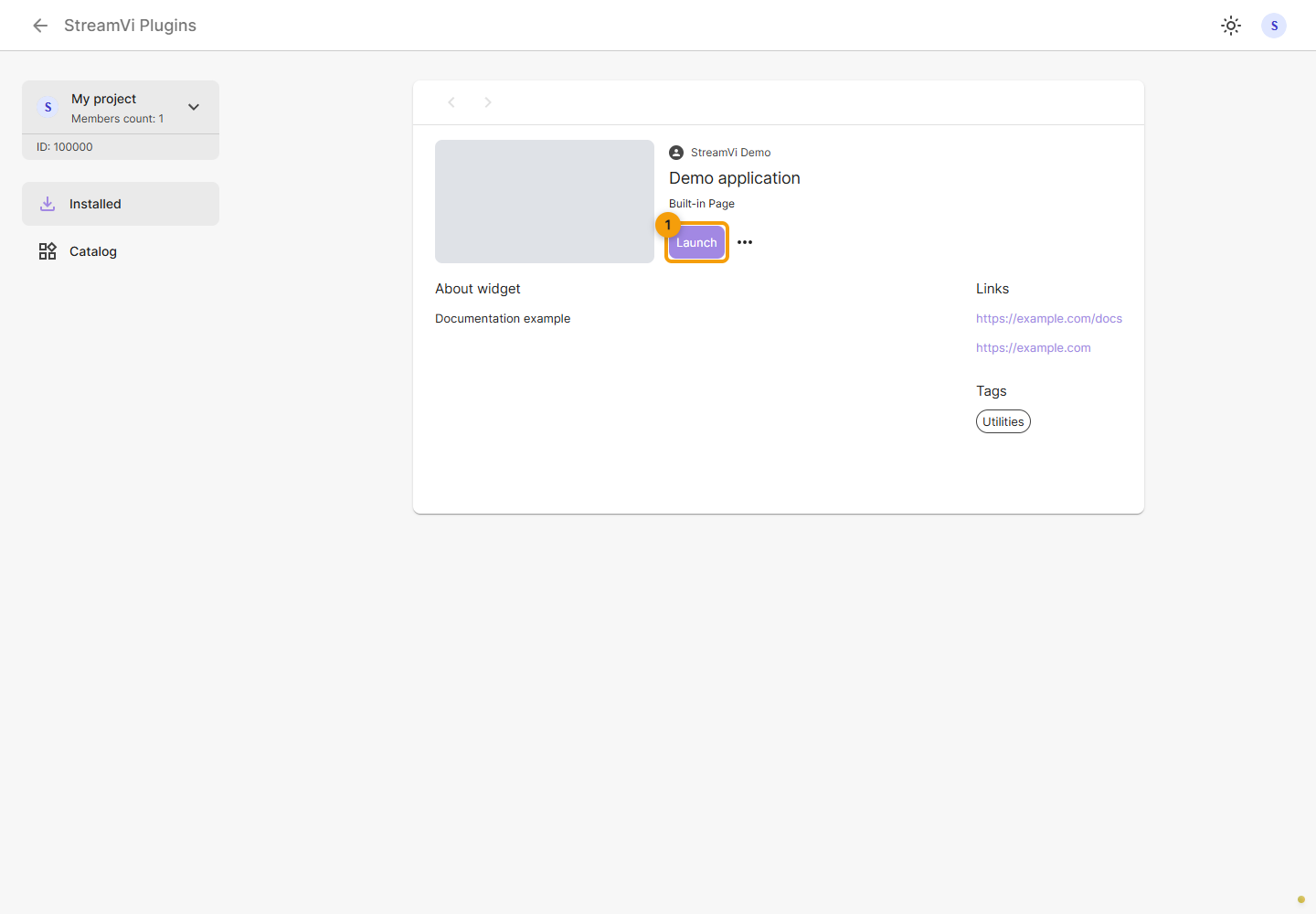
After installation, click Launch on the card. The application window opens. The screenshot shows an installed demo application card; the window will display your own page.
Launch parameters
On launch, the Cabinet adds these parameters to Url iFrame:
| Parameter | Value |
|---|---|
project_id | Internal numeric project ID, represented as a string |
project_external_id | External project ID |
token | Installation API token, when an installation and token are found for this application in the project |
sign | Signature of the launch parameters |
Use a base page URL without your own query string or #. An embedded page has no template_id. On the page's server, verify sign using the shared signature example with type embedded. The value order is project_id, project_external_id, then token when present, followed by the application secret.
After verification, store the token in a server-side session. Your server can call permitted /method/ methods with Authorization: Bearer ... and the method version, such as v=1. The broadcast state request needs project:read. This launch already supplies an installation token; using it does not require an additional OAuth authorization.
If token is absent, do not request project data and show that the connection is unavailable. A signature alone does not replace an API token. Keep the secret and token on your server, out of public examples and launch URL logs.
Check the page
Check loading, scrolling, forms and closing the window on desktop and mobile. If the window is blank, open the application address separately, then check the saved URL, development mode and whether your server permits embedding in StreamVi.
If the page works on its own but is blocked inside the Cabinet, check the application's Content-Security-Policy: frame-ancestors and X-Frame-Options response headers. Use OAuth for a separate connection from an external website.
The streamvi:cabinet:init template data exchange belongs to the Widget type. The Cabinet does not start this exchange for embedded pages.