
Start a webinar
On the project's main page, enable the required channels and check their settings. Then open the room link in a new tab. Creating a room or copying its link does not start broadcasting.
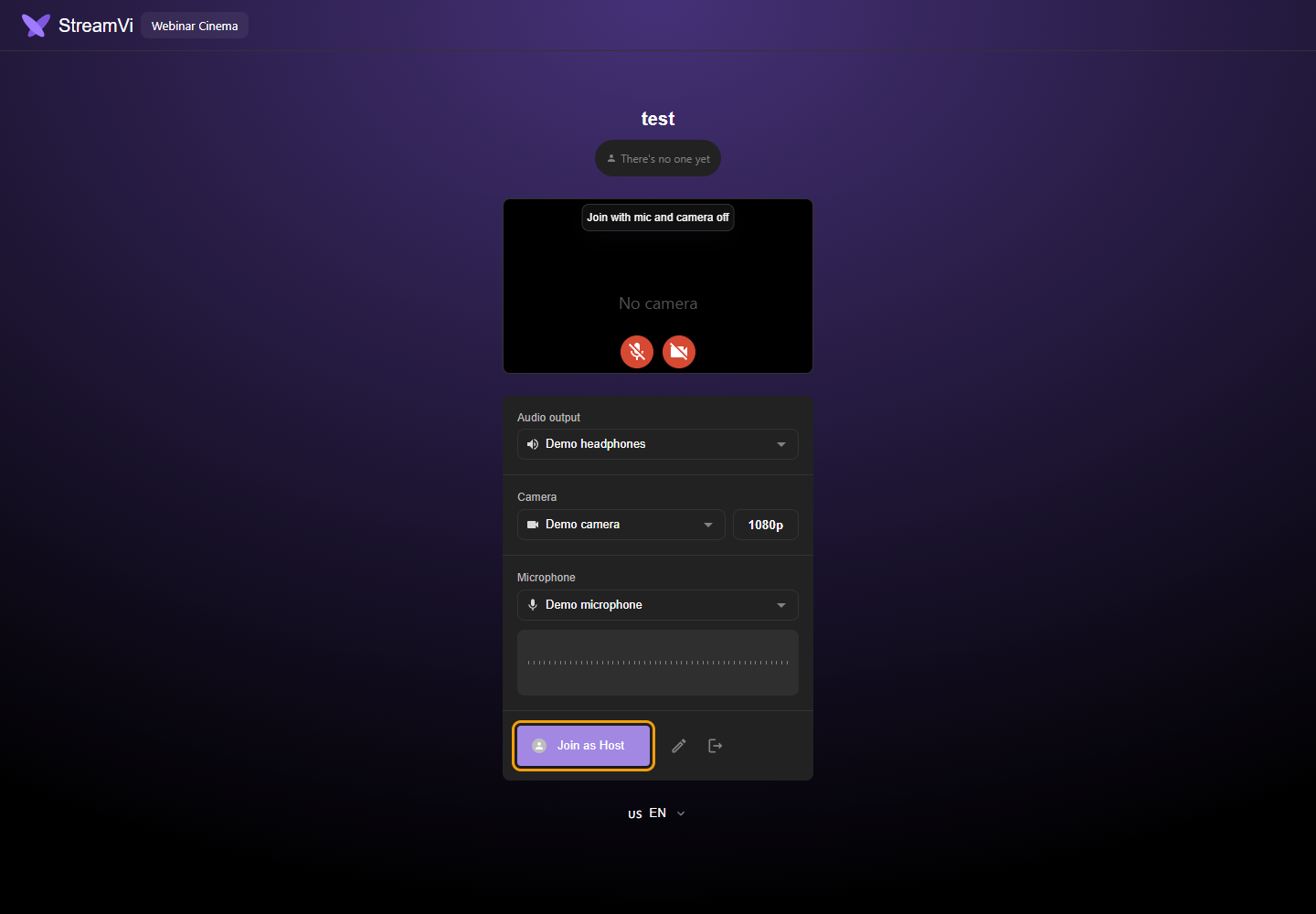
On the entry page, select the audio output, camera and microphone. Allow browser access to the required devices. In this example the camera and microphone are off: the crossed-out icons below the preview show their state. If a device is missing or access is blocked, check the connection and browser permissions.
If you are already signed into StreamVi, click Join as … with your name. Without a session, Sign up and Join anonymously are available; enter your name first for anonymous participation.
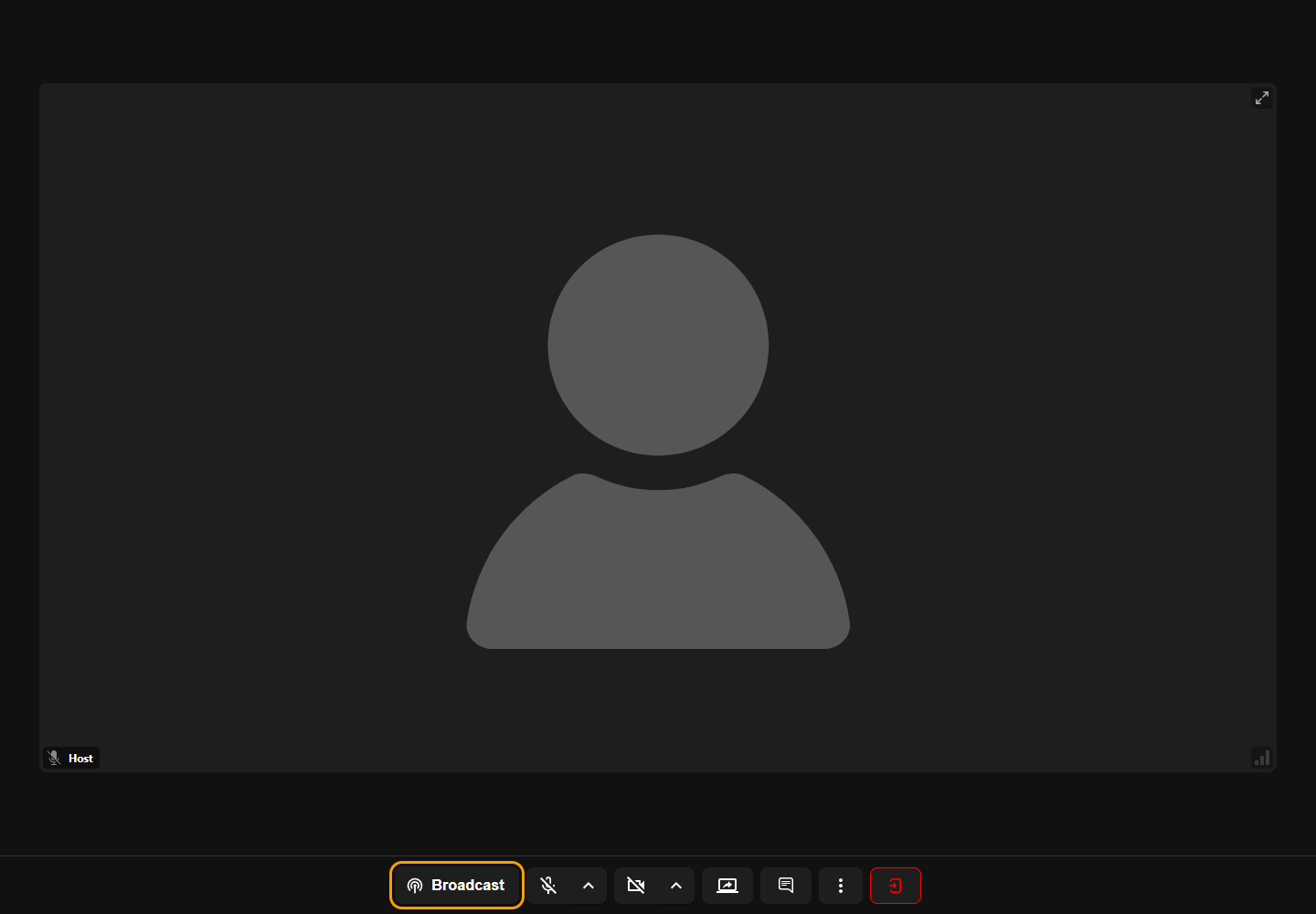
Inside the room, use the buttons at the bottom to turn on your microphone and camera if needed. Check your picture and ask another participant to confirm they can hear you. Screen sharing, chat, additional options and leaving the room are also available there. Click Broadcast to open the broadcast controls.
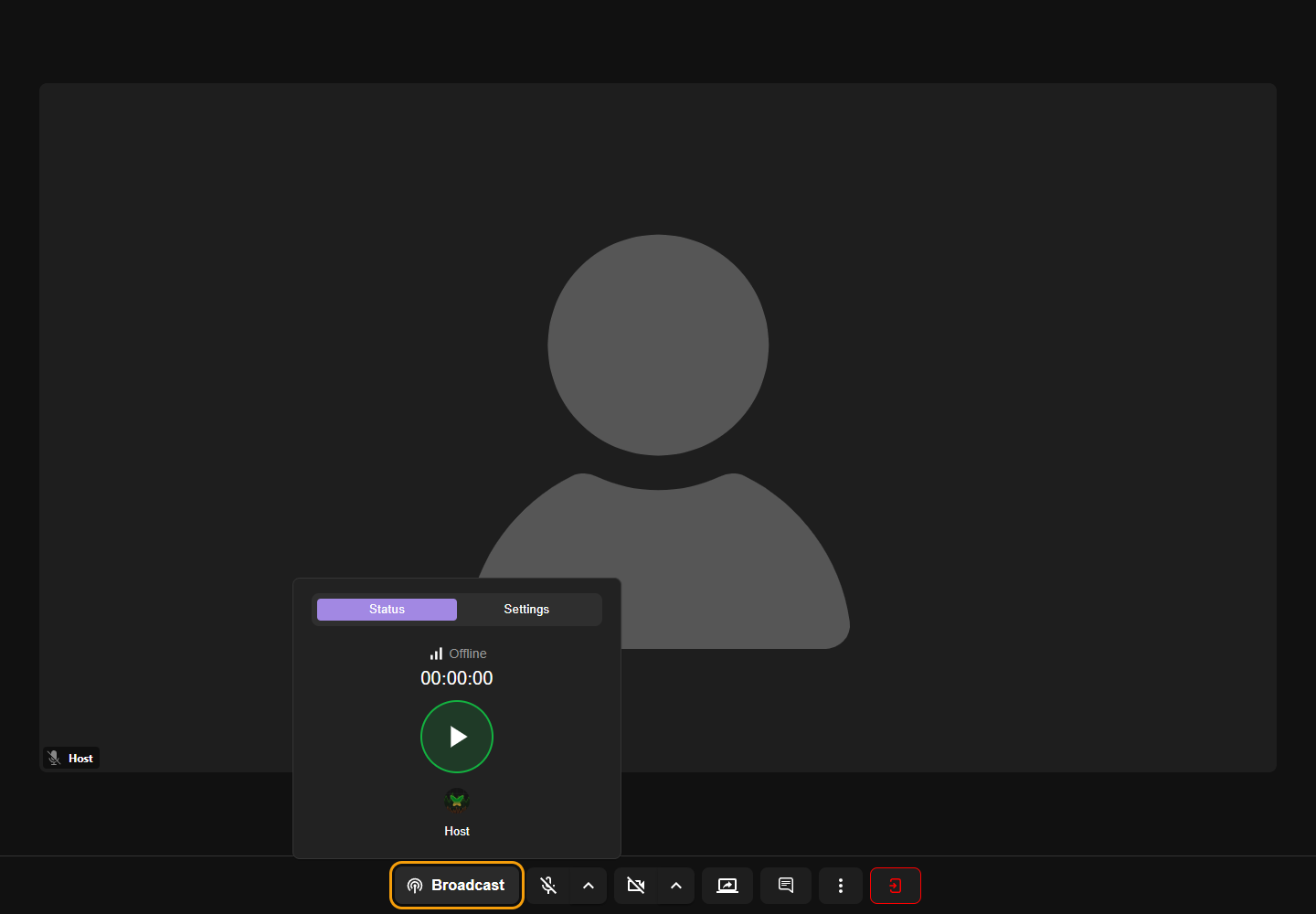
In the opened panel, select Status. Before broadcasting, it shows Offline and a zero timer. When participants and channels are ready, click the round green button with a triangle. A project uses one source broadcast at a time, so stop OBS or any other source for that project beforehand.
After starting, check the picture and sound on the destination platforms. A successful conversation in the room confirms participants are connected; it does not by itself confirm delivery to the channels.
If the room works but a platform shows no video, check channels and stream startup, plus the webinar and restreaming plan expiry dates.