
USDT TRC-20
Open Settings → Payments in the intended project.
For USDT TRC-20, enter the top-up amount and click Continue. The payment dialog opens. Check the network, exact USDT amount and recipient address. The buttons on the right copy the amount and address; the QR code contains the address. Check the amount separately and use the details from your own payment dialog.
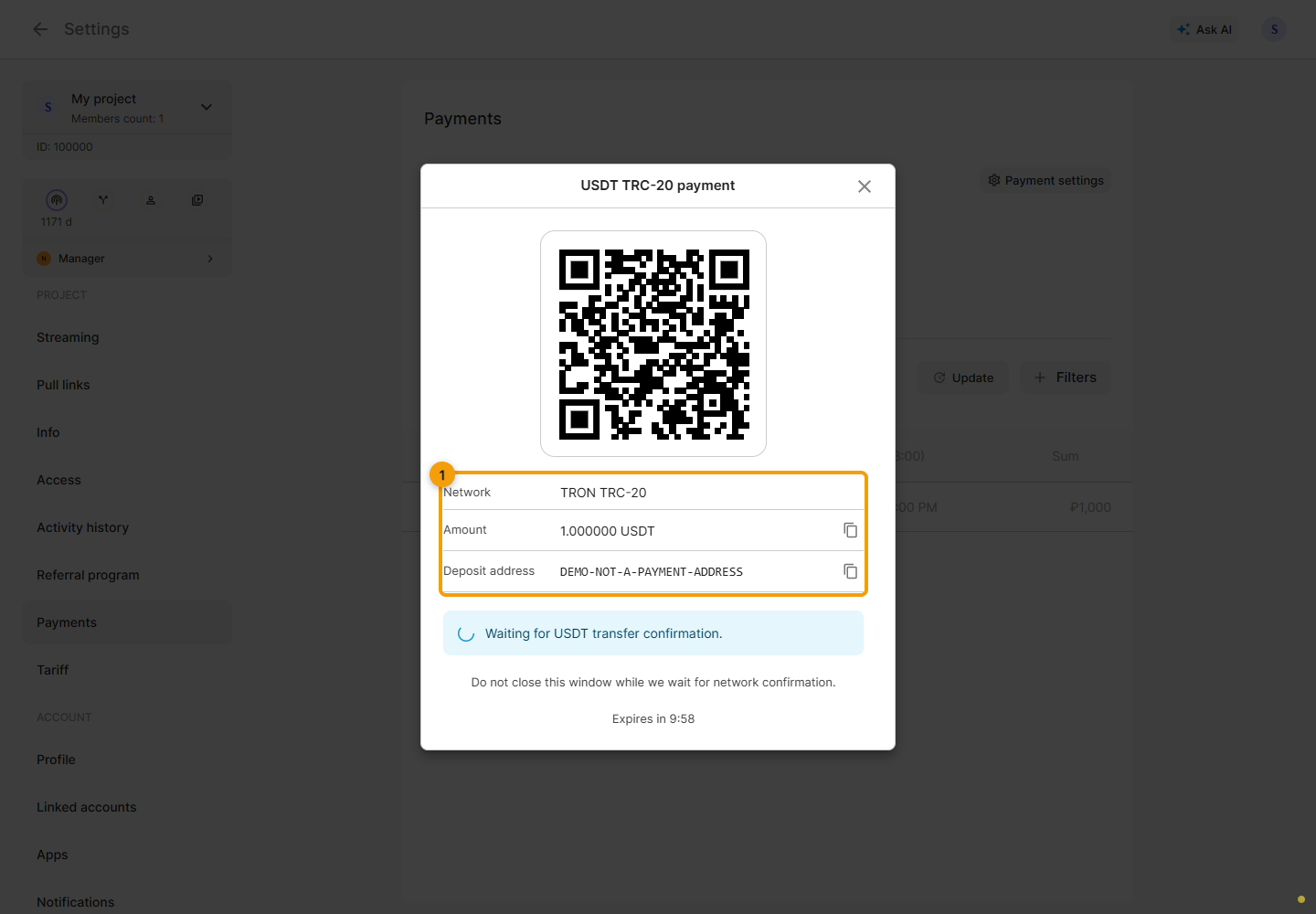
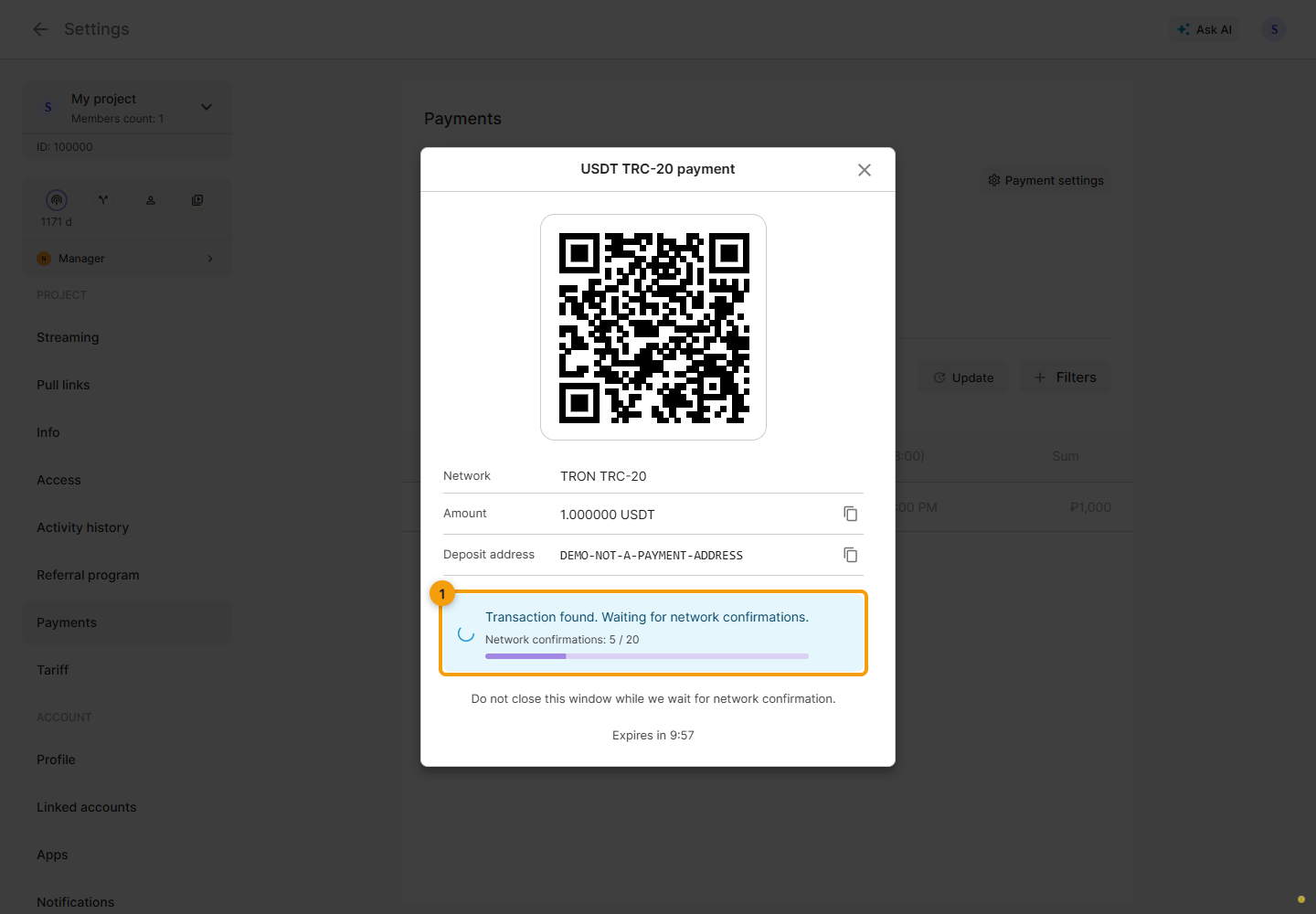
After sending, watch the payment status. Once the transfer is detected, the dialog shows pending confirmations and their count. A detected transfer does not yet mean payment is complete. Keep the dialog open until the result.
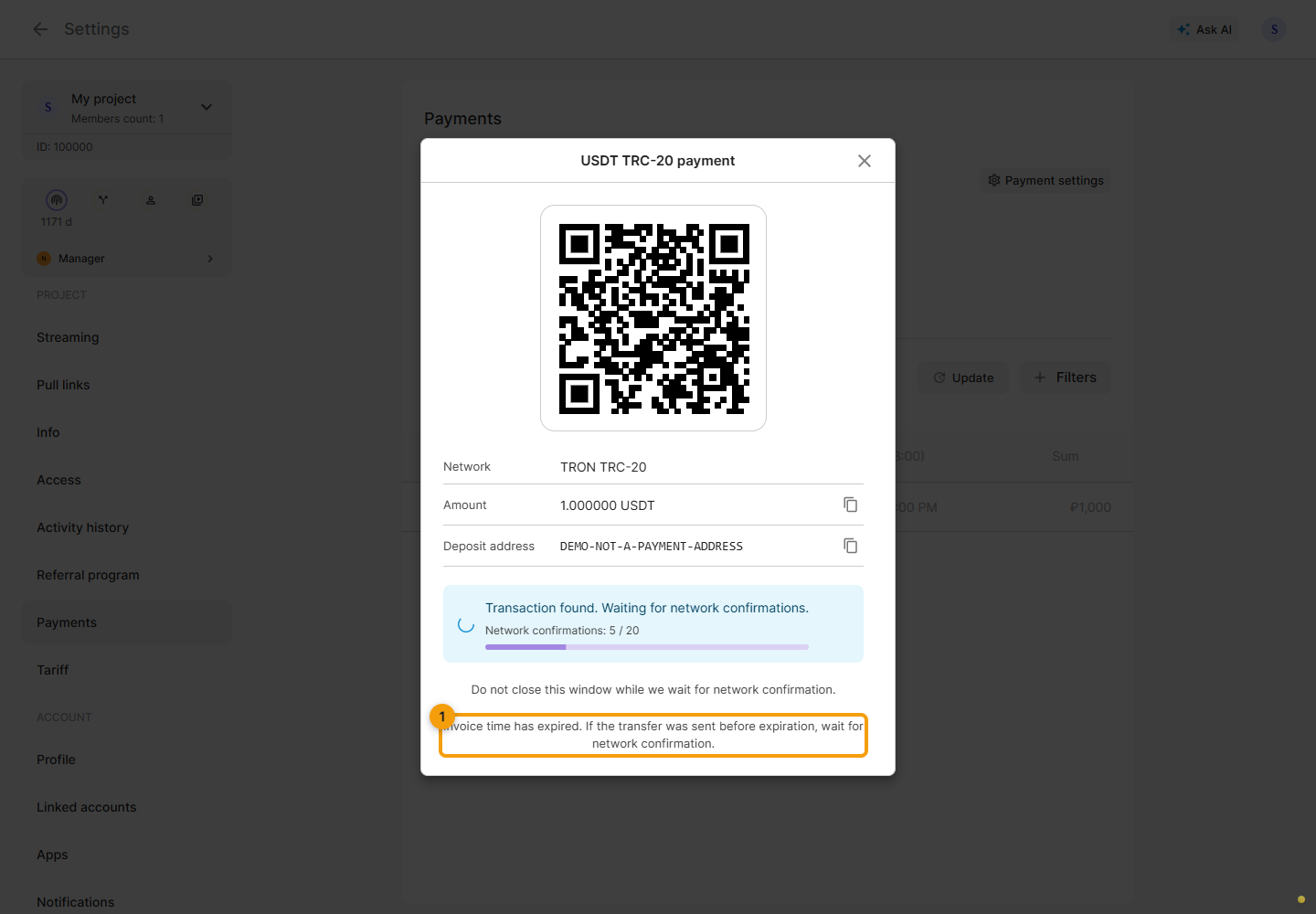
Check the invoice time remaining at the bottom of the dialog. If it expires after you sent the transfer, wait for the result and check history before retrying. If you have not sent anything, close the old dialog and create a new payment.
The screenshots use a demo amount, address and confirmation count. Do not use the article's QR code or address for payment. For an actual payment, the Cabinet displays the details of your own invoice.