
Event log
Open Analytics, select a broadcast and go to Event log. Check the broadcast date and ID before investigating.
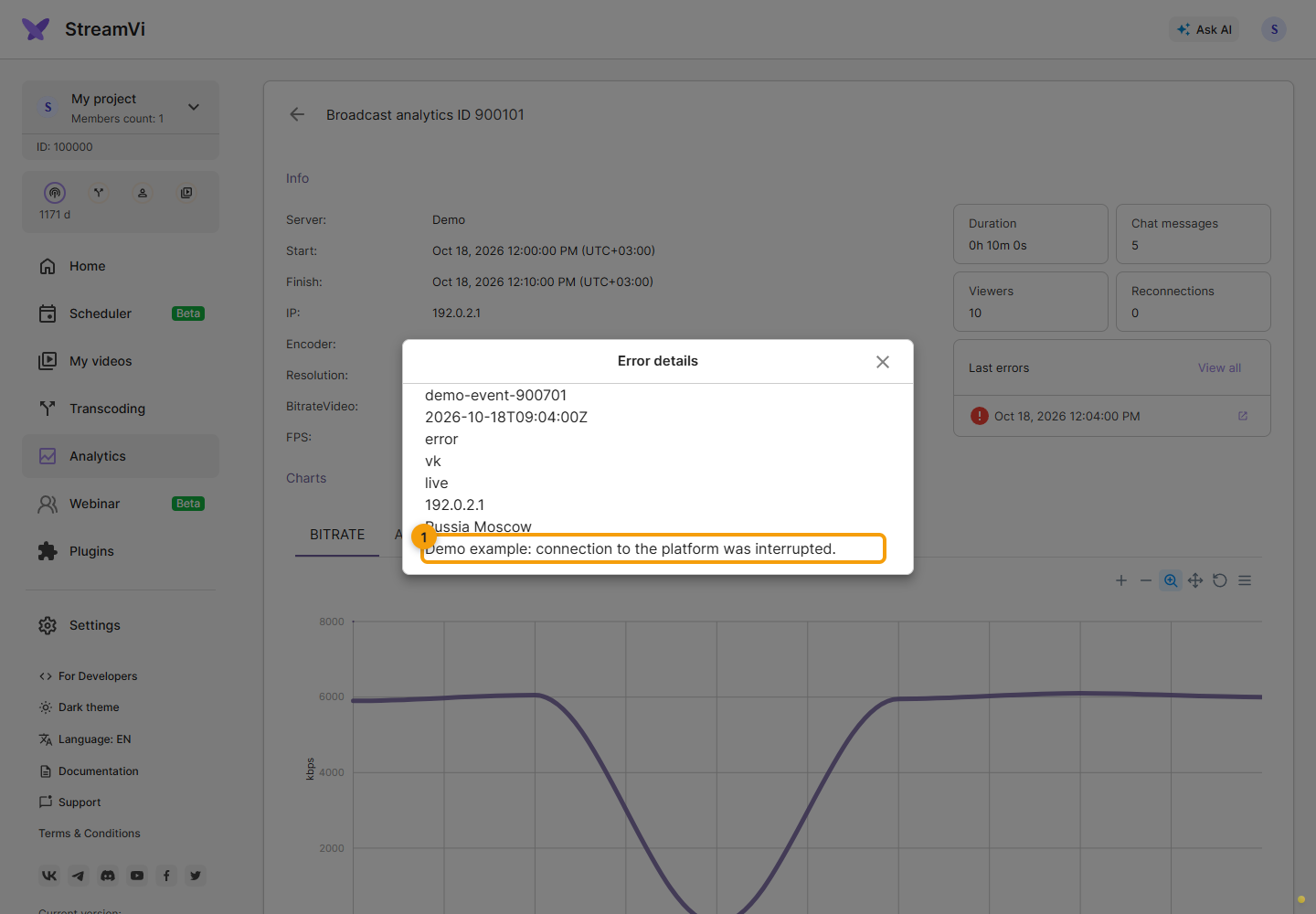
Open an event in Last errors to see its details. View all opens the log with an error filter.
Click Filters in the Event log. You can filter by start/end time, server, log level, platform and channels. Select a filter from the menu, then choose its value and confirm in the dialog. Clear resets the current selection; Remove filters restores the full log.
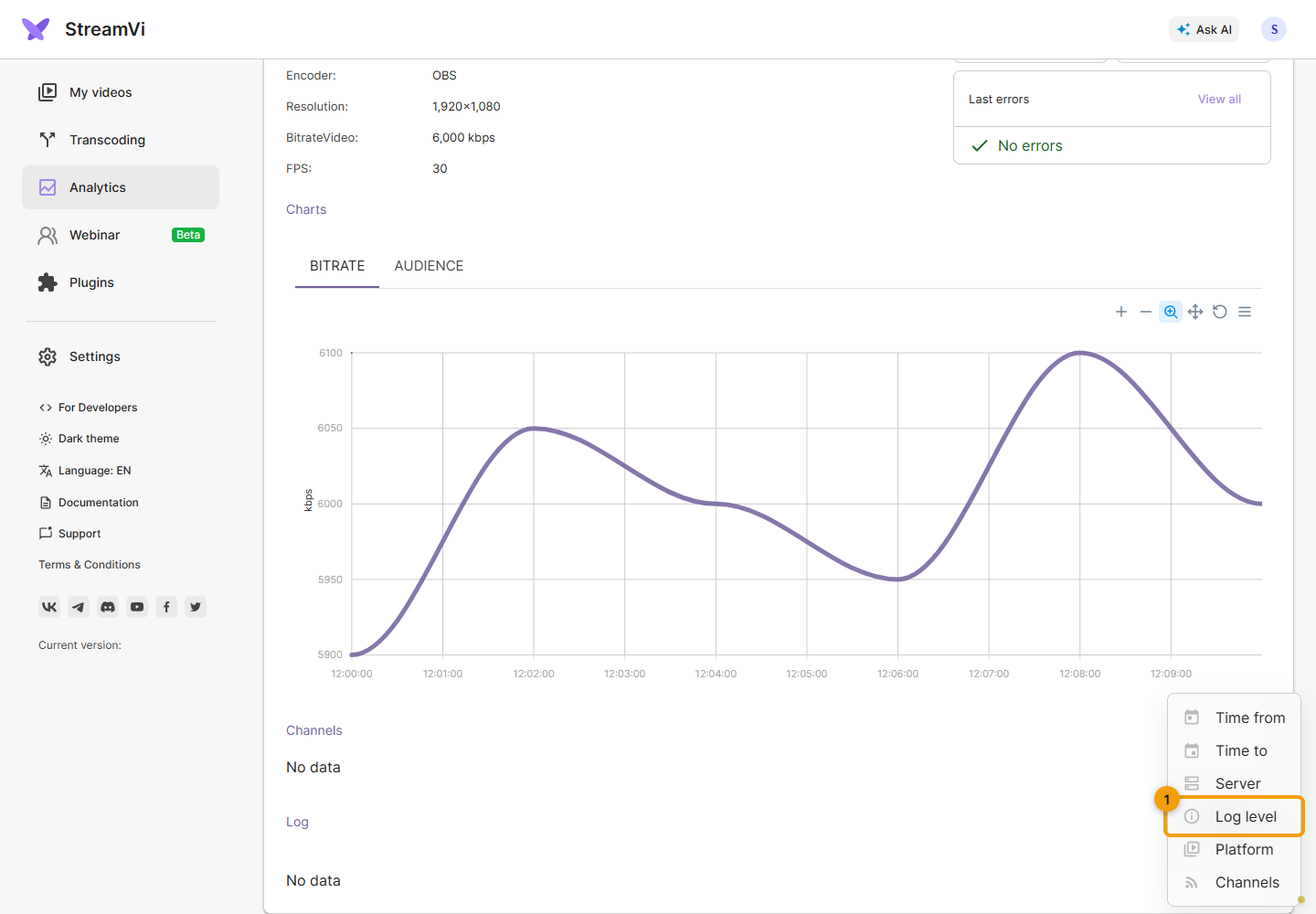
Example: find a channel connection interruption
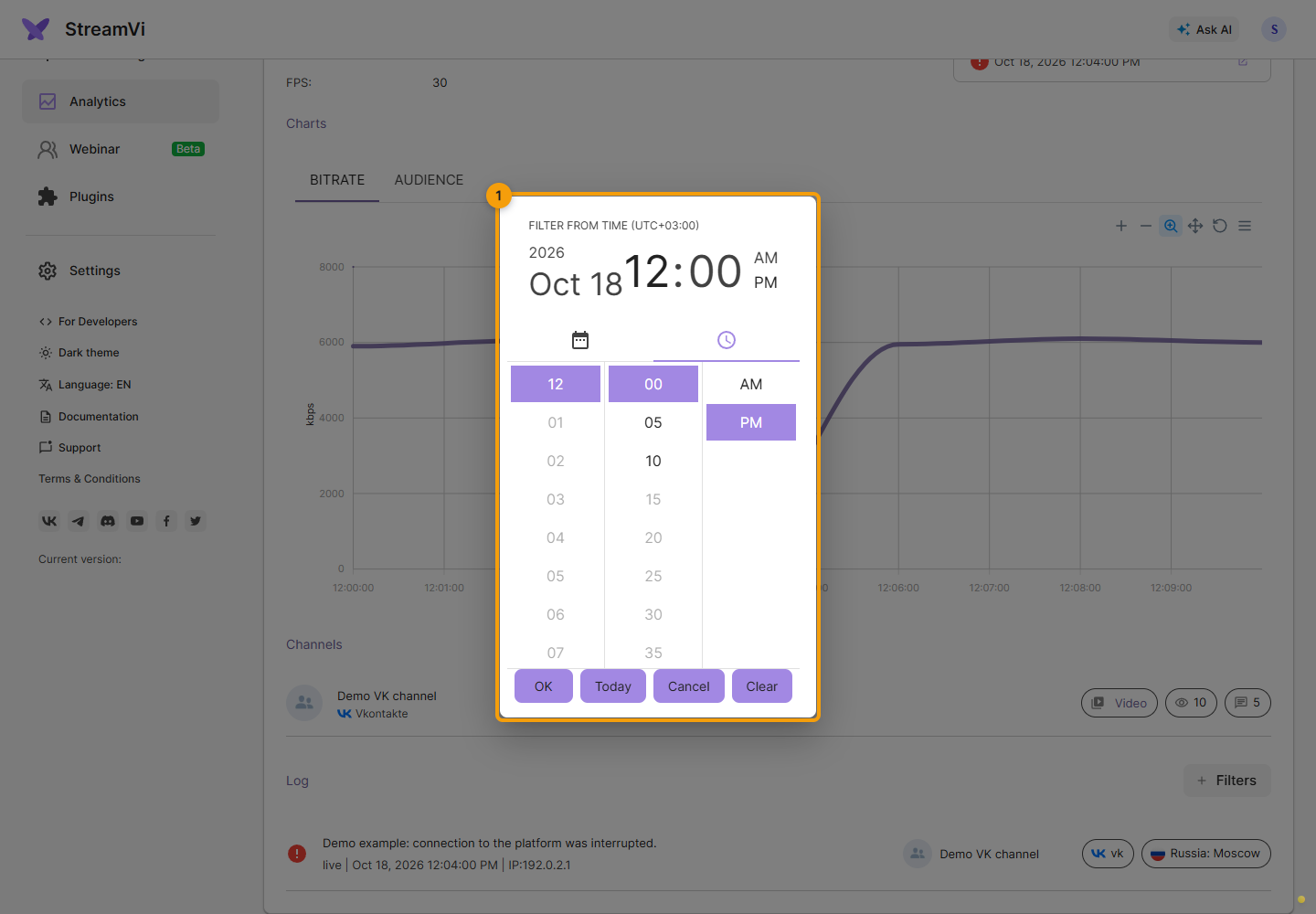
In the demo broadcast, bitrate drops near the middle of the graph. Choose Time from in the filters and set a date and time before the incident. Add Time to after it if needed. Check the time zone in the dialog title and confirm the value.
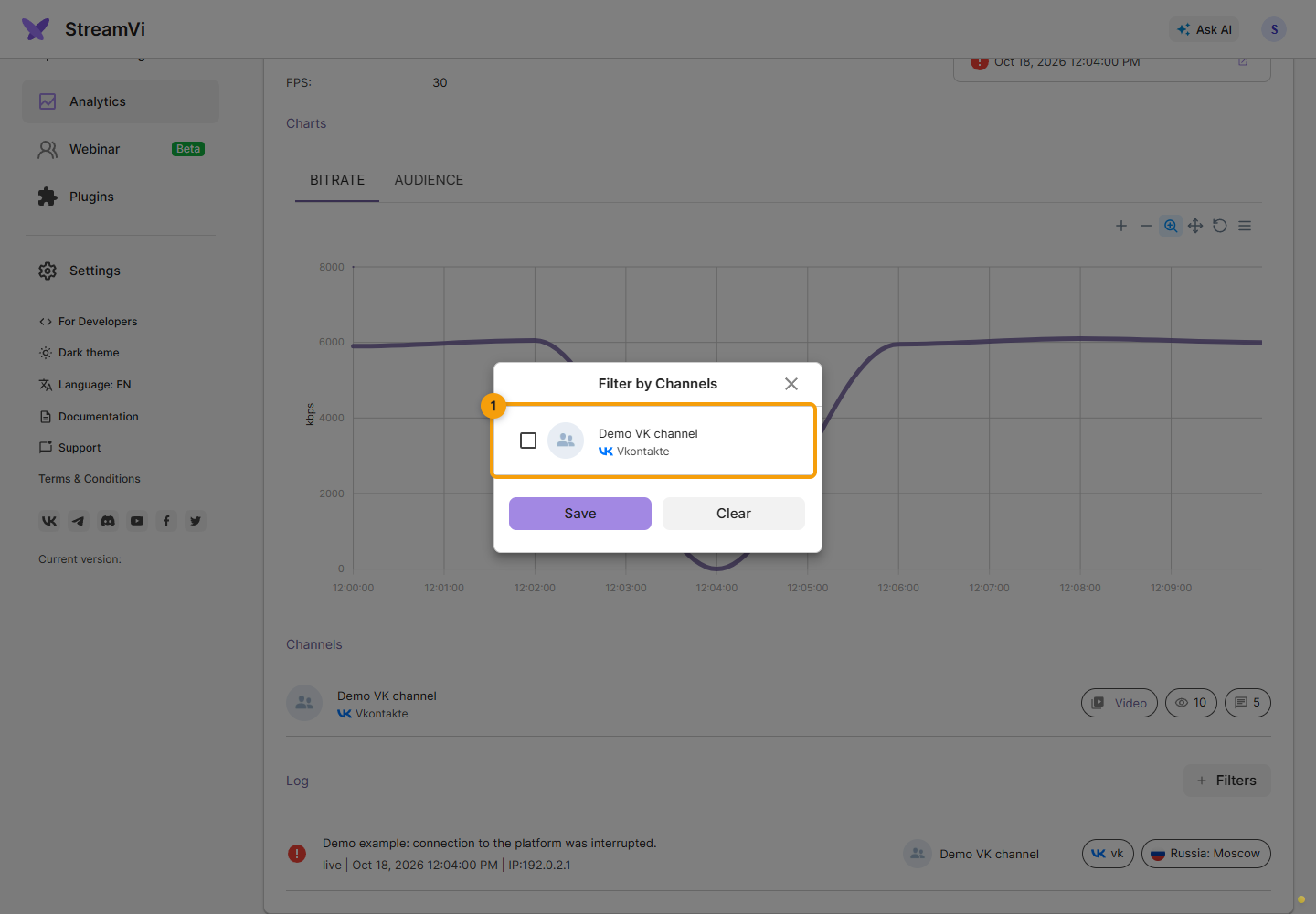
Then choose Channels and select the channel affected by the problem. Click Save to see its events within the selected interval.
Compare the event time and message with the dip in the graph. The example reports an interrupted platform connection. A single event does not establish the underlying cause; check adjacent events and the source status.
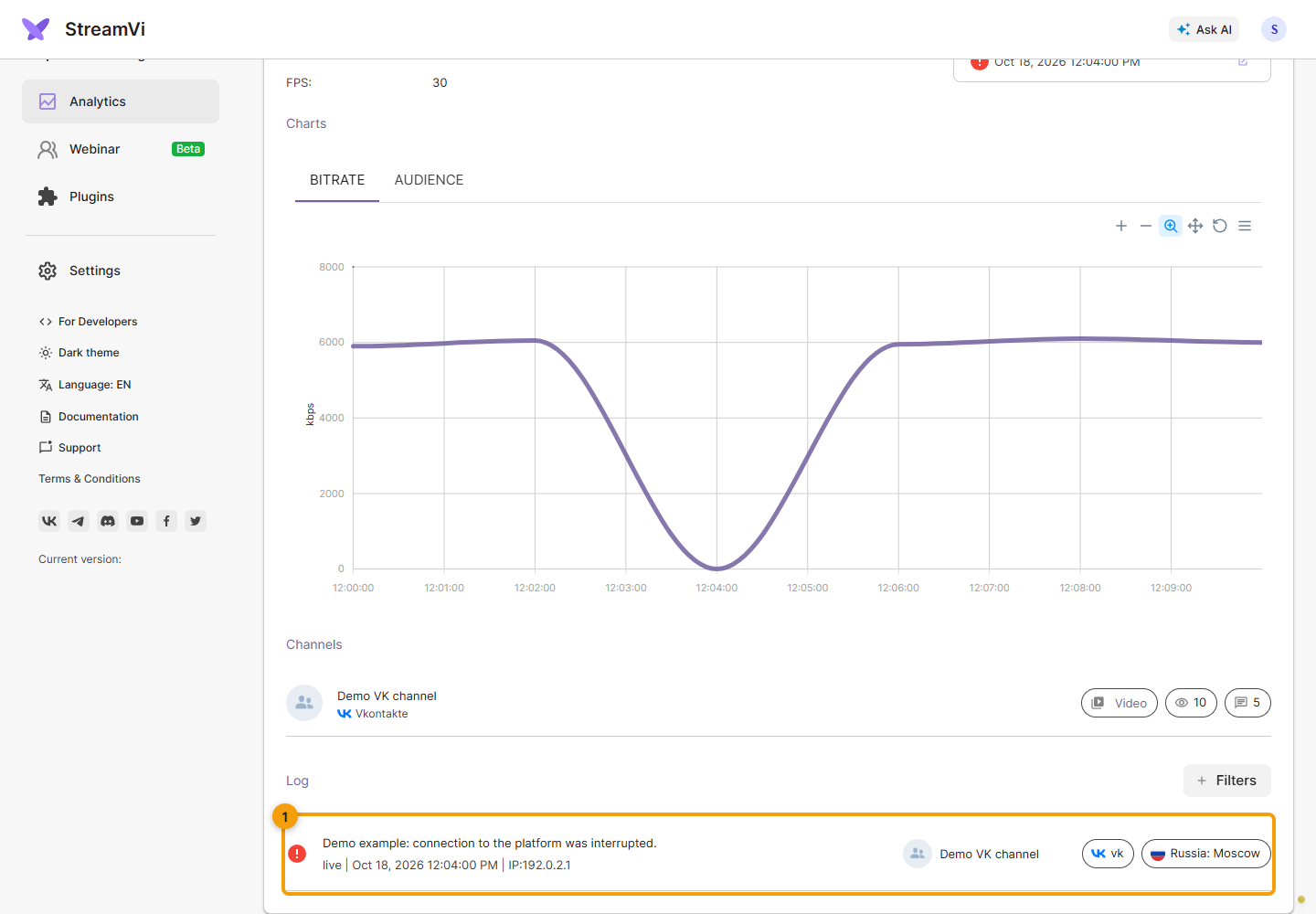
Open this record from Last errors and check its ID, time, platform, server and full error message. Include these details and the broadcast ID when contacting support. The detail dialog shows the original timestamp: Z at the end means UTC. Account for the difference from the log time zone.
If a filter returns no events, widen the interval or clear the filters. Give support the broadcast ID, issue time and error text. See Troubleshooting for connection checks.
Changes made by project members are recorded separately in Activity history.