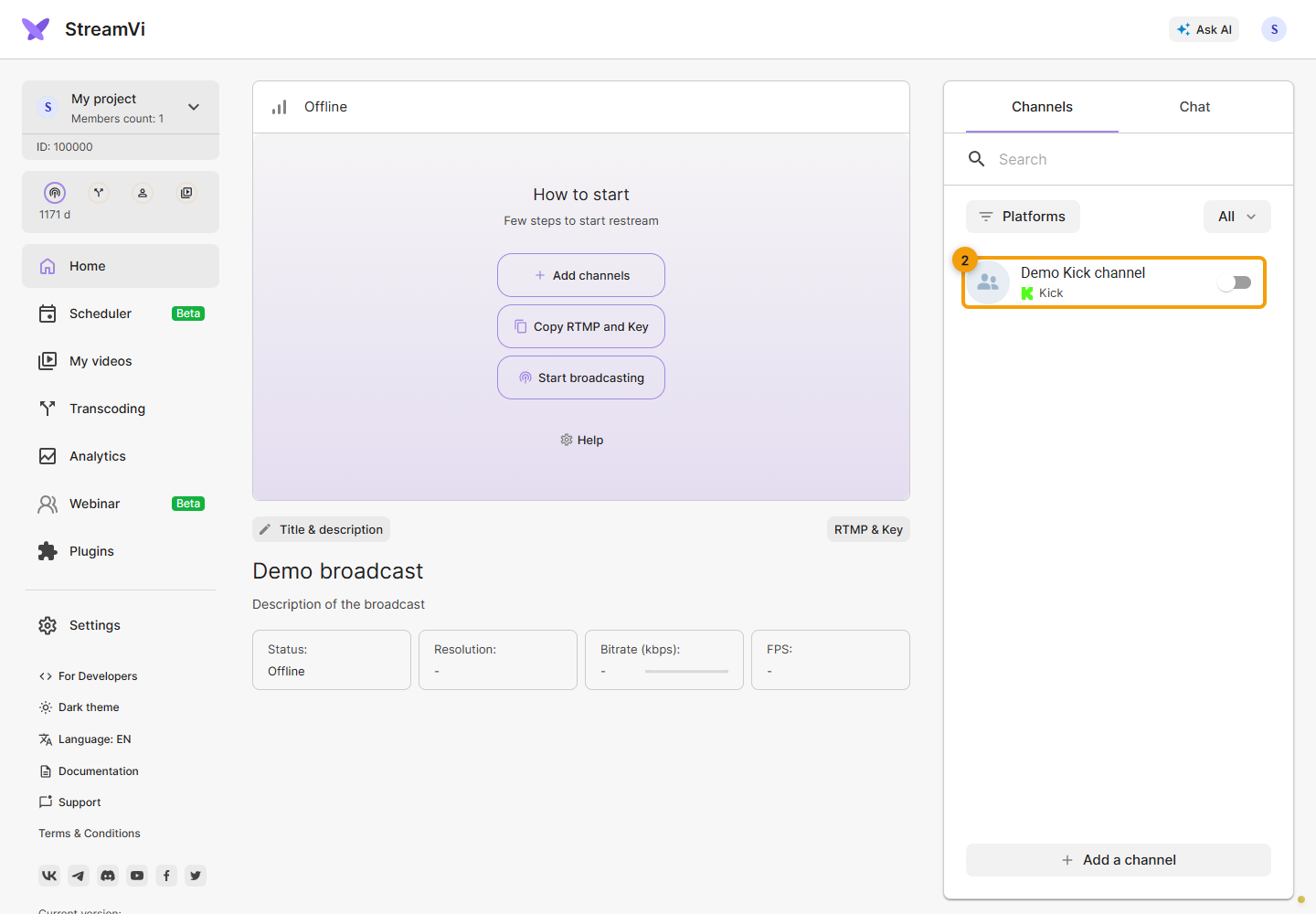
Kick
Kick requires three distinct values: the channel page link, server address and stream key. In Kick’s creator dashboard, open Channel → Stream URL and Key to obtain the address and key. This path is documented in Kick’s official guide.
Connecting
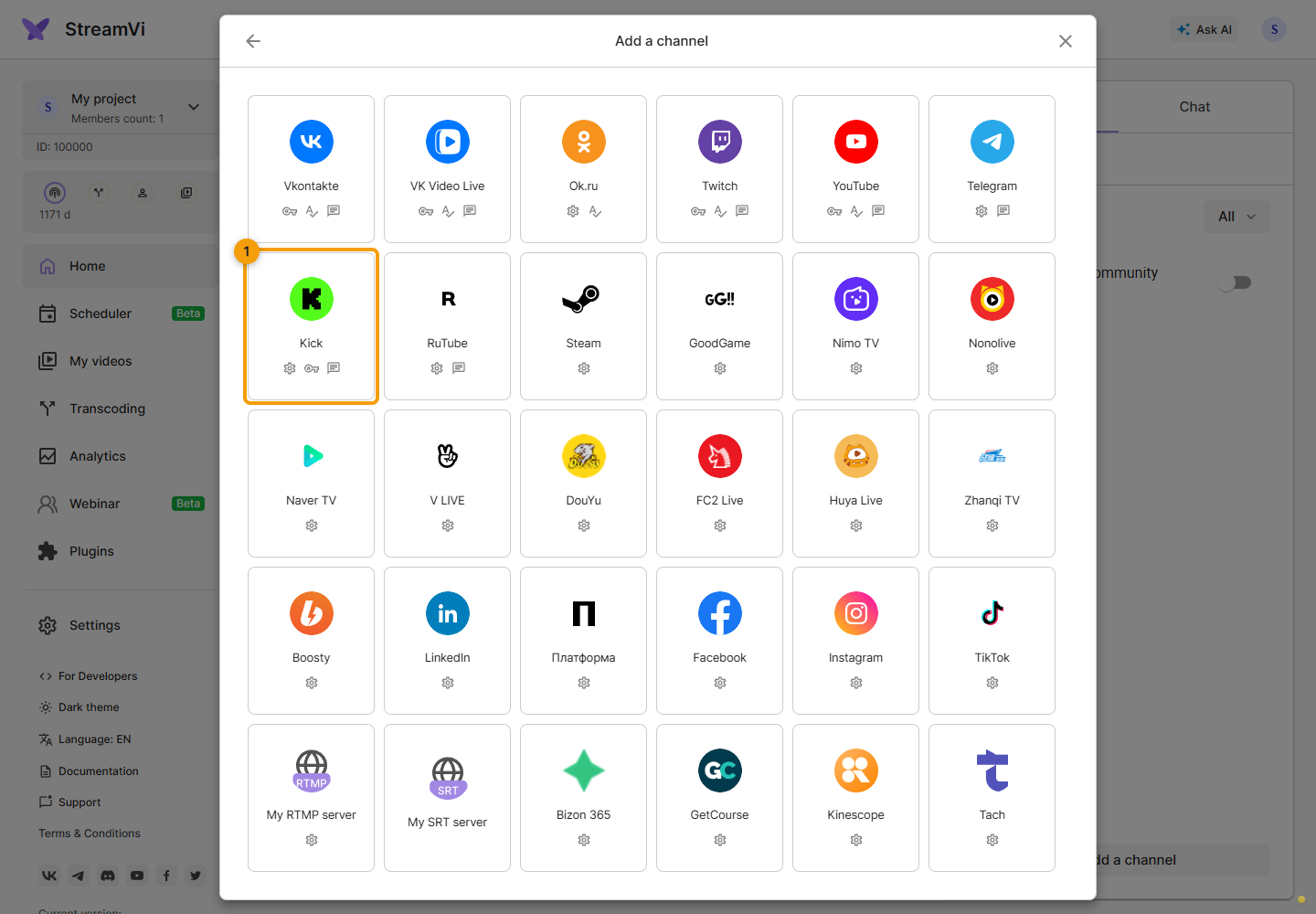
Click Add a channel in the intended project and select Kick.
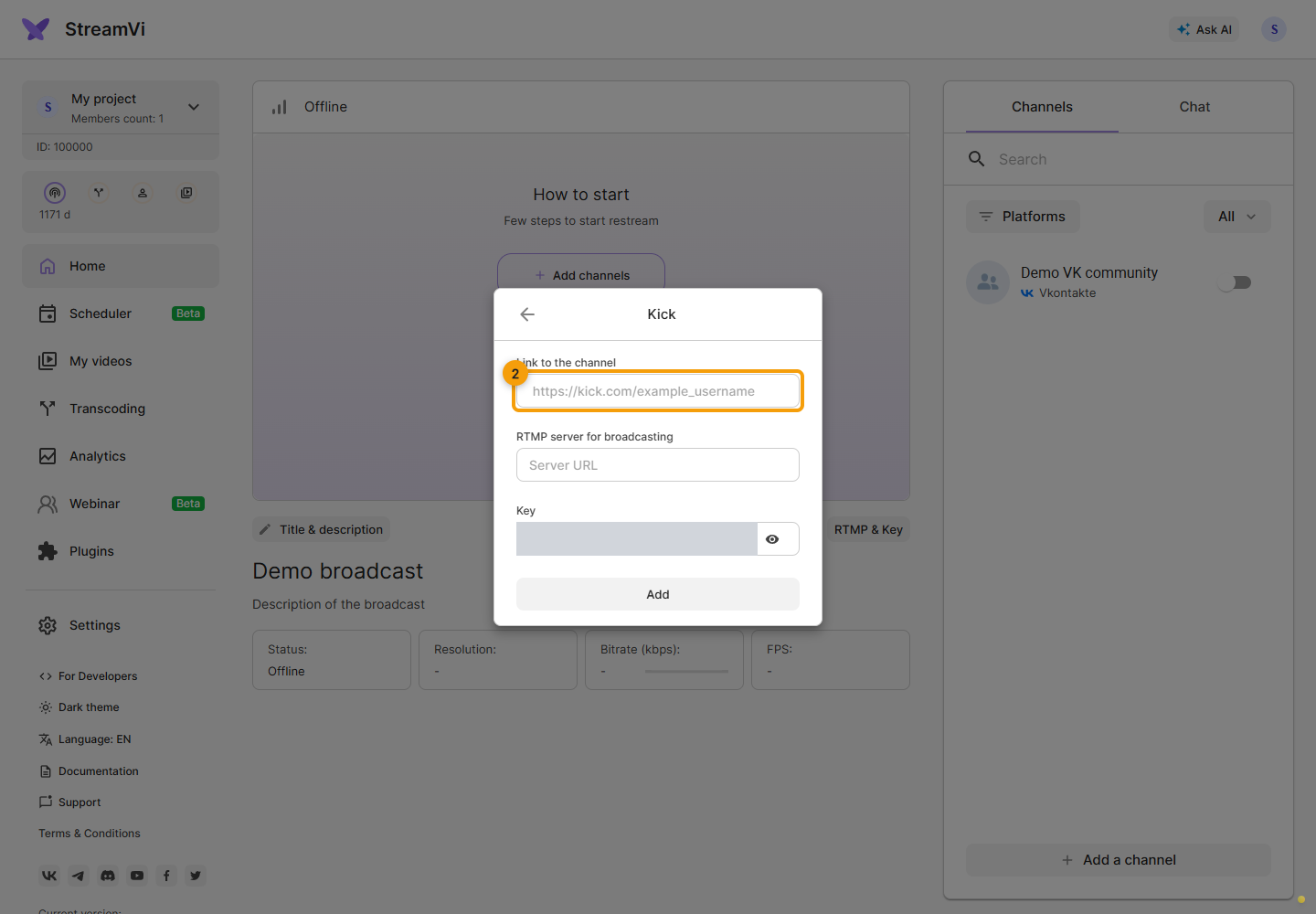
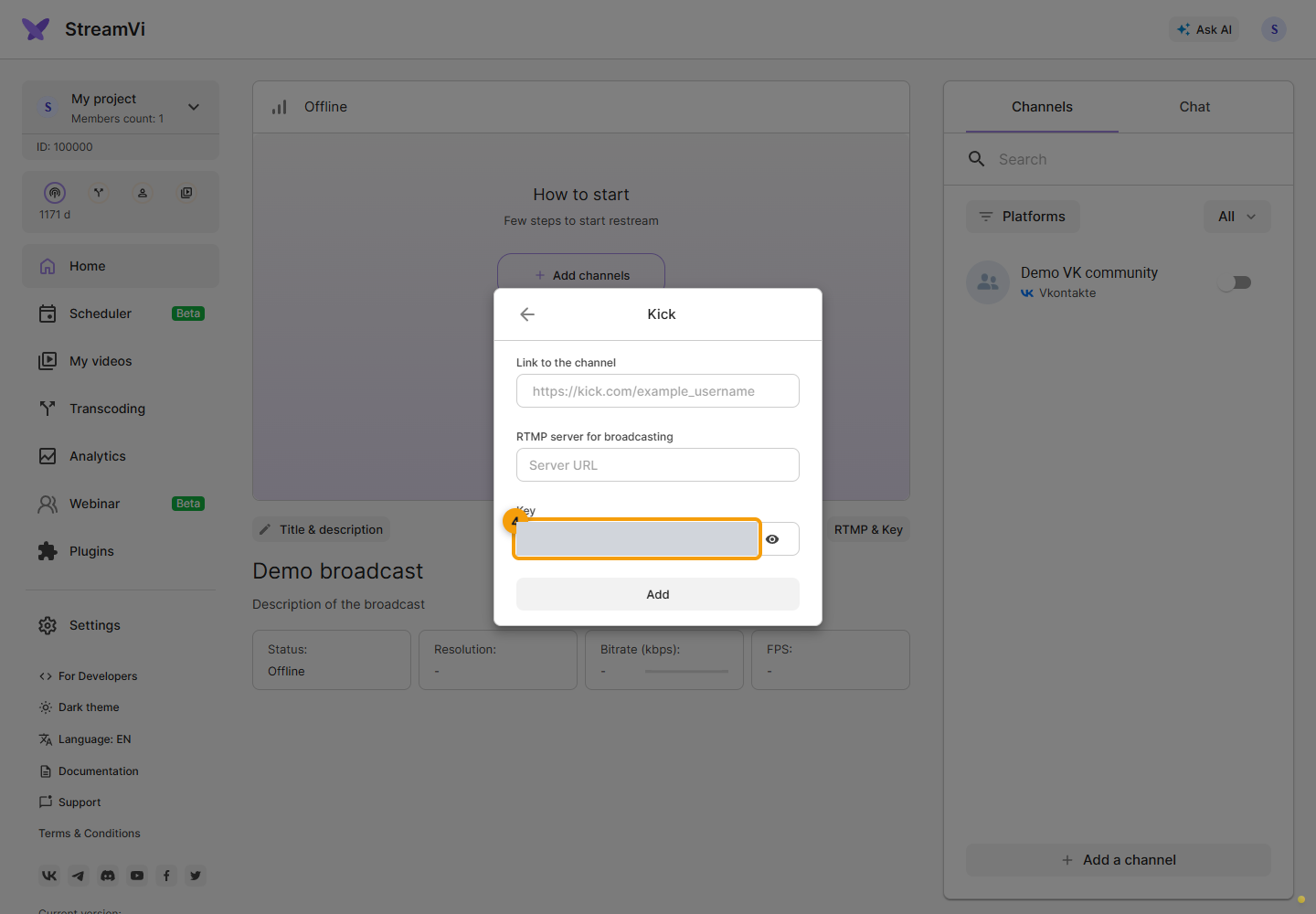
In Link to the channel, enter your Kick page address, for example https://kick.com/your_username. This is the address for viewers, not the server address used to deliver video.
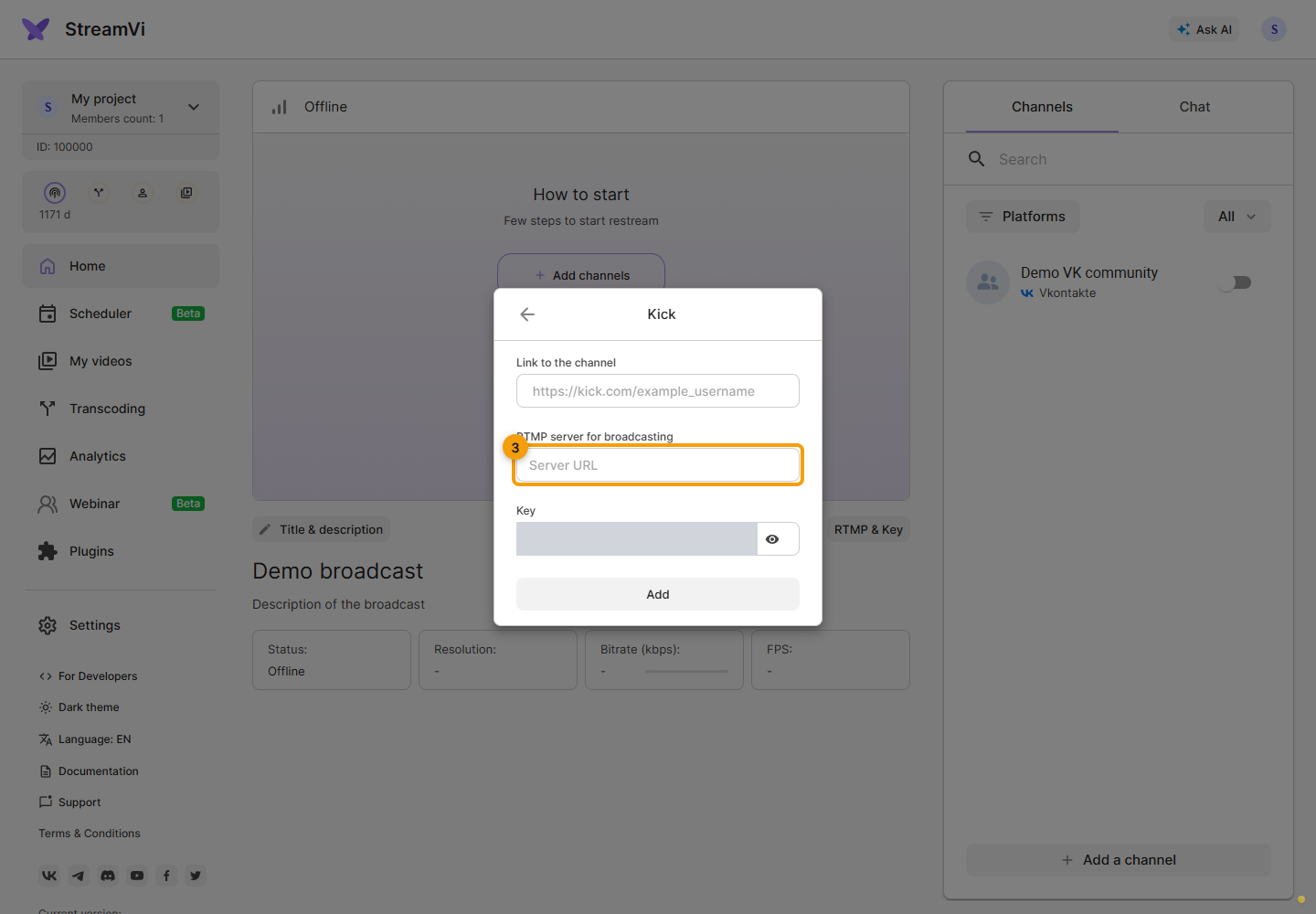
In RTMP server for broadcasting, paste the Server URL from Kick’s dashboard. Preserve the protocol and other parts of the address supplied by the platform.
In Key, paste the Stream Key from the same Kick account. Click Add and wait for the result. The screenshot masks the key value.
Checking the broadcast
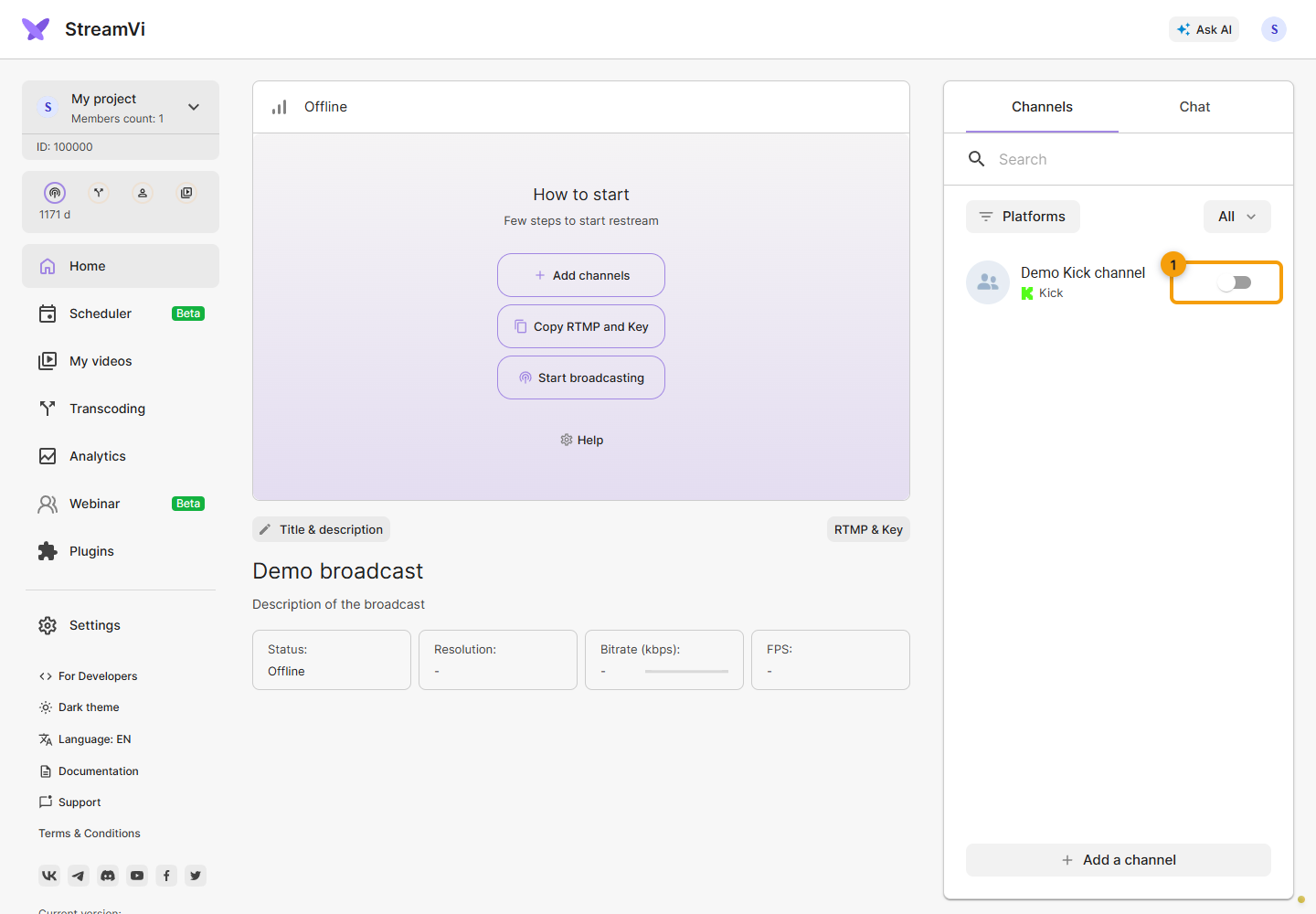
Check the title and category in Kick’s creator dashboard: they are not set in the connection form. In StreamVi, enable the Kick channel switch and start the video source. Check picture and sound on the Kick page. The screenshot shows a demo channel. See Kick stream settings.
If you reset the key in Kick, the previous value no longer works. Click the Kick channel’s row to open settings, update its RTMP address and key as needed, and check again. Do not use StreamVi’s incoming connection details in their place.