
Scheduler
The scheduler broadcasts an uploaded video to selected channels. First connect channels and wait for your file to finish processing in My videos. Uploading requires a paid restream plan.
Schedule a broadcast
Open Scheduler in the left menu and click Schedule. Select one or more Channels for broadcasting. If no channels exist, connect one first: the scheduling form appears after a channel is available.
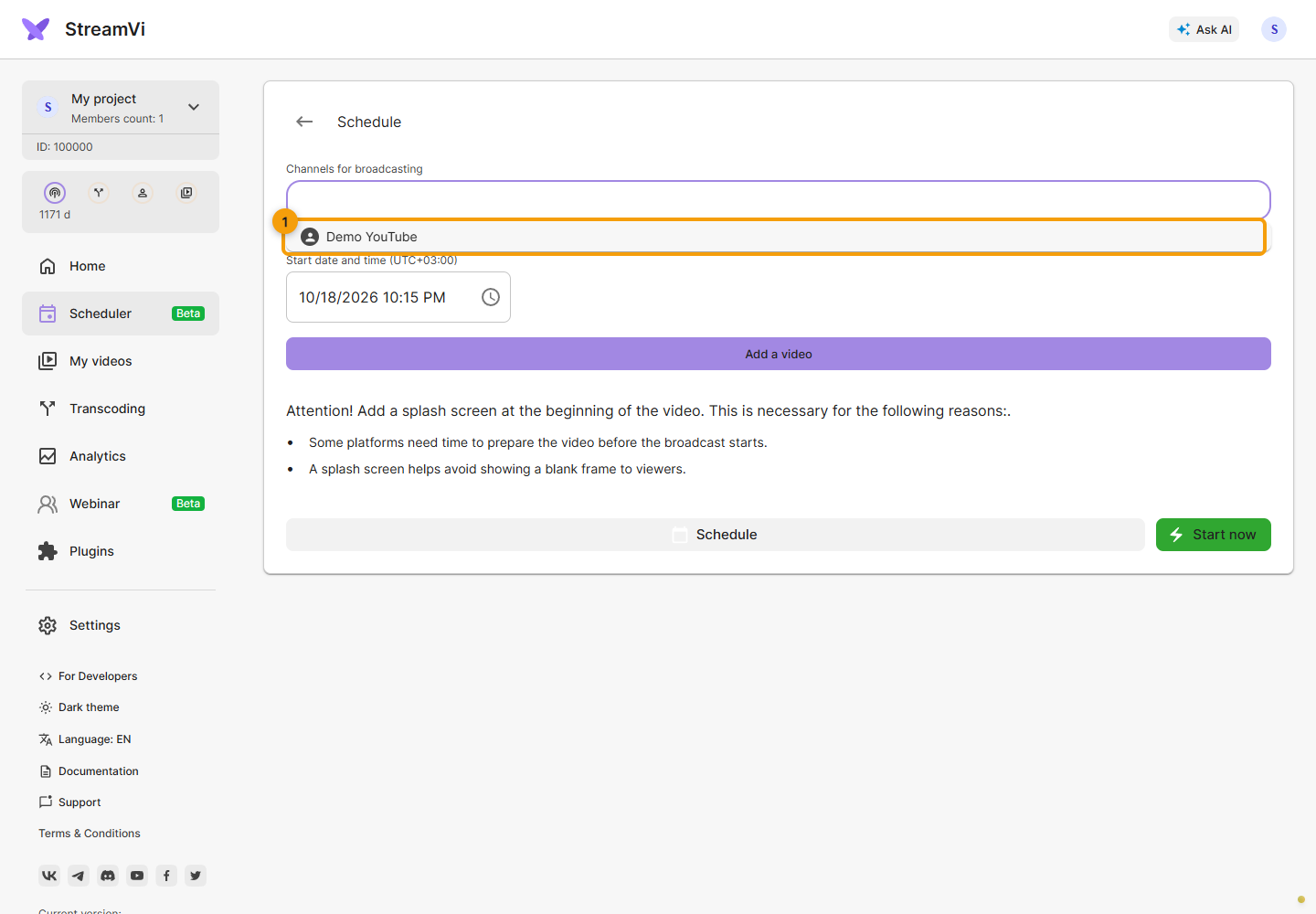
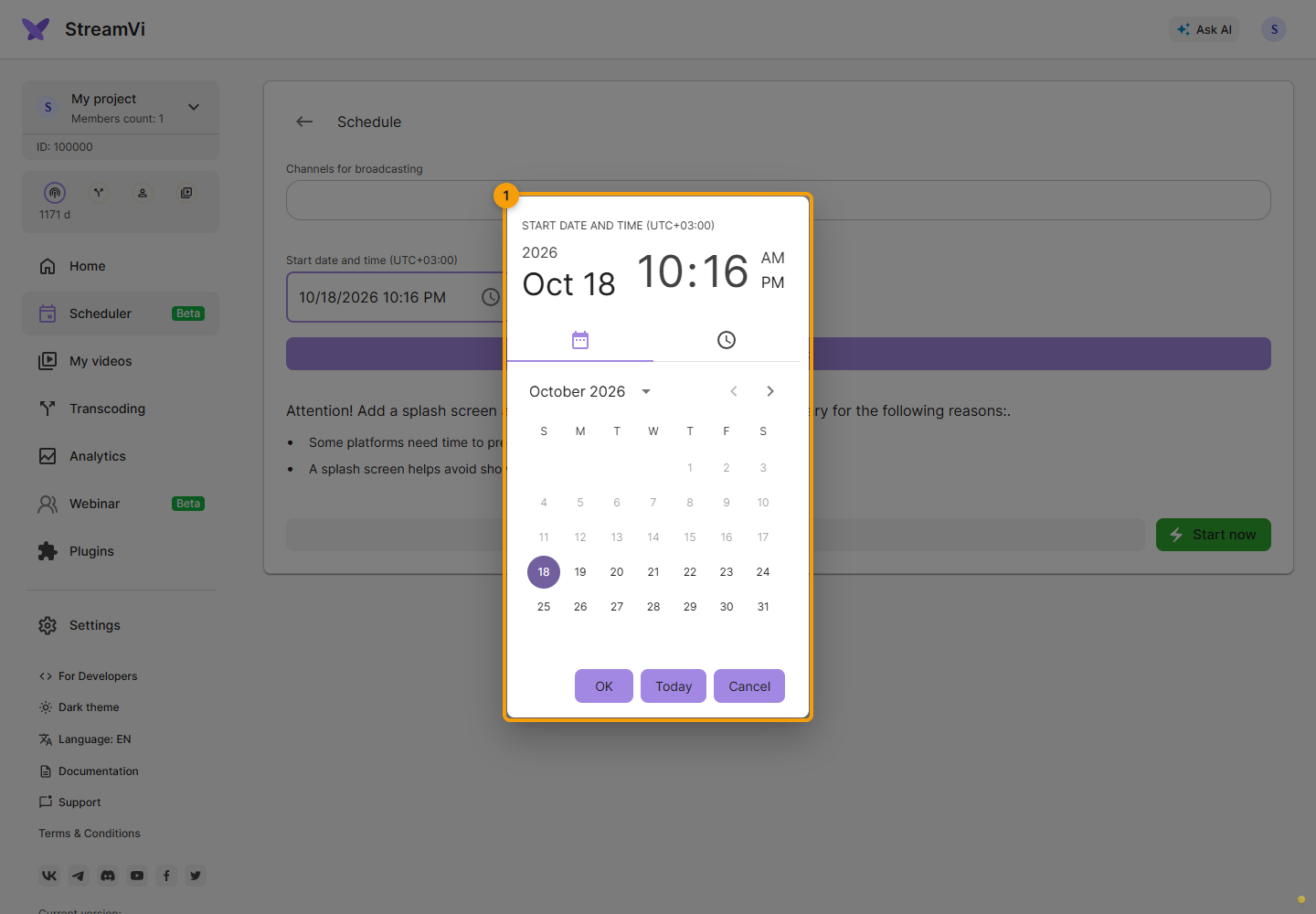
Choose the Start date/time and confirm it in the calendar. The field uses the device's local time; a UTC-offset label appears alongside it, for example UTC+03:00. Enter the local time for the device's time zone. The form has no separate time-zone selector, so check the device's time settings, especially when working from another country.
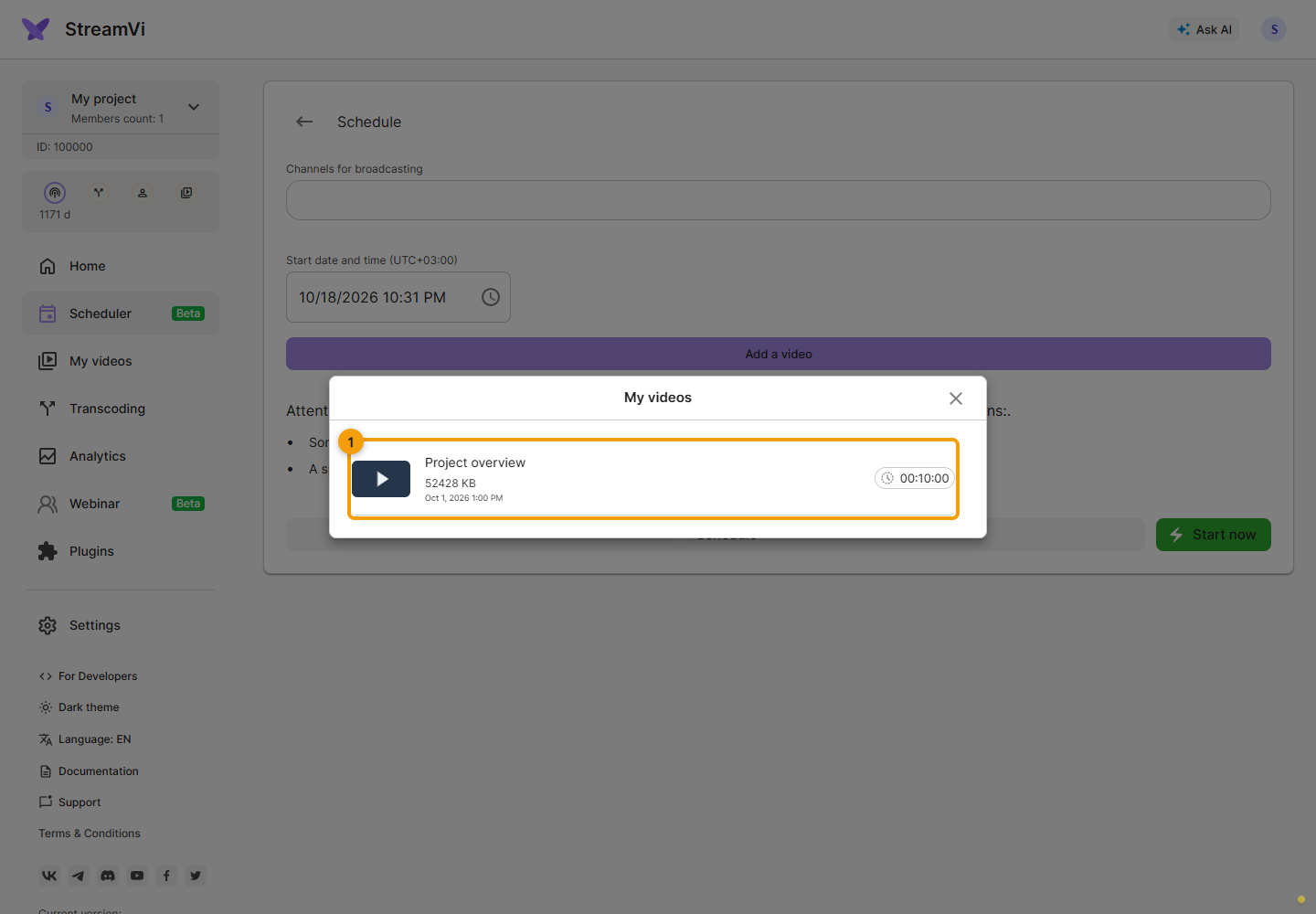
Click Add a video and select a processed file. The minimum duration is 2 minutes. The end time is calculated from the file duration; this form has no separate end-time field. Changing the start time recalculates the end time.
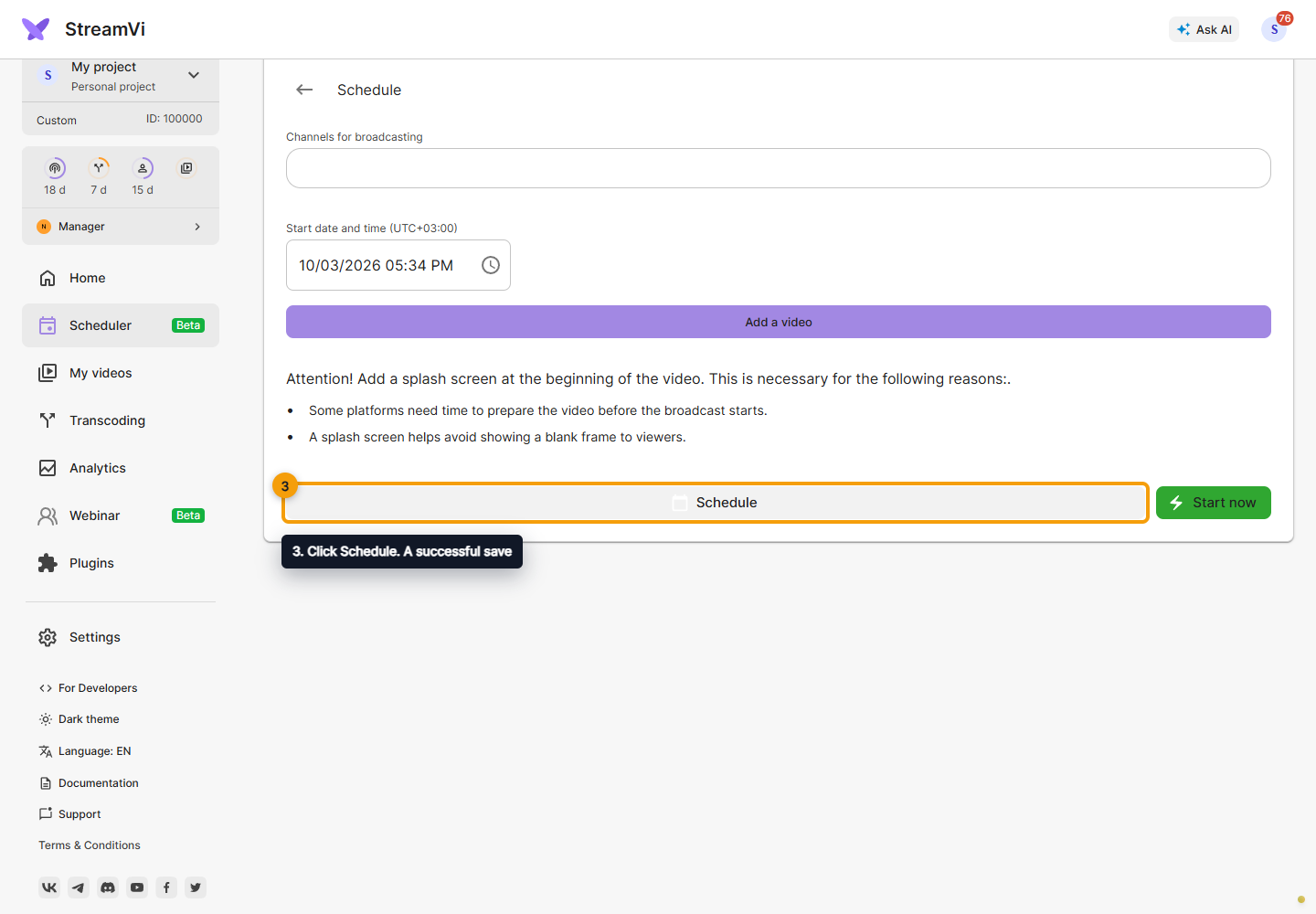
Click Schedule. A successful save returns you to the schedule list. Include an opening slate in the video itself: platforms may need time to prepare the broadcast, and the slate helps avoid a blank opening frame.
Check video readiness
After saving, check the time, video and channels in the scheduler entry. The example below shows a saved entry with demo data.
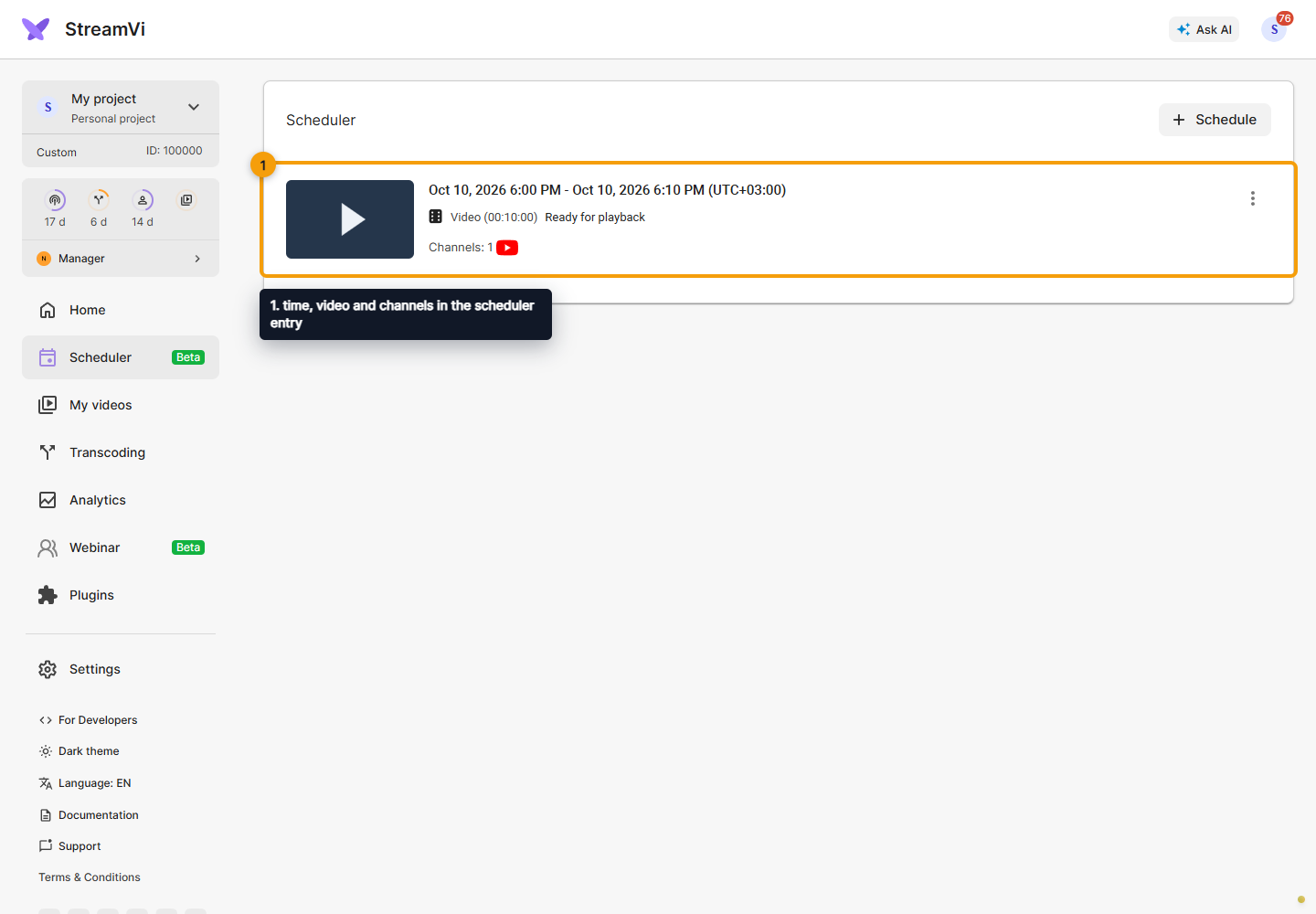
A video may show Awaiting preparation, Video preparation with a progress percentage, Ready for playback or Video preparation error. These describe preparation of the file for playback; they do not confirm that a broadcast is already live on the platform.
For Video preparation error, check the file in My videos; if the error repeats, send support the entry's name and start time. If The video is not available appears instead of the file, edit the entry, select an available processed video and save the schedule again.
If you cannot select a video
Open My videos in the same project and check that the file is available and has finished processing. A video that is still processing or shows an error cannot be selected for the schedule. Then return to Add a video and select it again. If it is shorter than 2 minutes, the scheduler rejects it: prepare a longer video and wait for processing to finish.
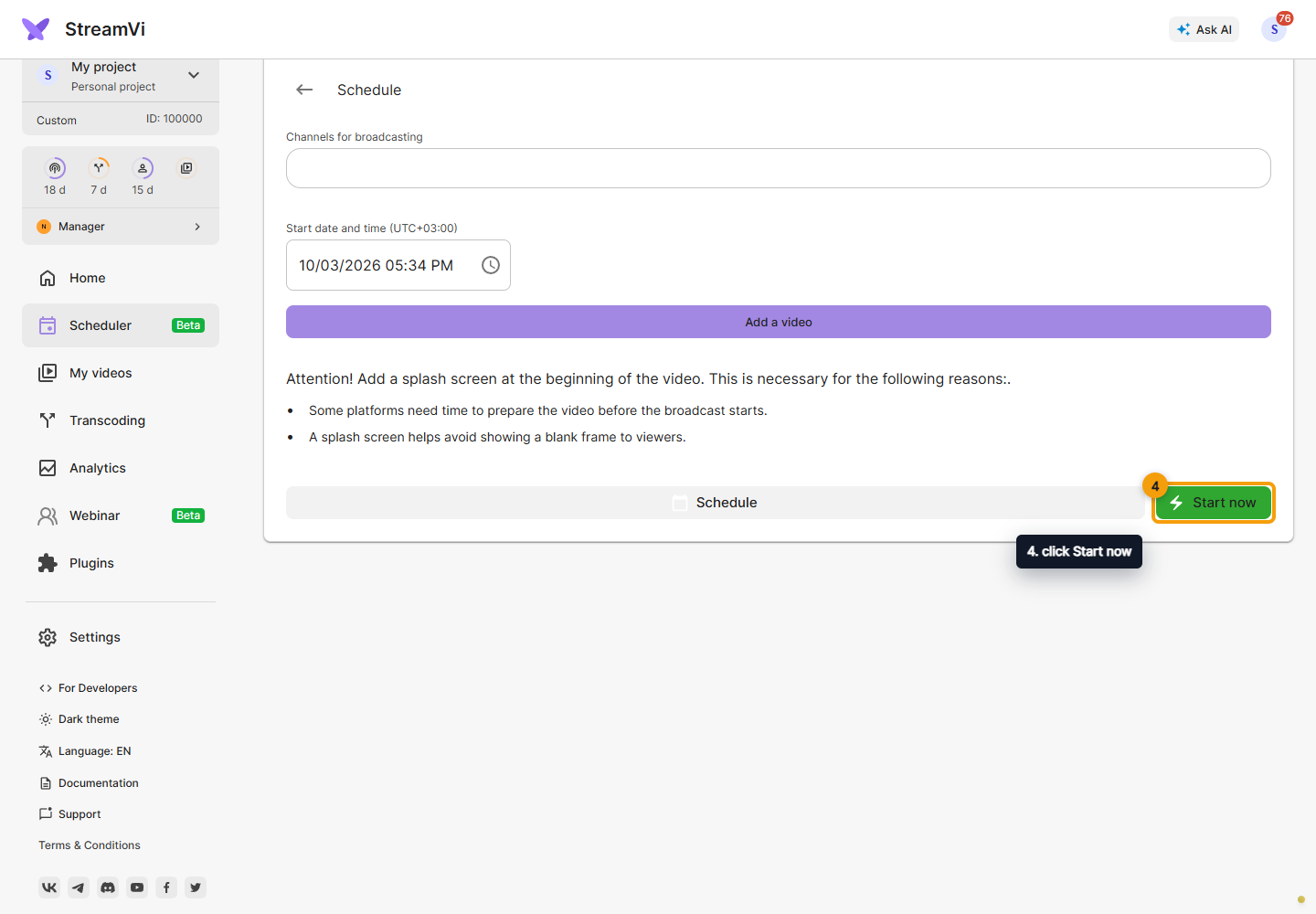
Start now
Select the same channel and video fields, then click Start now for an immediate broadcast. This action starts streaming immediately. Use Schedule for a future start.
Edit or stop
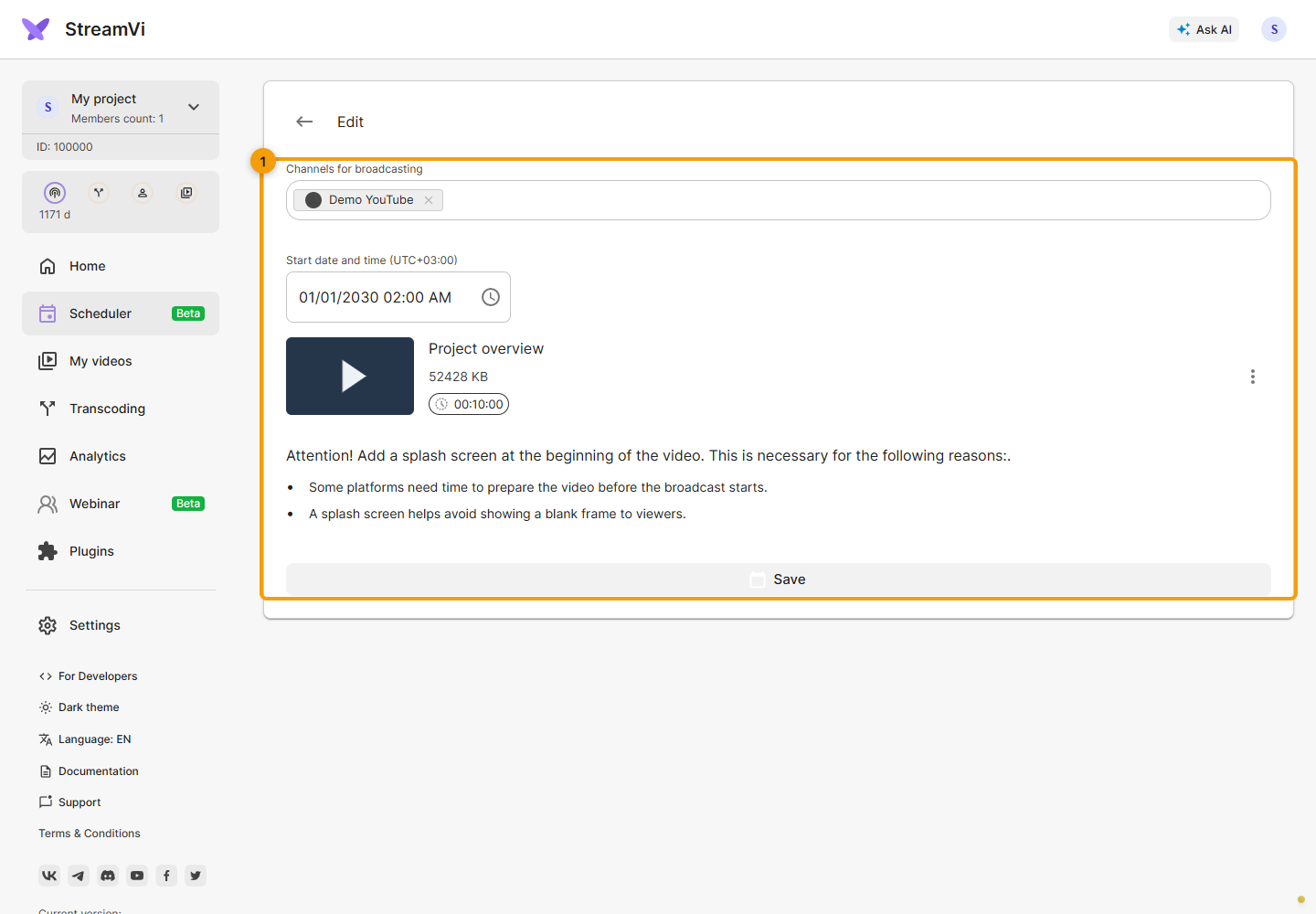
Click an entry in the schedule list to open its editing form. Edit its channels, time or video, then click Save. To replace the selected video, remove it from the form and click Add a video again; this does not delete the original file from storage.
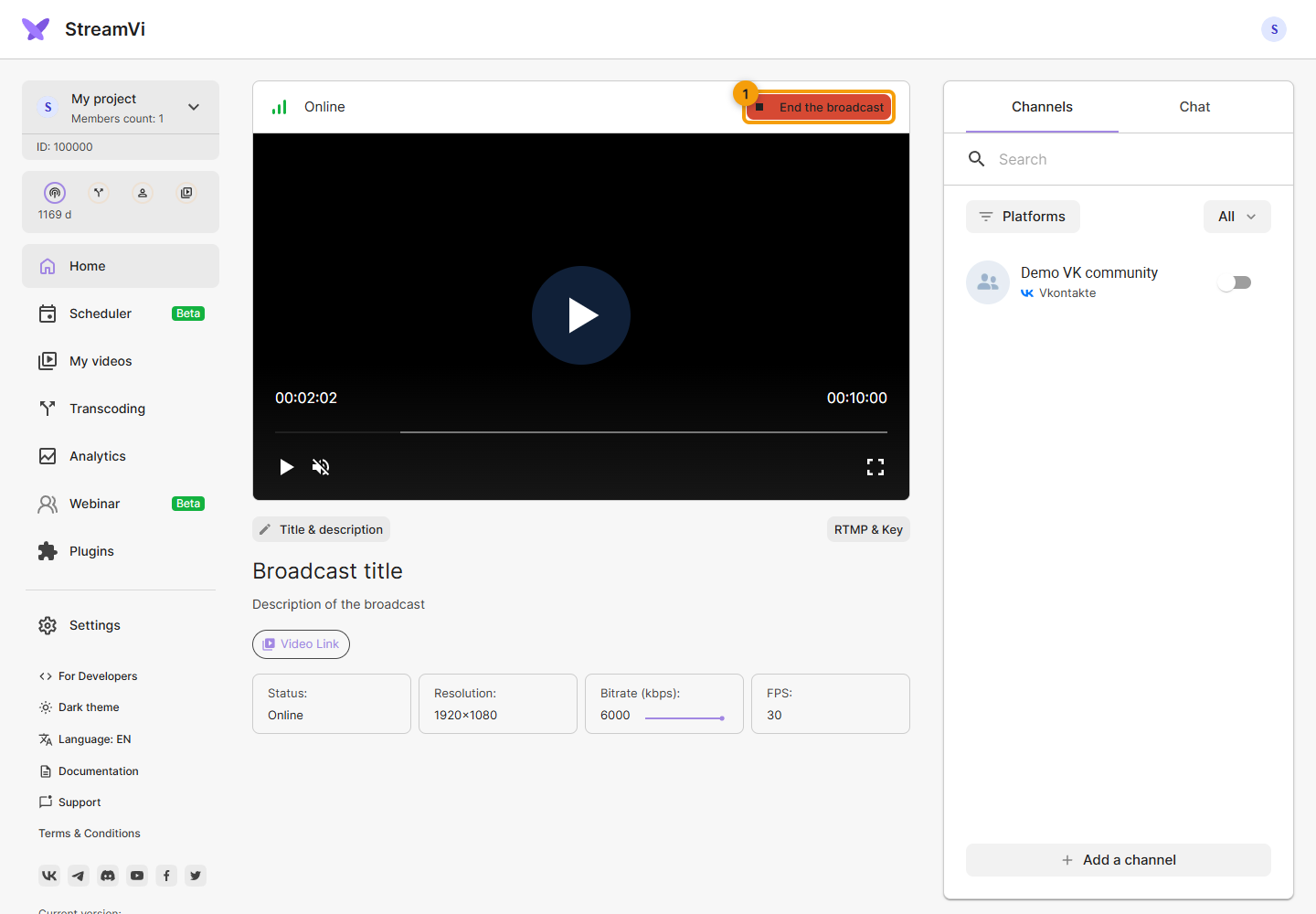
While a file is playing, open Home. The End the broadcast button in the top bar stops the video broadcast immediately, without a separate confirmation. On a phone, it appears as a square stop icon. Use it only when you are ready to end the broadcast. Deleting a schedule entry is a separate action described below.
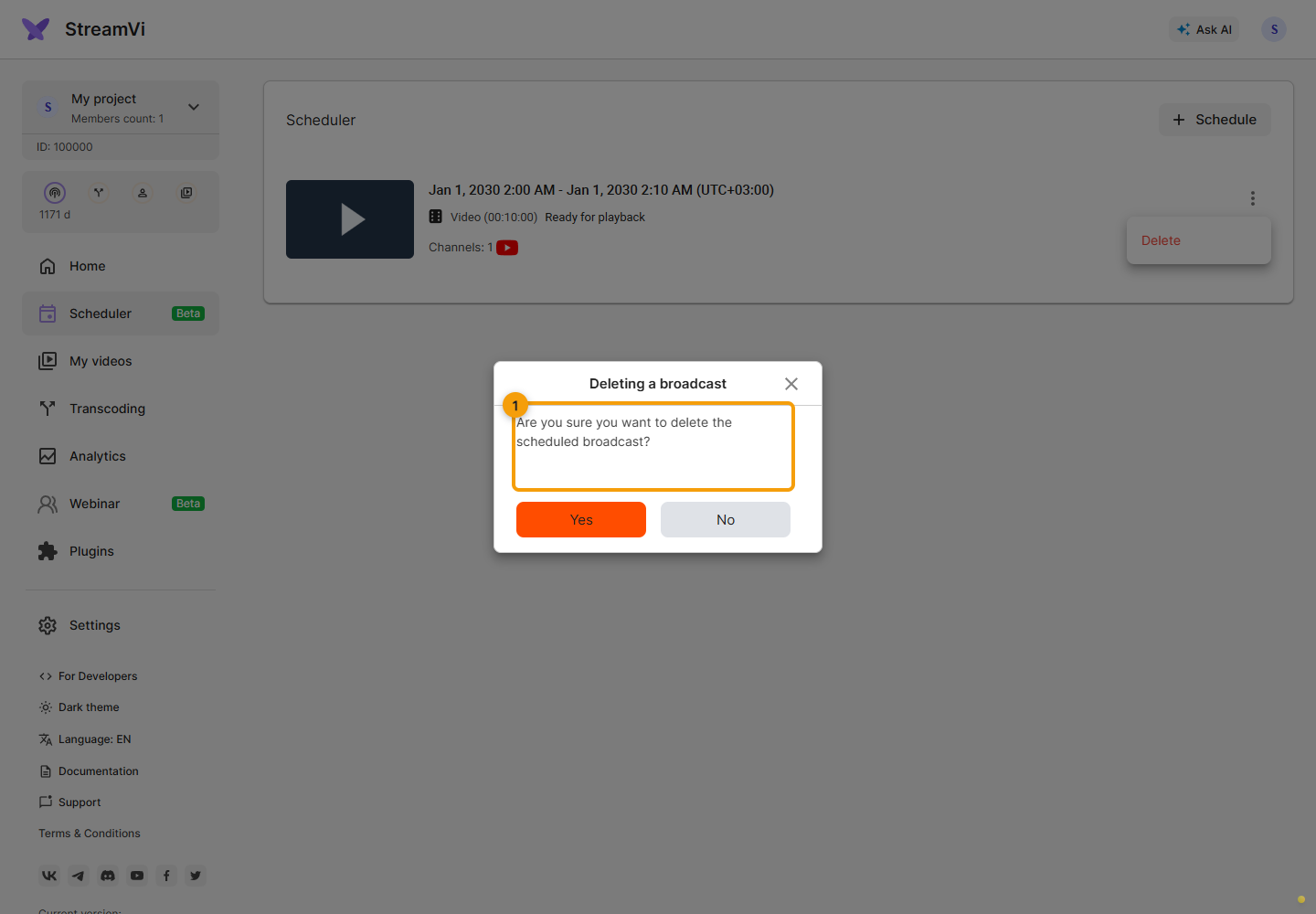
To delete an entry, open its menu and choose Delete. Review the warning before confirming. You can cancel before confirmation.
The current form has no recurring-schedule setting. Create a separate entry for another start time. If the service reports an error, check the channel, file, time and plan; a failed request does not mean the schedule was saved.
The StreamVi scheduler and a scheduled YouTube broadcast are separate settings: the former starts a file, while the latter selects the destination event on the platform.