
YouTube
Connect YouTube by signing in to a Google account that has access to the intended channel. Live streaming must be enabled for that channel. If YouTube has not enabled it yet, first follow the requirements in YouTube’s official help.
Connecting
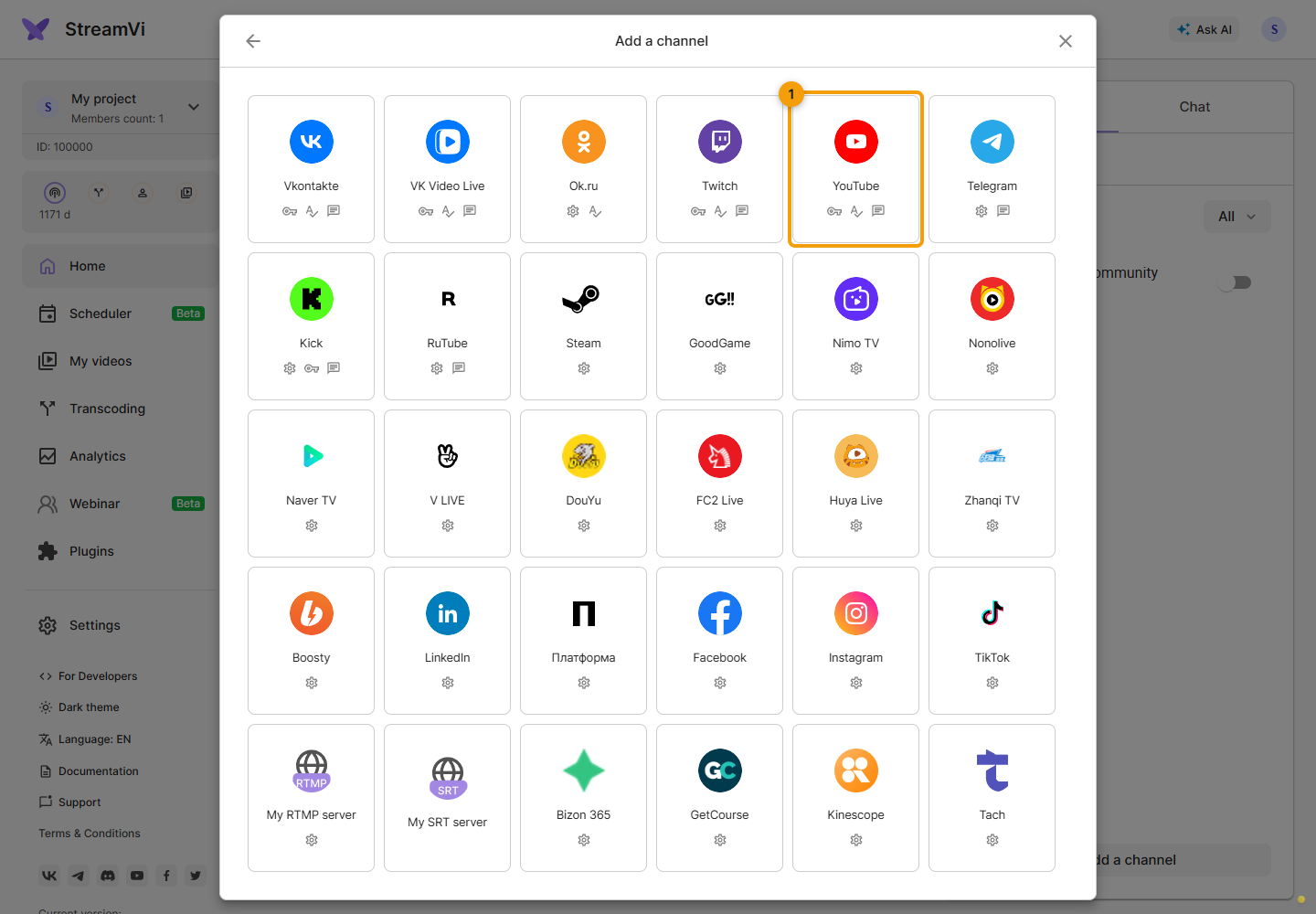
In the intended project, click Add a channel and select YouTube.
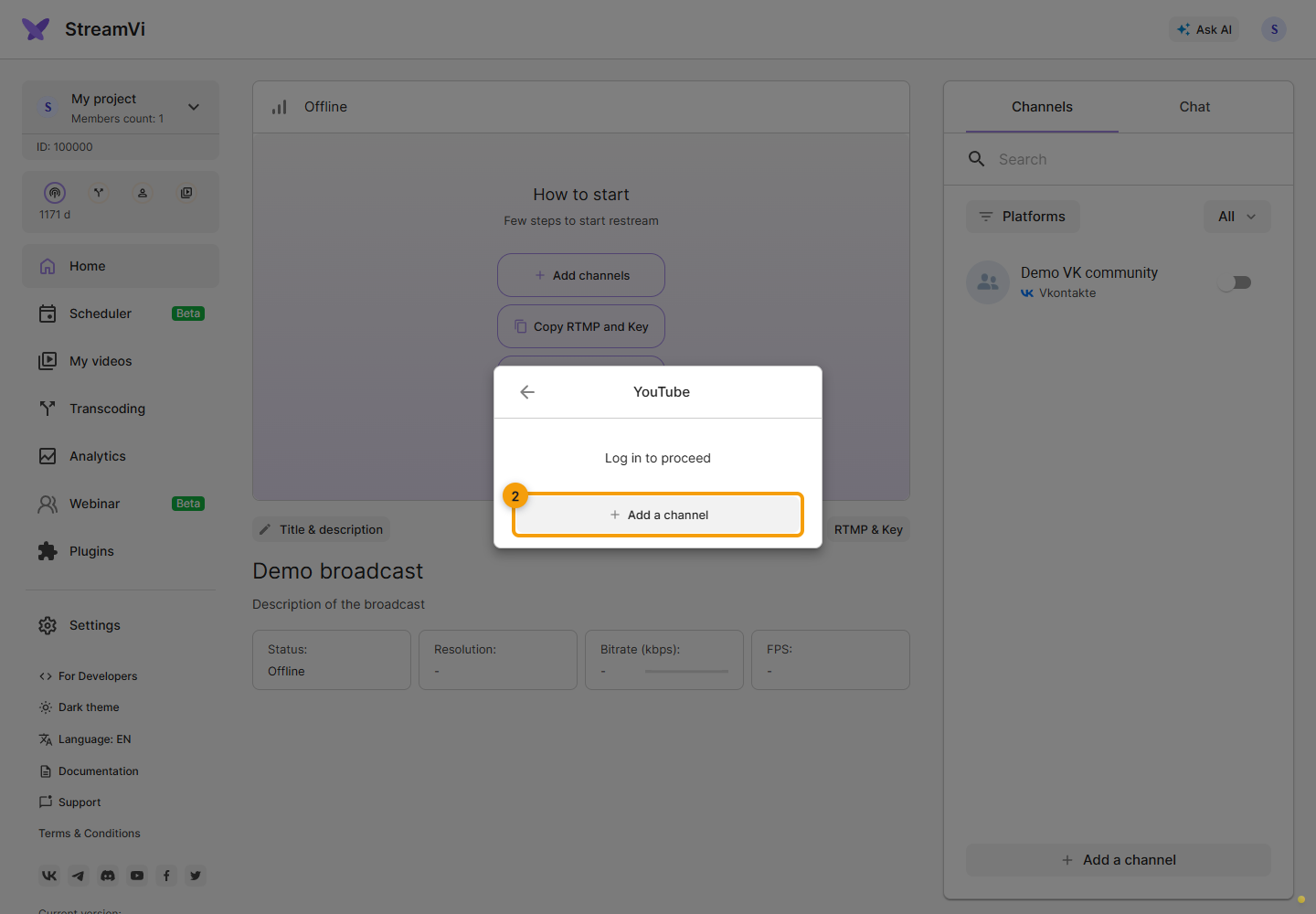
Click Add a channel in the YouTube dialog. In the Google window, choose the account and the intended channel if a choice is offered, then grant the requested access to StreamVi. This StreamVi form does not require manually entering YouTube’s RTMP server and key.
Wait for the connection result. If the browser blocks the sign-in window, allow it to open and try again. Do not select a different channel merely because it appears first in the Google account.
Before the first broadcast
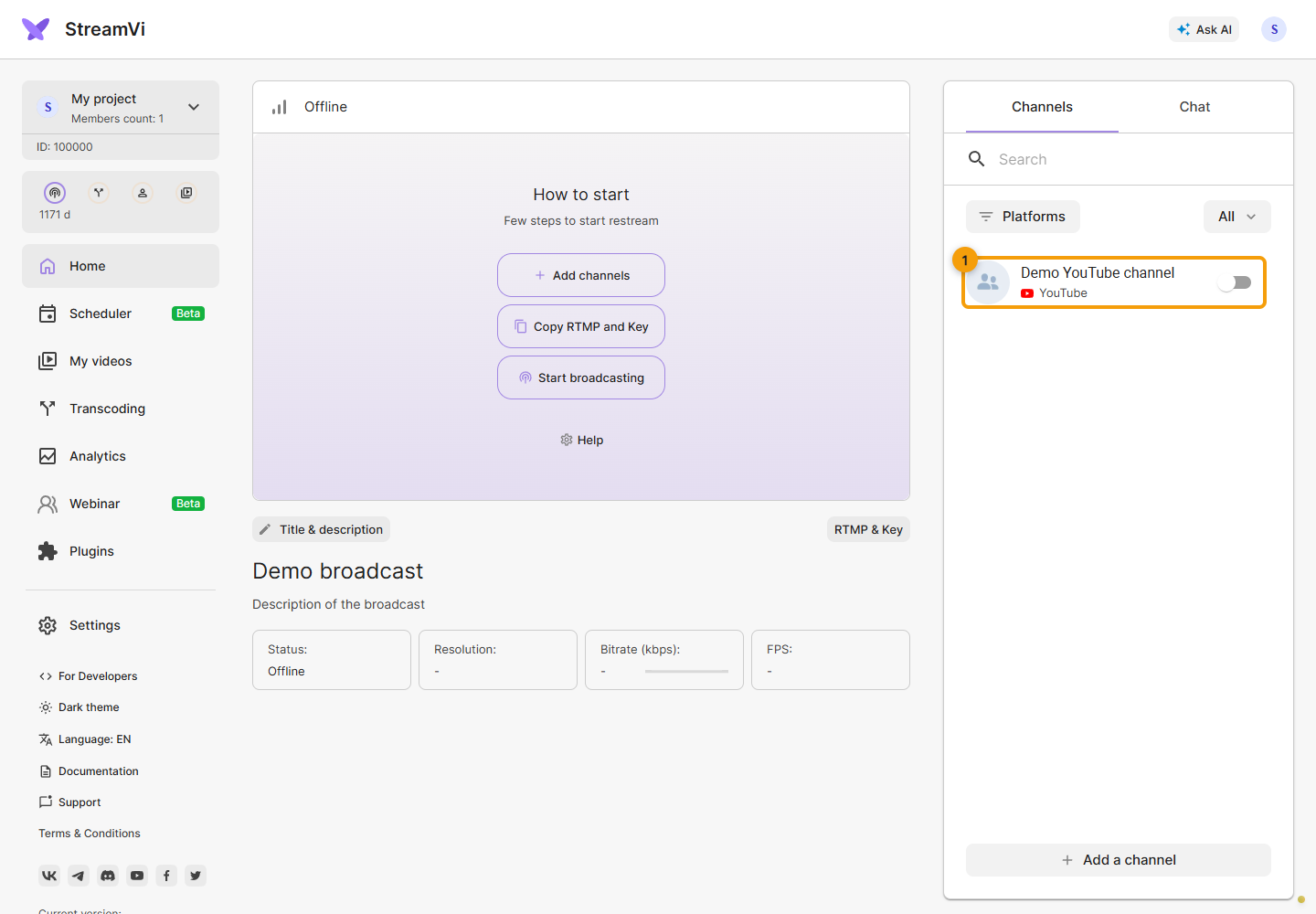
In the channel list, click the connected YouTube channel’s row. The example shows a demo channel. Set the title, description, audience and visibility. For an existing event, check the scheduled broadcast selection.
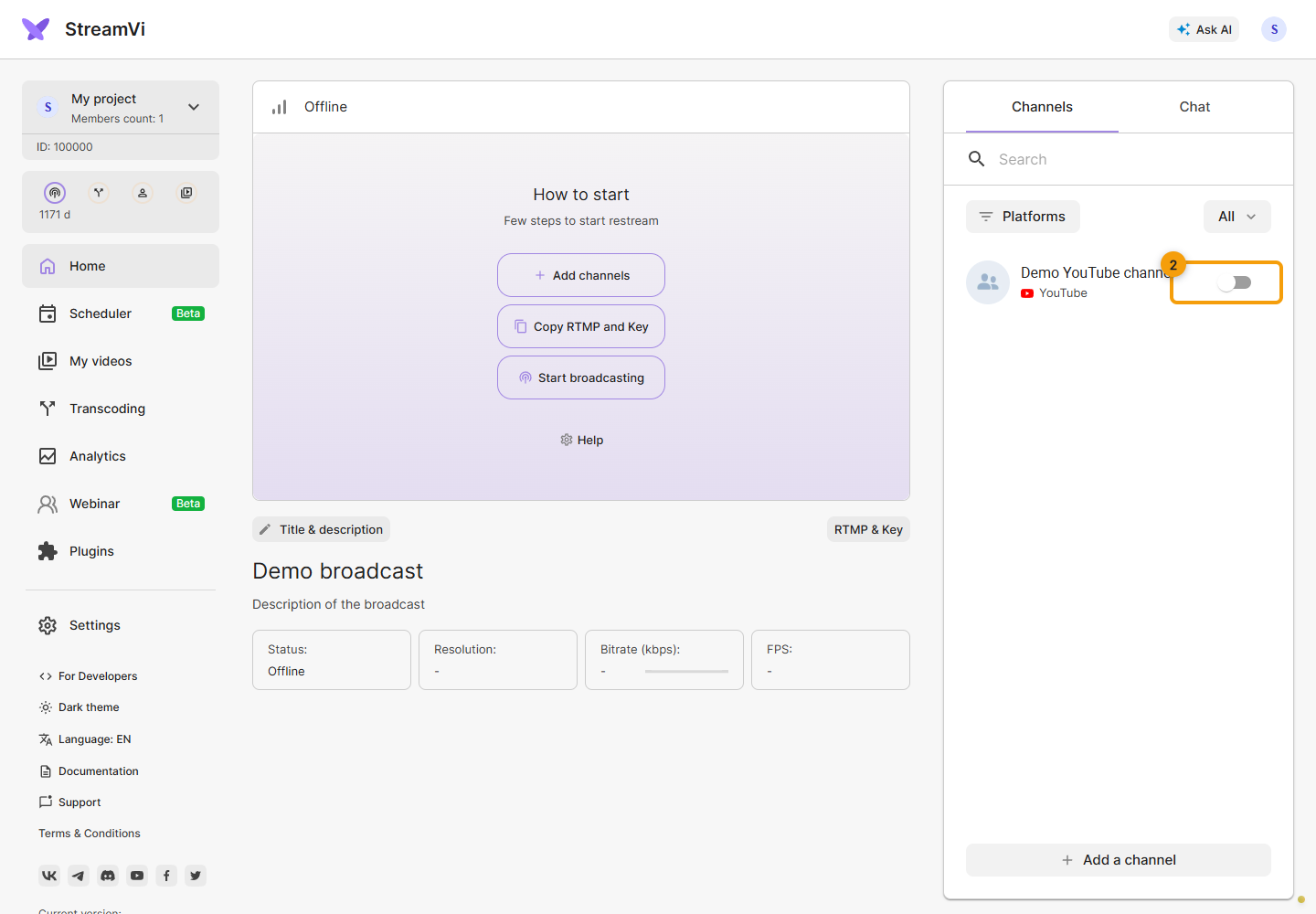
Enable the YouTube channel switch and send video to StreamVi. After starting, check the intended event in YouTube Studio and its watch page. Adding the channel does not start broadcasting by itself.
If YouTube access has been revoked or the Cabinet requests reconnection, grant access to the same channel again. Send any error text to StreamVi support; you do not need to share your Google password or stream key.