
Chat appearance
On the main page, open Chat → Chat settings. Use the preview to inspect the appearance. Changes apply immediately and are saved in this browser; there is no separate appearance-save button.
Appearance
Choose the theme and colors for the background, text, names and message background. For a transparent background, click the color circle beside Background color and move the lower slider with the checkerboard background all the way left to 0% opacity.
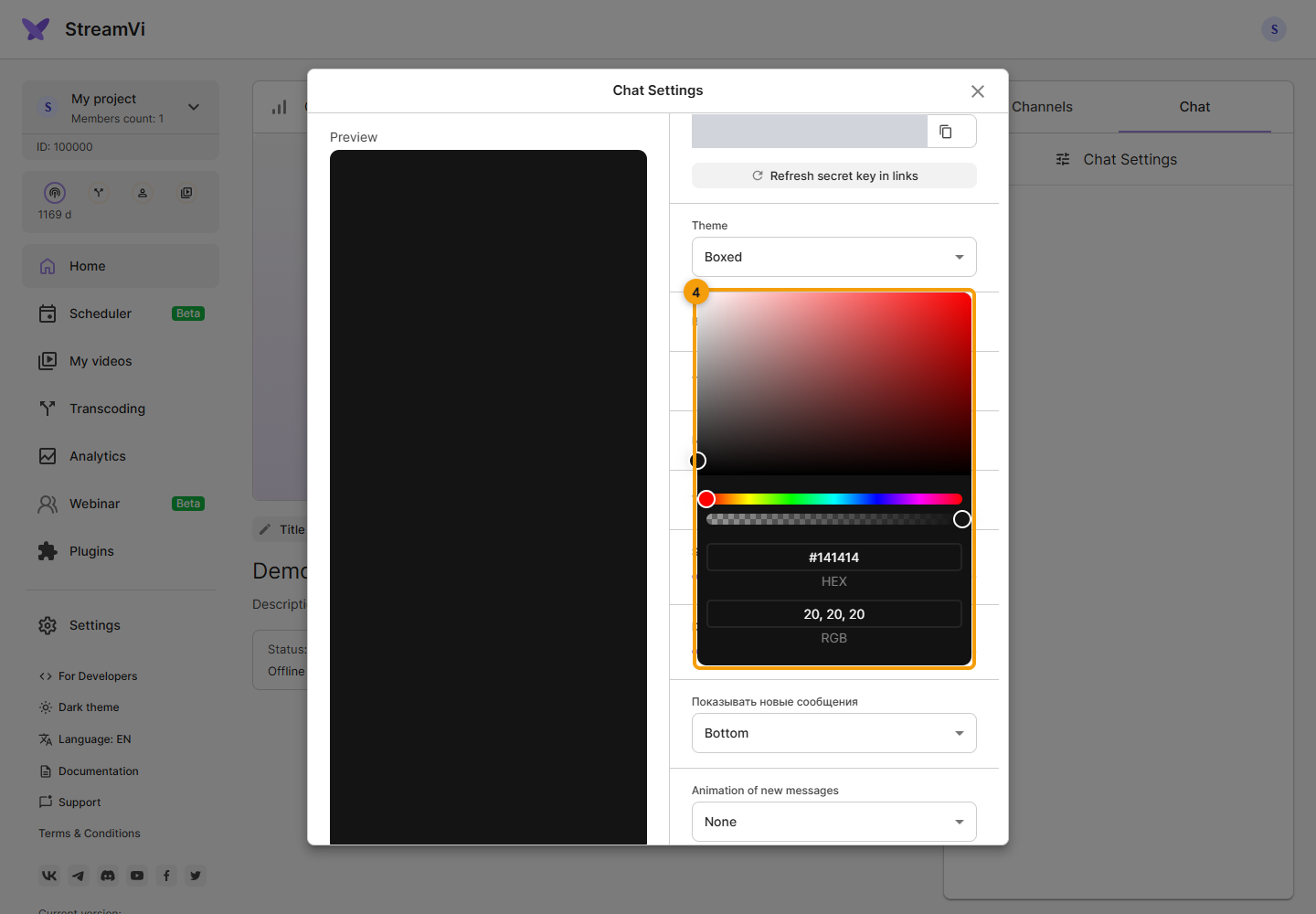
Scale ranges from 60 to 400%; message spacing ranges from 10 to 200%. On narrow screens, the preview appears within the settings list.
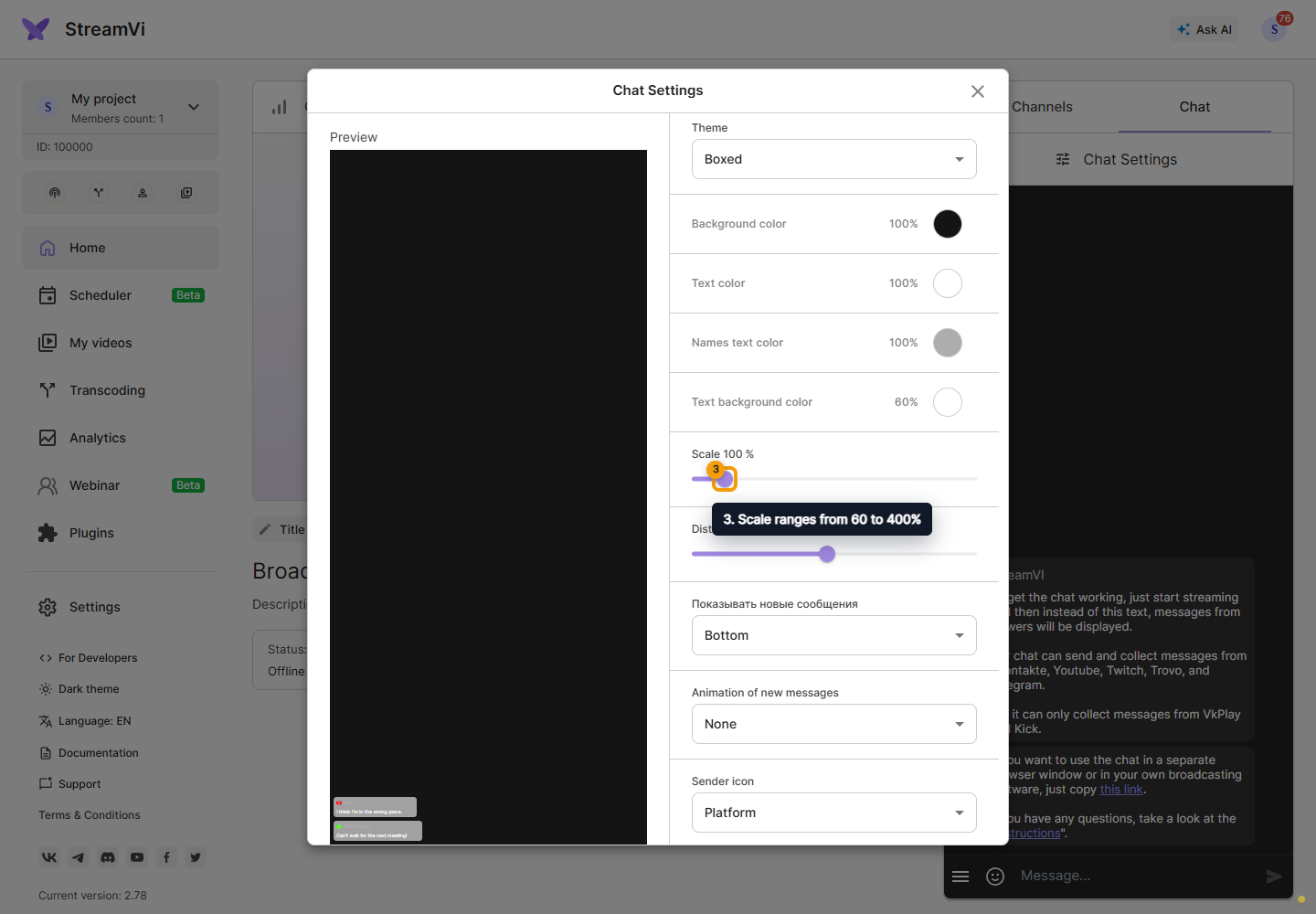
Set message placement, animation and sender icon. Enable message times, the input field, scrollbar and delayed message hiding as needed. If the chat unexpectedly looks empty, check hiding and its delay.
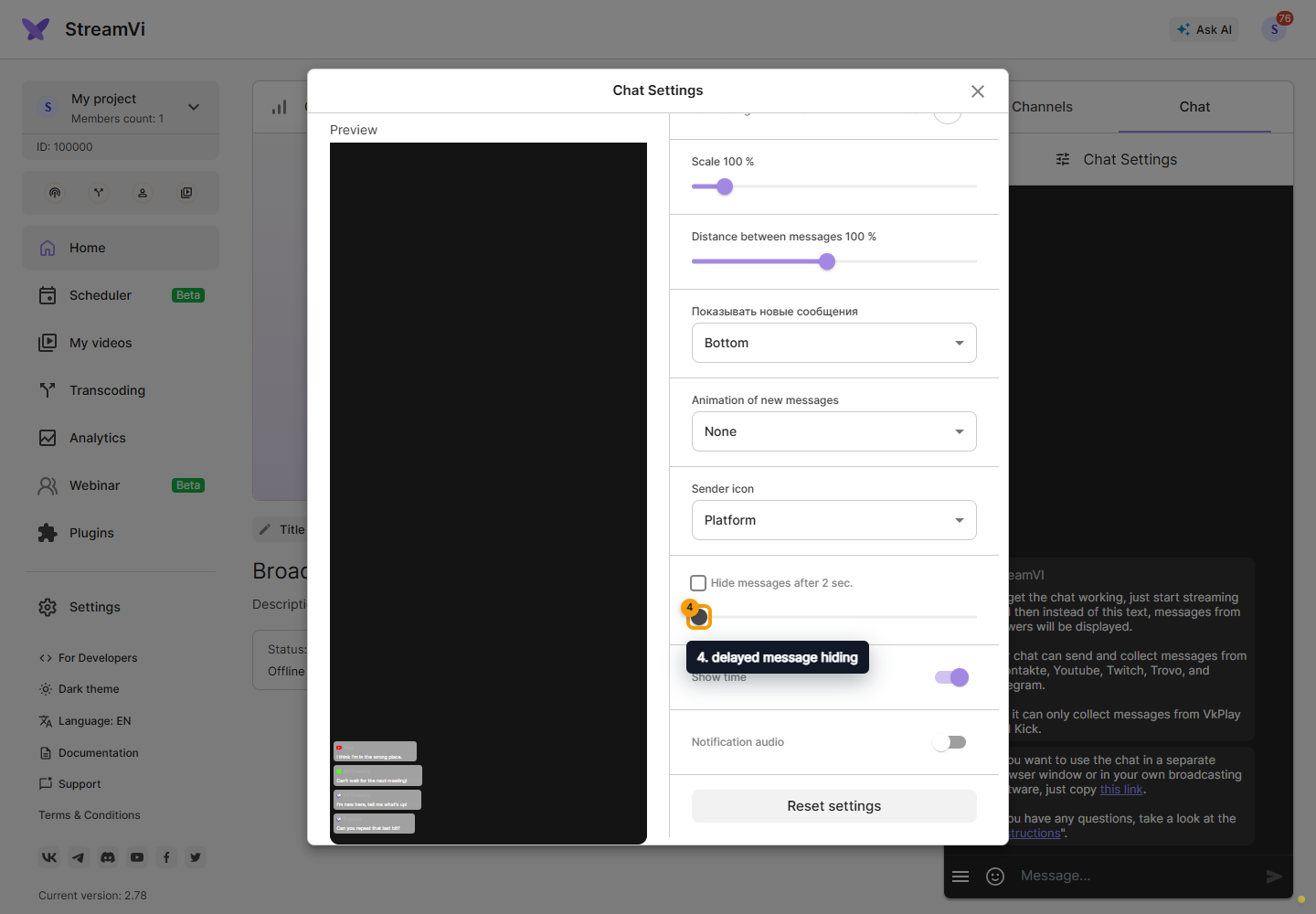
To hear a sound for messages, enable Notification audio near the bottom of Chat settings. The switch is saved in this browser and included in the generated chat link. If chat is already embedded in OBS, copy the link again after changing this setting and replace the source URL. StreamVi service notifications are configured separately in Notifications.
Apply the appearance
After configuring appearance, copy the broadcast embedding link. In OBS, open the corresponding Browser source's properties, replace its URL and confirm. An existing link contains the previous parameters and does not update itself when you change the Cabinet settings.
Use the separate moderation link for a working dock panel. After switching projects, check which project supplied the link. Keep links containing the chat key private.
Reset settings restores the initial appearance; update the OBS link afterwards. Refresh chat link key is a different action: it changes the access key and requires replacing all previous links. See OBS embedding.
StreamVi Desktop additionally offers a separate chat-window mode: disabled, interactive, movable or fixed. This setting does not appear in the browser version.