
Odnoklassniki
Connect a group
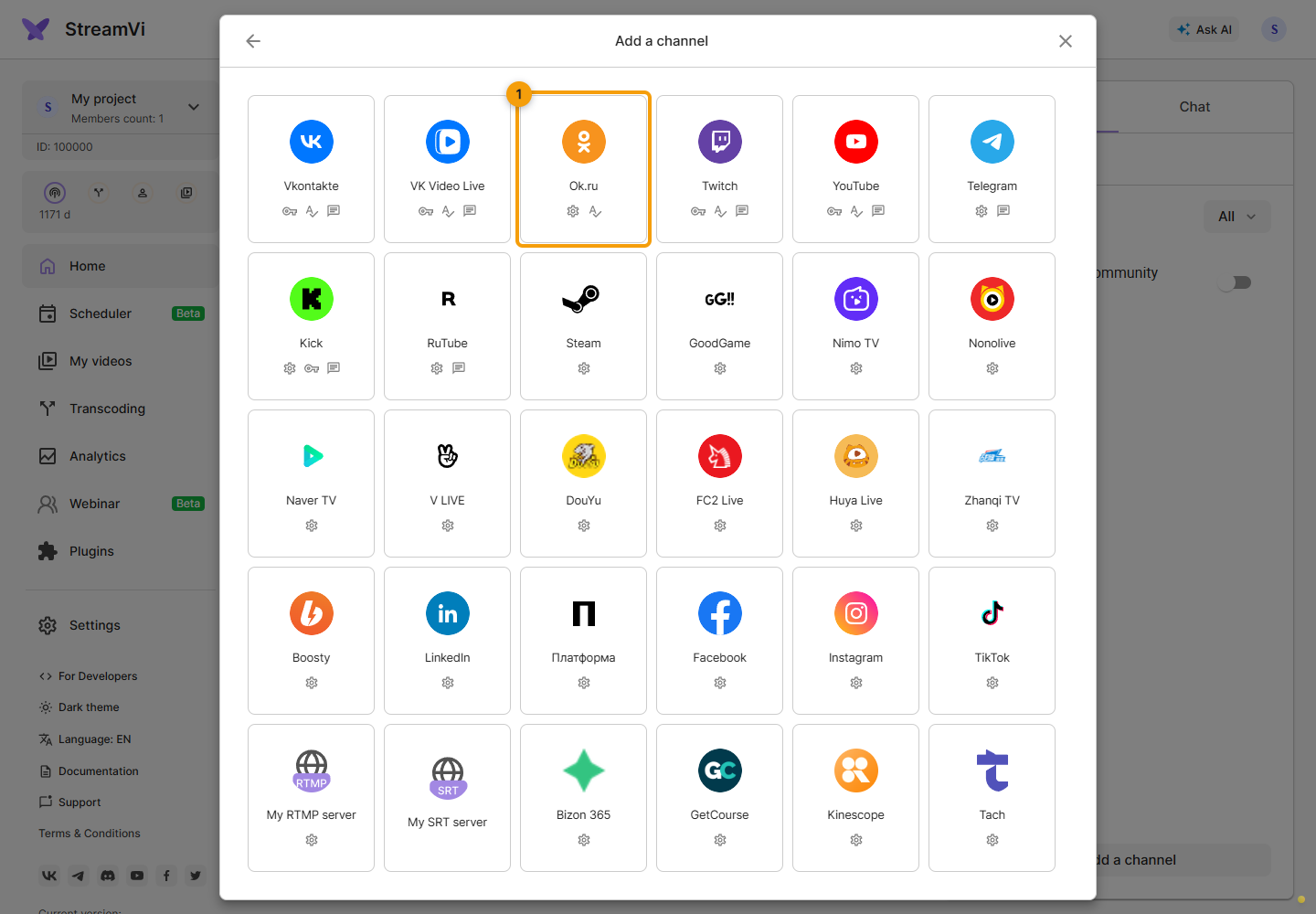
Click Add channel and select Ok.ru.
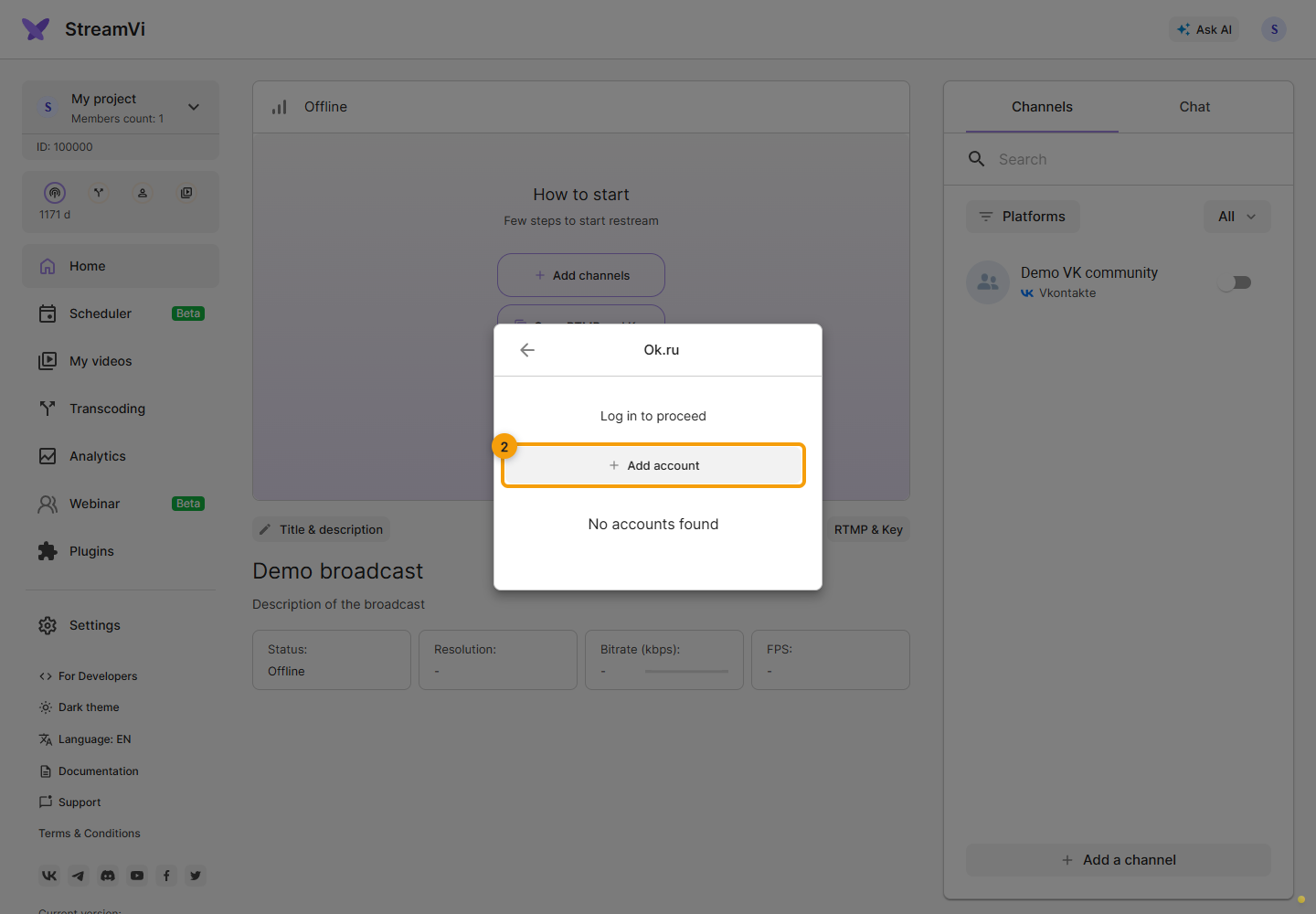
If the account is not connected yet, click Add account.
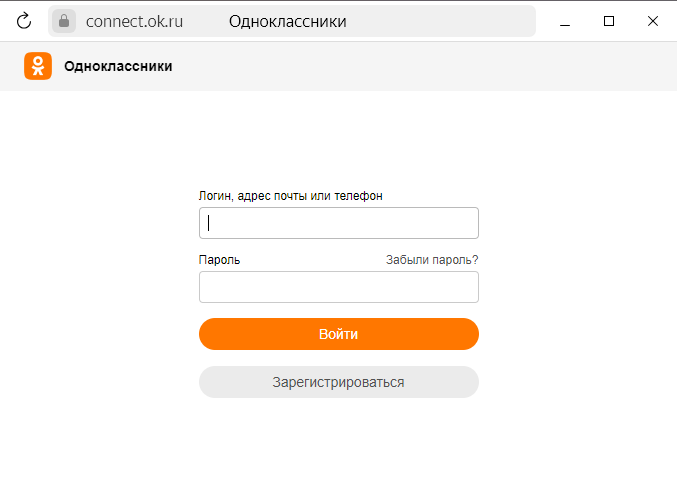
Sign in to Odnoklassniki and confirm the requested access with Allow.
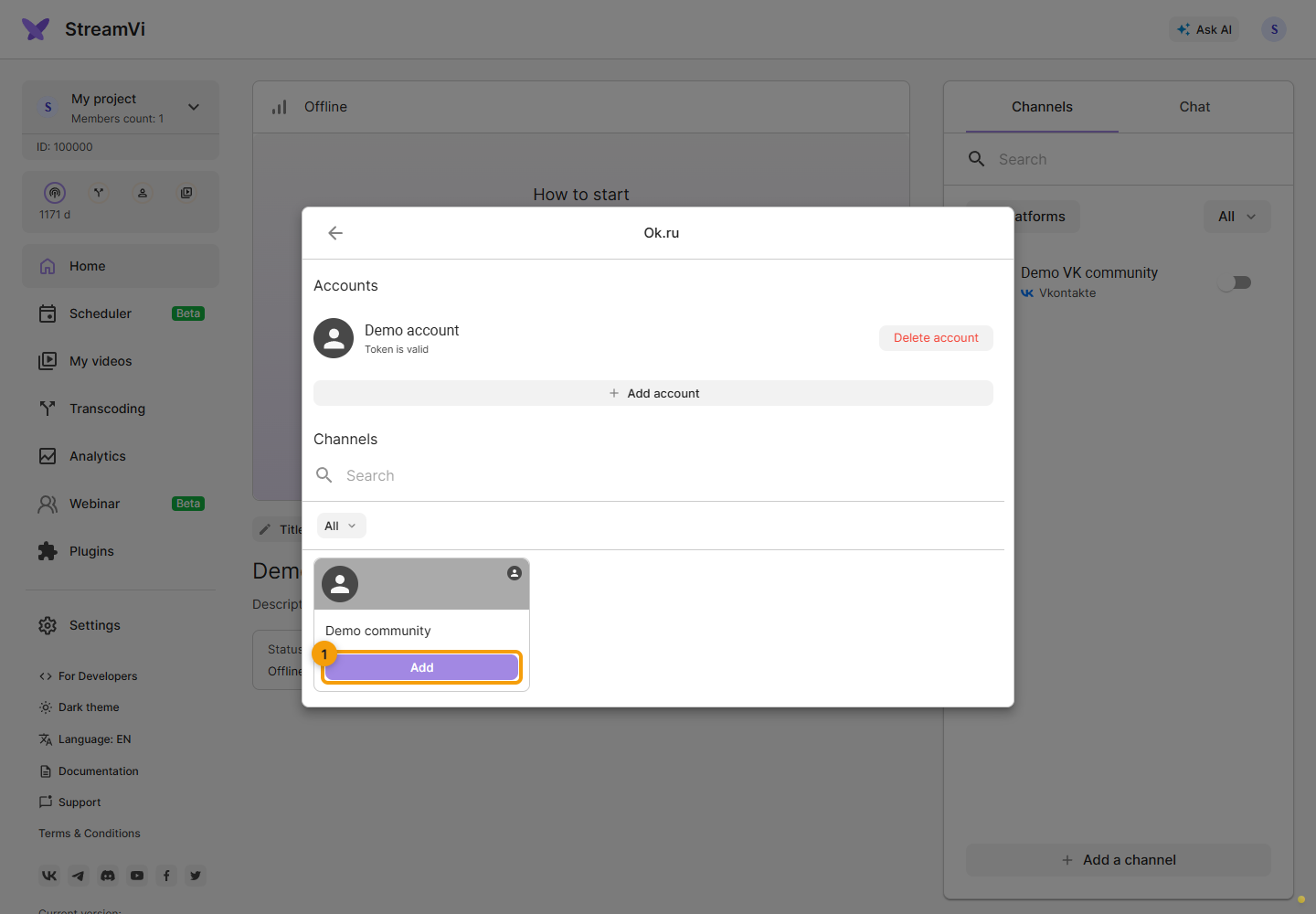
Click Add next to the required group. The Cabinet screenshots show a demo account and group. Its RTMP address and key are needed next: selecting a group does not finish the connection.
Group RTMP address and key
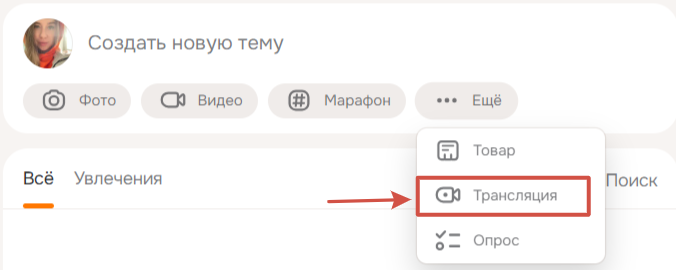
Open the required Odnoklassniki group. In the post-creation menu, choose More → Broadcast. The screenshots show an example platform interface; control positions may differ between versions.
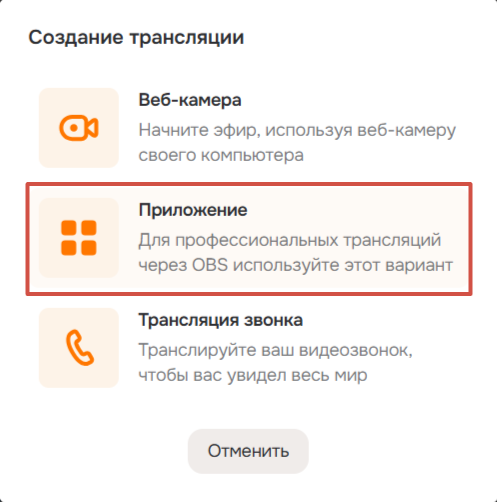
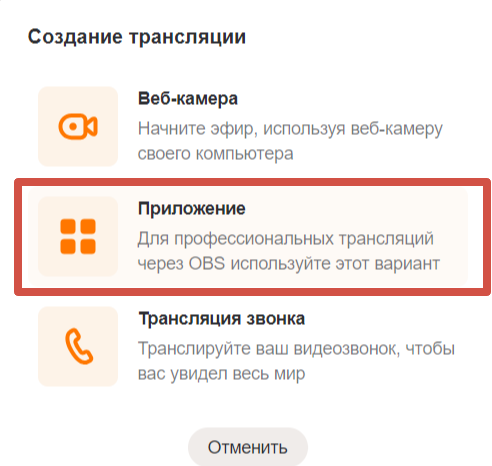
Select Application to receive video from an external source.
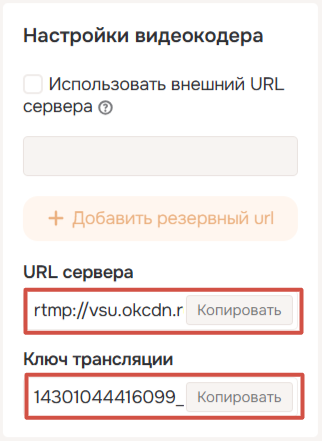
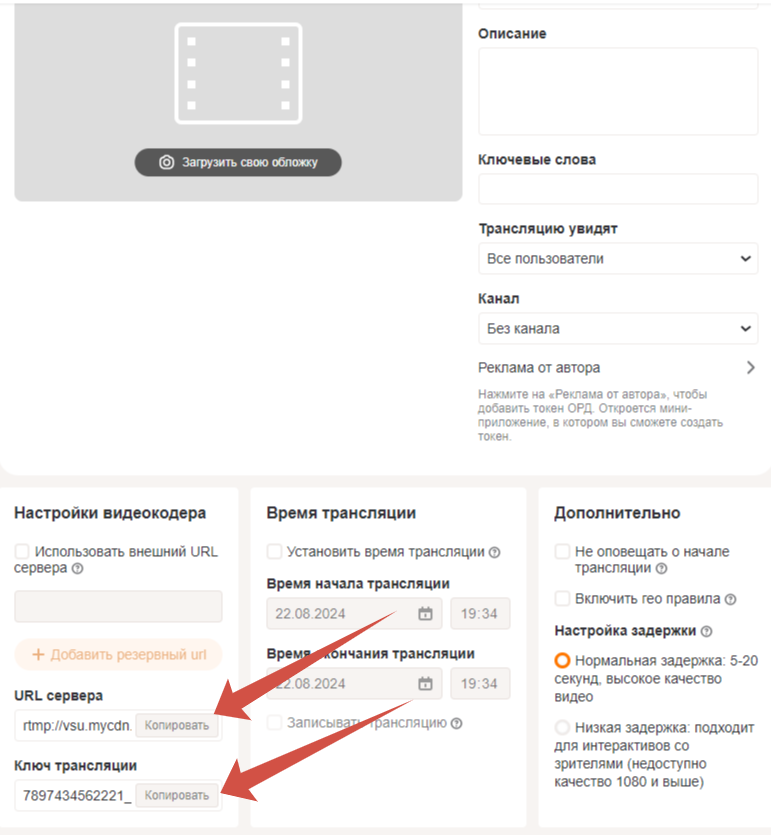
Copy Server URL and Stream key from the encoder settings. Use your event’s values, not the example shown in the screenshot.
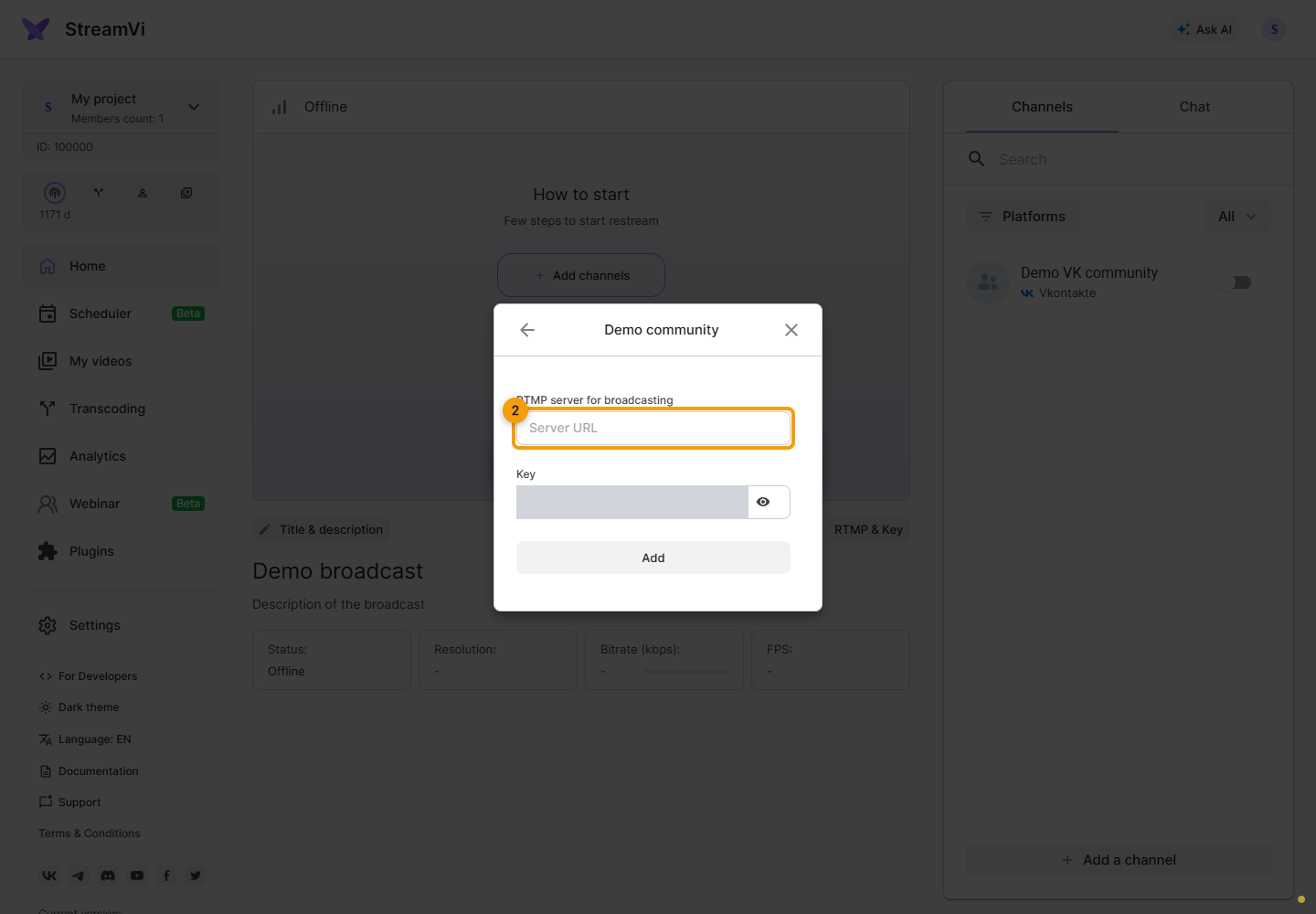
Return to the selected group’s connection form in StreamVi. Paste the RTMP address and key from Odnoklassniki, click Add and wait for confirmation.
Turn on the channel switch and start the broadcast from your configured source. Check the result on the Odnoklassniki broadcast page; complete any start confirmation requested there.
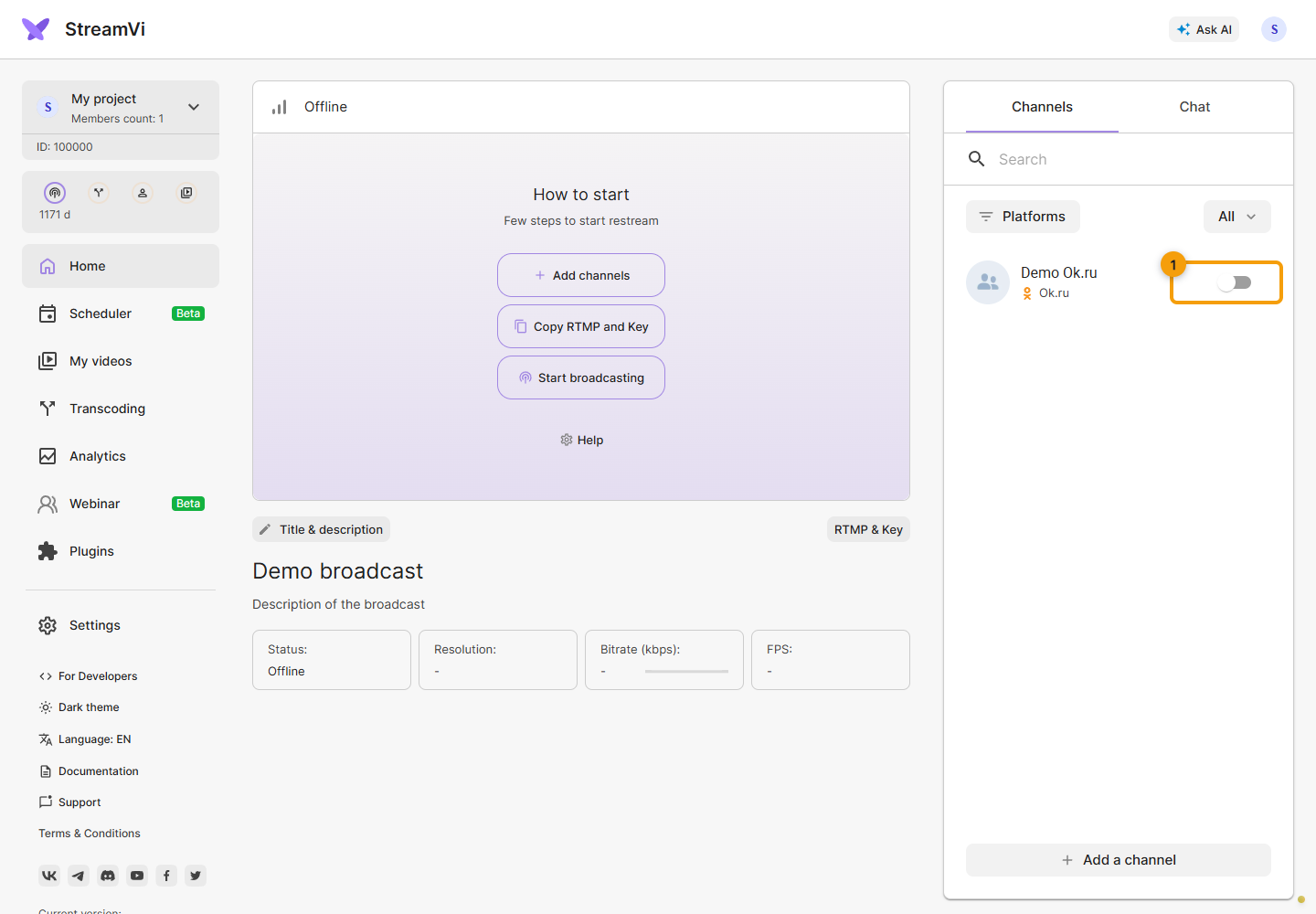
Connect a personal page
For a personal page, use a manual RTMP connection. First open the personal page on Odnoklassniki and choose Broadcast in the post-creation area.
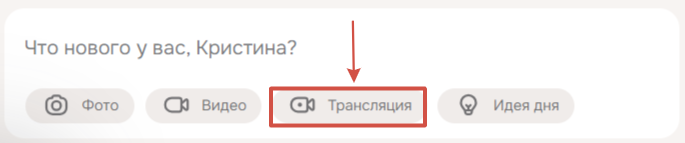
Select Application.
Complete the platform’s event settings, including the required title and description, and follow its save prompts. Copy Server URL and Stream key. With a generic RTMP connection, do not rely on StreamVi automatically replacing publication settings.
In StreamVi, choose Add a channel → My RTMP server. Enter a title for the channel list and paste the RTMP server address from Odnoklassniki.
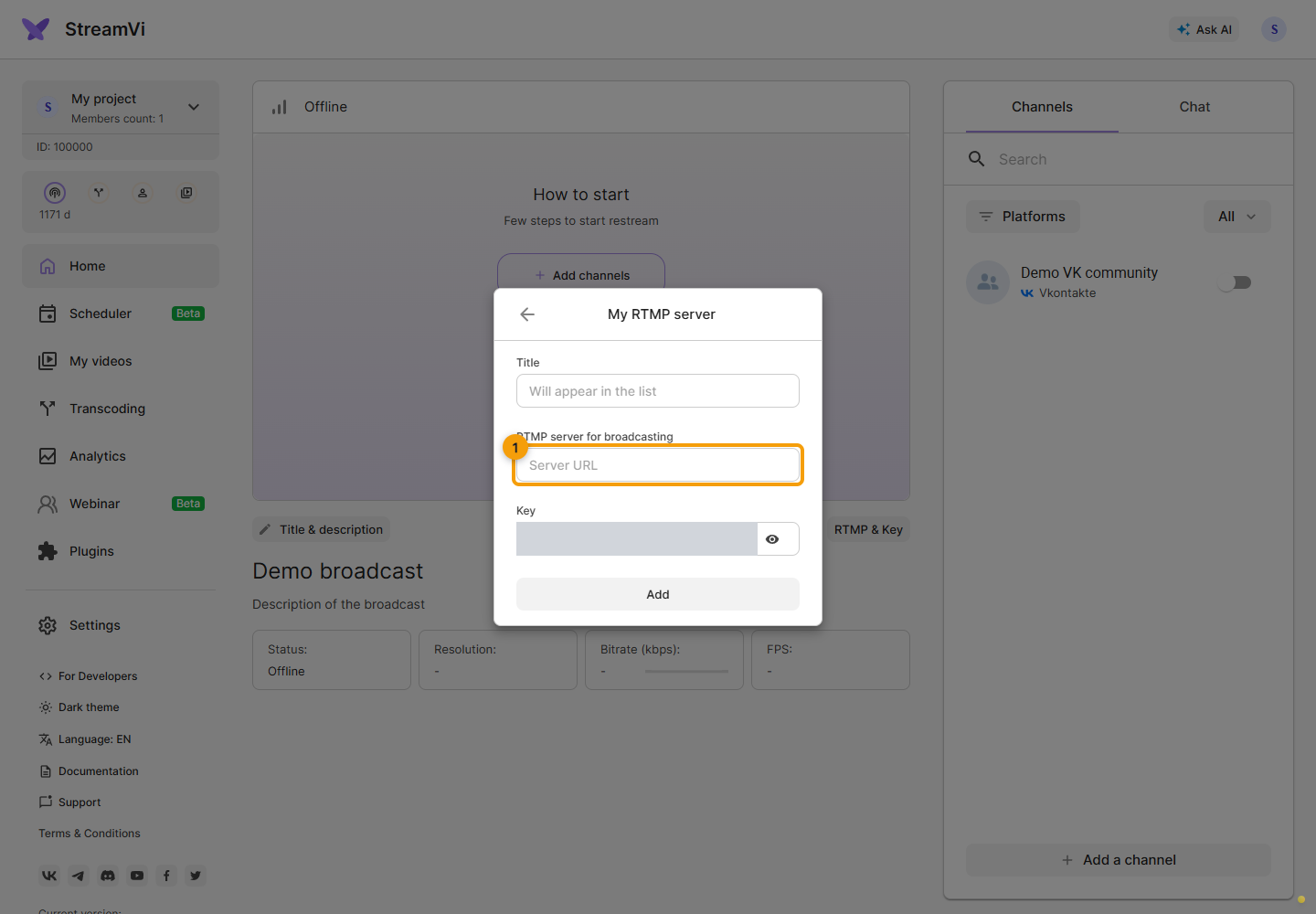
Then paste the stream key and click Add.
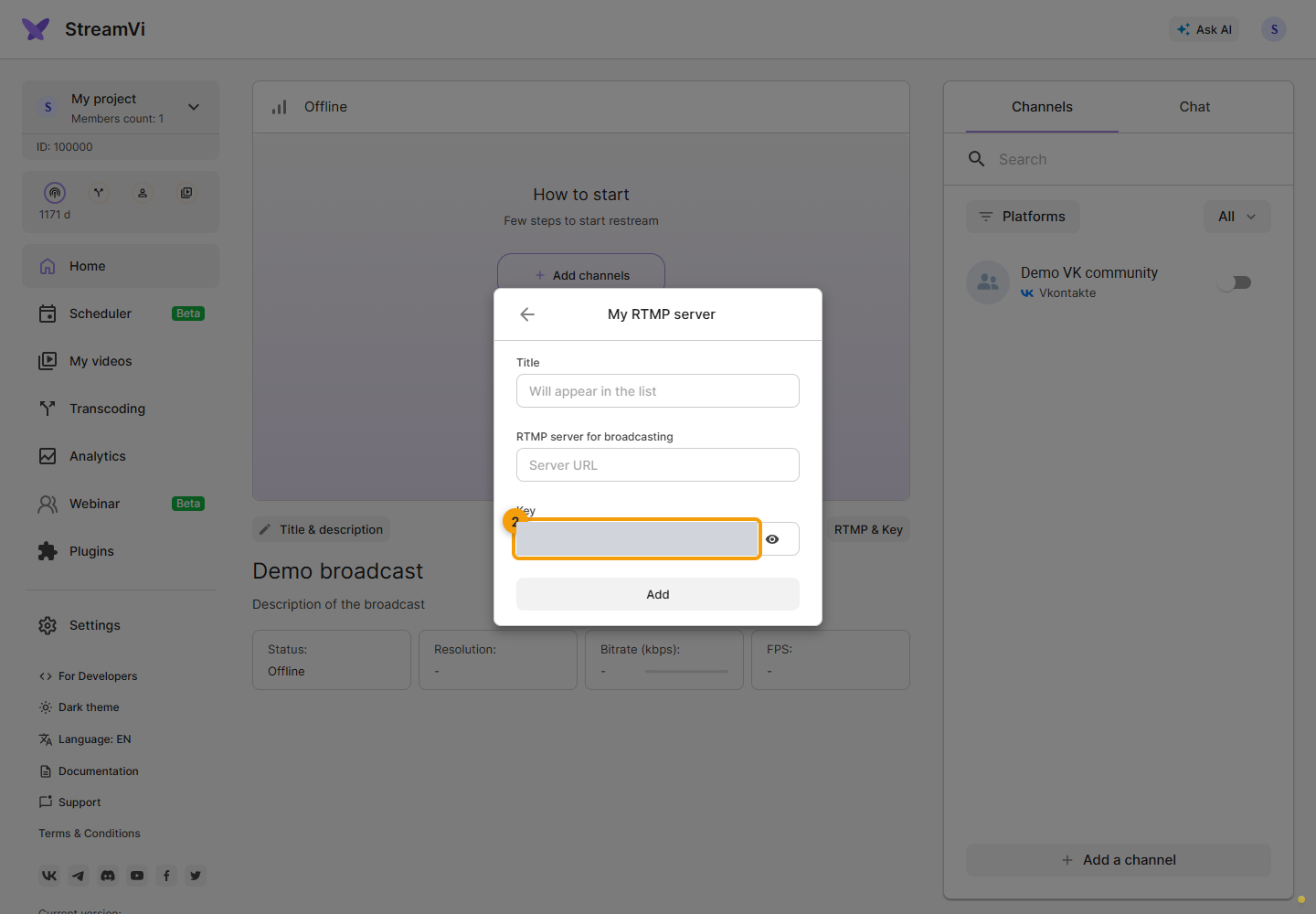
After confirmation, enable the channel and start the broadcast. Before the next broadcast, compare connection details with the new Odnoklassniki event: if they changed, update that channel’s address and key. See Odnoklassniki broadcast parameters.