Payments and balance
Select the project and open Settings → Payments. Its balance, transaction history and purchased services belong to that project. Payment changes and withdrawals require the appropriate permissions; contact the project owner if an action is unavailable.
Payment settings
Click Payment settings, select the country and an available payment system, and enter the email for receipts. The country determines the currency and available methods. Where an address is required, fill in the region, city, street, house number and postal code; add a company name and additional information if needed. Click Save and wait for confirmation.
Selecting a country or method does not itself pay for a plan. Check the currency and required fields before continuing. If the methods fail to load, resolve the loading error and reopen the form.
Top up
Click Top up, enter an amount in the project's currency and check the payment method. Minimum and maximum amounts depend on the system; the form reports invalid values. Use the payment-method row to return to its settings.
Click Continue and follow the payment provider's instructions. Return to the Cabinet, click Refresh, and check the balance and transaction record. Opening the payment page does not confirm payment. If the outcome is unclear, check the history before attempting another payment.
Wallet payments
When TON or Base is selected, the Cabinet opens wallet connection and an operation-confirmation request. Check the displayed network, amount and requested action. A token payment may require a separate spending approval before payment itself. A rejected request is not a successful payment.
The USDT TRC-20 method opens a dialog showing the network, exact amount, recipient address and QR code. Copy the details from this dialog. After sending, keep it open while the Cabinet waits for network confirmation; the dialog shows the status and confirmation count. If the invoice expires after you have sent the transfer, wait for the result and check history before trying again. If you have not sent the operation, create a new payment.
History and withdrawals
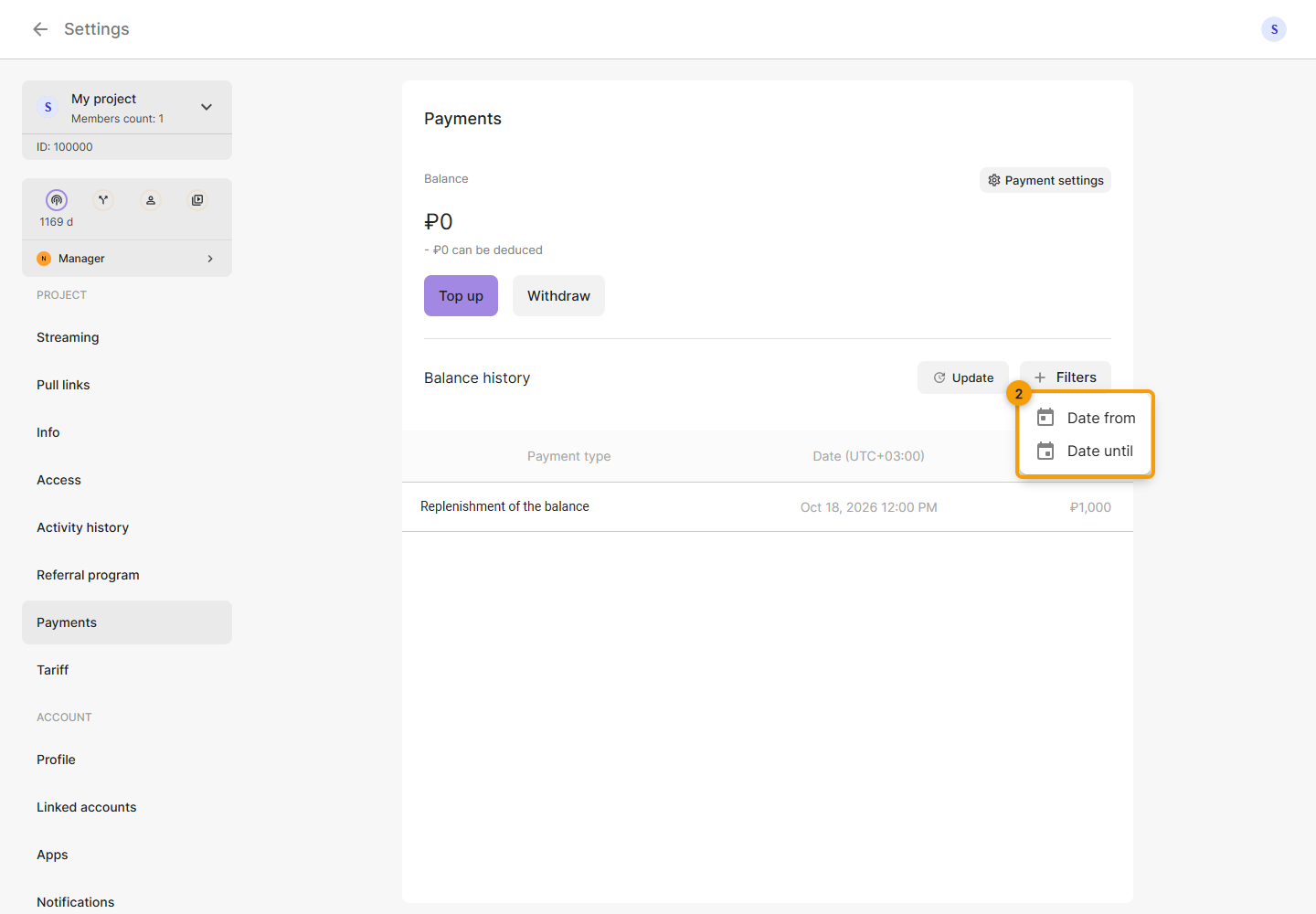
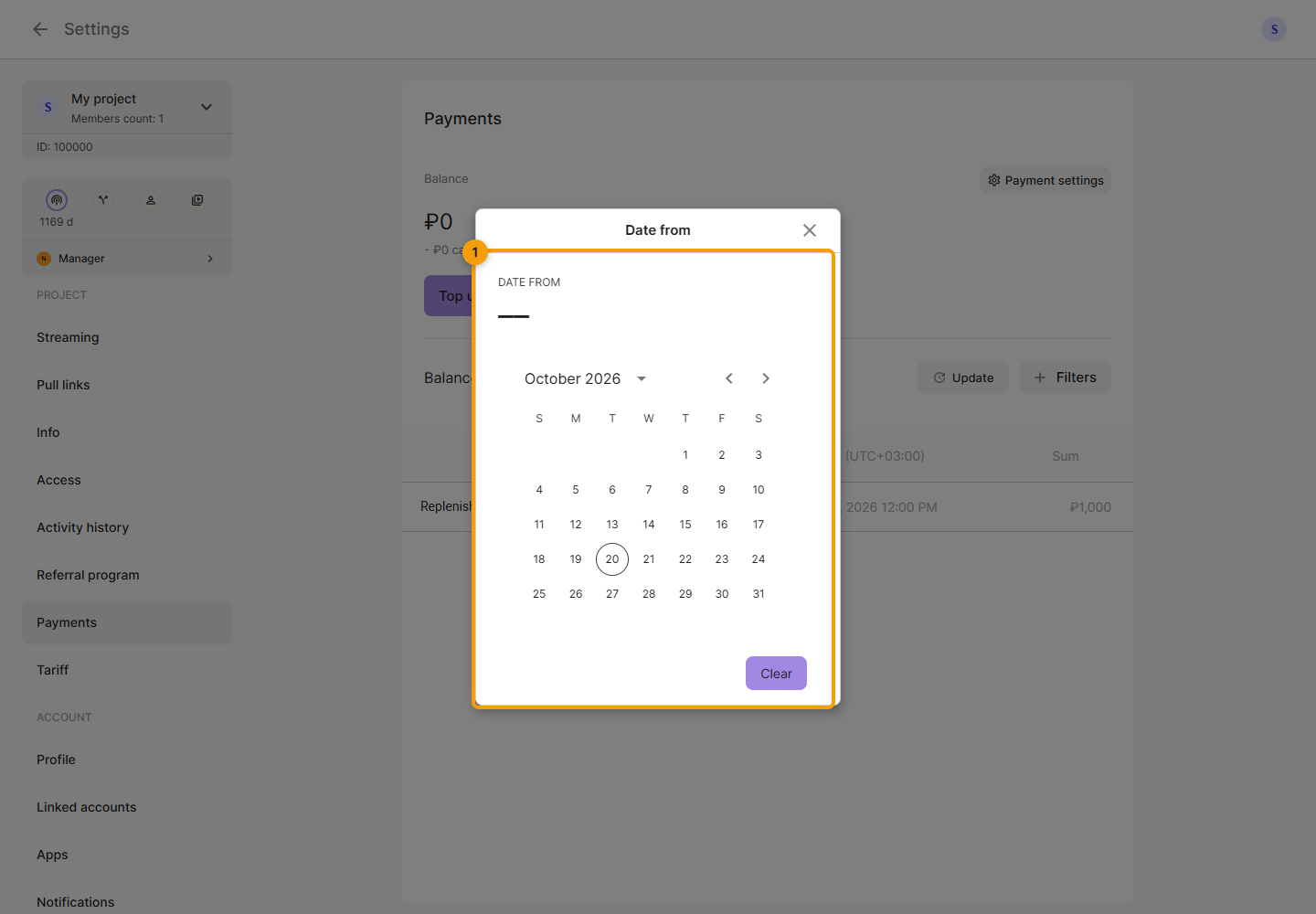
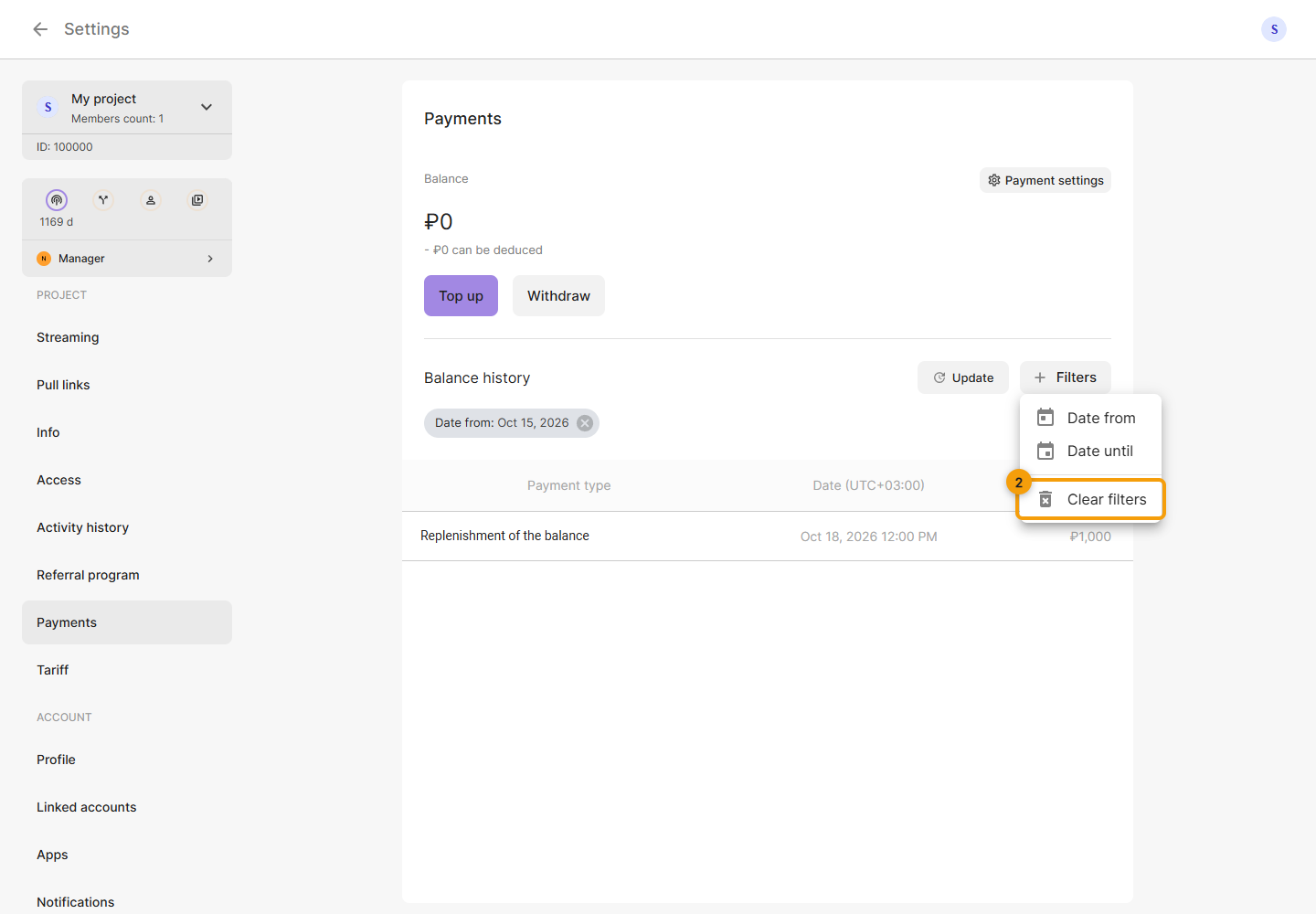
Use Filters to narrow the transaction history and Refresh to load current data. A top-up, service purchase and reward credit are different operations.
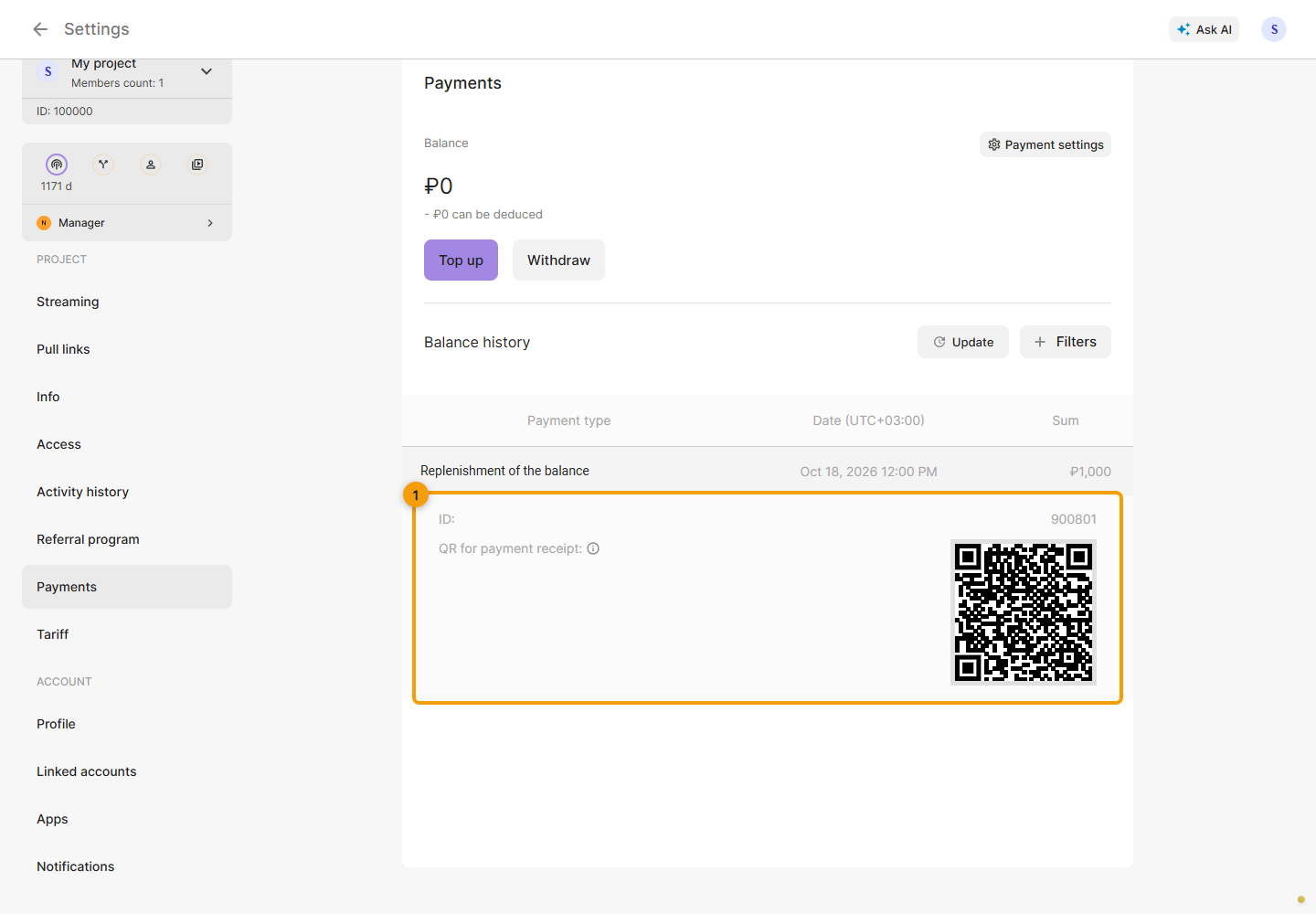
Click a transaction row to expand its details; click it again to collapse them. Check the transaction type, date and amount before contacting support.
The total balance can include deposited funds, bonuses and earned rewards. In Withdraw, Available shows the amount eligible for withdrawal; it can be lower than the total balance.
Choose an available payout system, amount and destination. Depending on the country, the Cabinet displays a card form or a wallet address. Check the requested amount, displayed commission and destination details, including the network for a wallet. Missing permissions or an unavailable system prevent a payout request.
After a successful request, the Cabinet confirms that a withdrawal has been created and displays the amount after commission. This confirms creation of the request; check receipt of the funds separately.
Purchase and renewal
Settings → Plan shows restreaming and additional services, their expiry dates, renewal prices and Auto-renewal status. The auto-renewal switch applies changes immediately. Check the resulting state on the card; there is no separate save button.
When purchasing or changing a plan, review the period, parameters, credit for the current service and final amount in the confirmation form. Payment from the balance is offered there when available. Turning off auto-renewal does not immediately remove a service already paid for.
See restreaming, transcoding, storage, webinars and the referral program.