Русский
 Английский
FAQ
How to make a preview?
Method No. 1: for VKontakte and YouTube
Method No. 2 For other platforms
Method No. 3 Spare
How to set the broadcast name?
To change the name and description of the channel, go to its settings and enter it in the appropriate fields.
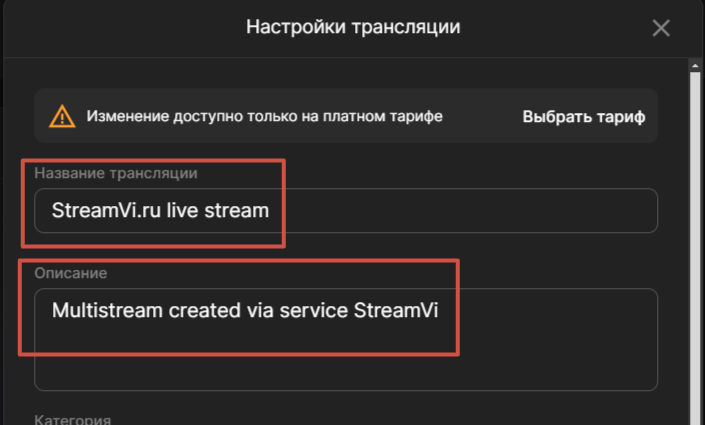
⚠️ Changes are only available on a paid plan!
What programs are supported for broadcasting?
- OBS (Windows, MacOS, Linux)
- StreamLabs Desctop (Windows, MacOS)
- StreamLabs Studio (Xbox)
- Streamlabs: Live Streaming (Android, iOS)
- XSplit (Windows)
- BroadCastMe (Android, iOS)
- ManyCam (Android, iOS)
- CameraFi Live (Android) It is possible to add a chat on the phone (for a fee)
- Wirecast Go (iOS)
- Prism Live (Windows, Android, MacOS). It is possible to add a chat on your phone (for free).
The broadcast on Twitch does not start (a black screen is shown/endless loading/...)
Reason 1
The most common reason is the high bitrate is set. On Twitch, the maximum bitrate for users with partner status is 8,000, for the rest 6,000.
The problem with high bitrate on Twitch may not manifest itself immediately and not always. Sometimes Twitch allows you to broadcast at a high bitrate, but for stability it is recommended not to exceed this limit.
Reason 2
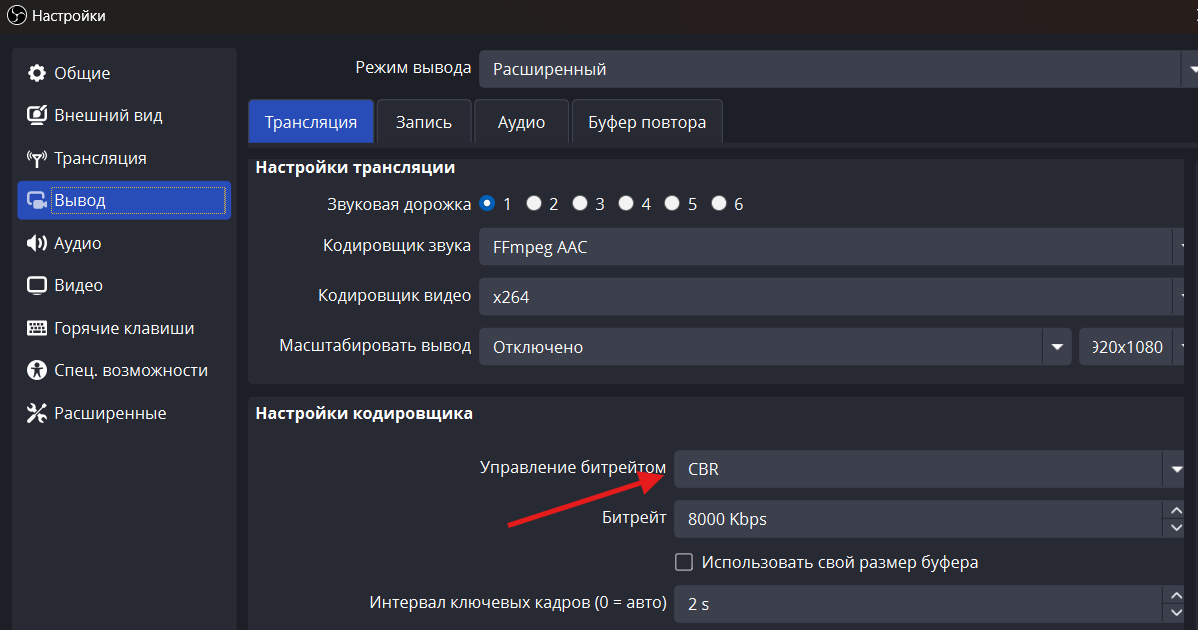
Bitrate control is not set to "CBR". Make sure that this bitrate control option is set in your program settings, otherwise it may change during the broadcast and cause a black screen.
Reason 3
There are problems with the broadcast token/key. Try deleting and re-adding the channel in the StreamVI service
The broadcast does not start, there are constant reconnections.
Reason 1
This may occur if you are trying to start a broadcast with a bitrate higher than is available on the tariff. Increase the rate or reduce the bitrate.
Reason 2
Incorrect server url or key. Try to copy and paste this one from the "settings“ section into your program again.
The bitrate specified in the tariff is the total bitrate for all platforms or for each?
The bitrate specified in the tariff is the bitrate for each platform, that is, it is the bitrate that you can send to our service. For example, on a free tariff, there is a limit of 10,000 bitrate and 2 channels for the restream, that is, you can broadcast 10,000 for each channel.
How do I make a connection trace?
Run the following commands:
tracert 4rzbrx.live-msk.streamvi.ru
pathping 4rzbrx.live-msk.streamvi.ru
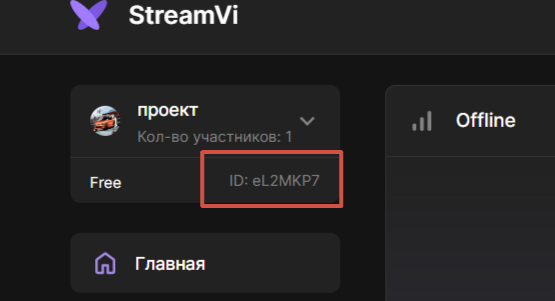
How to find out the profile ID.
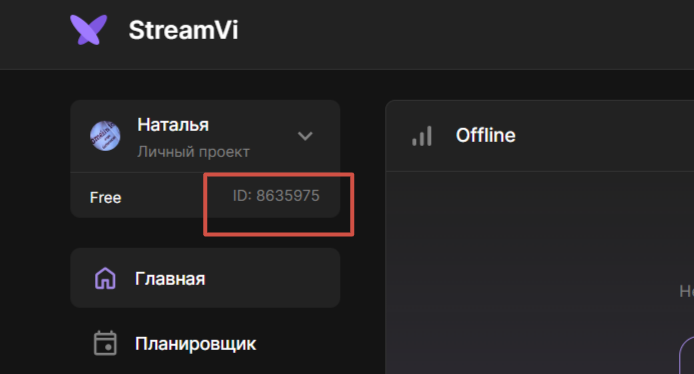
The ID of your profile or organization on the site streamvi.io you can find it in the upper left corner. An ID will be written under your name or the name of the organization, for example: "ID: 4d3KOWz"
The broadcast on the service does not stop.
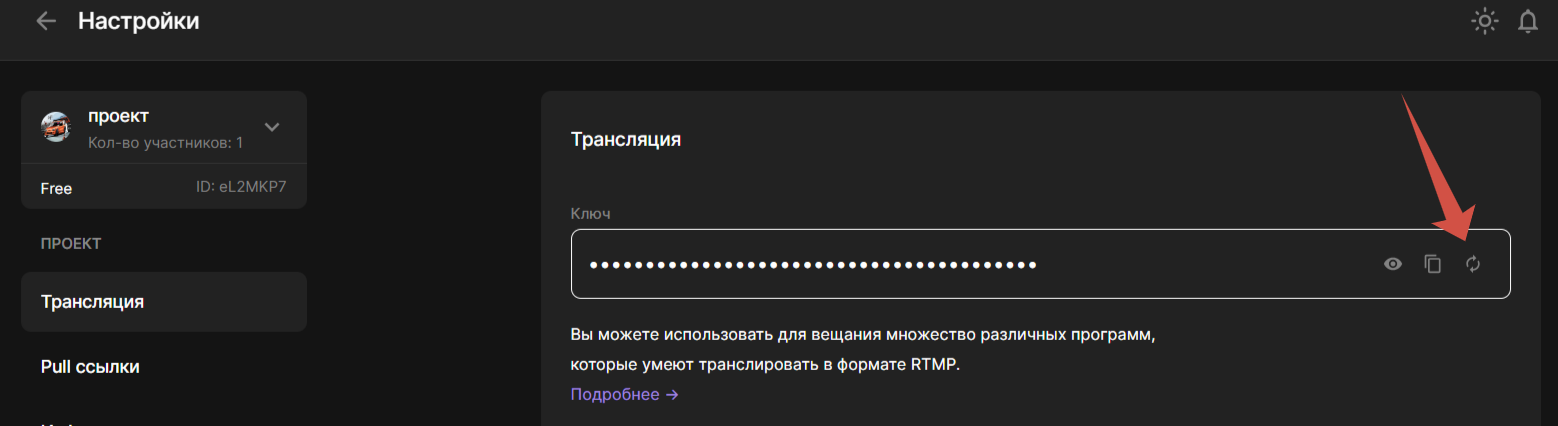
Perhaps someone is streaming under your account or there has been an internal error in the service. Write to us in those.support.
To stop the broadcast, you can update the key in the Settings section.
Kick/Twitch reduces the resolution to 720p.
This happens if you exceed the bitrate. Reduce the bitrate to the recommended value on the platform. On Twitch, 6000 kbps for beginners, 8000 kbps for partners. On Kick 8000 kbps.
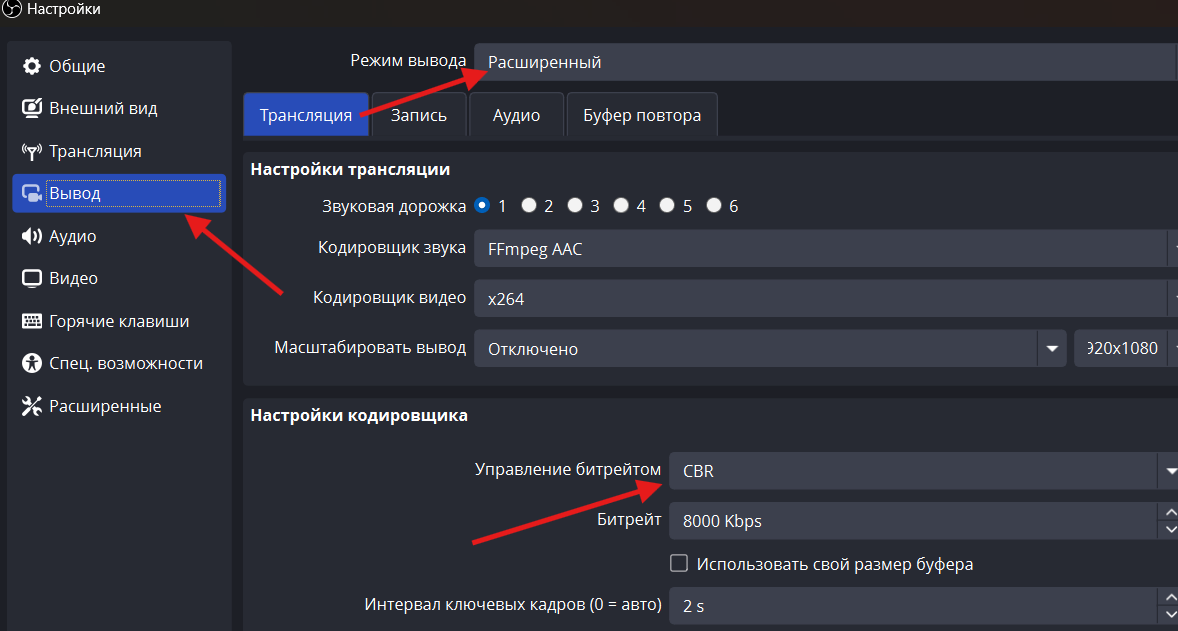
Unstable bitrate (rising or falling)
-
Проверьте настройку управления битрейтом. Ее значение должно быть CBR
-
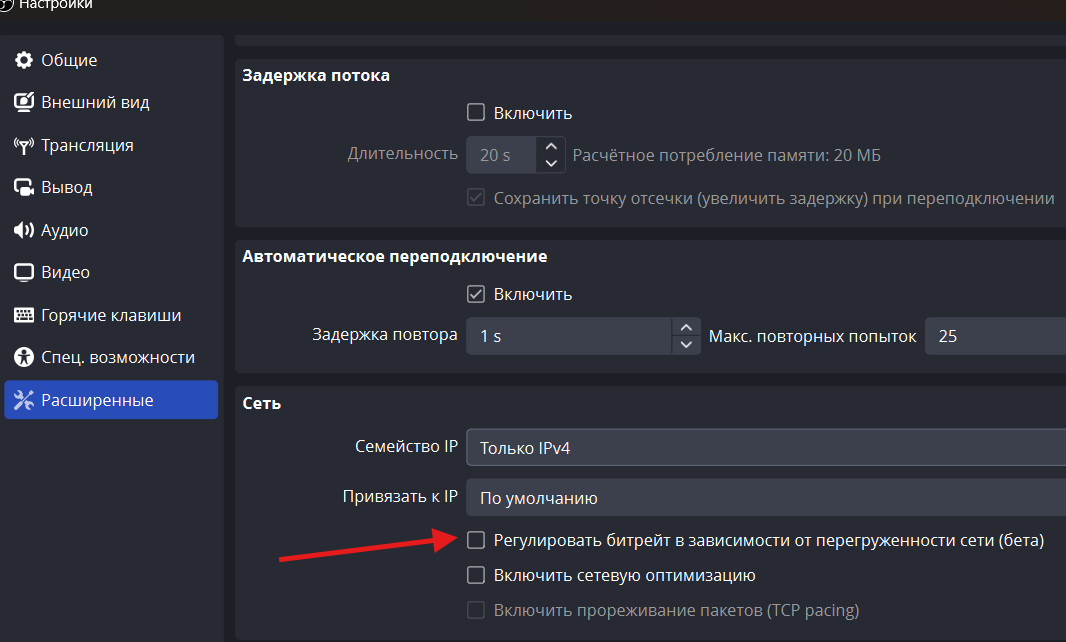
Проверьте опцию "Регулировать битрейт в зависимости от перегруженности сети", она должна быть снята.
The channel on the streamvi website is not being added.
When you try to add a channel to the streamvi LC, the connection window does not appear - refresh the page with ctrl+F5 and repeat the steps to add the channel.
The page is not loading streamvi.io
When you go to the streaming site, does the error “I can't open this page” or endless loading occur?
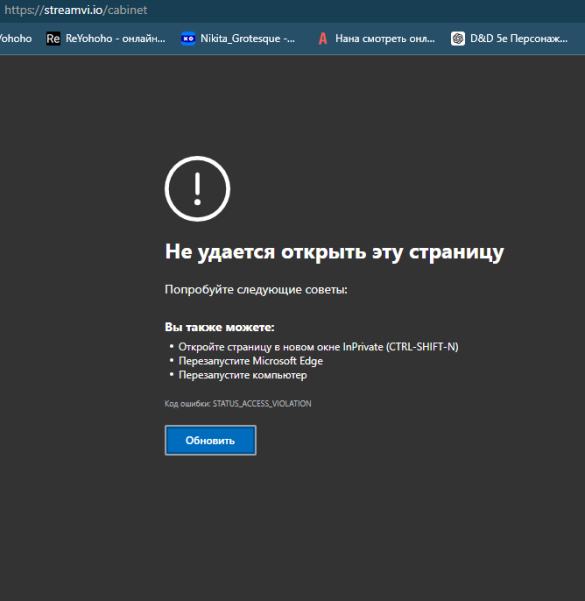
Тогда Ваши действия - через HAR-файл вкладки Network в браузере:
- Включить Preserve Log (Сохранять лог) и Disable Cache (отключить кэш);
- Обновить страницу при включенной консоли браузера;
- Если ошибка воспроизвелась - сохранить HAR и отправить его нам на исследование.
⚠️ - Внимание: Отправлять файл лучше нам в техподдержку, а не в общем чате: https://vk.com/im?media=&sel=-158819144
- Внимание: Отправлять файл лучше нам в техподдержку, а не в общем чате: https://vk.com/im?media=&sel=-158819144
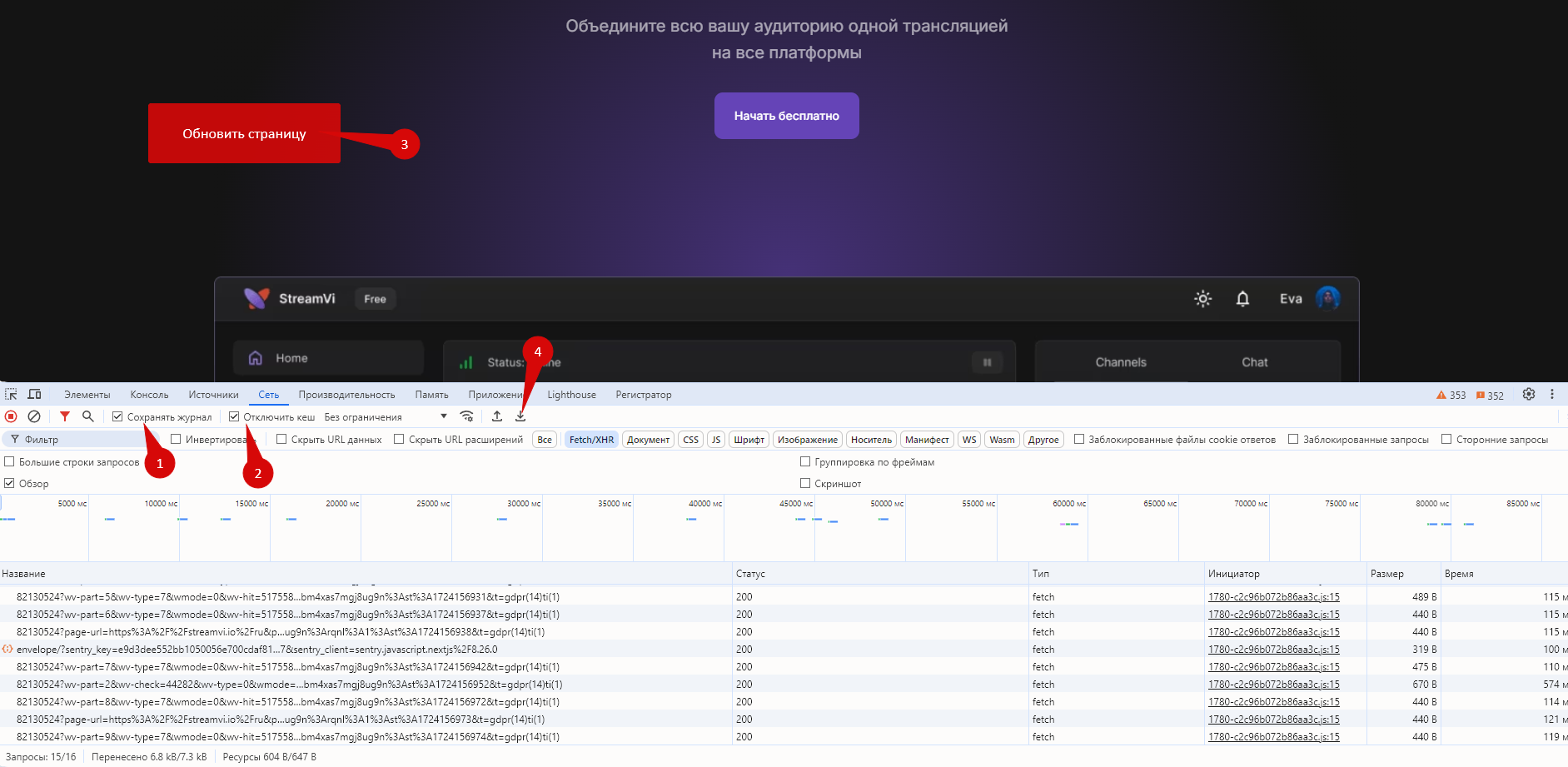
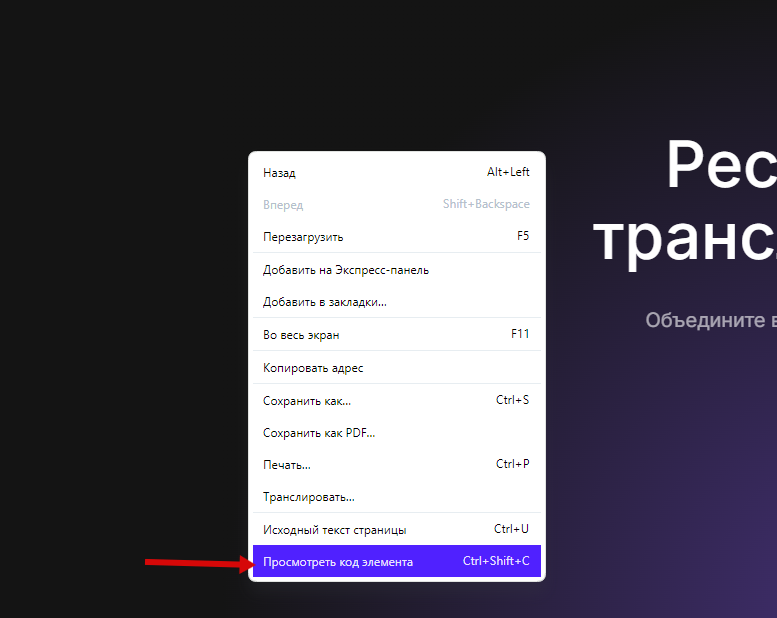
To open the bottom panel, right-click on the page and select "View item code”