
Frequently asked questions
A channel, video or setting is missing
Check the selected project and account. Team-project or guest-channel access requires an accepted invitation. Actions depend on role and plan. See project members and channel access.
A project is unavailable or a page is missing
If a project is unavailable, choose another accessible project or open the invitation under the account it was addressed to. If a page is missing, open the section through the sidebar: the old link may have changed. On narrow screens, open the menu using the top-panel button.
The channel connection window does not open
Reopen Add channel and check whether the browser blocked the authorization window. Reload a stuck page. If it repeats, tell support the platform and error time. Do not delete a working channel merely to sign in again; check the offered reconnection action first.
How to change a broadcast title and description
Use Title and description on the main page or a channel's additional settings. Availability depends on the plan and platform. Scheduled-event parameters may be managed on the platform itself. Instructions.
What are the streaming limits?
Check current plan limits: simultaneous channels, bitrate, file capacity and additional services. Platforms have their own requirements too. Transcoding plans also depend on input resolution. See restreaming, transcoding and stream parameters.
No video, a black screen or repeated reconnects
First check the source: selected-project address and key, protocol, current bitrate and connection state. Then check the channel switch, platform access, destination key and selected scheduled event. Run SpeedTest from server selection and use diagnostics.
If only one platform fails, compare its requirements with the original or assigned transcoded stream. Do not raise limits at random: analytics and logs help identify the cause and time.
The broadcast did not end after stopping OBS
Check disconnect protection: the service may be waiting for the source while showing a placeholder. Use the stop action if offered in the panel, then check the platform's state. Video-file playback has a separate end action with confirmation.
Refreshing the stream key replaces source access and requires updating every sending program. Do not use it instead of normal shutdown after every broadcast.
Where is the ID?
The selected project's ID appears in its card in the Cabinet menu. Its copy button copies it to the clipboard.
For inviting a user to a team, the recipient selects Personal project and copies its ID: this is their StreamVi user identifier. For channel access by ID, the recipient selects the project that needs the channel and copies that personal or team project's ID. A VK, YouTube or Telegram page ID cannot be used for these invitations.
A file uploaded but cannot be selected
Wait for processing and duration detection in My videos. The scheduler accepts videos at least two minutes long. Check storage space and the active plan. See Videos and Storage.
Payment completed but the service did not change
Refresh the balance and transaction history. Check the project, service start date and any next plan. An open payment page alone does not confirm payment. If the outcome is unclear, check history before paying again. See Payments.
How to use the AI assistant
If the Cabinet header includes Ask AI, click it to open the assistant. The panel opens on the right on desktop and fills the screen on a phone. If the button is absent, the assistant is unavailable in this build.
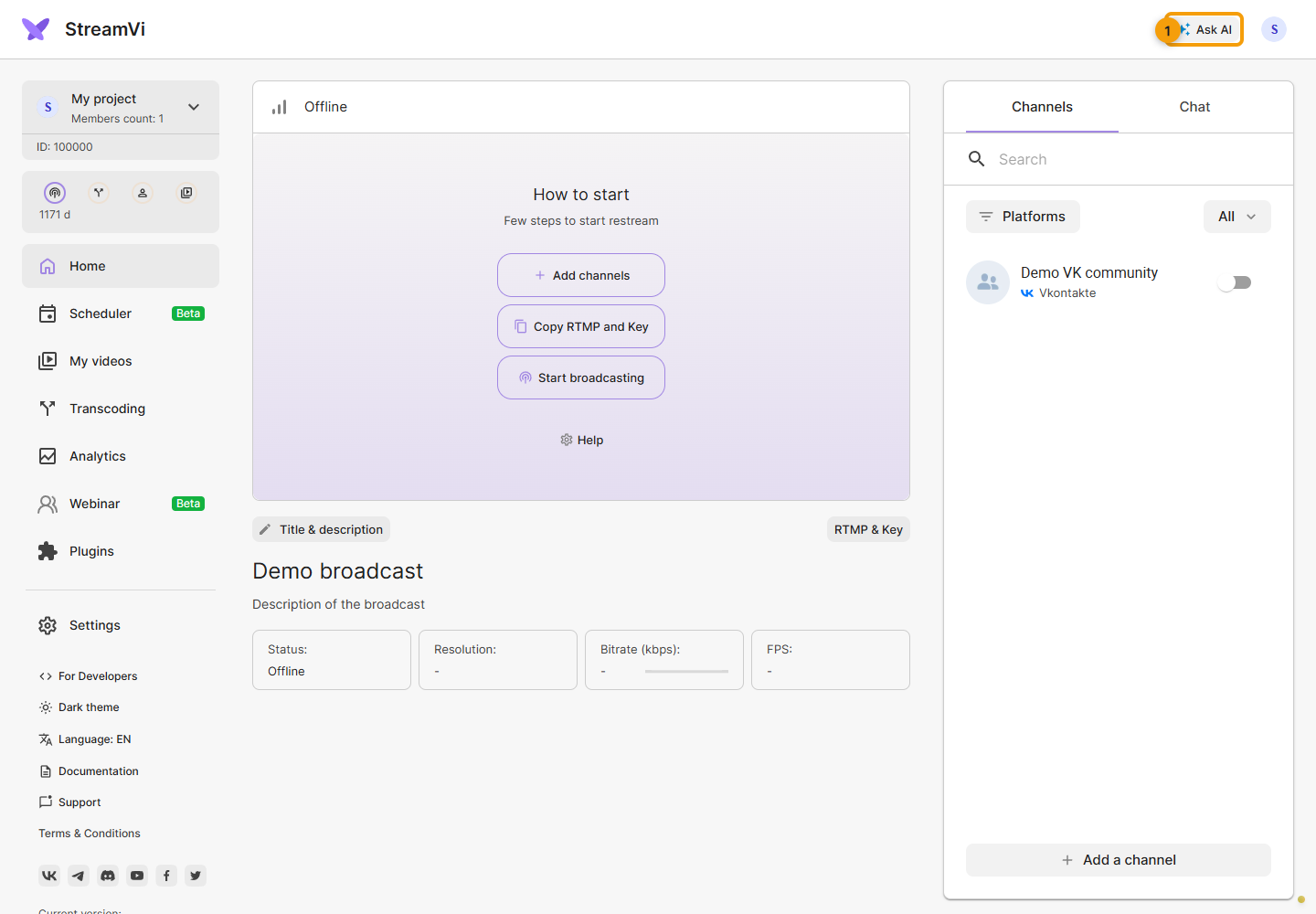
Ask a specific question, for example: “How do I add a VK channel to this project?” Include the step you are having trouble with. To close the loaded panel, use the collapse button in its header; on desktop, you can also click Ask AI again.
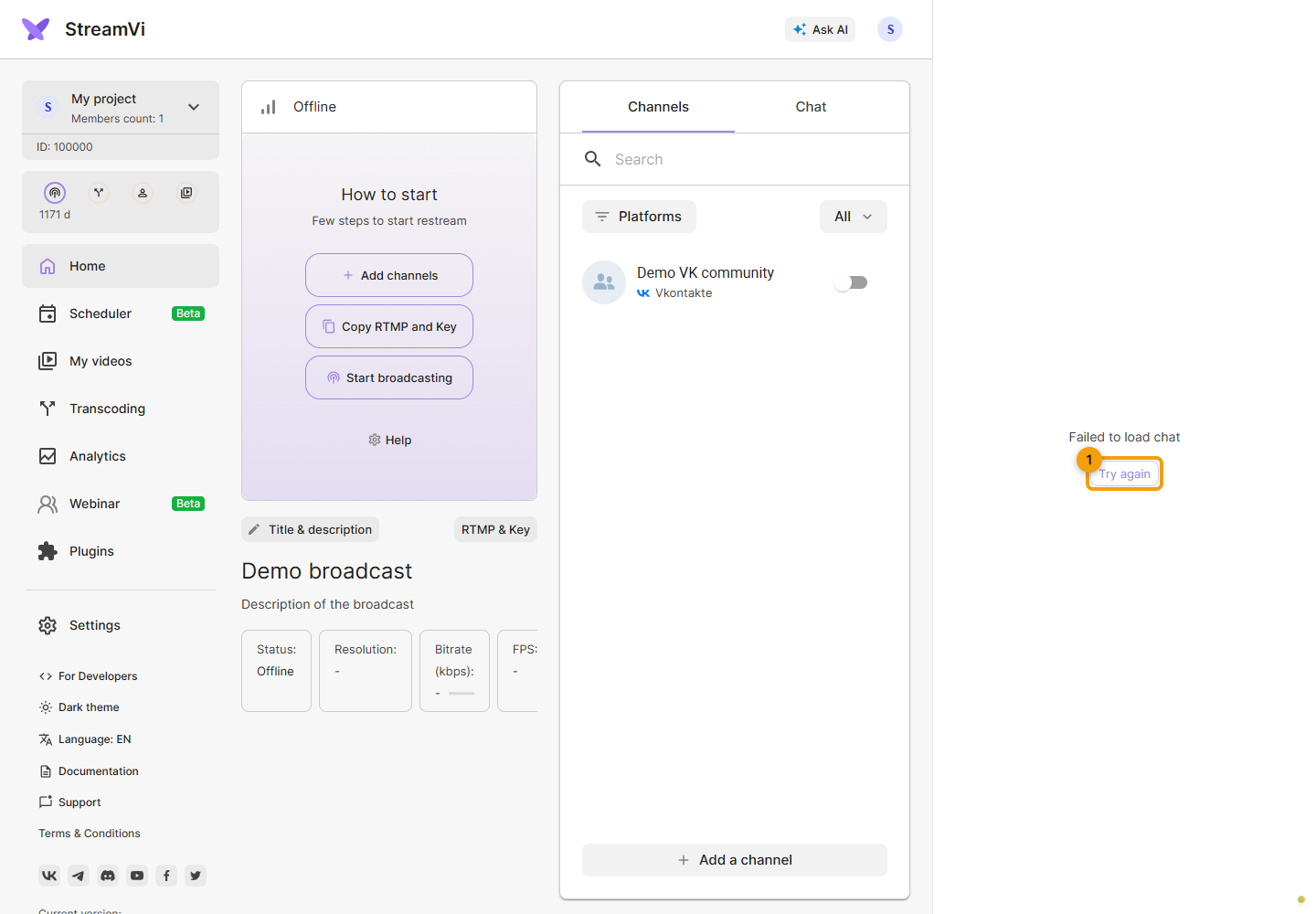
If the panel reports a loading failure, click Try again. If the error repeats, reload the page to return to the Cabinet, then open the relevant documentation article or contact support.
What should I send support?
Open Support in the Cabinet menu. In Feedback, choose MAX, VKontakte or Telegram. The selected contact method opens. On a phone, first open the sidebar.
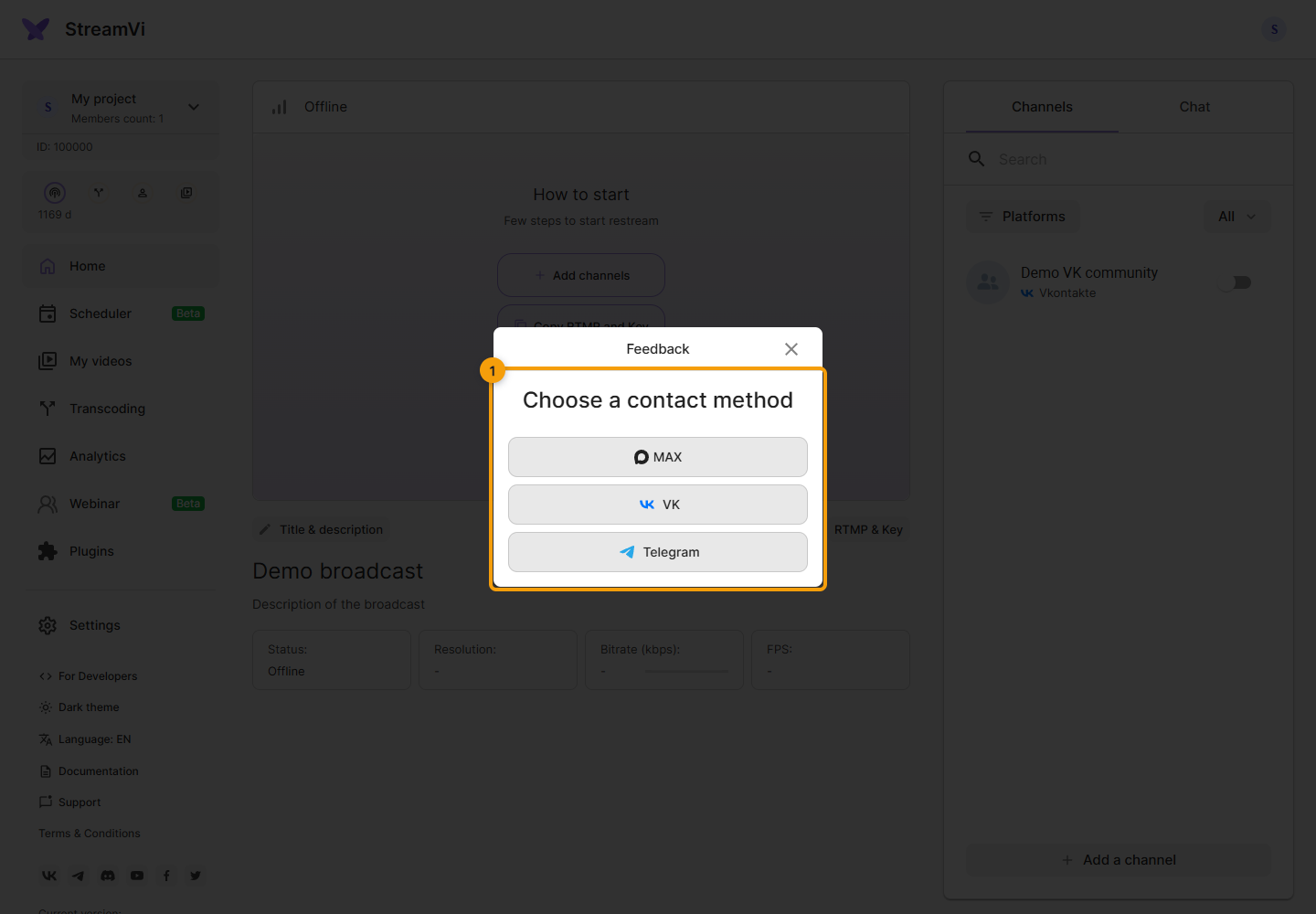
Send the section, exact time, error text and broadcast ID if relevant. Start with these details, excluding passwords, keys, tokens and private links. HAR files and other technical logs can contain sign-in data; send them only if requested by support, through a private channel and after removing secrets.
The Cabinet displays an error page
If the Cabinet displays an error screen, click Copy error details and send the report to support with a description of your last actions. Copy it before reloading: it contains information about this particular failure.
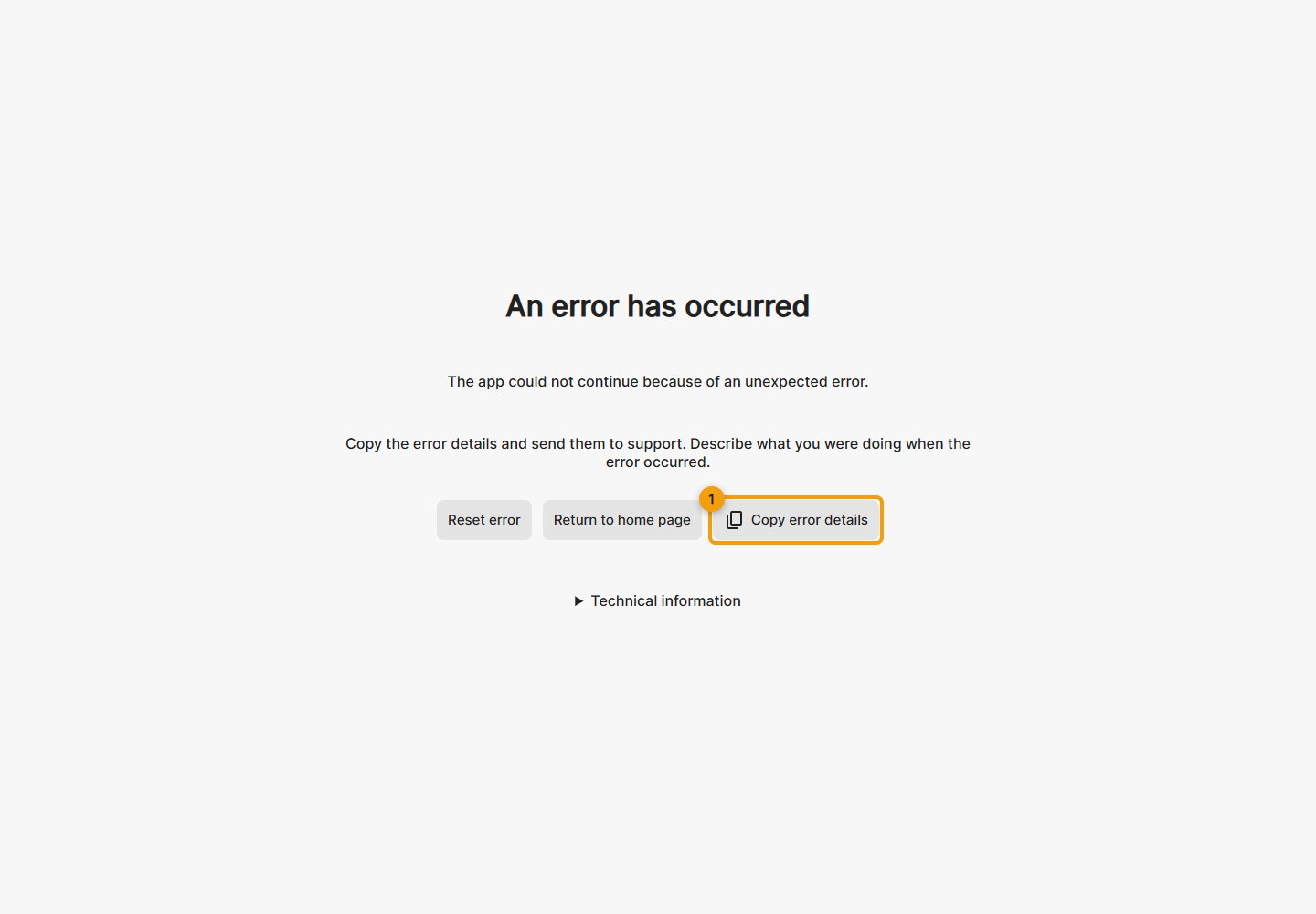
If automatic copying fails, Technical information opens with the report selected. You can also expand this section manually. Copy the report text.
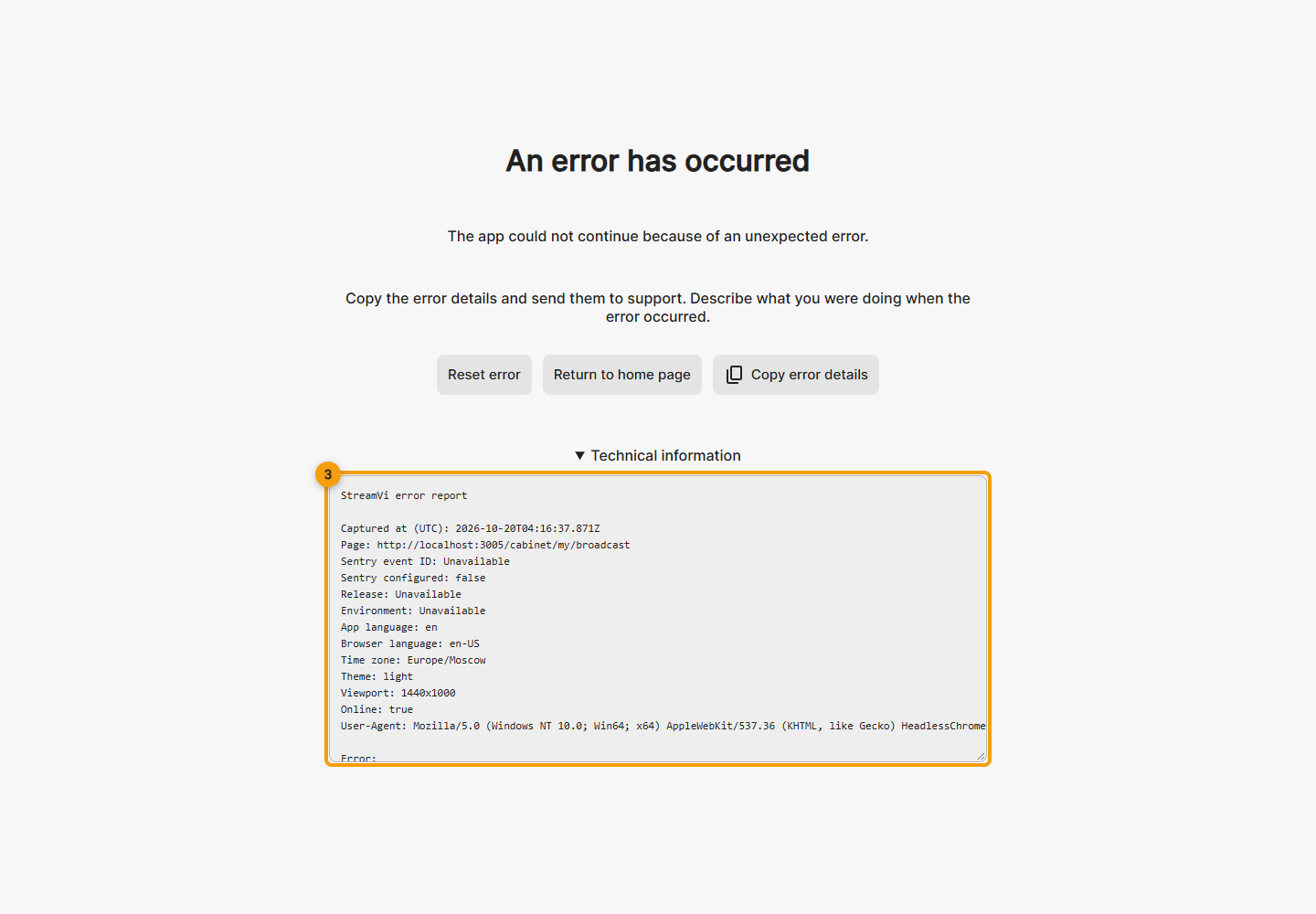
The screenshots show a demo error. After copying, use Reload page or Reset error; Return to home page opens your personal project’s Home page. If the failure recurs, tell support which action triggers it.