
Transcoding for Twitch
Twitch mode prepares multiple quality variants for Twitch from one incoming StreamVi stream. Quality parameters are determined automatically; the Custom form's manual bitrate, resolution and codec fields are not shown.
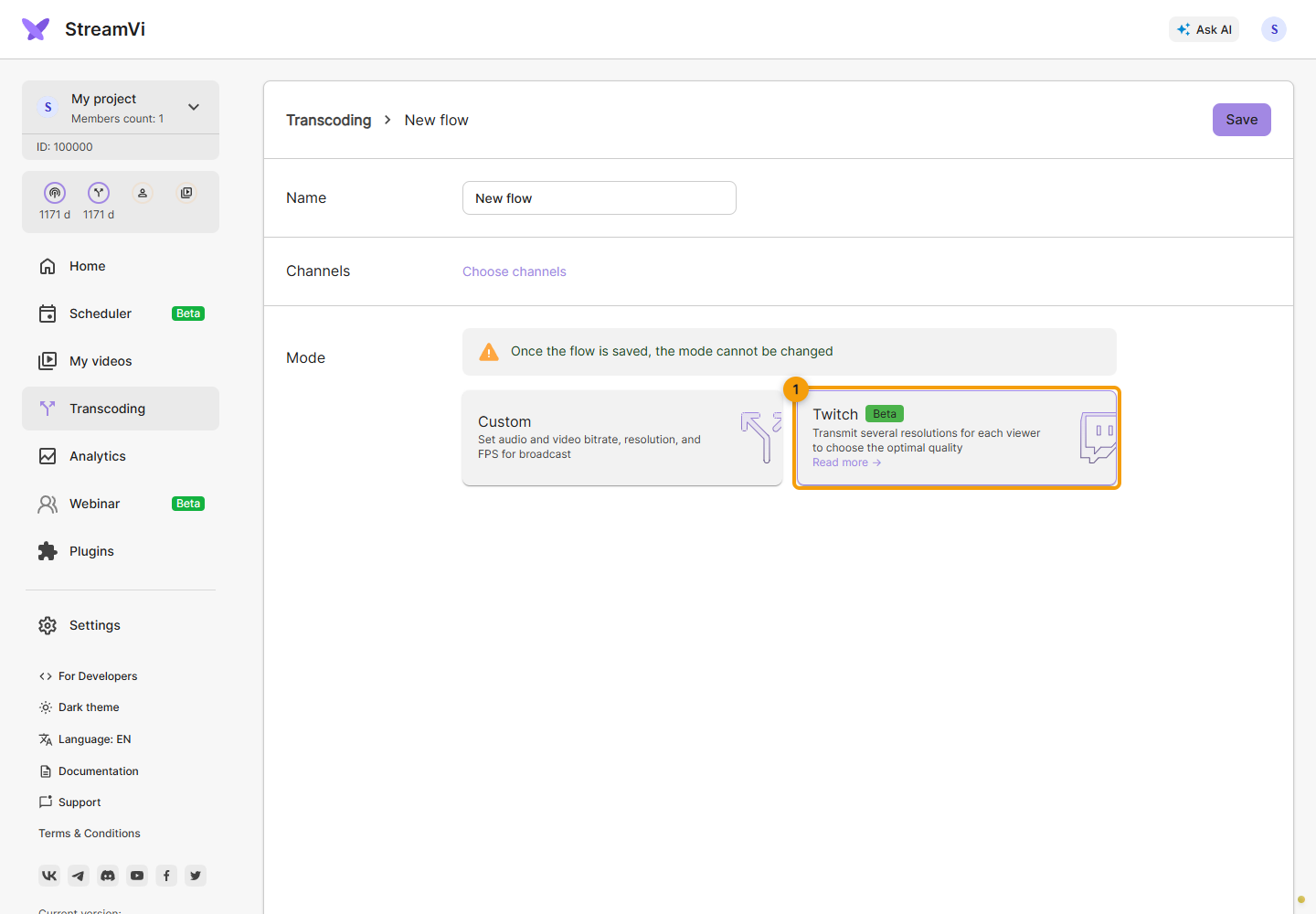
Open Transcoding → New flow, enter a name and choose Twitch mode. Its card is marked Beta. The manual Custom settings disappear.
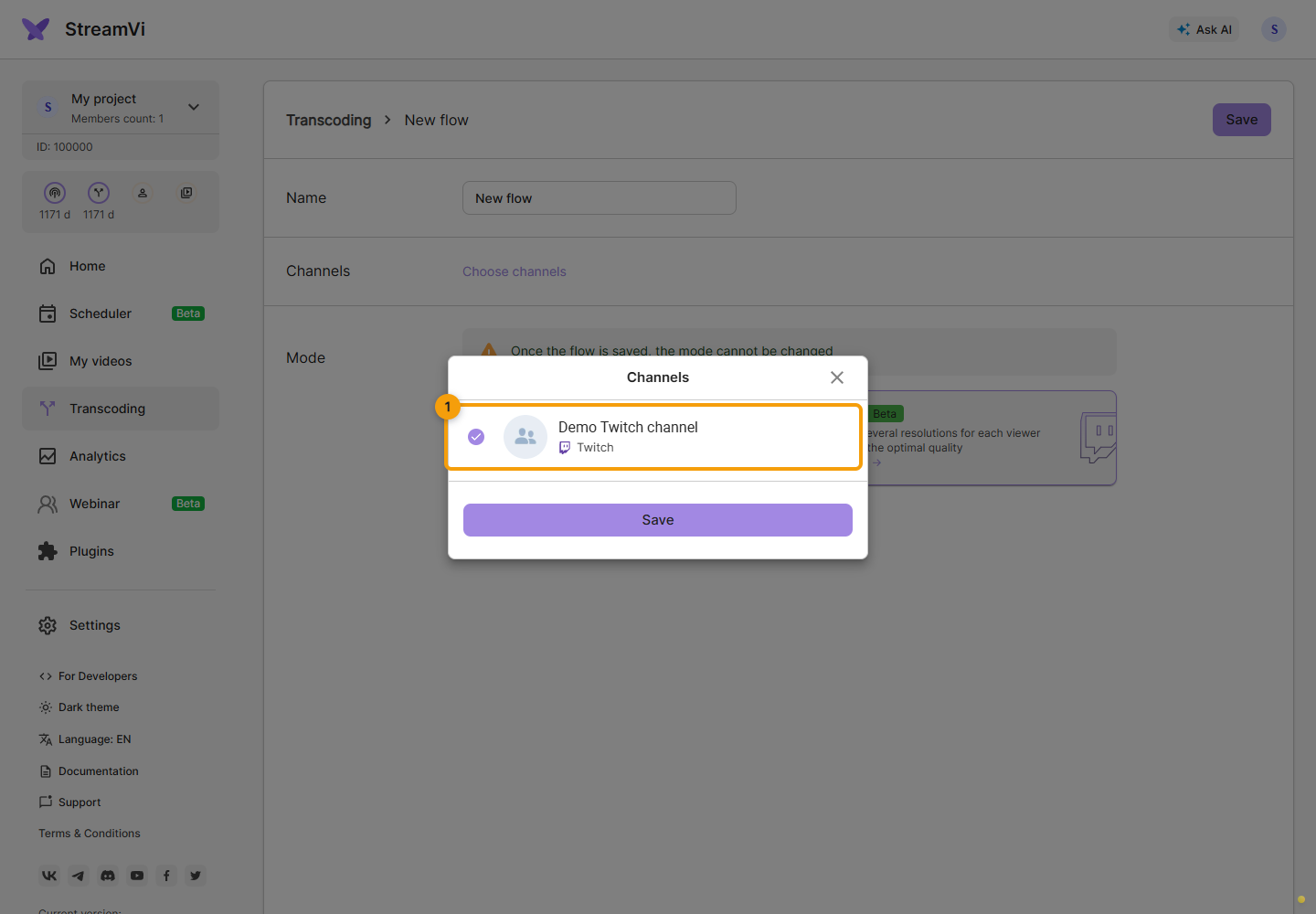
Open channel selection. Only Twitch channels appear. Select one channel: selecting another replaces the previous choice. Click Save in this dialog to apply the choice to the form.
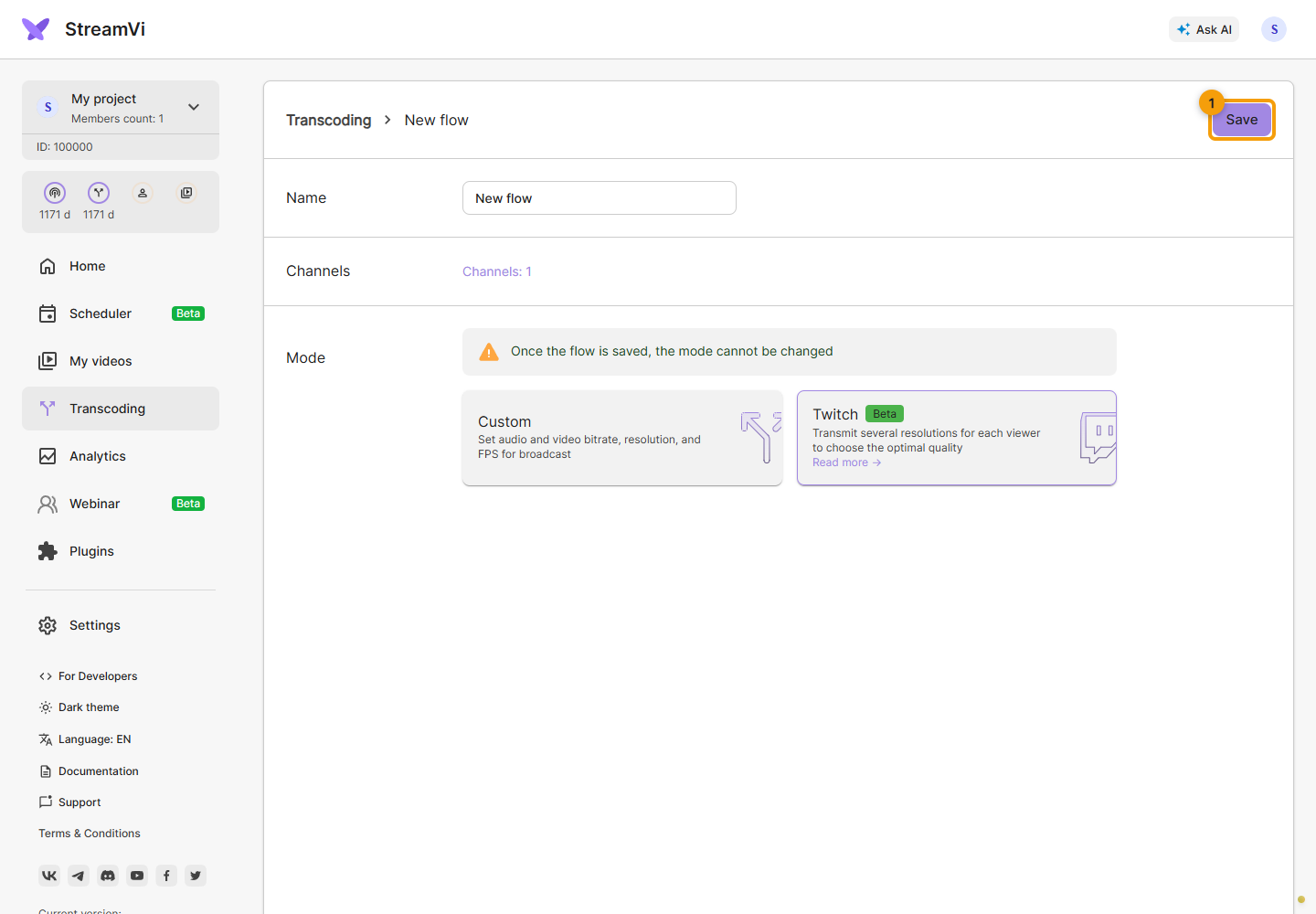
Check the name, selected channel count and mode. Click Save at the top of the page to create the flow. Saving channel selection alone does not create a transcoder.
The screenshots use a demo channel. You can also assign an existing flow in channel settings.
The mode is chosen at creation and cannot be changed during editing. To switch between Custom and Twitch, create a different flow and reassign the channel. Check your stream count and input resolution in the transcoding plan.
To check it, enable the channel and send source video to StreamVi, then inspect the result on Twitch. Saving a configuration does not start a broadcast. See general flow settings and controls.