Payments
Select the project and open Settings → Payments. Its balance, transaction history and purchased services belong to that project. Payment changes and withdrawals require the appropriate permissions; contact the project owner if an action is unavailable.
Transaction history
In transaction history, click Filters and set Date from and/or Date until. The selected bounds appear as chips: click a chip to change its date or its cross to remove one bound. Clear filters removes both dates. Refresh requests current data with the selected filter; earlier transactions load as you scroll. The referral program uses the same date filter. A top-up, service purchase and reward credit are different operations.
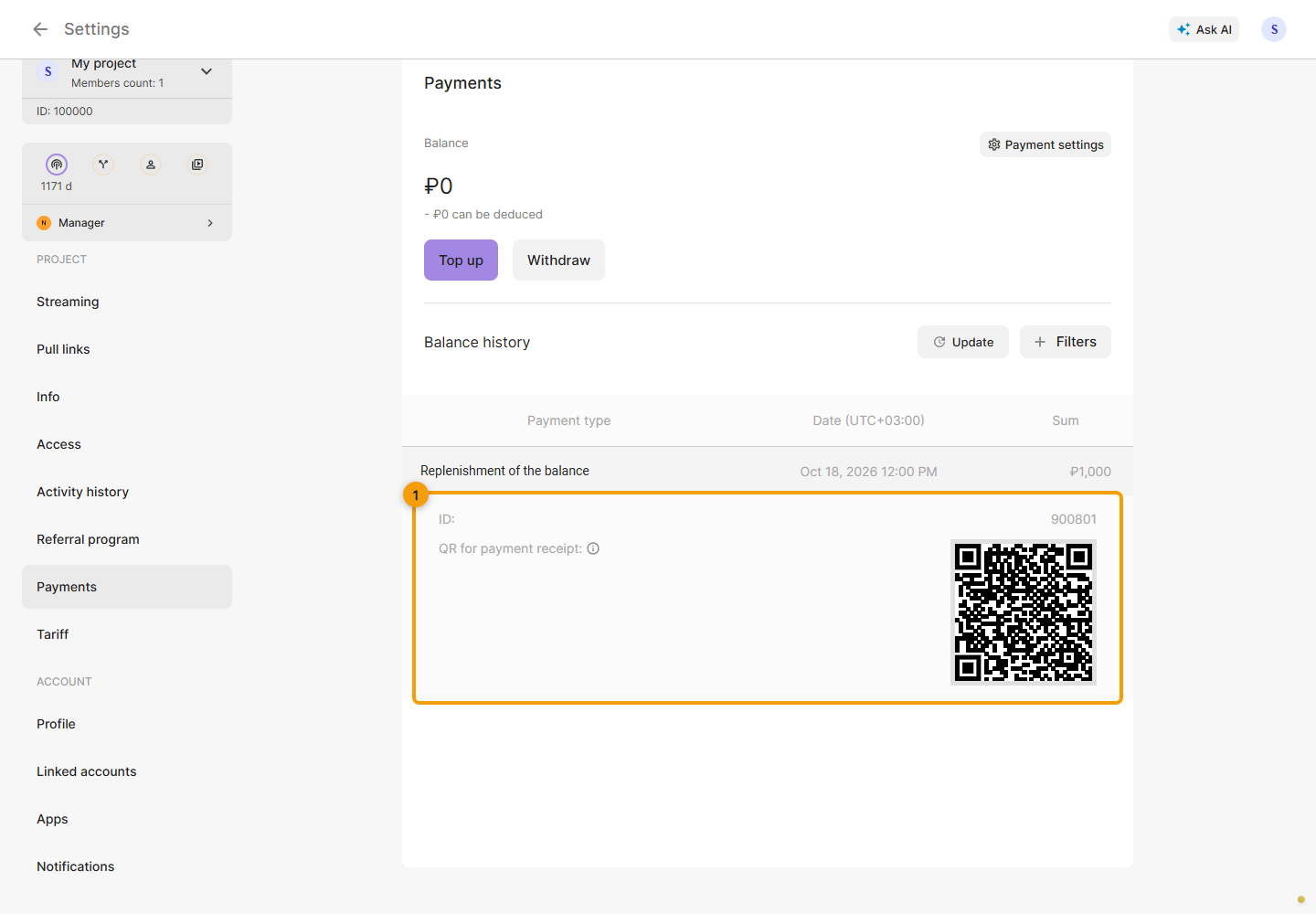
Click a transaction row to expand its details; click it again to collapse them. Check the transaction type, date and amount before contacting support.
The details include the transaction ID. Payout and refund entries also show their status when supplied by the service. When receipt data is available, QR for payment receipt appears; scan it with a receipt verification app. This QR belongs to an issued receipt; obtain new payment details from the payment dialog itself.
Expand the transaction and check its ID and receipt QR, if available. The screenshot is a demo example; its QR is not a real receipt.