
Plugins
Select the project and open Plugins in the left menu. Catalog contains available applications; Installed contains those connected to this project. Private applications appear separately when their developer has granted the project access.
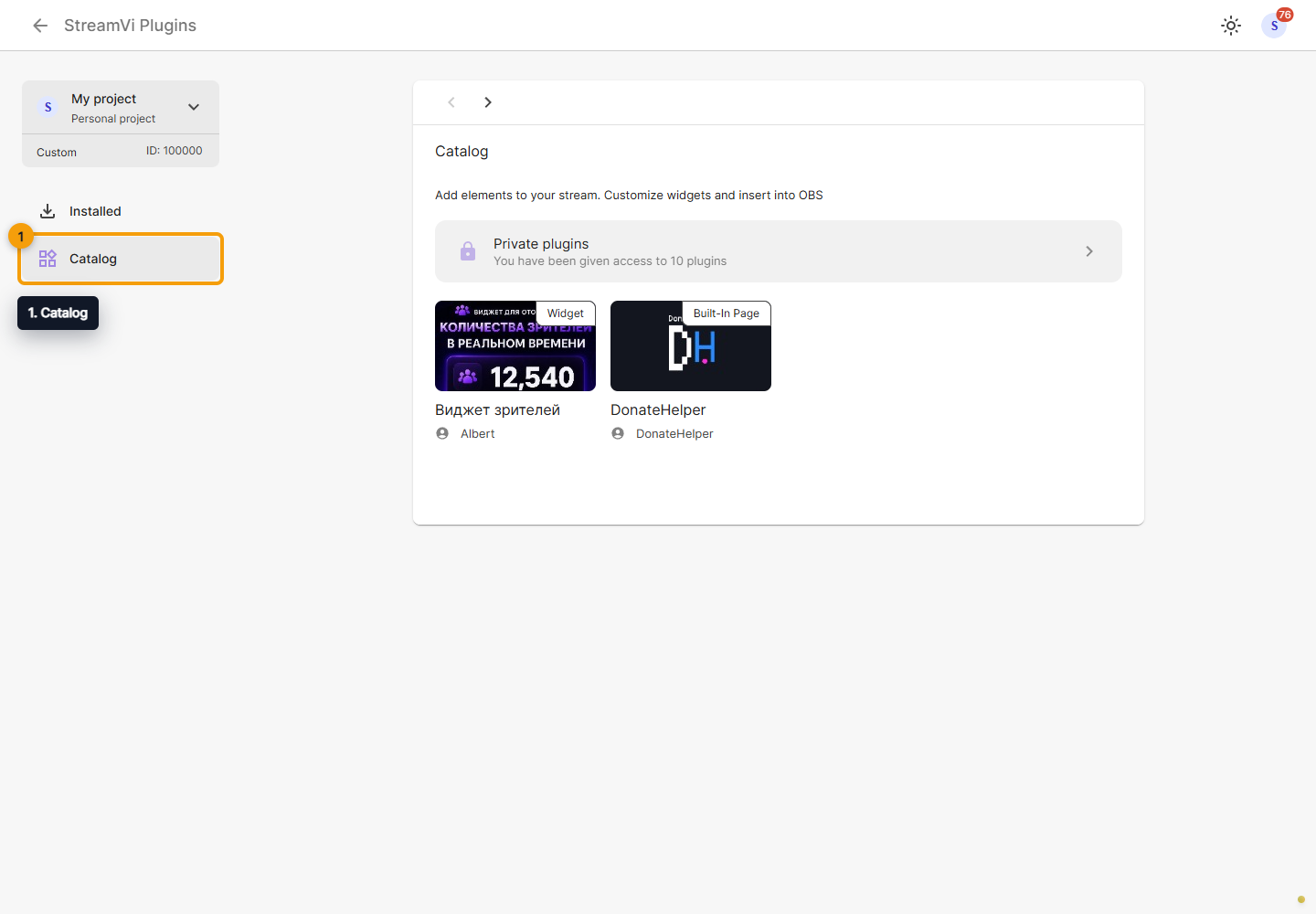
Installation
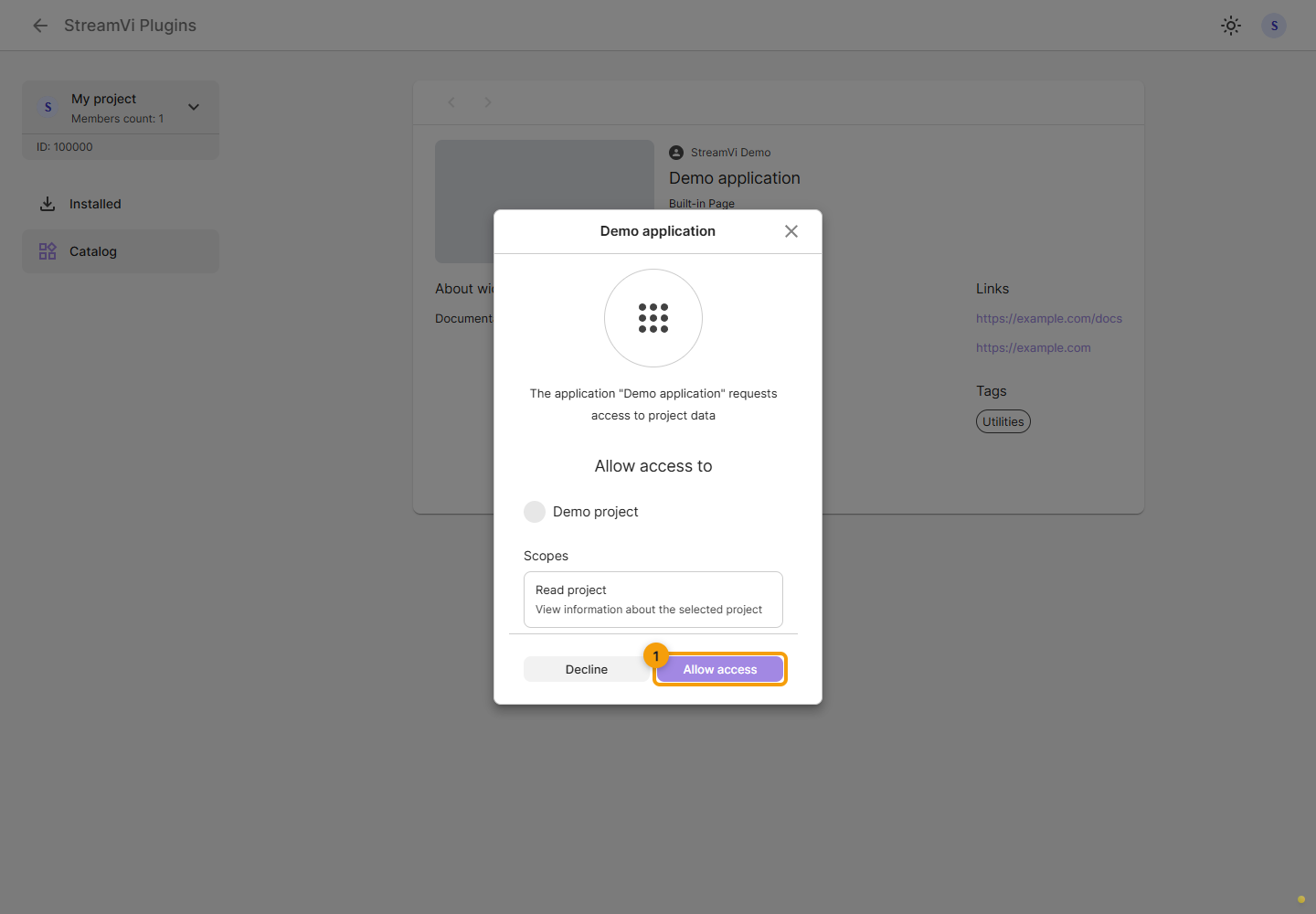
Open a plugin card and read its description, author, documentation and application website links. Click Install. In the next window, check the project name and requested permissions. Allow access installs the plugin; Decline closes the request without installing. If the wrong project is selected, close the window and switch projects first.
After installation, click Launch. An embedded page opens inside the Cabinet, while a widget offers template selection or creation.
OAuth applications
An OAuth integration's Go to button opens its website. When signing in through StreamVi, choose a project and click Continue. If permissions are requested, a separate consent screen lists them: review it and allow or decline access. With a preselected project, this screen may appear immediately.
Project, redirect URI or permission-list errors are not resolved by repeatedly confirming. Check your project access; report application configuration errors to its developer. Do not send passwords, tokens or secret links.
Share
Share opens a link to the plugin card. This link alone does not grant access to a private application. A widget-template link is for using the widget and may contain a secret; do not publish it along with the catalog link.
Remove a plugin
Before removing an installation, check the selected project. Removal deletes its widget templates, issued tokens and authorization codes; the connection stops working in this project. The developer's application and its installations in other projects remain.
If the correct project is selected, use the card's removal action and confirm. Removing a project from the developer's private access list does not replace this action or revoke tokens already issued.
The new screenshots show a demo application. Its name and sample permission illustrate the installation dialog; check the permissions of the actual plugin you install.
For questions about configuring a particular widget, consult its author's documentation and contact details. To create a plugin, see the developer section.