
Activity history
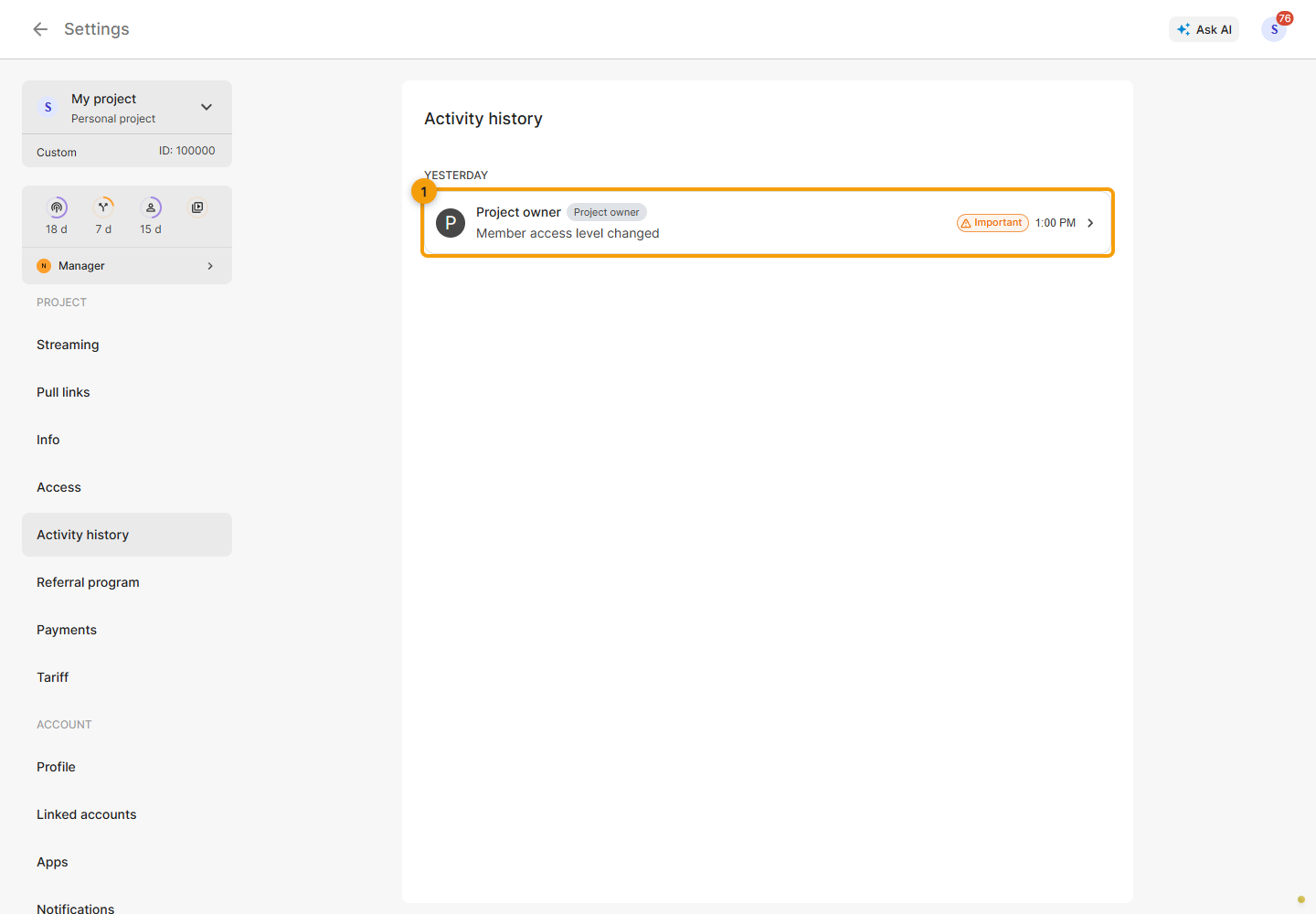
Select a project and open Settings → Activity history. Available project and channel changes are grouped by day.
Each entry shows the actor, action and time. Actions made through an integration or another source may have a separate source badge. Hover over a relative time to see the exact date and time.
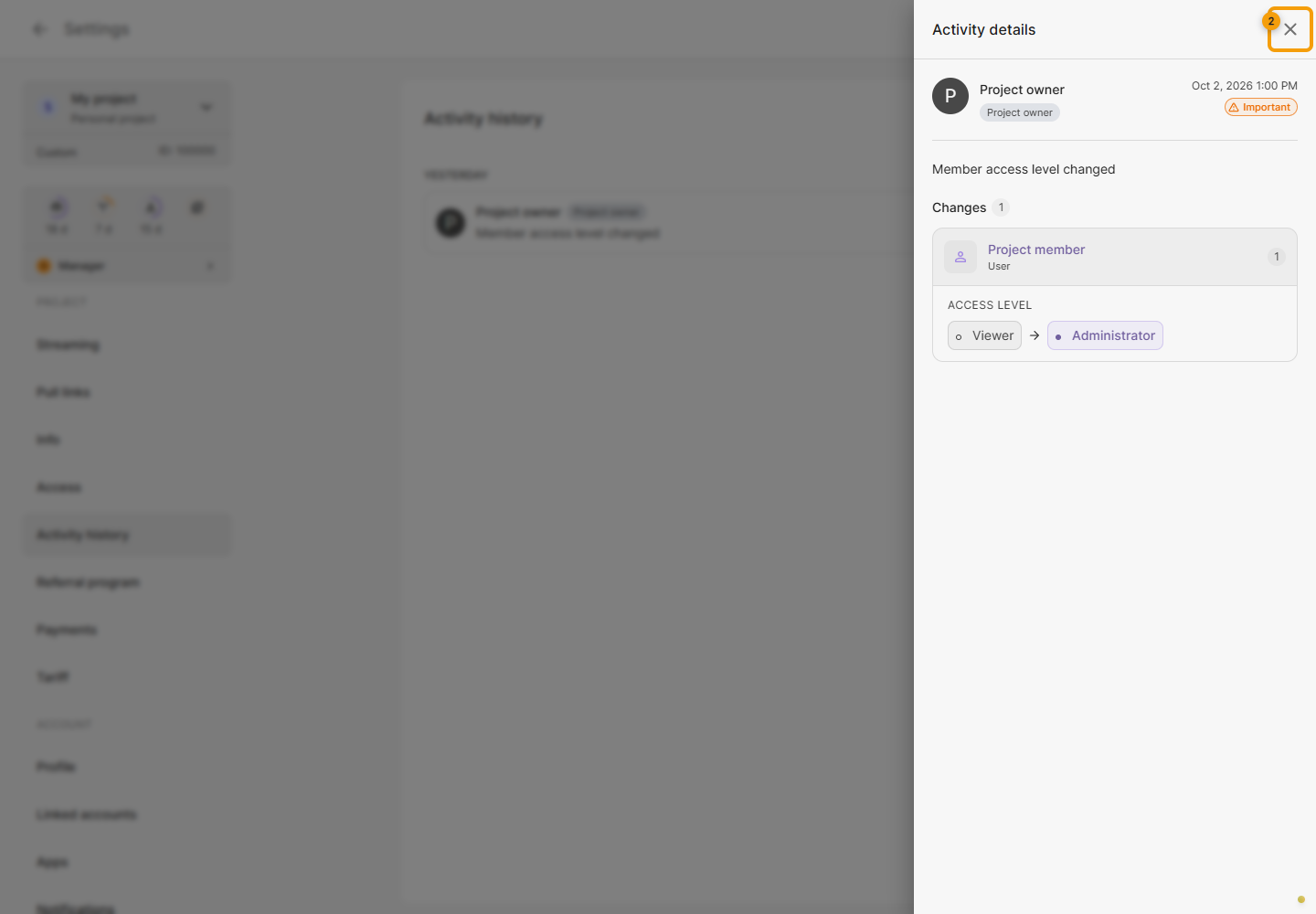
Click an entry to open the details panel: the affected object, actor, source, exact time and available value changes. For a channel transfer, check the previous and new owner; for a settings update, compare before and after values when the event includes them. Sensitive values may be hidden.
Close the panel with its cross to return to the list.
Scroll down: the next part of the history loads automatically while earlier entries remain. A progress indicator appears during loading. If the next part fails to load, the entries already shown stay in the list; click Retry below them. Retry is also available if the initial request fails. The empty-history message means there are no available entries yet.
History helps explain changes; it does not undo them. For bitrate graphs and errors during a stream, open Analytics.