
Restreaming plans
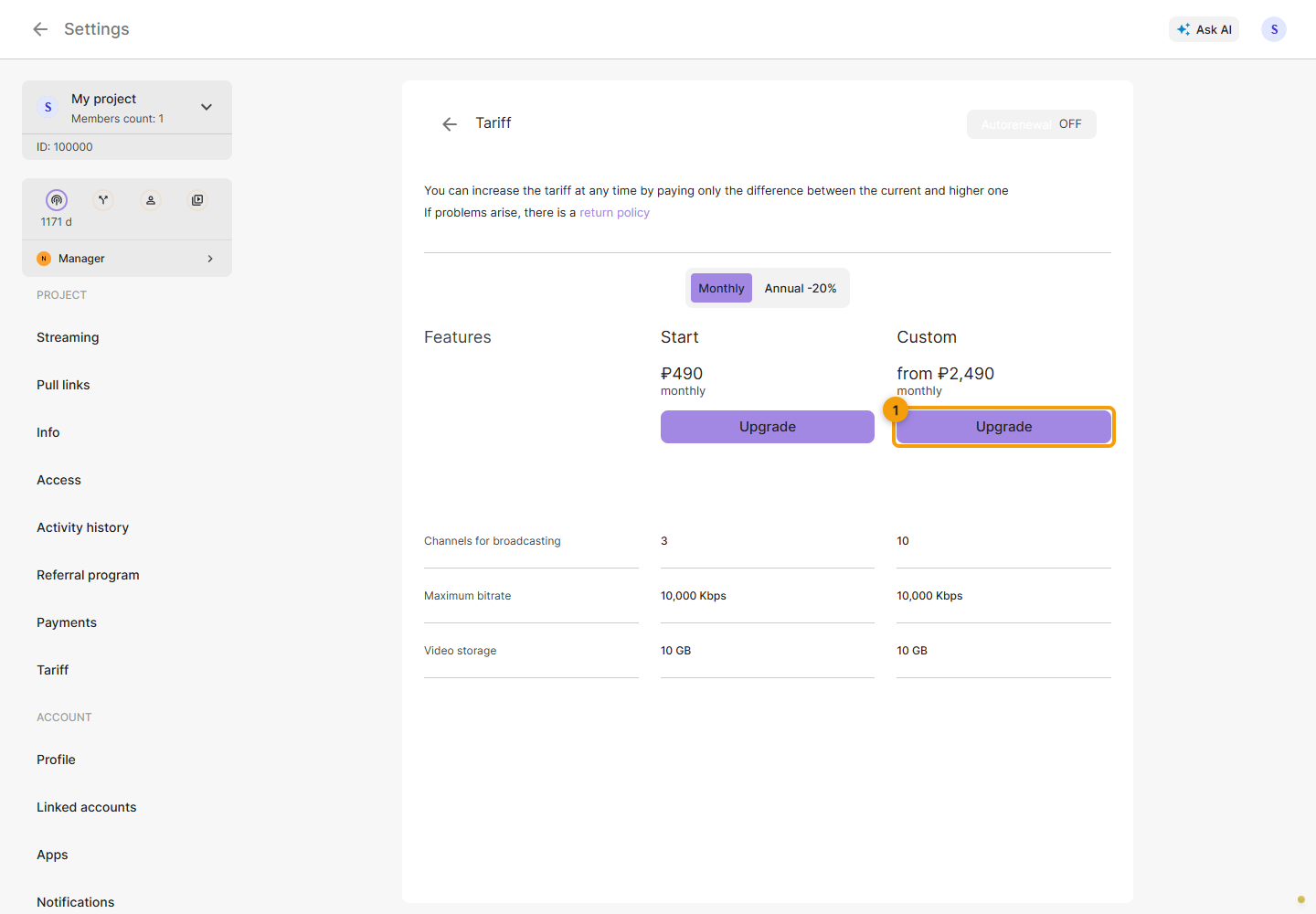
Select the project and open Settings → Plan → Restreaming. Cards show current prices, simultaneous-channel limits, allowed bitrate, video storage and additional features. These depend on the plan; check the card before purchasing.
Choose a plan
Select a monthly or yearly period, compare the limits and click the button for the plan you need. The channel limit applies to simultaneous use. Screenshots show an example; check current prices in the Cabinet.
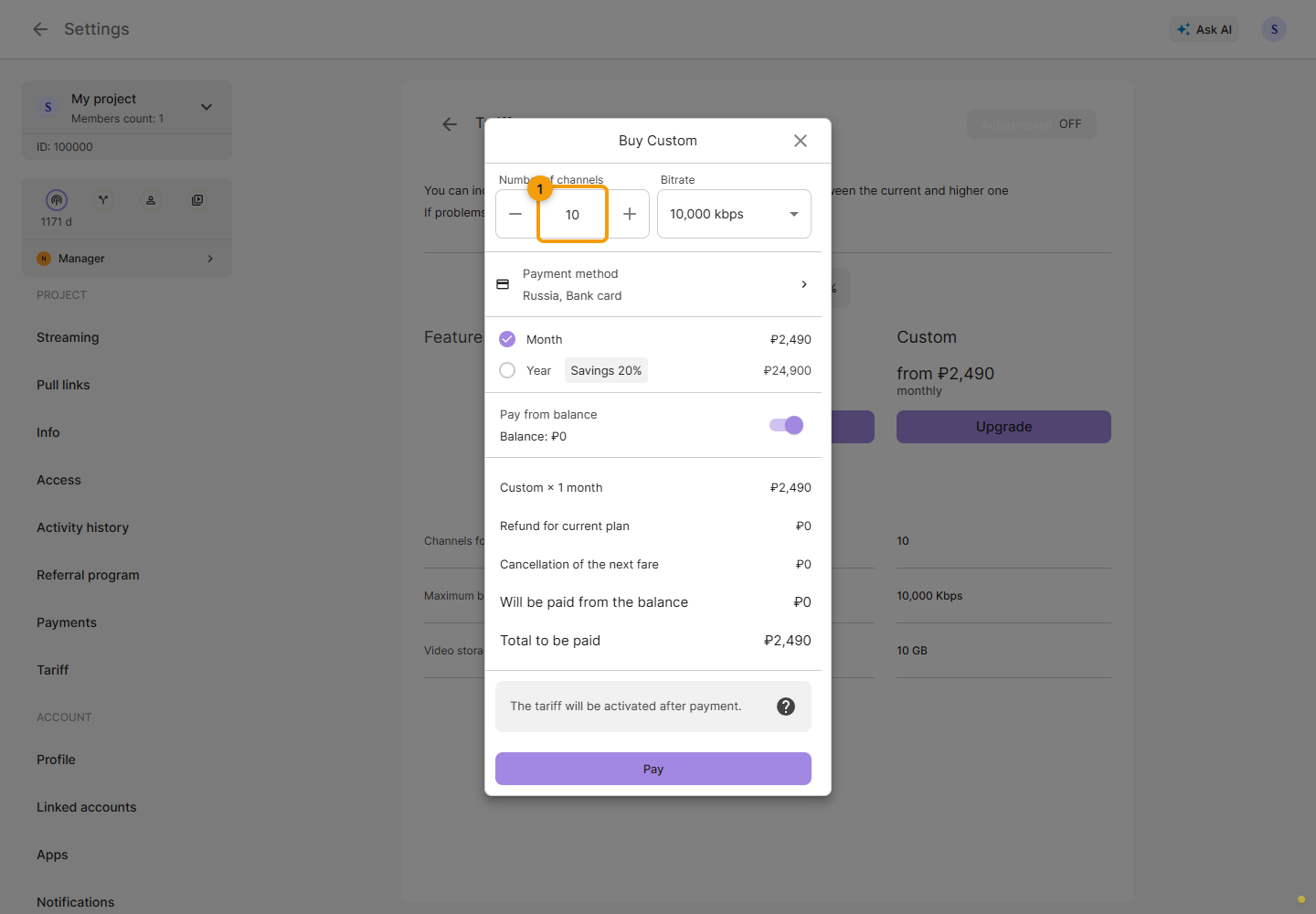
Set the channel count in the Custom form and choose one of the offered bitrates. Wait for the calculation to update after a change.
The free plan restricts file-video features and changes to stream titles and descriptions. If an action is blocked, open the plan offer in the Cabinet. See Titles and descriptions.
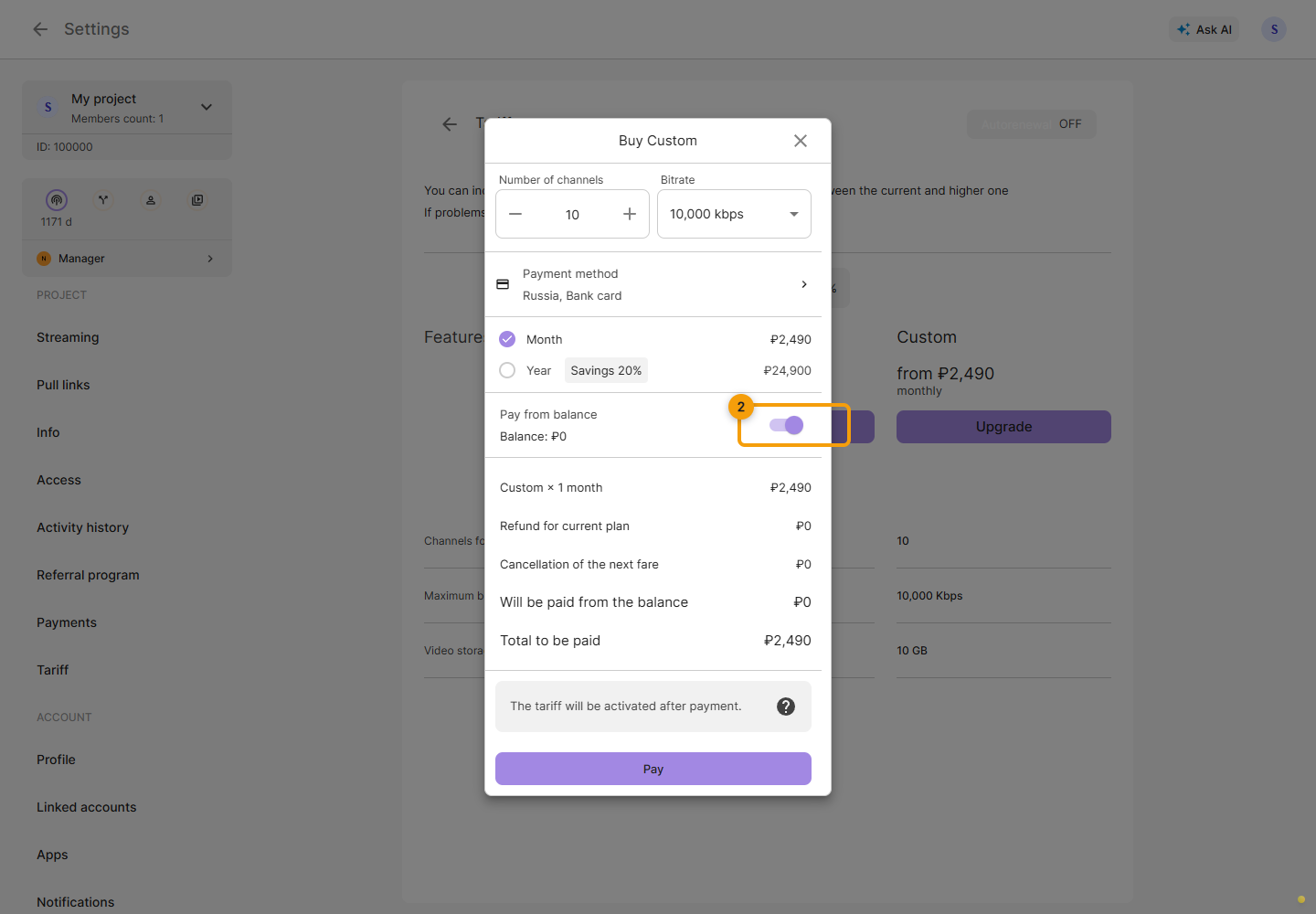
Before paying, review the parameters, period, credit for the current plan and total. The “Pay from balance” switch controls use of the available balance. Fill in payment details if needed. Confirm the purchase only after reviewing the calculation. See Payments.
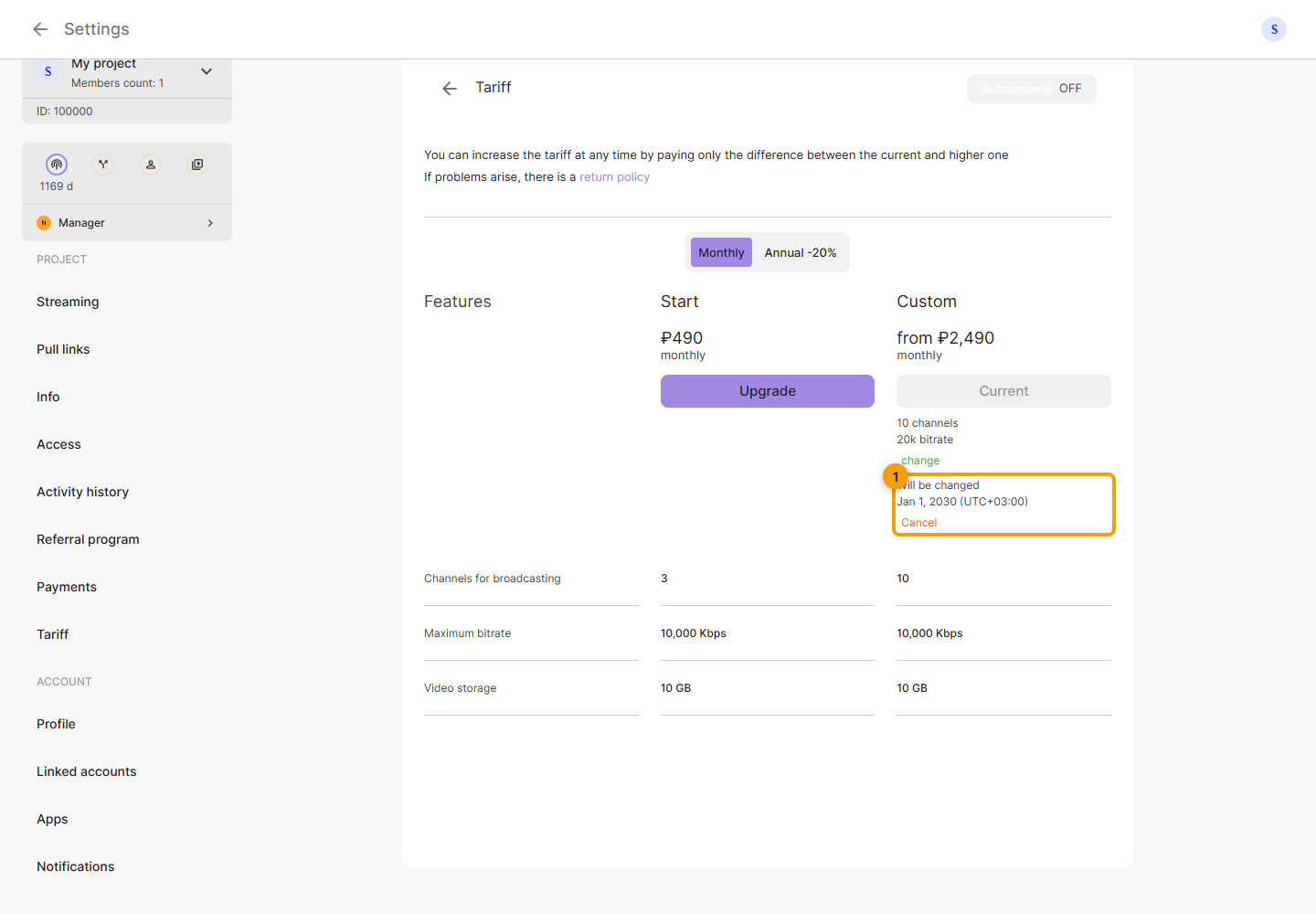
Current and next plan
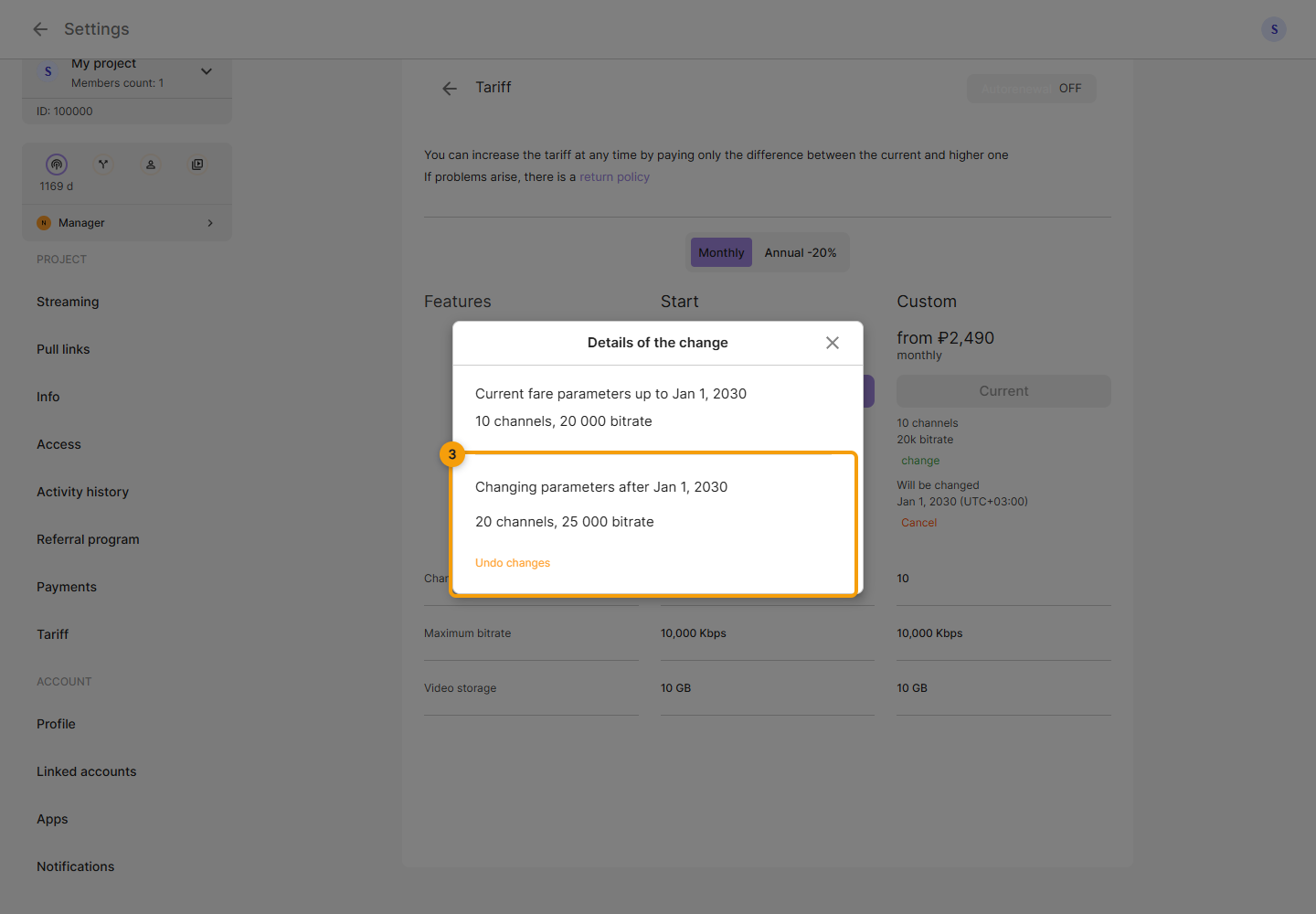
The card shows the current plan and, if a future change is scheduled, the start date of the next conditions. Do not treat the new limit as active before that date. To cancel the pending change, click Cancel below the date.
In the dialog, compare the current and next limits and dates. To cancel the scheduled change, click Undo changes. The screenshots use demo values.
Check Auto-renewal, the price and the next payment date in the plan overview. The switch saves immediately. Transcoding, additional storage and webinars have separate parameters and expiry dates; check them independently of restreaming.
The sidebar shows the remaining service periods below the project list. On a computer, hover over this block to see plan names and expiry dates. For an active Custom plan, a Manager link appears at the bottom of the block and opens the contact in Telegram. For general questions, use Support near the bottom of the sidebar.