
Configure transcoding
Open Transcoding in the left menu. The current plan, expiry and flow usage appear above the list. An active transcoding plan is required; the plan limits the number of available flows.
Create a flow
Click New flow and enter a name. The name is required and allows up to 255 characters. A flow groups channels that need the same processing settings.
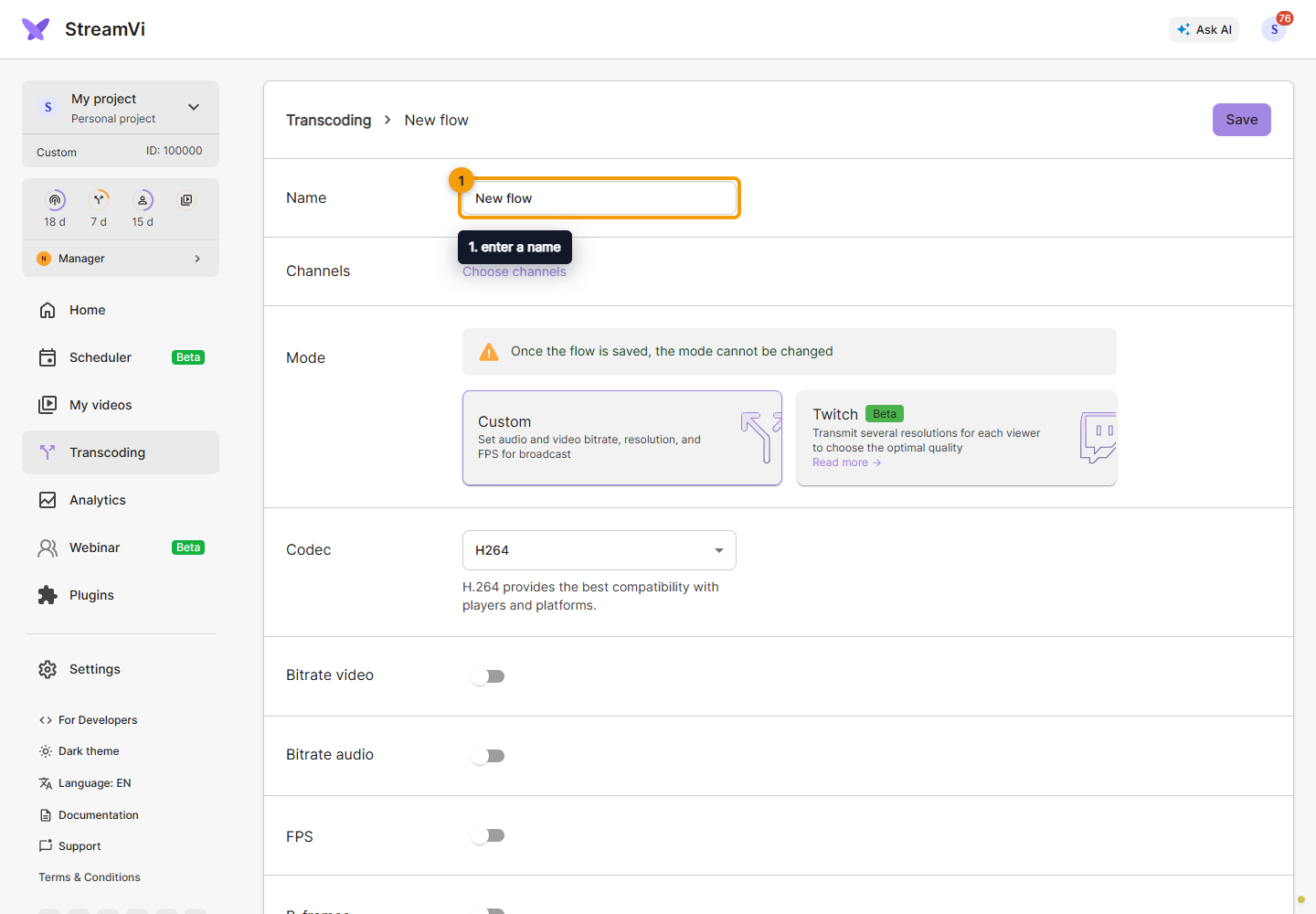
Choose Custom for manual settings or Twitch for multiple Twitch quality variants. The mode cannot be changed after saving: create a separate flow for another mode. Twitch mode limits selection to suitable channels; see Twitch mode.
Open channel selection, select the channels you need and click Save inside that dialog. This transfers the selection to the flow form. After configuring its settings, also save the flow using the button at the top of the page. If you change the mode while creating a flow, check the selected channels again before saving.
The selection dialog respects the name-search text left in the channel list on the main page. If a channel is missing, clear the search field, then return to channel selection. Platform filters are stored in the current page address; normal navigation to Transcoding through the sidebar does not carry them over. If you opened the form through a link with these filters, reopen the section through the menu. Twitch mode also restricts the platform and allows only one selected channel.
In Custom, select H.264 or HEVC. Enable only the settings you want to specify and fill in the fields that appear. Numeric fields accept integers.
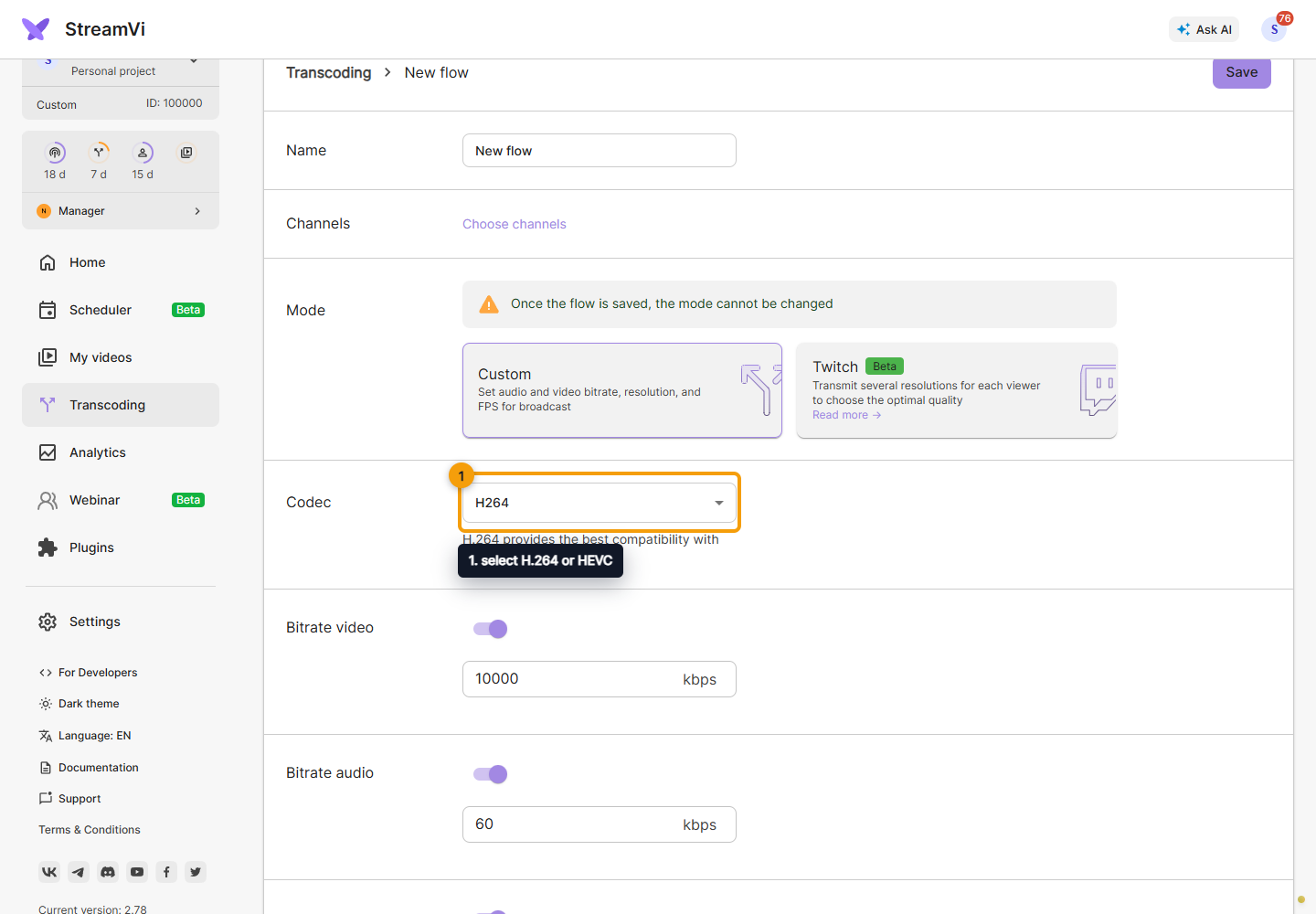
| Setting | Range accepted by the form |
|---|---|
| Video bitrate | 1,000-100,000 kbps |
| Audio bitrate | 60-1,000 kbps |
| FPS | 5-60 |
| B-frames | 0-3 |
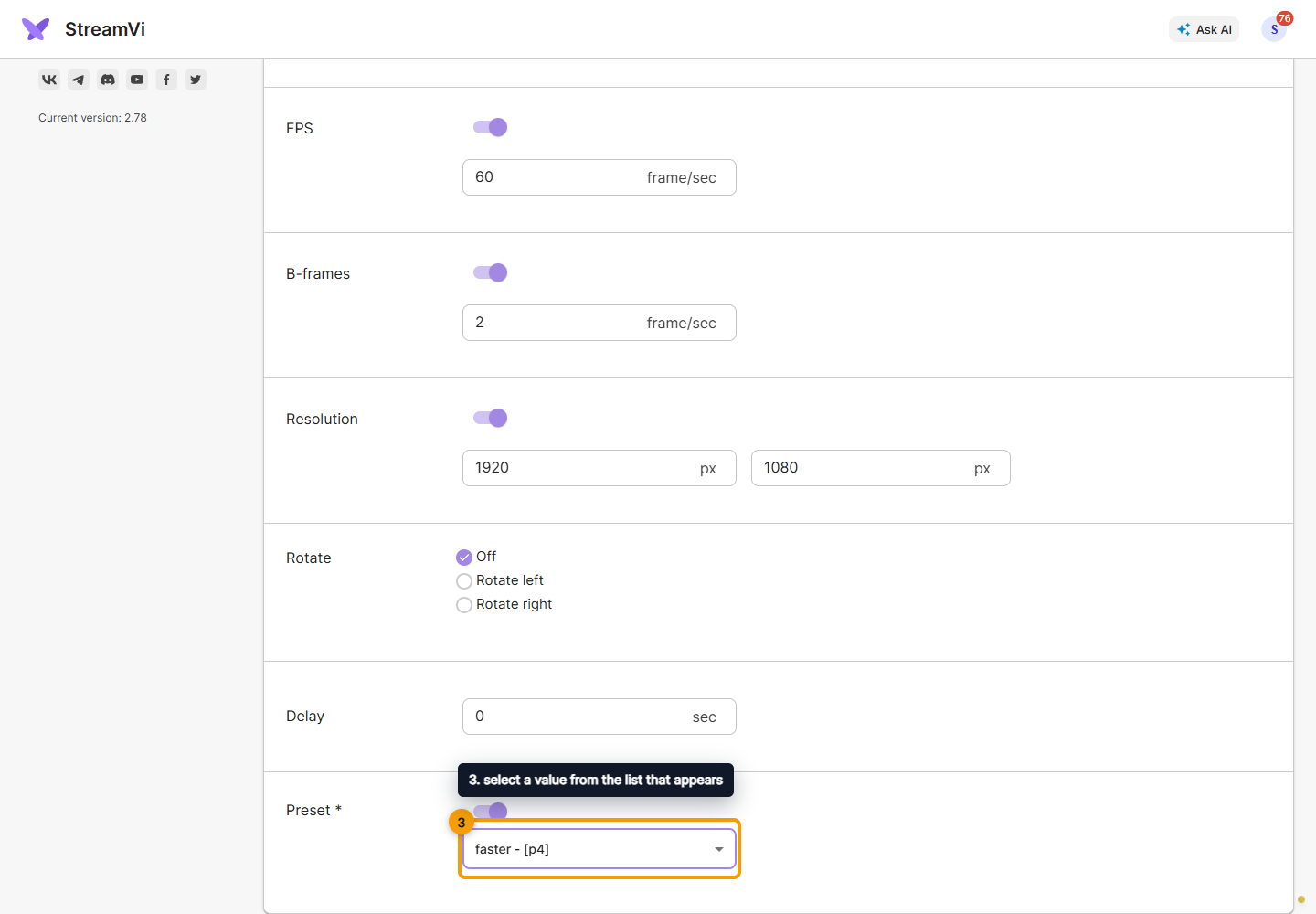
| Width and height | width: 100-4,000 pixels; height: 100-4,000 pixels |
| Delay | 0-1,200 seconds |
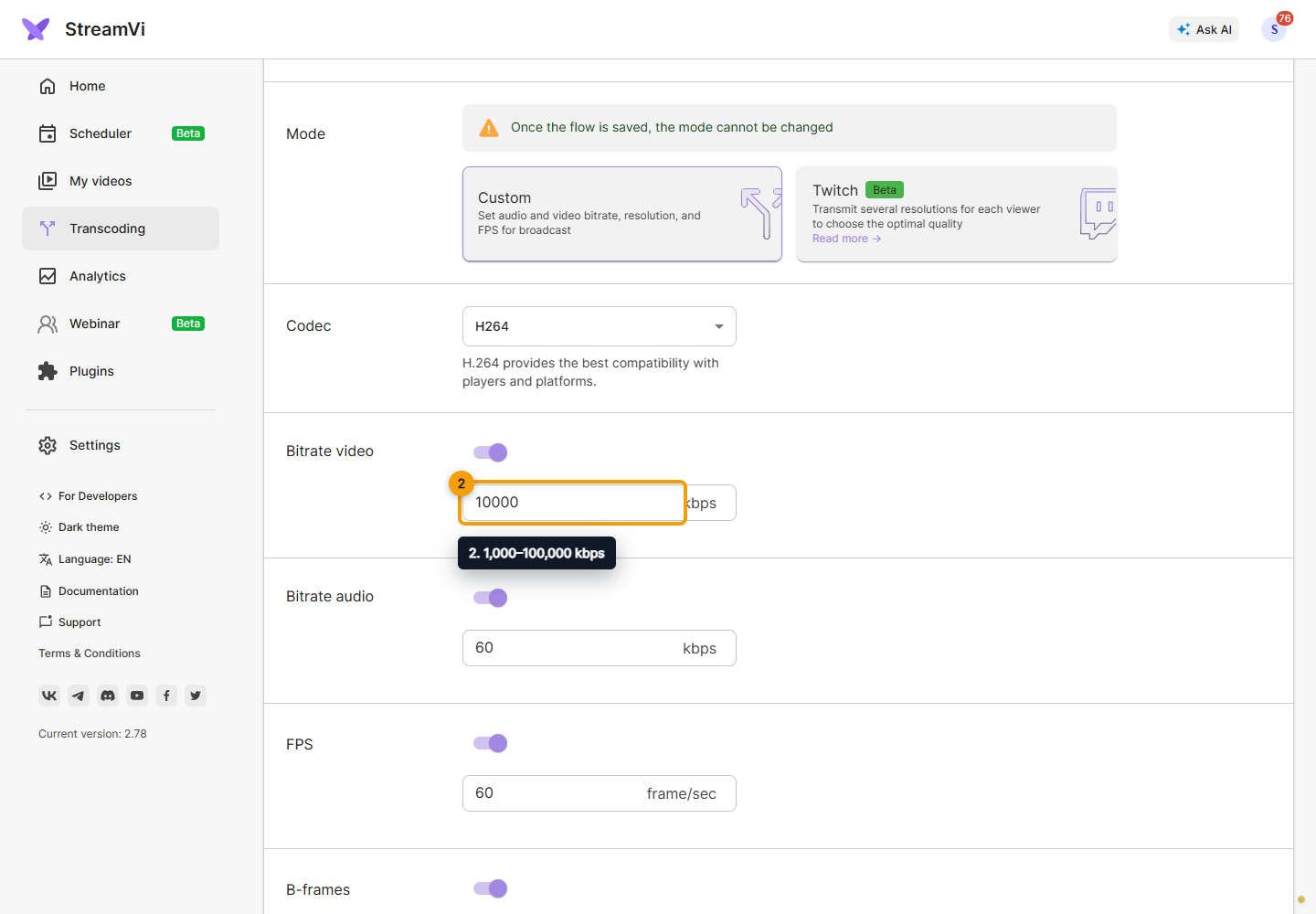
These are form limits; your plan and destination platform may impose further limits. Rotation can be off, left or right. Preset is shown only with the corresponding access permission.
To choose a preset, enable its switch and select a value from the list that appears.
Click Save. The flow appears in the list after successful creation. It processes the incoming broadcast for assigned channels; creating a transcoder does not start a broadcast.
Edit, stop or delete
Click a flow or choose Edit in its menu. Change settings or channels and save. Remove a channel from the transcoder to send it the original stream; assignment is also available in channel settings.
Open the flow's three-dot menu. An active flow offers Stop. When its current delay exceeds 1 second, Reset delay also appears. Both commands run immediately, without another confirmation.
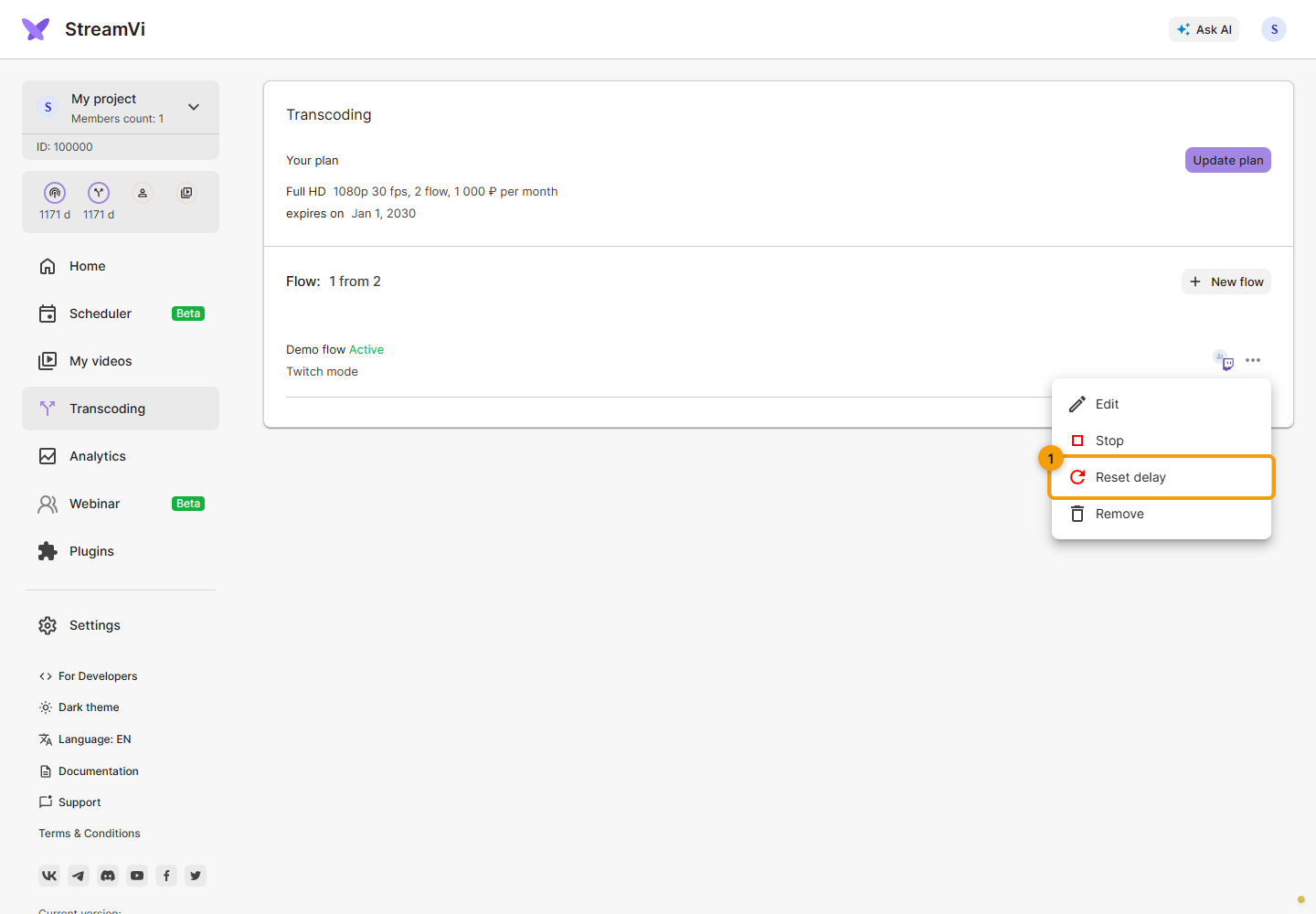
To delete a flow, choose Remove in its menu. Review the confirmation dialog. Click Yes only if the flow is no longer needed; No closes the dialog without deleting it.
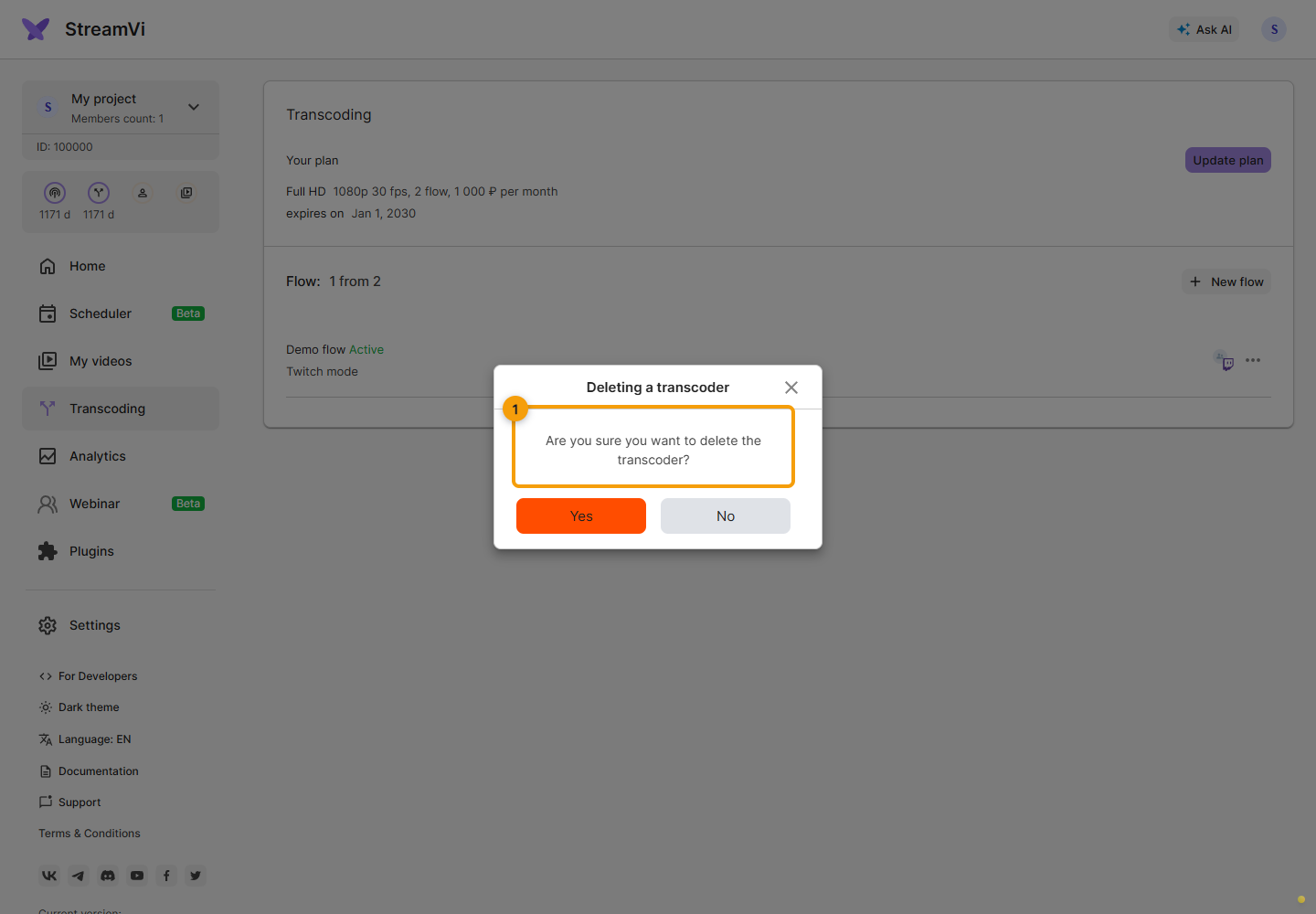
The screenshots show a demo flow. If saving or an action fails, read the message and check the settings and plan limits before retrying.